
Learn how to use formulas in Excel to perform calculations and analyze your data.
Once your data is properly entered and formatted, the next step is using formulas to turn that data into useful information. Formulas allow you to calculate totals, averages, and other results quickly and accurately.
In this module, you’ll learn basic formulas and calculations in Excel, including how Excel formulas work, how to write them correctly, and how to use basic functions to perform calculations.
By the end of this section, you’ll be able to create simple formulas and use Excel to calculate and analyze your data with confidence.
This module is part of the Beginner Learning Path, a structured series designed to help you learn Microsoft Excel step by step.
Lessons in Basic Formulas and Calculations
This module is designed to help you understand and use formulas in Excel step by step. Each lesson builds on the previous one, so follow them in order for the best results.
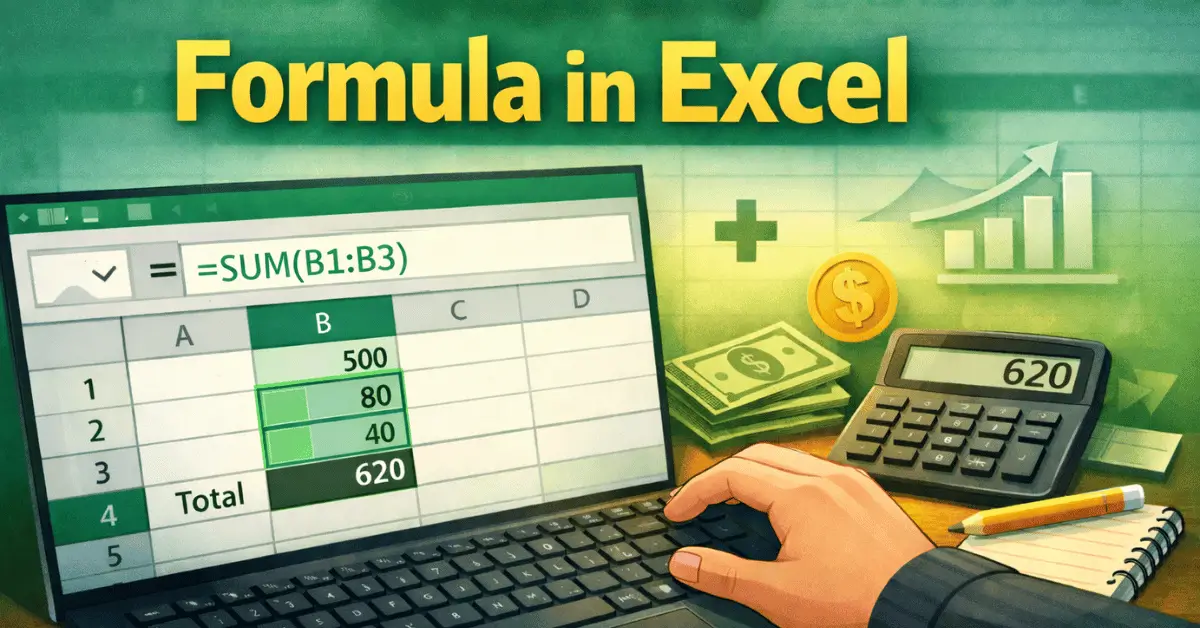
Excel Formula for Beginners: What Is a Formula in Excel?
🔜 What You Will Learn in This Module
- What Is a Formula in Excel?
- How to Create a Simple Formula in Excel.
- Understanding Cell References in Excel.
- Relative vs Absolute References in Excel.
- How to Use the SUM Function in Excel.
- How to Use the AVERAGE Function in Excel.
- How to Use the MIN and MAX Functions.
- How to Use Basic Arithmetic Operators in Excel.
- How to Use AutoSum in Excel.
- Common Formula Errors in Excel and How to Fix Them.
More lessons will be added soon as we continue building this learning path.
What Are Basic Formulas and Calculations in Excel?
Formulas in Excel are expressions used to perform calculations using numbers, cell references, and functions.
You can also explore Microsoft’s official guide to learn more about creating and using formulas in Excel.
A formula always begins with an equals sign (=) and can include:
- Numbers.
- Cell references (such as
A1orB2). - Mathematical operators (
+,−,×,÷). - Functions like
SUMorAVERAGE.
For example, a simple formula can add values from two cells or calculate the total of a column.
Understanding how formulas work is essential because they allow Excel to automatically calculate results and update them when your data changes.
How to Use This Module
To get the best results from this module:
- Follow the lessons in order.
- Practice writing formulas in Excel.
- Pay attention to cell references.
- Test your formulas to make sure they work correctly.
Tip:
Always start your formulas with equal sign = and double-check your references before pressing Enter.
Why Formulas Matter in Excel
Formulas are what make Excel powerful.
This module helps you:
- Perform calculations quickly and accurately.
- Reduce manual work and errors.
- Analyze data more effectively.
- Build a strong foundation for advanced functions.
Once you understand formulas, you can automate many tasks and save time.
Common Beginner Mistakes with Formulas
Many beginners struggle with formulas at first. Common mistakes include:
- Forgetting to start with
=. - Using incorrect cell references.
- Mixing up relative and absolute references.
- Typing formulas incorrectly.
- Not understanding error messages.
This module will help you avoid these mistakes and build confidence when working with formulas.
What You Will Be Able to Do After This Module
After completing this module, you will be able to use formulas in Excel to perform basic calculations.
You will be able to:
- Create simple formulas using operators.
- Use basic functions like
SUMandAVERAGE. - Understand and use cell references correctly.
- Apply
AutoSumfor quick calculations. - Identify and fix common formula errors.
These skills are essential for analyzing data and building more advanced Excel solutions.
What’s Next?
Once you’re comfortable using formulas in Excel, the next step is learning how to clean and prepare your data for better accuracy and efficiency.
Next Module →
Data Cleanup and Efficiency in Excel (Beginner Guide)
In this module, you’ll learn how to clean, organize, and prepare your data for analysis.