
Written By Sophanith Dith
Last Updated April 19, 2026
Applies to Microsoft Excel 365 (Windows only)
Part of the Beginner Learning Path
Module 4 Basic Formulas and Calculations
Lesson 1 of 9
If you are new to spreadsheets, this Excel formula for beginners guide will help you understand one of the most important basics. Once you understand formulas, Excel becomes much more than a place to type data. It becomes a tool that can total numbers, compare values, calculate percentages, and update results instantly.
As you continue learning basic Excel formulas, you will also begin using helpful interface tools like the Formula Bar to view and edit calculations more easily.
Quick Answer:
What is a formula in Excel? A formula tells Excel to calculate something for you automatically, so you do not have to redo the math every time a value changes.
Before going further, here is a quick reference that sums up the main idea.
Quick Reference: Excel Formula for Beginners
A formula in Excel is a calculation that begins with an equal sign (=) and uses numbers, cell references, operators, or functions to return a result.
Key purpose:
To calculate totals, differences, averages, percentages, and more automatically.
Where to type formulas:
You can type formulas directly in a worksheet cell or in the Formula Bar above the worksheet.
Mini summary:
- Every formula starts with an equal sign (
=). - Formulas can use cell references like
A1orB2. - Formulas use operators like
+,-,*, and/. - Excel recalculates formulas automatically when values change.
- Formulas can include built-in functions like
SUM.
With the basics in place, let’s look at each part step by step.
What Is a Formula in Excel?
Before you start building formulas, it helps to define exactly what Excel treats as a formula.
In Excel, a formula is an expression that performs a calculation using numbers, cell references, operators, or functions. According to Microsoft’s official overview of formulas in Excel, formulas allow you to perform calculations, return information, and manipulate data inside your worksheet.
A formula can use:
- Numbers
- Cell references
- Mathematical operators
- Functions
Every formula must begin with an equal sign (=). That equal sign tells Excel that what follows is a calculation, not plain text.
For example:
=5+5
When you press Enter, Excel calculates the result and shows 10.
You can also create formulas using cell references instead of typing numbers directly:
=A1+B1
This tells Excel to:
- Take the value in
A1. - Add the value in
B1. - Show the result.
This is the real power of a formula in Excel. When the numbers in A1 or B1 change, Excel updates the answer automatically.
With the basic idea in place, the next step is understanding why formulas matter so much for beginners.
Why Formulas Matter in Excel
Once you know what a formula is, it becomes easier to see why formulas are one of the most useful beginner skills in Excel.
Without formulas, Excel would only be a place to type information. You could enter numbers into cells, but Excel would not calculate anything for you.
Formulas make Excel useful because they help you:
- Add totals instantly.
- Calculate expenses.
- Work out percentages.
- Compare values.
- Update results automatically when numbers change.
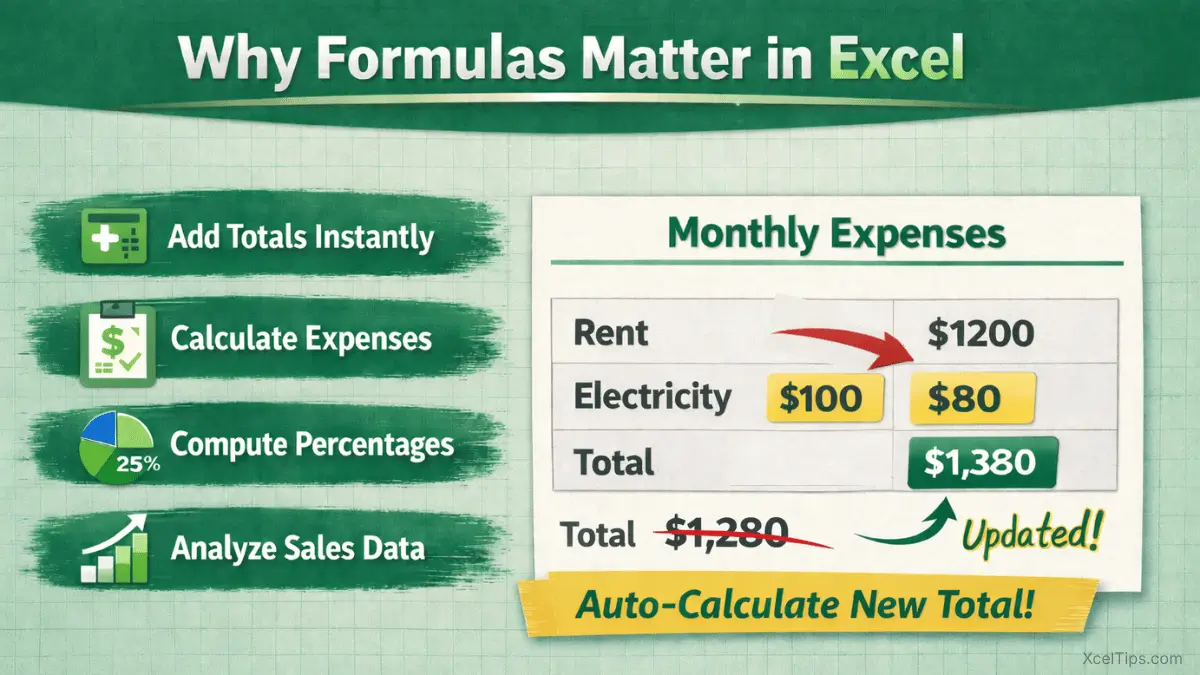
This is why learning basic Excel formulas is such an important beginner milestone. Once you know how formulas work, you can build worksheets that do real work for you instead of acting like a simple digital notebook.
Manual calculation vs using formulas
| Manual Calculation | Using Formulas |
|---|---|
| Must recalculate each time | Updates automatically |
| Higher risk of mistakes | Reduces errors |
| Slower to manage | Faster and more flexible |
| Static results | Dynamic results |
Understanding this difference helps beginners see why formulas matter so much.
Next, let’s look at the main parts that make up every formula.
Parts of a Formula in Excel
Before you start building formulas, it helps to understand the parts inside them. Once you know these parts, even basic Excel formulas become easier to read and create.
1. The Equal Sign (=)
Every formula must begin with an equal sign:
=
If you leave out the equal sign, Excel will treat what you type as text instead of a calculation. This is one of the most common beginner mistakes.
2. Cell References
Most formulas use cell references instead of typing numbers directly. In Excel, a cell reference is the name of a cell, such as A2 or B2.
Example:
=A2+B2
This tells Excel to:
- Take the value from
A2. - Add the value from
B2.
Using cell references makes your worksheet more flexible because the result updates when the cell values change.
3. Operators
Operators tell Excel what kind of calculation to perform.
| Operator | Meaning | Example |
|---|---|---|
| + | Add | =A1+B1 |
| – | Subtract | =A1-B1 |
| * | Multiply | =A1*B1 |
| / | Divide | =A1/B1 |
These operators are used in many basic Excel formulas, so it is worth getting comfortable with them early.
4. Functions
Functions are built-in formulas that save time.
For example:
=SUM(B2:B4)
Instead of typing =B2+B3+B4, you can use the SUM function to add a range quickly.
Now that you understand the main parts of a formula, let’s look at an important area of the Excel window that helps you view and edit formulas.
The Formula Bar in Excel
After learning what a formula is, the next tool to understand is the Formula Bar, because it helps you view and edit calculations more clearly.
What Is the Formula Bar in Excel?
In Excel, the Formula Bar is the long input area above the worksheet grid and below the Ribbon. It shows the contents of the active cell, especially when that cell contains a formula.
If a cell displays a result like 120, the formula bar may show the actual calculation behind it, such as:
=SUM(B2:B4)
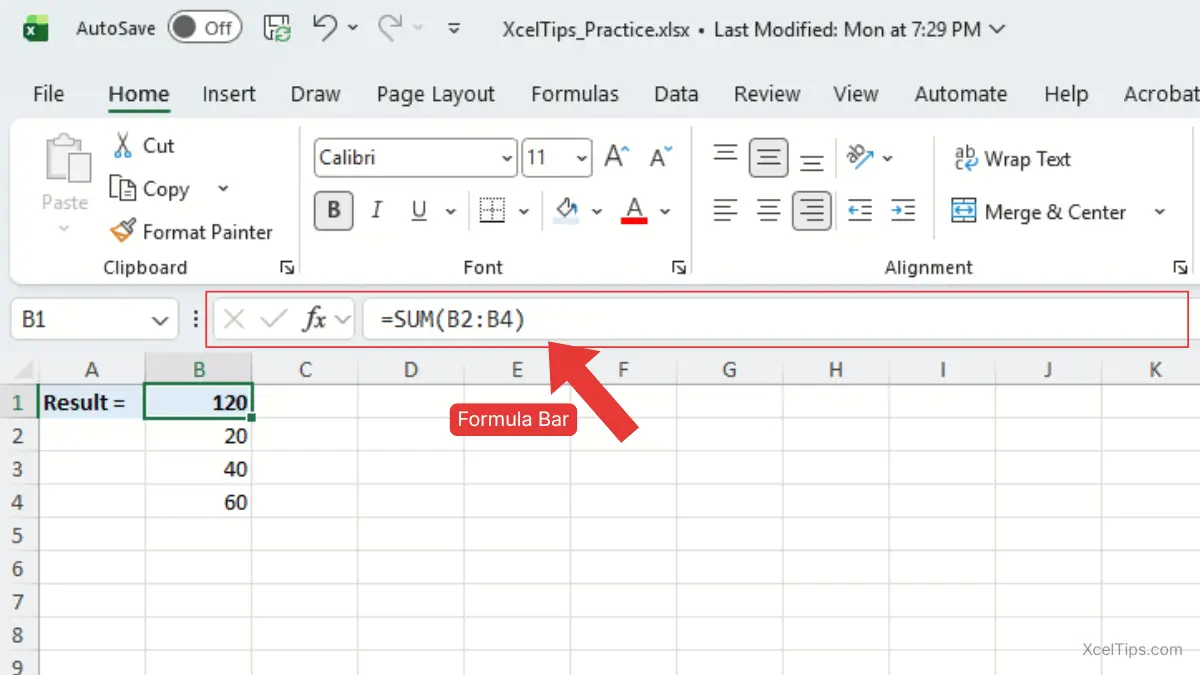
This makes the Formula Bar especially helpful for beginners because you can see the full formula clearly even when the cell only shows the result.
Why the Formula Bar matters for beginners
The Formula Bar helps you:
- View the full formula in a selected cell.
- Edit formulas more safely.
- Understand where a result comes from.
- Avoid changing the wrong part of a calculation.
Many beginners click a cell, see only the final answer, and wonder where the formula went. The answer is simple: the formula is still there, and you can see it in the Formula Bar.
Where Is the Formula Bar in Excel?
If you are wondering where the Formula Bar is in Excel, look above the worksheet grid and below the Ribbon, next to the Name Box.
The formula bar is located:
- Above the worksheet cells.
- Below the Ribbon.
- Next to the Name Box.
When you click a cell, Excel shows the cell’s contents in that area. If the cell contains a formula, the full formula appears there.
How to show the Formula Bar if you cannot see it
If the formula bar is missing, follow these steps:
- Click the View tab.
- Look for the Show group.
- Check the box labeled Formula Bar.
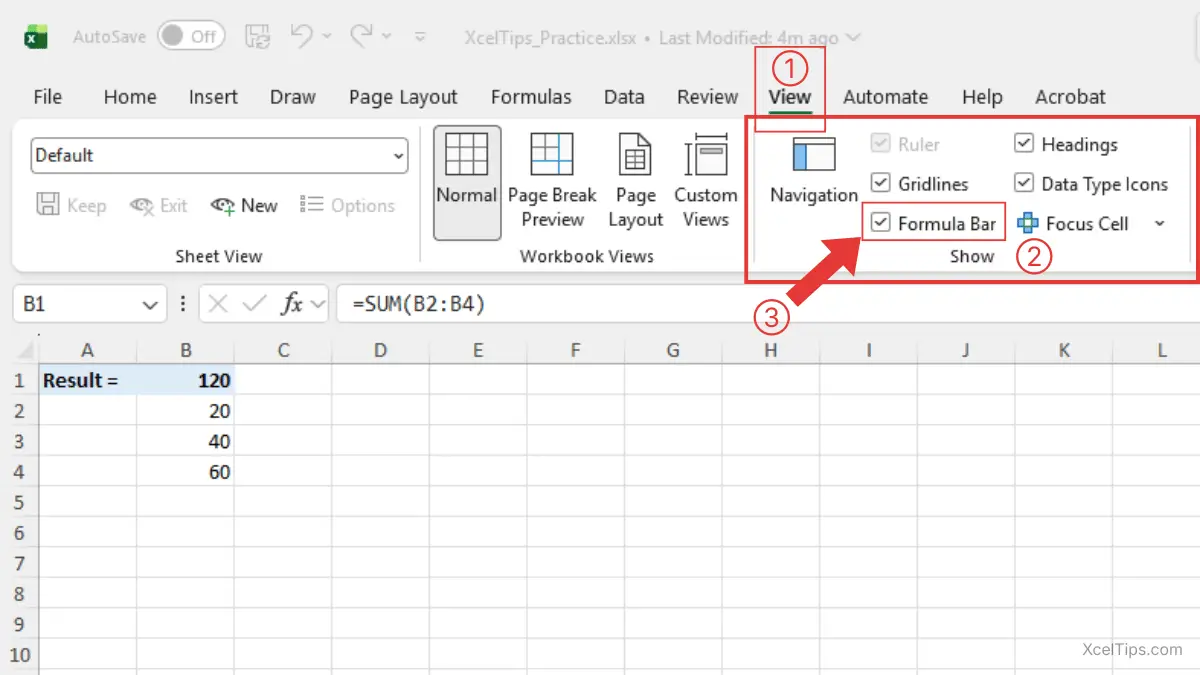
Once that box is checked, the Formula Bar will appear again.
Understanding where is the Formula Bar in Excel is important because you will use it often when checking or editing formulas.
Now that you know what the Formula Bar is and where it appears, the next step is learning how to use it.
How to Use the Formula Bar
To work with the formula bar in Excel, follow these steps:
- Click a cell that contains a formula.
- Look above the worksheet grid.
- Find the formula displayed in the Formula Bar.
- Click inside the Formula Bar.
- Make your changes.
- Press Enter to confirm.
Beginner Tip:
You can also use the Formula Bar when creating a new formula. Some beginners find this easier because the bar gives a little more room to see what they are typing.
This is one reason the Formula Bar is so helpful during the early stages of learning.
Once you can find the Formula Bar, the next step is using it to review and edit formulas safely.
How to Create a Formula in Excel
Once you understand the parts of a formula, it is time to build one yourself. This is where Excel formula for beginners becomes practical.
Example: Monthly Expense Tracker
Imagine your worksheet looks like this:
| Item | Amount |
|---|---|
| Hosting Fee | 20.00 |
| Content Creation Fee | 500.00 |
| Website Maintenance Fee | 50.00 |
| Total |
You want Excel to calculate the total in the last row.
Step-by-step: create a simple addition formula
- Click the result cell, such as
B5 - Type
=. - Click
B2. - Type
+. - Click
B3. - Type
+. - Click
B4. - Press Enter.
The final formula will look like this:
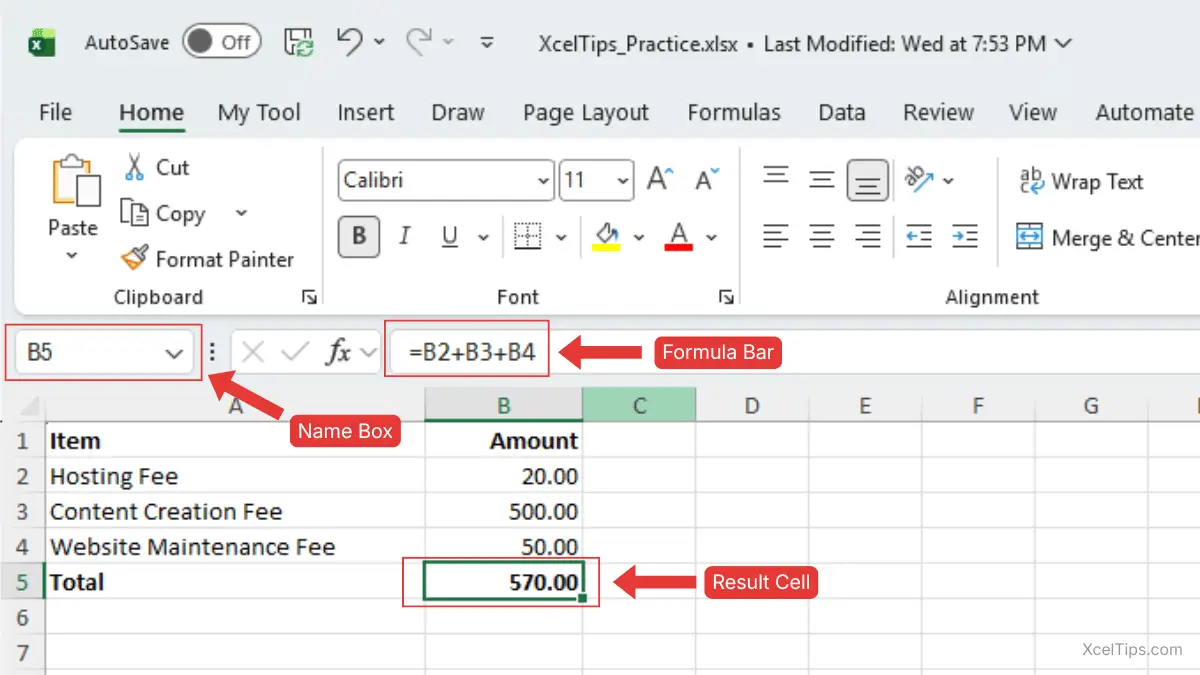
=B2+B3+B4
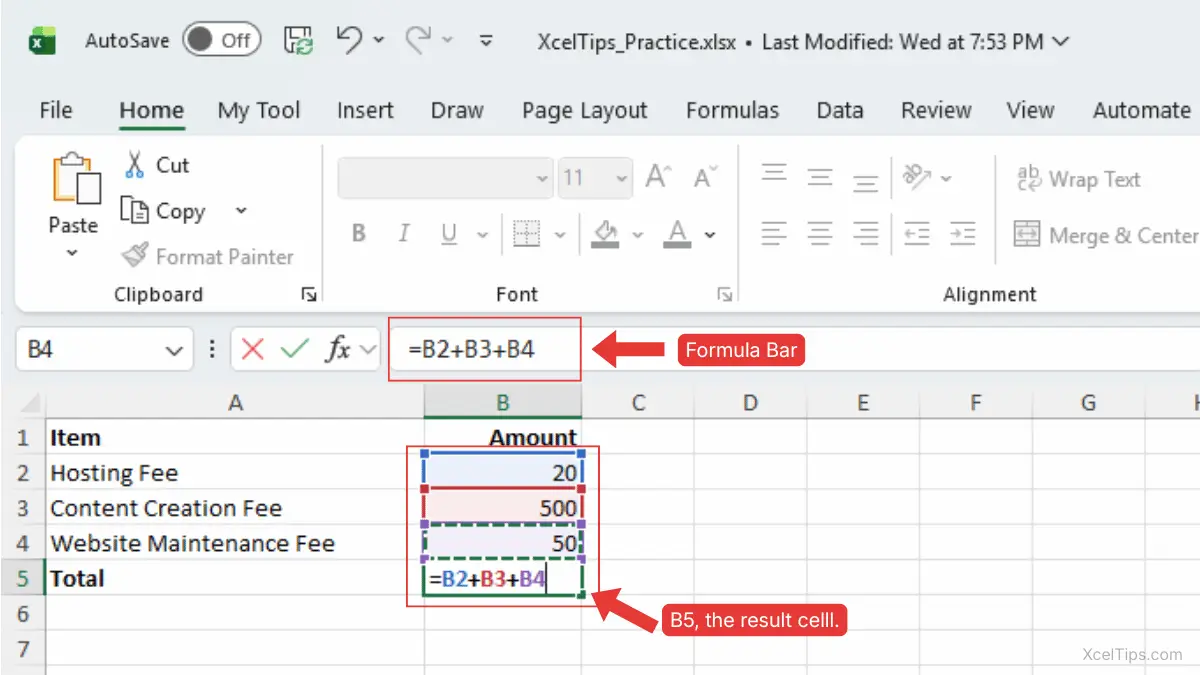
Excel calculates the total instantly. When you press Enter in cell B5, Excel displays the result as 570.00, as shown in the image below.
This method works well for a small number of cells, but it is not always the fastest option. As you begin working with larger ranges, Excel’s built-in formulas make the process quicker and easier to manage.
Basic Excel Formulas: The SUM Function
While manual addition is useful for understanding how formulas work, Excel also provides a faster and more efficient way to total values. One of the most important basic Excel formulas for beginners is the SUM function.
Using SUM
Instead of typing:
=B2+B3+B4
You can use:
=SUM(B2:B4)
The colon in B2:B4 means “from B2 through B4.”This formula does the same thing, but it is shorter and easier to manage.
Why SUM is useful
The SUM function is one of the most important basic Excel formulas because it helps you add a range of cells quickly. It is easier to read, easier to edit, and better for larger worksheets.
How to use SUM step by step
- Click the result cell.
- Type
=. - Type
SUM(. - Select cells
B2:B4. - Type
). - Press Enter.
The final formula will look like this:
=SUM(B2:B4)
This is a great example of how basic Excel formulas can save time and reduce mistakes.
Understanding Cell Ranges
Before you use more functions, it helps to understand how Excel refers to a block of cells.
When you see something like:
B2:B4
That means:
- Start at cell
B2. - End at cell
B4. - Include everything in between.
This is called a range.
Ranges are important because many basic Excel formulas use them. Functions like SUM, AVERAGE, MAX, and MIN all become much easier when you understand how ranges work.
Once you are comfortable with ranges, creating formulas becomes much faster.
Editing a Formula in Excel
Creating a formula is only part of the job. You also need to know how to fix or update it safely.
You do not need to delete a formula and start over every time you make a mistake. Excel makes editing easy.
To edit a formula:
- Click the cell that contains the formula.
- Click inside the Formula Bar.
- Change the formula as needed.
- Press Enter.
Pro Tip:
You can also press F2 to edit the active cell quickly. In Excel,F2 places the cursor at the end of the cell contents. If in-cell editing is turned off, it moves the insertion point into the Formula Bar.
Beginner Tip:
You can also double-click the cell to edit directly inside the worksheet, but many beginners prefer using the Formula Bar because it is easier to see the full formula clearly.
Once you know how to edit a formula, it becomes easier to spot and fix common mistakes. Let’s look at the beginner errors that appear most often when working with Excel formulas.
Common Beginner Mistakes with Excel Formulas
Most beginner formula problems come from a few small mistakes. Once you know what to look for, they are much easier to fix.
Mistake 1: Forgetting the equal sign
Wrong:
A1+B1
Excel treats this as text.
Correct:
=A1+B1
Always start with an equal sign = to tell Excel you want to calculate something.
Mistake 2: Typing numbers instead of cell references
Wrong:
=20+500+50
This works once, but it does not update if your numbers change.
Correct:
=B2+B3+B4
Cell references make formulas dynamic.
Mistake 3: Forgetting a closing parenthesis
Wrong:
=SUM(B2:B4
Correct:
=SUM(B2:B4)
Every opening parenthesis must have a matching closing parenthesis.
Mistake 4: Looking only at the result and not the formula
Sometimes beginners see a result in a cell but do not know how it was calculated. This is when the Formula Bar becomes especially useful. Click the cell and check the Formula Bar to see the full calculation.
Avoiding these mistakes will help you build confidence much faster.
Mistake 5: Typing the formula into the wrong cell
Beginners sometimes select one cell but type the formula into another by mistake. Before you start typing, make sure the correct result cell is selected.
Look for the border around the active cell and check the Name Box to confirm the location.
Once you understand the most common formula mistakes, another beginner confusion becomes easier to solve: the difference between a formula and a function. These two terms are closely related, but they do not mean exactly the same thing.
Formula vs Function: What’s the Difference?
These two words are closely related, but they do not mean exactly the same thing. Beginners often confuse formulas and functions, so it helps to separate them clearly.
A formula is any calculation that starts with an equal sign.
Example:
=A1+A2+A3+A4+A5
A function is a predefined formula built into Excel.
Example:
=SUM(A1:A5)
So, all functions are formulas, but not all formulas are functions.
This distinction matters because many basic Excel formulas start as simple operator-based calculations, while later lessons introduce more built-in functions.
Remember:
For beginners, the key thing to remember is that functions are ready-made formulas built into Excel.
Understanding formulas and functions is important, but it is just as helpful to know what happens after you enter them. In most cases, Excel recalculates results automatically when related values change.
How Excel Recalculates Automatically
One of the biggest benefits of formulas is that Excel updates results for you.
When you change a value used in a formula:
- Excel recalculates by default.
- You do not need to redo the math manually.
- Linked results update instantly.
For example, if B2 changes from 20 to 25, a total formula that includes B2 updates automatically.
Automatic recalculation helps you see updated results right away, but sometimes you need to look behind the result and view the formula itself. This is especially useful when reviewing or troubleshooting a worksheet.
How to View Formulas Instead of Results
Sometimes you want to inspect formulas directly instead of seeing only the answer.
To view formulas:
- Go to the Formulas tab.
- In the Formulas tab → Formula Auditing group → click Show Formulas.
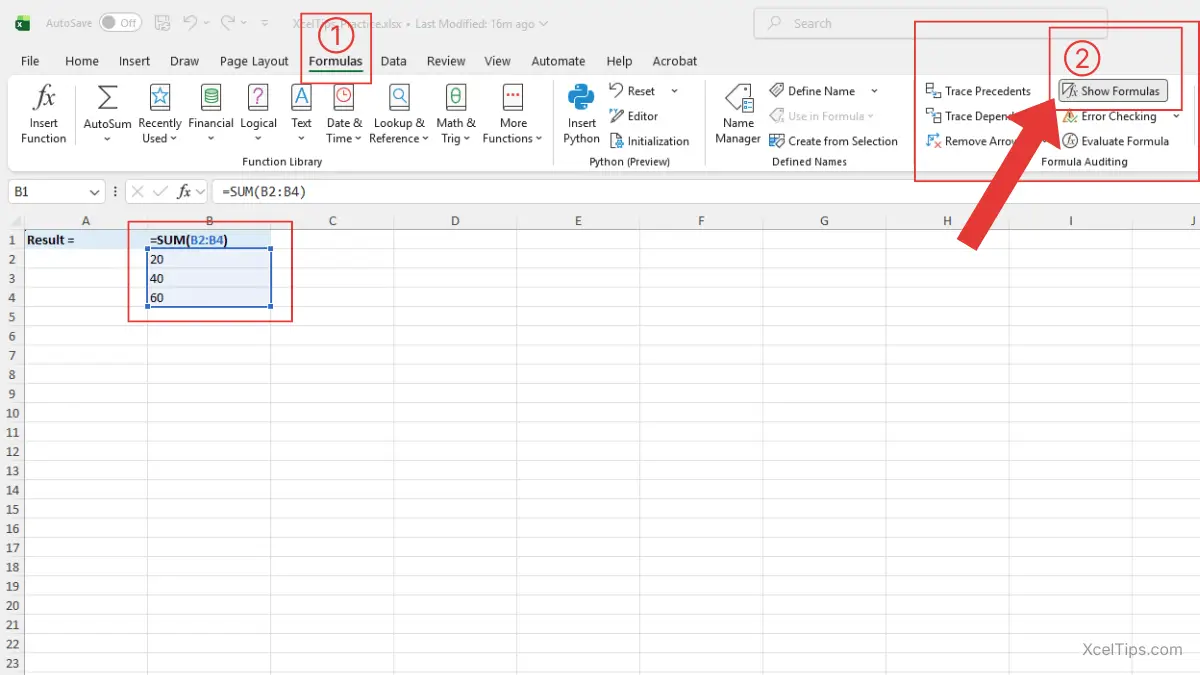
Excel will display formulas in the worksheet instead of the calculated results.
Pro Tips:
To switch between showing results and showing all formulas on the worksheet, click Show Formulas again or press Ctrl+` (grave accent). Do not confuse this with Ctrl+' (apostrophe), which is a different shortcut used to copy the formula from the cell above.
This is helpful when checking your work, especially while learning basic Excel formulas for the first time.
Now that you know how to switch between formulas and results, it is a good time to apply these skills in a short practice exercise. This will help you become more comfortable creating formulas and checking your work.
Quick Practice
The best way to understand an Excel formula for beginners lesson is to try a simple exercise yourself.
Create a small table using the information below, then use a formula to calculate the total.
Follow these steps:
- In
A1, typeProduct. InB1, typePrice. - Enter
Mouse,Keyboard, andMonitorinA2:A4. - Enter
30,35, and200inB2:B4. - In
A5, typeTotal. InB5, enter=SUM(B2:B4).
This small exercise helps you practice formulas, functions, and the Formula Bar together.
After working through a short practice exercise, the next step is to review the main ideas you should remember.
Key Takeaways
Before moving on, review the main ideas you should remember from this lesson:
- An Excel formula always starts with an equal sign (
=). - If you are wondering what a formula in Excel is, it is simply a calculation Excel performs for you.
- Basic Excel formulas often use cell references and operators like
+,-,*, and/. - The Formula Bar shows the full calculation behind the result.
- The Formula Bar sits above the worksheet grid and below the Ribbon.
- Excel recalculates formulas automatically when values change.
With these core ideas in place, you are ready to answer a few common beginner questions.
Frequently Asked Questions (FAQs)
Even after the basics are clear, beginners often run into the same few questions. These quick answers can help.
Do all Excel formulas have to start with an equal sign?
Yes. In Excel, a formula starts with an equal sign (=) so Excel knows you want a calculation instead of plain text.
What is a formula in Excel?
A formula is a calculation entered in a cell. It can use numbers, cell references, operators, or functions to return a result.
What is the Formula Bar in Excel used for?
The Formula Bar lets you view, type, and edit the contents of the active cell, especially formulas.
Where is the Formula Bar in Excel?
It is above the worksheet grid and below the Ribbon, next to the Name Box. If it is hidden, go to View → Show → Formula Bar.
Why is my formula showing as text?
This usually happens because the entry does not start with an equal sign (=).
How can I see formulas instead of results in Excel?
Go to Formulas → Show Formulas, or press Ctrl+` to switch between formulas and results.
With these common questions answered, you are ready to bring everything together in a quick final recap.
Conclusion
You now understand what a formula in Excel is and how to start using one with confidence.
If this lesson helped you understand Excel formulas, the next step is to practice. Start with small totals, then try a few more basic Excel formulas in your own workbook.
The more often you create and check formulas, the more natural they will feel. Make a habit of using the formula bar whenever you want to inspect or correct a calculation.
This lesson is part of the Beginner Learning Path, a structured series designed to help you learn Microsoft Excel step by step from the basics.