
Learn how to format your data and design clear, professional-looking worksheets in Excel.
Once your data is entered correctly, the next step is making it easy to read and understand. Formatting and layout in Excel help you present your data clearly, highlight important information, and create worksheets that look clean and professional.
In this module, you’ll learn how to format cells, adjust layout, and prepare your worksheets for printing and presentation.
By the end of this section, you’ll be able to transform simple data into well-structured and visually organized Excel worksheets.
This module is part of the Beginner Learning Path, a structured series designed to help you learn Microsoft Excel step by step.
Lessons in Formatting and Layout
This module contains step-by-step lessons to help you format and organize your Excel worksheets effectively. Follow them in order for the best results.
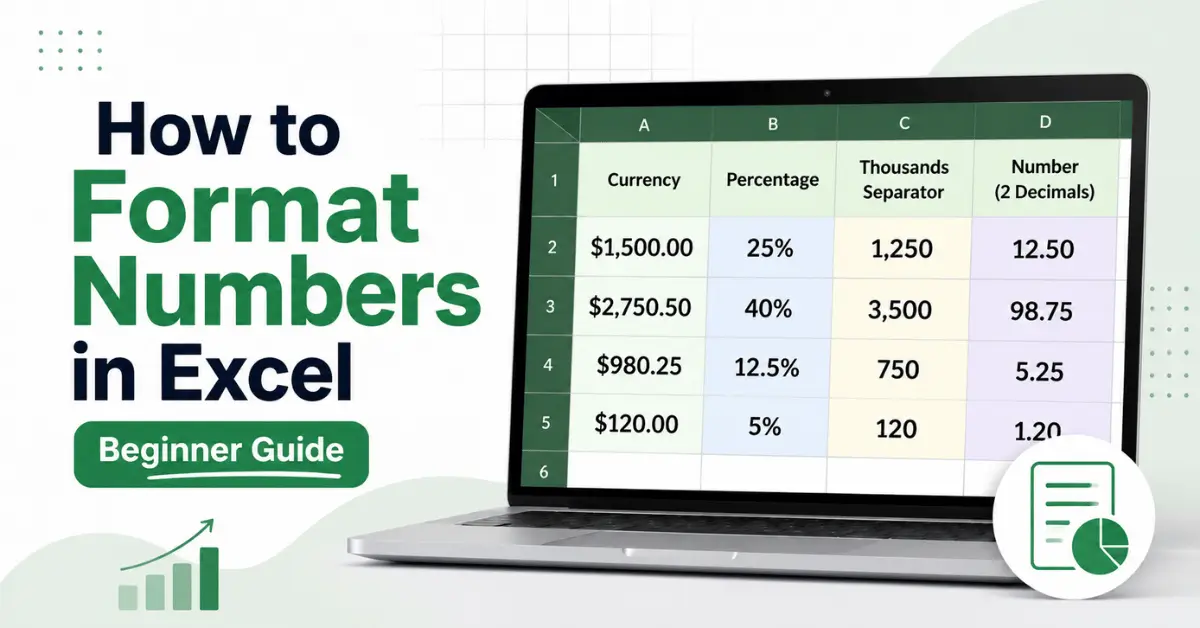
How to Format Numbers in Excel: Make Data Easier to Read
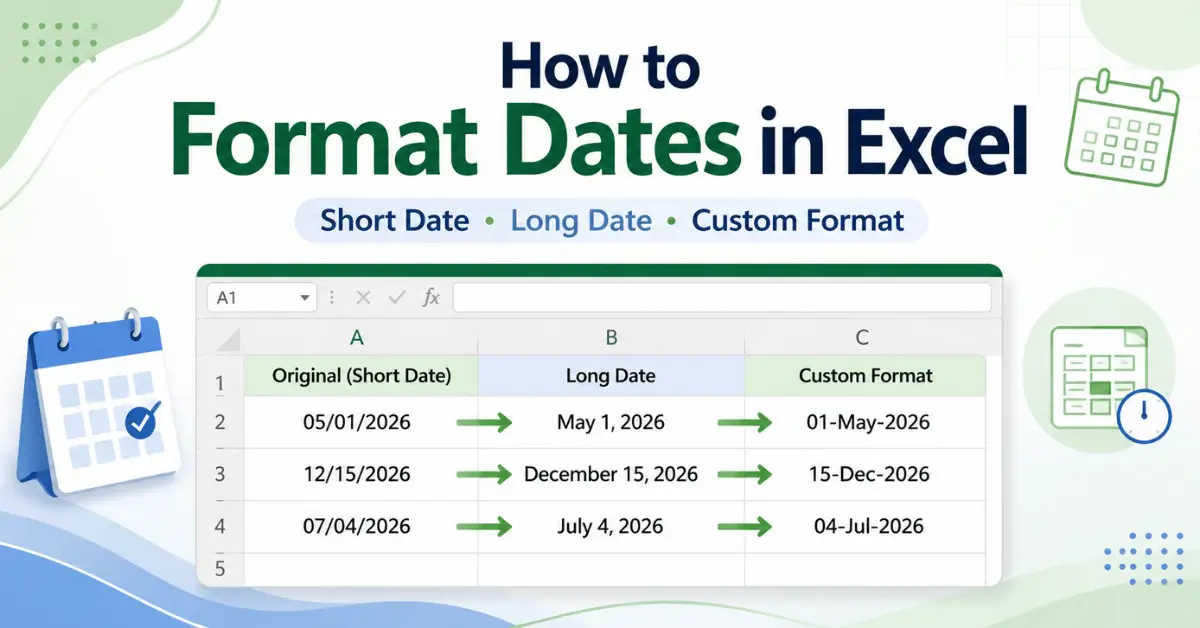
How to Format Date in Excel Correctly: Step-by-Step Guide
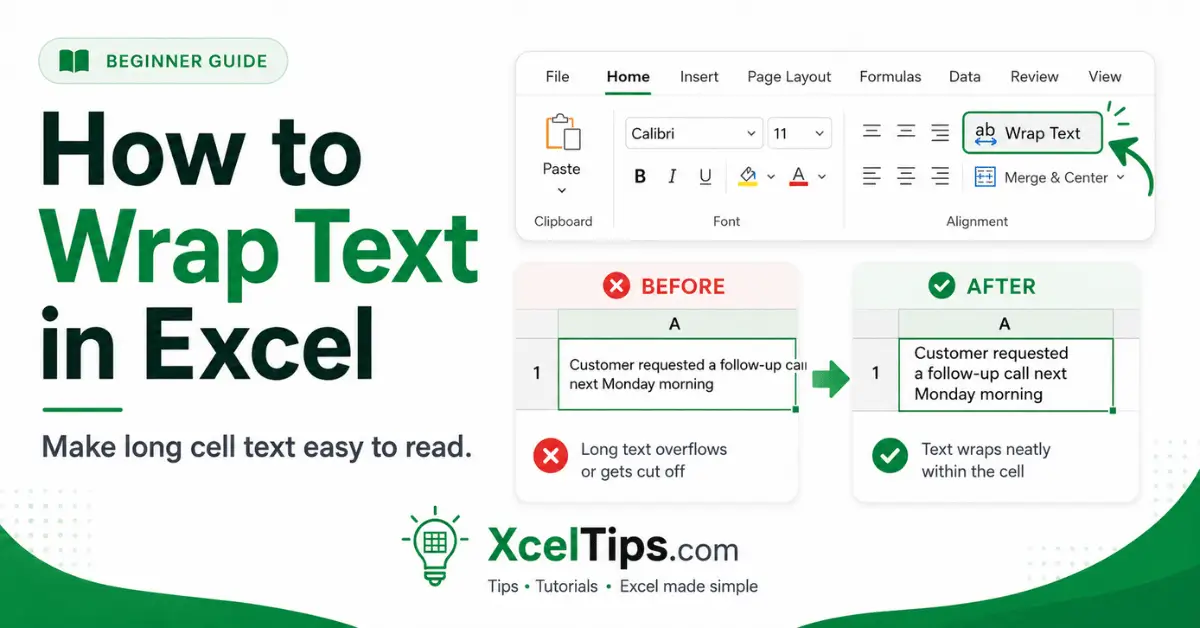
How to Wrap Text in Excel to Make Long Cell Text Easy to Read
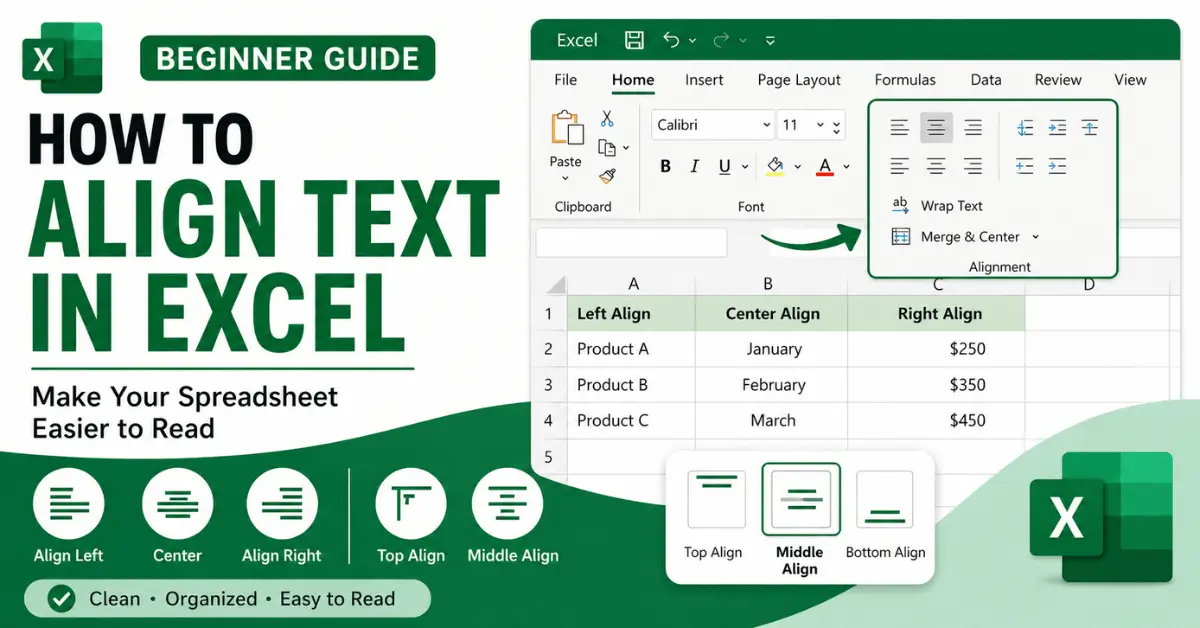
How to Align Text in Excel to Make Spreadsheet Easy to Read
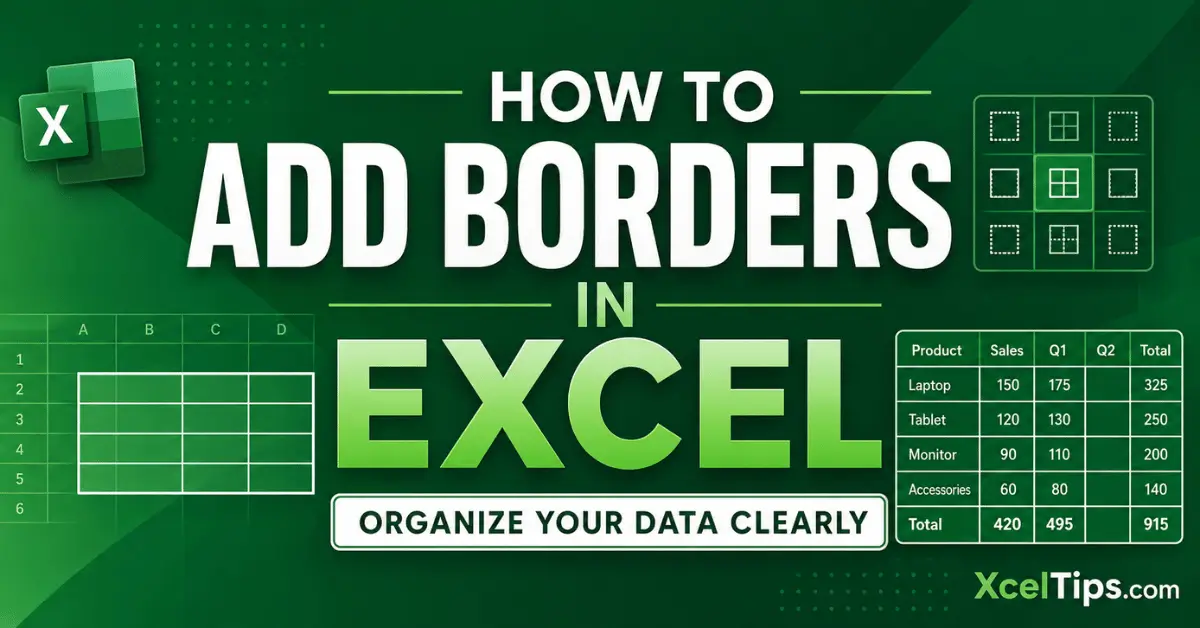
How to Add Borders in Excel to Organize Your Data Clearly
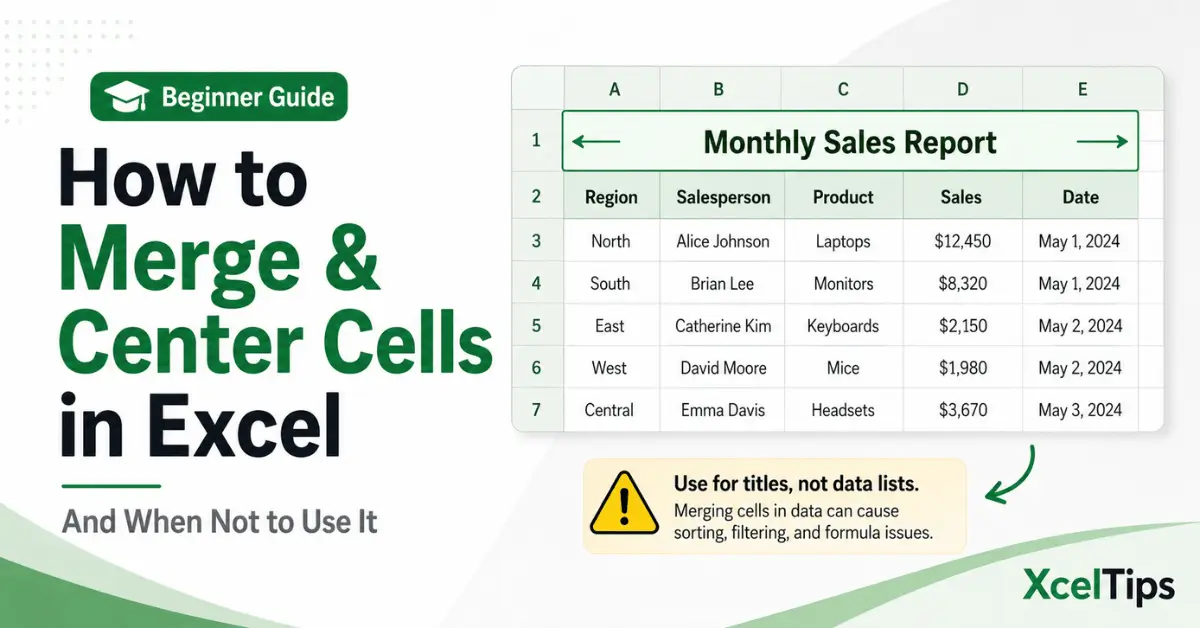
How to Merge and Center in Excel And When Not to Use It
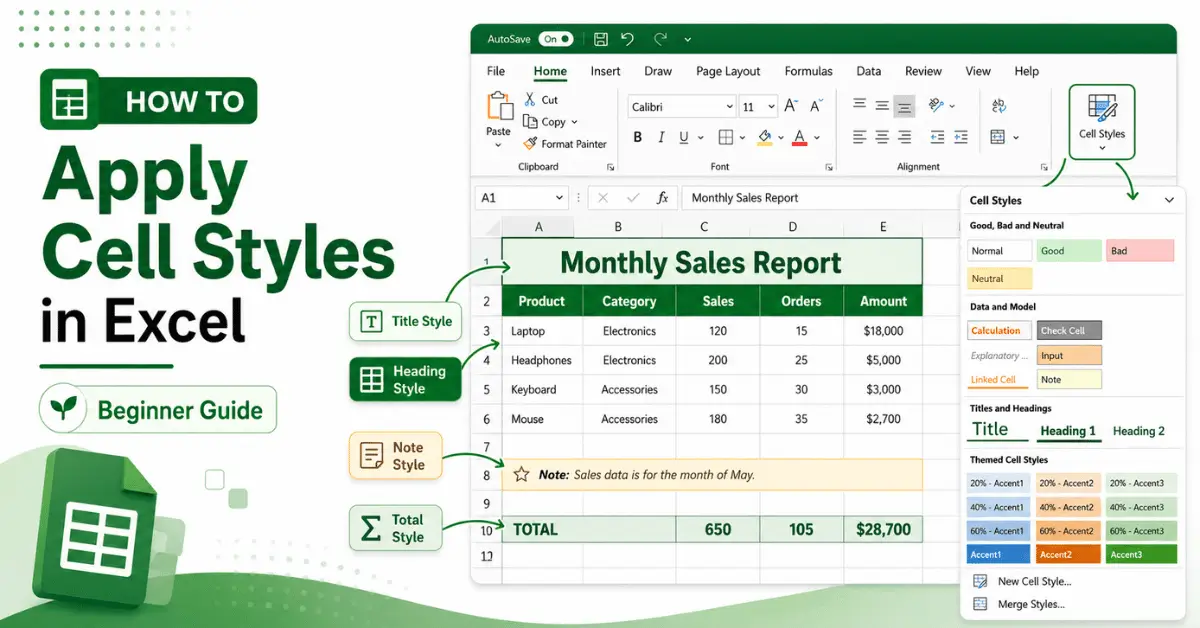
How to Apply Cell Styles in Excel for Cleaner, More Organized Spreadsheets
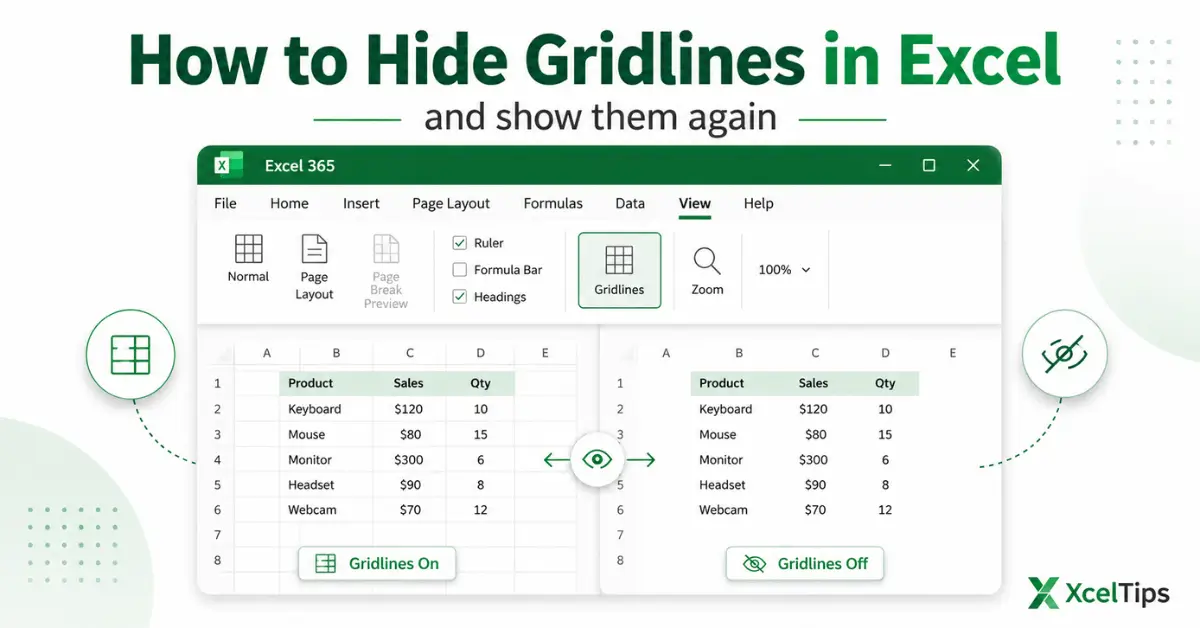
How to Hide Gridlines in Excel and Show Them Again
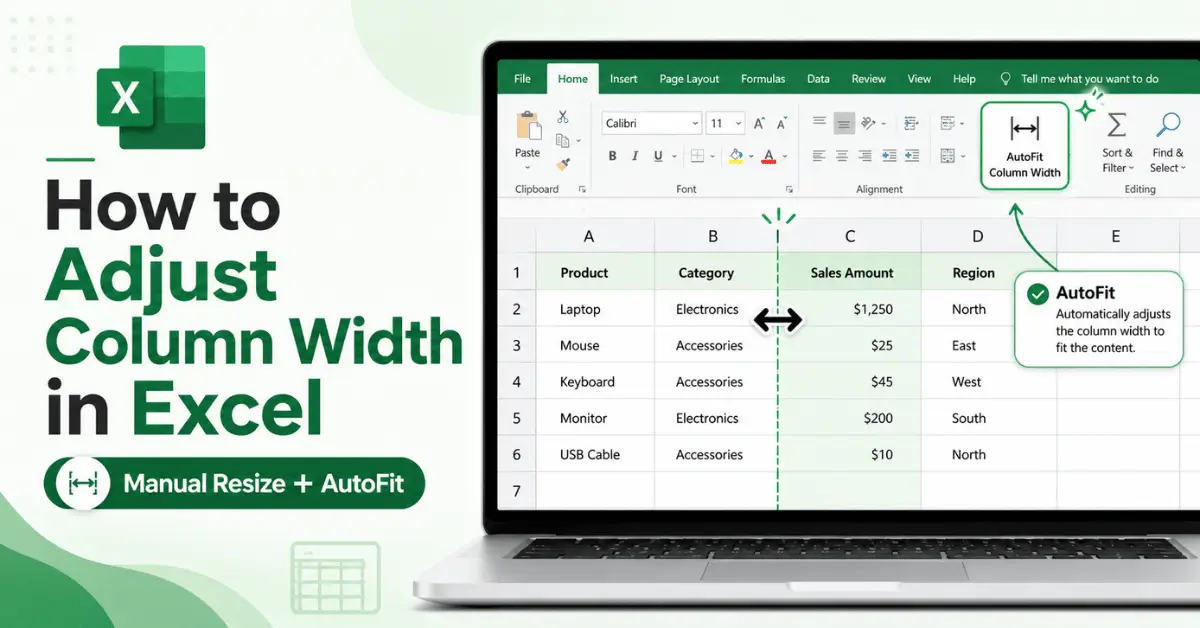
How to Adjust Column Width in Excel – 4 Easy Methods
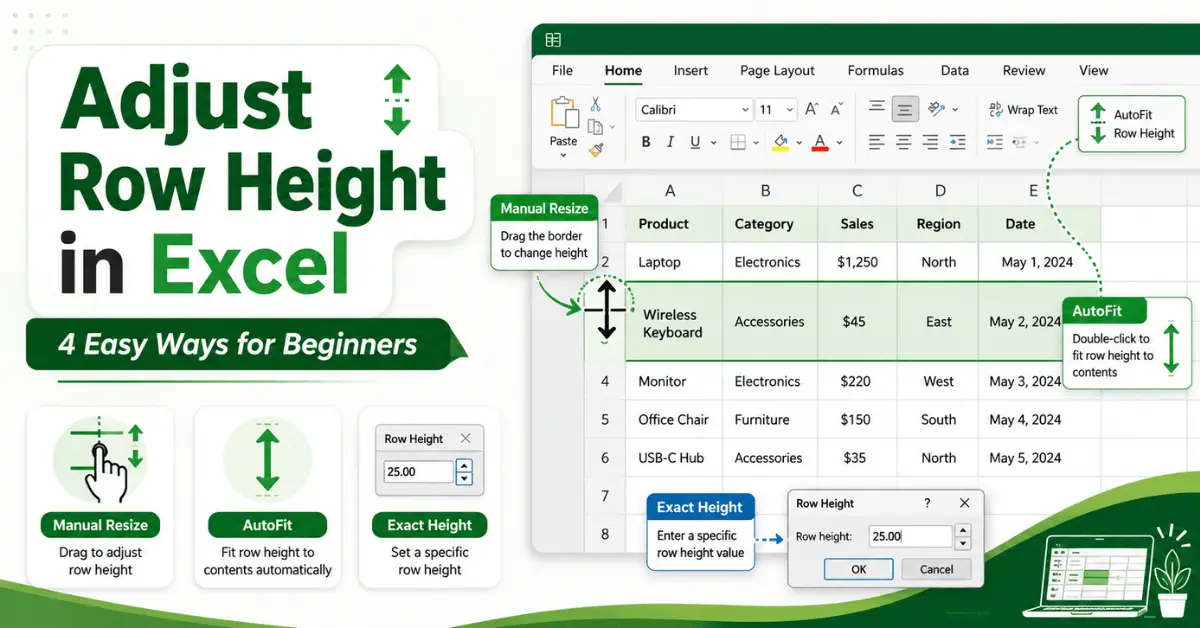
How to Adjust Row Height in Excel – 4 Easy Ways for Beginners
What Is Formatting and Layout in Excel?
Formatting and layout in Excel refer to how your data looks and how it is presented.
You can also explore Microsoft’s official guide to learn more about formatting and layout in Excel.
This includes:
- Changing the appearance of cells (colors, borders, styles).
- Formatting numbers and dates correctly.
- Adjusting alignment and spacing.
- Organizing worksheet layout for readability.
- Preparing worksheets for printing.
Good formatting makes your data easier to understand and helps prevent misinterpretation.
How to Use This Module
To get the best results from this module:
- Follow the lessons in order.
- Practice each formatting tool in Excel.
- Focus on clarity and readability.
- Avoid over-formatting your worksheets.
Tip:
Good formatting should make your data easier to read — not more complicated.
Why Formatting and Layout Matter
Well-formatted worksheets are easier to read, understand, and share.
This module helps you:
- Highlight important information.
- Improve data readability.
- Create professional-looking worksheets.
- Prepare files for printing and presentation.
Without proper formatting, even correct data can be confusing.
Common Beginner Mistakes in Formatting
Many beginners focus too much on appearance without understanding best practices. Common mistakes include:
- Using too many colors or styles.
- Overusing Merge & Center.
- Not formatting numbers and dates correctly.
- Ignoring alignment and spacing.
- Creating cluttered or hard-to-read worksheets.
This module teaches you how to format data properly while keeping your worksheets clean and effective.
What You Will Be Able to Do After This Module
After completing this module, you will be able to format and organize Excel worksheets with confidence.
You will be able to:
- Format cells, numbers, and dates correctly.
- Align and structure data clearly.
- Use borders and styles effectively.
- Adjust layout for better readability.
- Prepare worksheets for printing.
- Create simple charts for visualization.
These skills will help you present your data clearly and professionally.
What’s Next?
Once you’re comfortable formatting and organizing your worksheets, the next step is learning how to perform calculations in Excel.
Next Module →
Basic Formulas and Calculations in Excel (Beginner Guide)
In this module, you’ll learn how to perform calculations and use formulas in Excel.