
Written By Sophanith Dith
Last Updated March 03, 2026
Applies to Microsoft Excel 365 (Windows only)
Skill Level Beginner
Microsoft Excel is one of the most powerful tools for organizing data, performing calculations, and creating reports. However, before learning formulas and advanced features, it’s important to understand what Excel is and how its basic structure works.
In this beginner guide, you’ll learn what Microsoft Excel is, what a workbook and worksheet are, how rows, columns, and cells function, and the most common ways people use Excel in real life.
Imagine tracking your monthly expenses. Excel allows you to list expenses, calculate totals, and quickly see where your money goes.
Before we explore each concept in detail, here’s a quick overview of the key ideas covered in this guide.
Quick Reference
Here’s a simple summary before we go deeper:
- Microsoft Excel is a spreadsheet program used to organize and analyze data.
- A workbook is an Excel file.
- A worksheet is a page inside a workbook.
- Rows and columns form a grid.
- Cells store text, numbers, formulas, and more.
Now let’s explore each concept in more detail, starting with what Microsoft Excel actually is.
What Is Microsoft Excel?
Microsoft Excel is a spreadsheet program developed by Microsoft. It allows users to organize data, perform calculations, and analyze information using tables and formulas.
Now that you know what Excel is, let’s look at why so many people rely on it every day.
Why Is Excel So Popular?
People use Excel because it saves time, reduces errors, and helps make better decisions using data. Excel is popular because it is:
- Easy to start for beginners
- Powerful for advanced users
- Flexible for many industries
Even though many companies use specialized systems or software, Excel is still widely used for day-to-day analysis, reporting, and data handling.
Some reasons Excel is widely used:
- Available on most computers
- Works offline
- Supports small and large datasets
- Used globally in offices and schools
Excel is commonly used for calculations, data organization, reporting, and basic data analysis.
Next, let’s open Excel in our minds and understand what you’re actually looking at on the screen.
Think of Excel like a notebook. First, we’ll define the notebook (workbook), then the pages (worksheets), and finally the grid (rows, columns, and cells).
Understanding the Excel Workspace (Beginner View)
When you open Excel for the first time, you will see several important parts. Understanding these basics will help you work more confidently in Excel and is essential before learning formulas and advanced features.
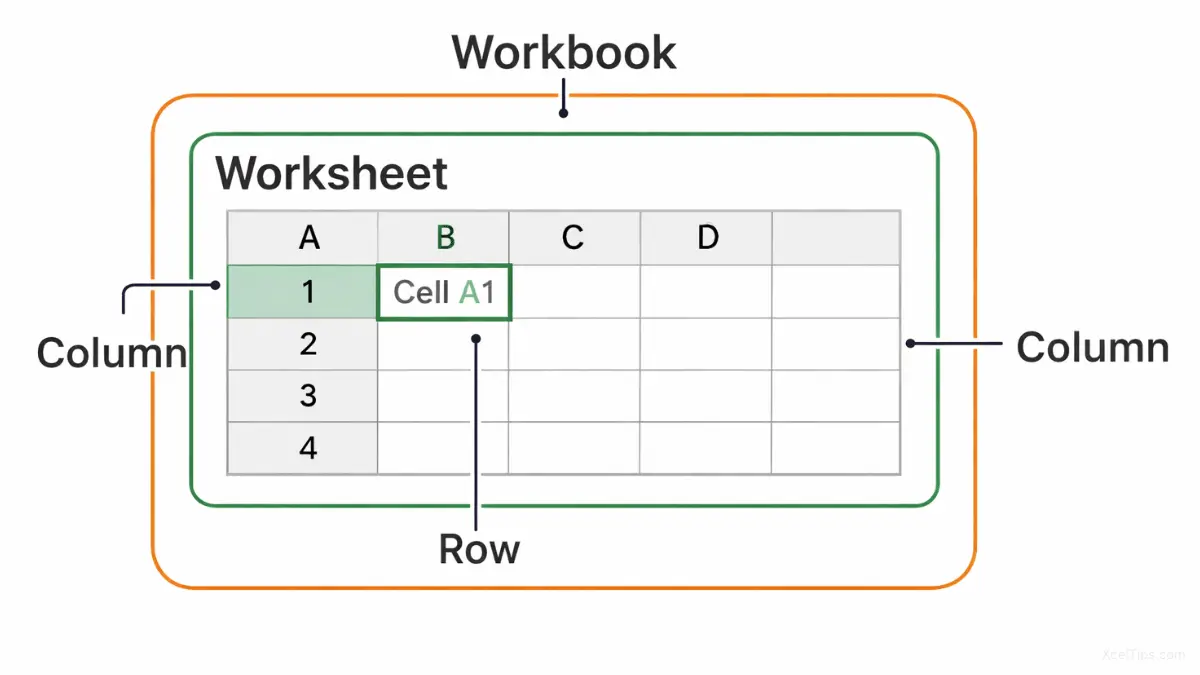
Let’s begin with the biggest container in Excel: the workbook.
Workbook
A workbook is the Excel file itself. A workbook can contain many worksheets, and the number of worksheets you can add depends on your computer’s memory rather than a fixed Excel limit.
Example:
- A file named
XcelTips.xlsxis a workbook. - Inside this workbook, you might have worksheets.
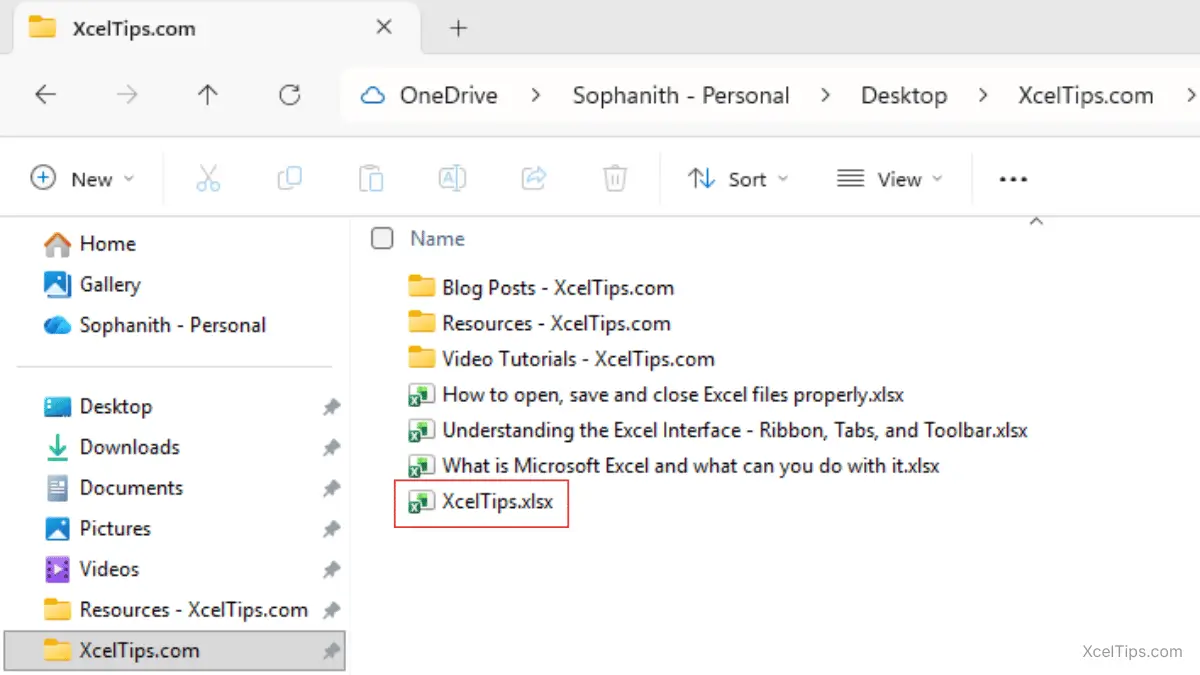
XcelTips.xlsx) in Windows Explorer.Worksheet
A worksheet is one page inside a workbook where you enter data.
Example:
- Each worksheet can be named
January,February, andMarch. - One worksheet may store employee names.
- Another worksheet may store salary data.
You can switch between worksheets by clicking the tabs at the bottom of the Excel window. These tabs are located at the bottom-left of the worksheet area.
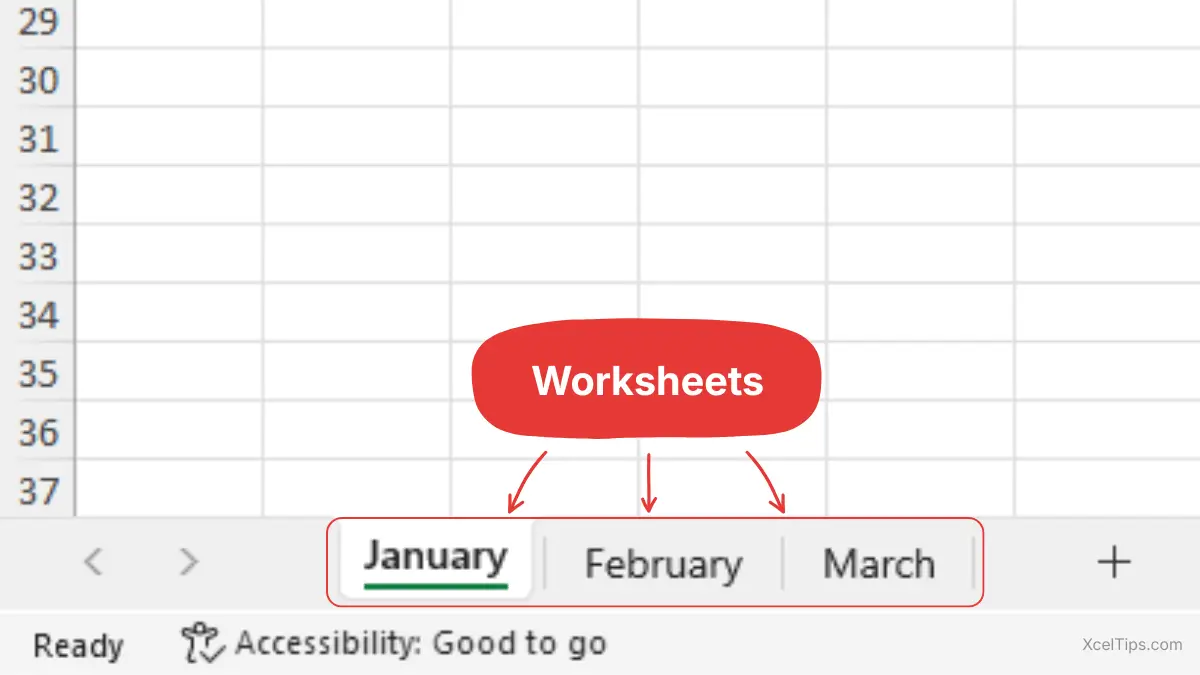
Once you’re inside a worksheet, Excel organizes everything using rows and columns, like a giant table.
Rows and Columns
Rows and columns help organize data in a table format. Excel has a fixed limit for rows and columns.
- Rows run horizontally and are numbered.
- Columns run vertically and are labeled with letters.
Example:
- Column
Amight contain employee names. - Column
Bmight contain employee salaries. - Row
2might contain data for one specific employee.
Together, rows and columns create a structured grid for your data.
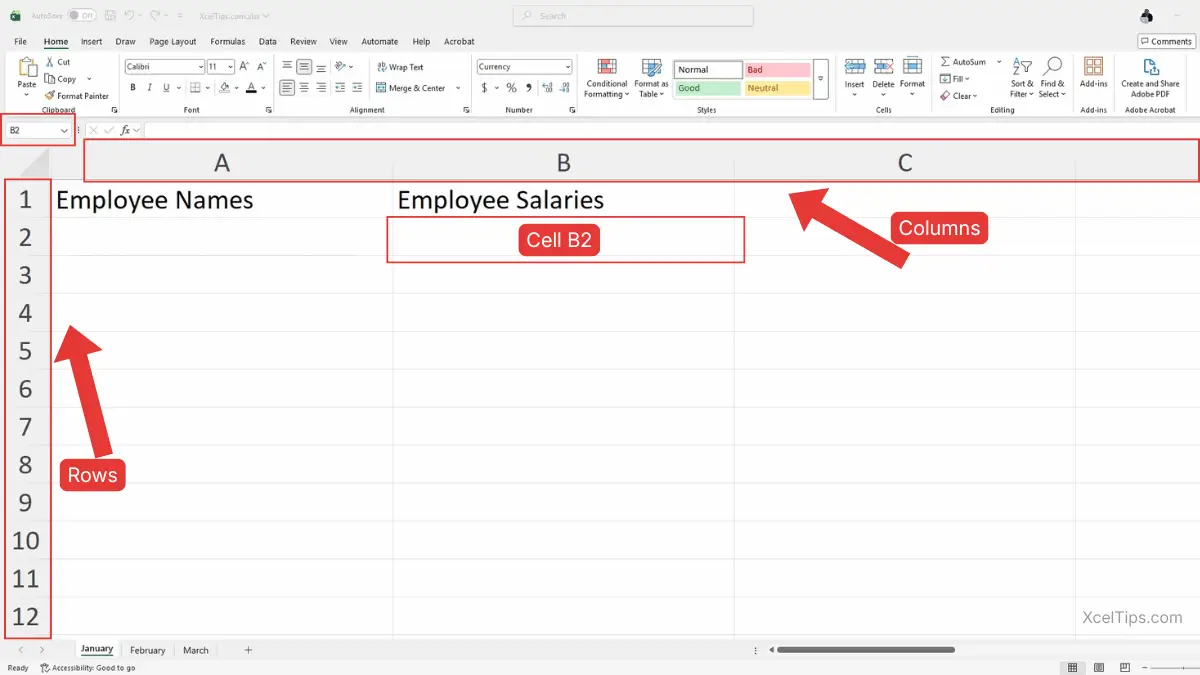
Where a row and a column meet, you get a cell, and this is where you’ll type almost everything in Excel.
Cells
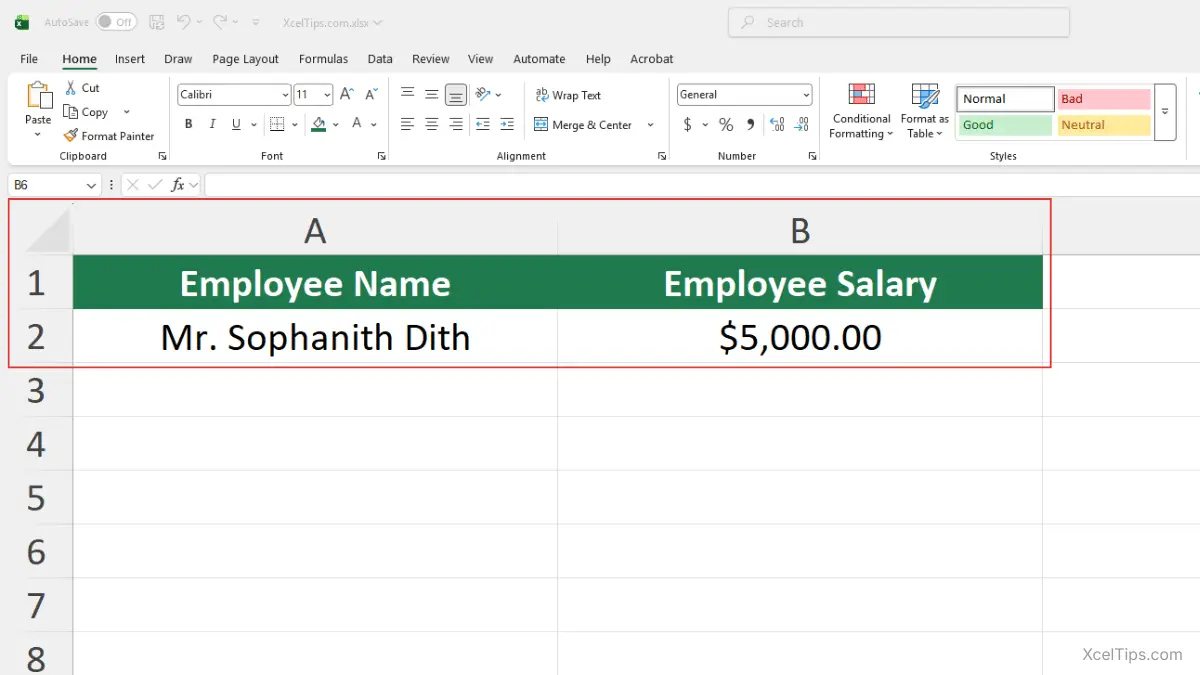
A cell is the box where a row and a column meet. The column letter comes first, followed by the row number (for example, A1 or B2). This is where you type data or formulas. Excel provides a very large grid of cells, so it can store a lot of information. Examples:
- Cell
A1could contain the text:Employee Name. Cell A2could contain the name:Mr. Sophanith Dith.- Cell
B1could contain the text:Employee Salary. - Cell
B2might contain the number:$5,000.00.
Best Practice:
Always use clear column headers (such as “Employee Name” and “Employee Salary”) when organizing data. This makes your worksheet easier to understand and analyze later.
Since cells are the main building blocks, the next question is: what kinds of information can a cell actually hold?
Types of Data an Excel Cell Can Store (Overview)
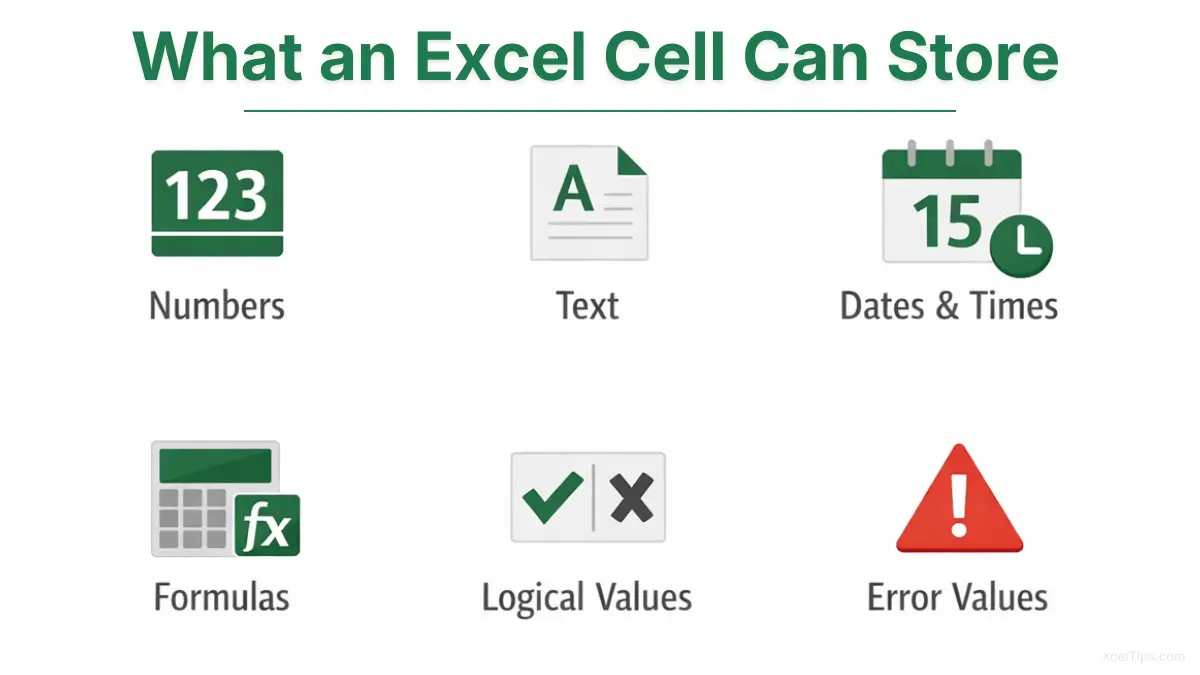
An Excel cell can store only one piece of data such as:
- Numbers
- Text
- Dates and times
- Formulas
- Logical values
- Error values
Tip:
Images and graphics are objects placed on the worksheet, not stored inside cells.
Because Excel provides billions of cells in each worksheet, it can store large amounts of data.
Now that you understand how Excel is structured, let’s explore what you can actually do with it.
What Can You Do With Excel?
Excel can be used in many ways. Below are the most common beginner-level uses.
Organize Data Clearly
Excel helps you organize information in a clean and structured way.
Examples:
- Lists of names and phone numbers
- Student records
- Product inventories.
- Daily task lists
Instead of writing data in paragraphs, Excel allows you to view everything in rows and columns, making information easier to read and manage.
Once your data is organized properly, the next powerful feature of Excel is calculation.
Perform Basic Calculations
One of Excel’s biggest strengths is calculation. You can easily:
- Add numbers
- Subtract values
- Multiply or divide
- Calculate totals automatically
For example, Excel can instantly calculate:
- Monthly expenses
- Total sales
- Average scores
Later tutorials will explain formulas step by step, but Excel already does much of the work for you.
Excel doesn’t just calculate. It can also automate repetitive tasks.
Save Time With Automation
Excel reduces repetitive work by using built-in features that update results automatically. Instead of calculating values manually:
- Results recalculate automatically when data changes.
- Formulas adjust instantly after edits.
- Repeated tasks can be automated using features like AutoFill and formulas.
This saves time and minimizes human error. After organizing and analyzing data, many users turn their work into clear summaries or reports.
Create Simple Reports
Excel is often used to prepare reports for:
- School assignments
- Office summaries
- Business tracking
You can format data with:
- Headings
- Colors
- Borders
- Simple charts
Even beginners can create professional-looking reports with basic formatting.
Beyond school and office work, Excel is also extremely useful for everyday personal and business tasks.
Track Personal and Business Activities
Excel is not only for offices. Many people use it for personal tasks such as:
- Budget tracking
- Expense management
- Workout logs
- Study planning
Small businesses also use Excel to:
- Track sales
- Manage invoices
- Monitor inventory
- Record employee attendance
Because Excel is so versatile, it is useful for a wide range of people.
Who Should Learn Excel?
Excel is useful for almost everyone. You should learn Excel if you are:
- A student
- An office worker
- A freelancer
- A business owner
- A job seeker
- Anyone who works with numbers or lists
Basic Excel skills are often required in job applications and professional environments.
With so many benefits, you might wonder whether Excel is difficult to learn.
Is Excel Hard to Learn?
Excel is not difficult, especially if you start from the basics.
Beginners often feel overwhelmed because they see advanced features, but you do not need to learn everything at once. Excel can be learned step by step:
- Understand cells, rows, and columns
- Learn basic formulas
- Practice simple formatting
- Use templates
- Gradually move to intermediate skills
That is exactly how the tutorials on xceltips.com are structured.
You may also wonder how Excel compares to other spreadsheet tools available today.
Excel vs Other Spreadsheet Tools
There are several spreadsheet tools available today, but Excel remains the most widely accepted in professional environments.
| Feature | Microsoft Excel | Other Spreadsheet Tools |
| Used in companies | Very widely used | Varies by organization |
| Works offline | Yes | Sometimes requires internet |
| Advanced features | Extensive tools | May have limitations |
| Job market value | High demand skill | Varies |
| File compatibility | Industry standard (.xlsx) | May convert formats |
Because Excel is widely used across industries, it has become a standard skill in many workplaces. Excel files are easy to share, and the skills you learn are transferable across different jobs and industries.
For beginners, learning Excel provides a strong foundation that offers long-term professional value.
Now let’s apply what you’ve learned with a quick hands-on exercise.
Quick Practice
Try this simple exercise (2 minutes):
- Open Microsoft Excel.
- The start screen is called the Backstage View. This is where you create new files or open existing ones.
- Click New → Blank workbook
- Click cell
A1and type:Employee Name. - Click cell
B1and type:Employee Salary. - Click cell
A2and type your name. - Click cell
B2and type:5000. - Press Enter.
You just created your first simple Excel table. Now, let’s summarize what we’ve learned.
Key Takeaways
Before moving on, here’s a quick summary of the most important concepts covered in this lesson:
- Microsoft Excel is the most widely accepted spreadsheet tool in professional environments.
- A workbook is the entire Excel file, while a worksheet is a single page inside it.
- Rows and columns form a grid structure.
- Cells store individual pieces of data such as numbers, text, or formulas.
- Excel reduces repetitive work through automatic calculations.
- Even beginners can quickly create simple tables and organize data.
If you still have questions about these concepts, the answers below address some of the most common beginner concerns.
Frequently Asked Questions (FAQ)
1. What is Microsoft Excel used for?
Microsoft Excel is used to organize data, perform calculations, analyze information, and create reports. It allows users to work with rows, columns, and cells to manage numbers, text, dates, and formulas efficiently.
2. What is the difference between a workbook and a worksheet in Excel?
A workbook is the entire Excel file (for example, XcelTips.xlsx). A worksheet is one page inside that workbook where you enter and manage data. A single workbook can contain multiple worksheets.
3. What can an Excel cell store?
An Excel cell can store one piece of data, such as:
- Numbers
- Text
- Dates and times
- Formulas
- Logical values (TRUE or FALSE)
- Error values
Images and graphics are placed on the worksheet but are not stored inside cells.
4. Is Microsoft Excel difficult for beginners?
No. Excel is beginner-friendly when you start with the basics. Learning how cells, rows, columns, and worksheets work makes it much easier to understand formulas and advanced features later.
5. Can Excel be used for personal tasks?
Yes. Many people use Excel for:
- Budget tracking
- Expense management
- Study planning
- Workout logs
- Small business tracking
Excel is useful for both personal and professional tasks.
Keep Practicing
Mastering Excel fundamentals builds the foundation for formulas, charts, sorting, filtering, and advanced data analysis. The more confident you become with workbooks, worksheets, rows, columns, and cells, the easier it will be to learn powerful features like formulas and functions in the next lessons.
If anything in this lesson is unclear, feel free to leave a question in the comments. I’ll be happy to help clarify.
What’s Next
You’ve just learned how Excel is structured — including cells, rows, columns, and worksheets. This foundational knowledge makes everything else much easier to understand.
Now it’s time to take the next practical step.
In the next lesson, you’ll learn how to open an Excel workbook properly, so you can start working with files confidently from the very beginning.