
Written By Sophanith Dith
Last Updated April 04, 2026
Applies to Microsoft Excel 365 (Windows only)
Part of the Beginner Learning Path
Module 1 Excel Fundamentals
Lesson 9 of 12
When you first start using Excel, you might notice multiple tabs at the bottom of your screen. These are worksheets, and managing them properly is an essential skill.
You’ll also be working with different parts of the Excel interface, such as tabs and toolbars. If you’re not familiar with them yet, see understanding the Excel interface: ribbon, tabs, and toolbar explained.
Many beginners struggle with organizing their work because they don’t know how to add, duplicate, or delete a sheet in Excel efficiently. This can quickly make a workbook feel messy and confusing.
Before we go through the steps, let’s quickly clarify what this means.
Quick Definition:
Adding, deleting, and duplicating sheets in Excel means creating new worksheets, removing unnecessary ones, and copying existing sheets to reuse their structure and data.
Now let’s start with a quick overview before going step by step.
Quick Reference
Before going into detailed steps, here are the key things you need to know:
- You can add a new worksheet using the + (New Sheet) button.
- You can delete a worksheet by right-clicking its tab.
- You can duplicate a worksheet to copy its content instantly.
- Sheet tabs are located at the bottom of the Excel window.
- You can rename sheets to stay organized.
With that overview in mind, let’s explore each action in detail.
Understanding a Worksheet in Excel
Before learning how to manage worksheets, it’s important to understand what they are and why they matter.
A worksheet is a single page inside a workbook. Think of a workbook as a file, and worksheets as individual pages within that file. For example, a workbook named XcelTips_Practice.xlsx might contain separate sheets for January, February, and March.
If you’re new to this concept, you can learn more in our guide on understanding cells, rows, columns, and worksheets in Excel.
This structure is useful because it allows you to:
- Separate different types of data.
- Keep your work organized.
- Avoid cluttering one sheet with too much information.
Many beginners make the mistake of putting everything into one worksheet. This can make data harder to read and manage.
Instead, using multiple worksheets helps you create a cleaner and more professional file. For example:
| Worksheet Name | Purpose |
|---|---|
| Sales_Jan | January sales data |
| Sales_Feb | February sales data |
| Summary | Overall totals |
Now that you understand the purpose of worksheets, let’s start by adding one.
How to Add a New Worksheet in Excel
As your workbook grows, you may need extra sheets to separate different types of information. Adding a new sheet helps keep your workbook organized and easier to manage.
There are a few ways to do this in Excel, but the + button beside the sheet tabs is the easiest method for beginners. You can also add a sheet from the Home tab.
Method 1: Use the New Sheet Button
This is the fastest and most beginner-friendly way to insert a new sheet. Follow these steps to create a new worksheet:
- Go to the bottom of the Excel window.
- Find the + (New Sheet) button next to the sheet tabs.
- Click the + button.
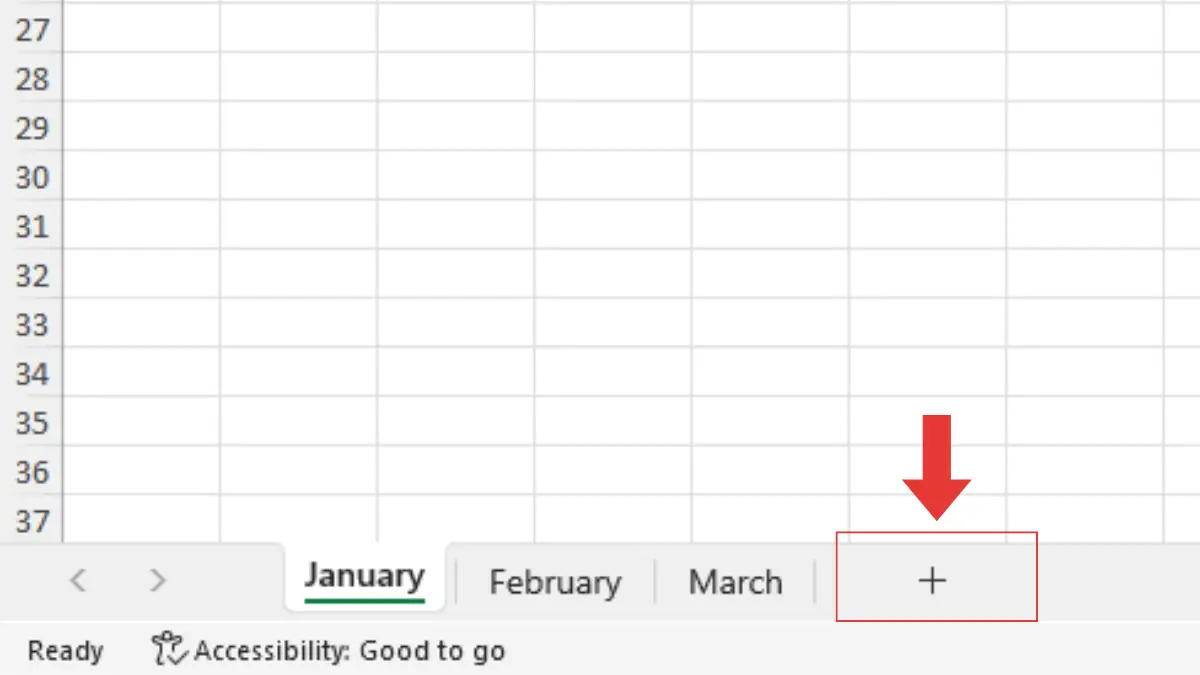
Excel will instantly create a new worksheet to the right of the existing sheets.
Method 2: Use the Home Tab
If you prefer using the Ribbon, Excel also lets you insert a new worksheet from the Home tab.
- Go to the Home tab.
- In the Cells group, click Insert.
- Select Insert Sheet.
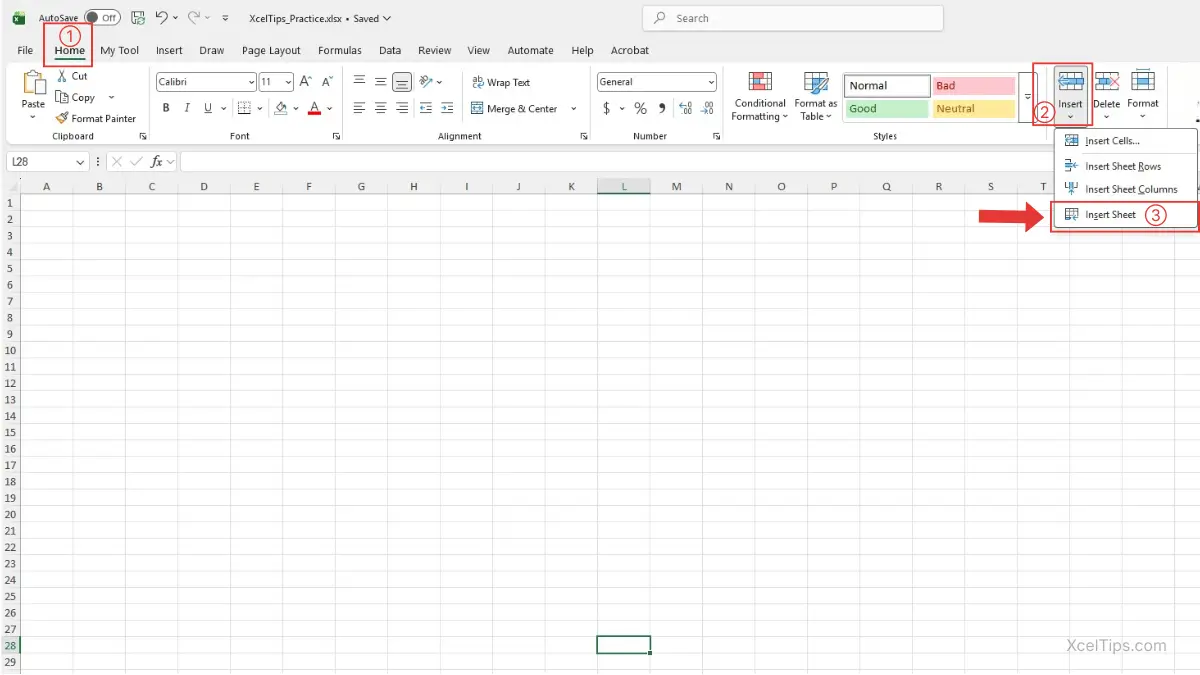
Excel will insert a new worksheet before the currently selected sheet. To control where the new sheet appears, make sure you select the correct sheet first.
Method 3: Right-Click an Existing Sheet Tab
You can also insert a new sheet by right-clicking one of the sheet tabs at the bottom of the workbook. This method is helpful when you are already working near the sheet tabs.
- Right-click any existing sheet tab.
- Click Insert.
- Select Worksheet.
- Click OK.
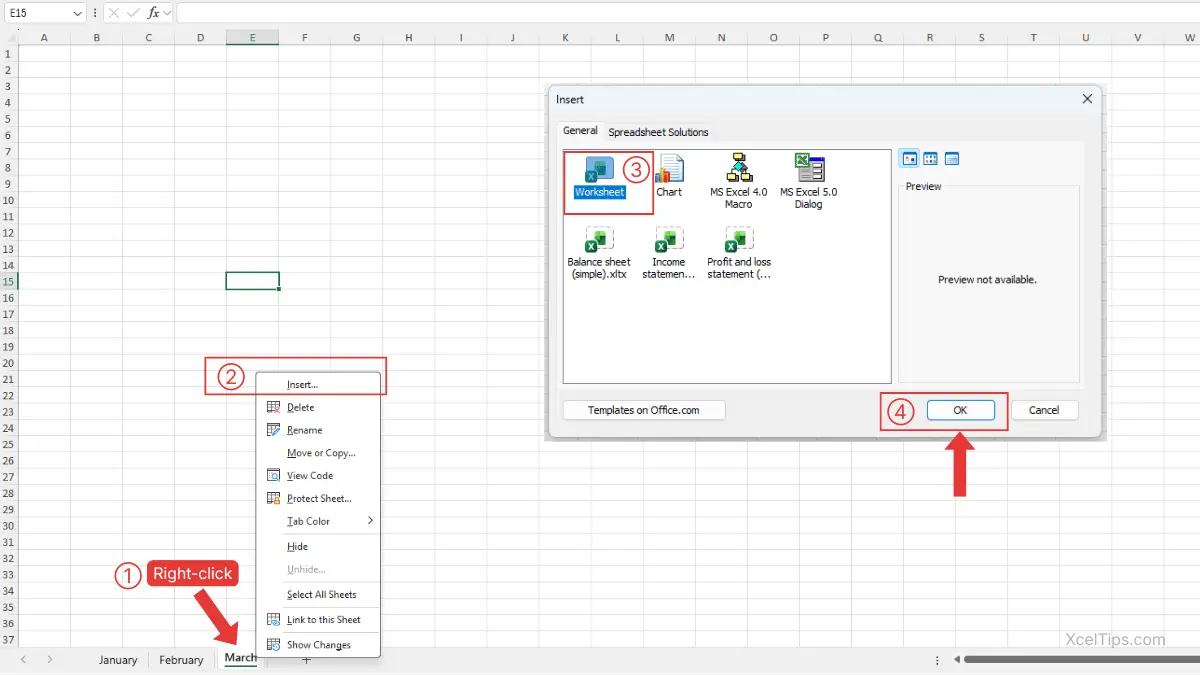
Excel will insert a new worksheet before the sheet that is currently selected.
Method 4: Use a Keyboard Shortcut
If you want the fastest way to insert a new worksheet, you can use a keyboard shortcut. This is especially useful once you become more comfortable using Excel.
Follow these steps:
- Select any worksheet.
- Press
Shift + F11on your keyboard.
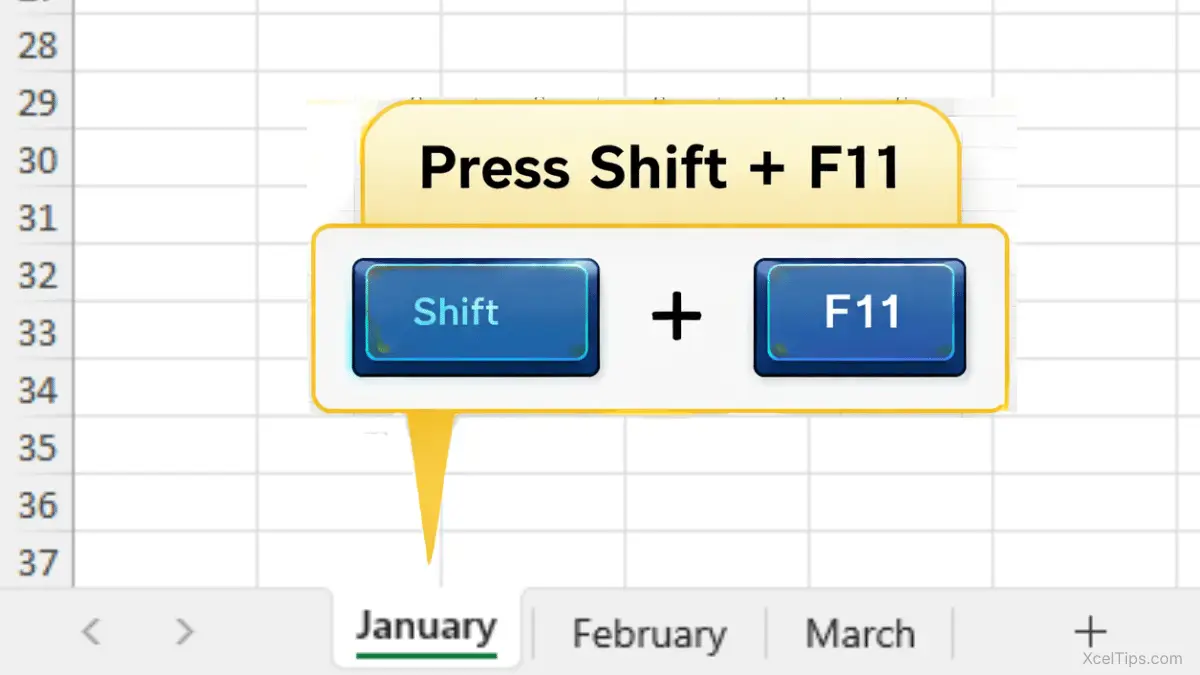
Excel will instantly create a new worksheet before the sheet you selected.
Beginner Tips:
The + button is usually the easiest option for beginners because it is always visible at the bottom of the workbook.
The Home → Insert → Insert Sheet method is useful when you are getting more comfortable with Ribbon commands.
The Shift + F11 shortcut is the quickest way to add a new sheet, but it may feel unfamiliar at first.
Where Does the New Worksheet Appear?
After adding a new worksheet, you might notice that it doesn’t always appear in the same place. This can be confusing for beginners at first, but the position depends on the method you use.
Here’s a quick comparison to help you understand:
| Method | Where the New Sheet Appears |
|---|---|
| + New Sheet button | To the right of the existing sheets |
| Home → Insert → Insert Sheet | Before the currently selected sheet |
| Right-click → Insert → Worksheet | Before the currently selected sheet |
Shift + F11 shortcut | Before the currently selected sheet |
Beginner Tips:
If you want to control where the new sheet appears, make sure you select the correct sheet first before using methods like Home → Insert, right-click, or the keyboard shortcut.
When Should You Add a Worksheet?
Adding a worksheet is useful when:
- Starting a new section of data.
- Separating monthly or category-based information.
- Keeping your workbook clean and structured.
Beginner Tip:
Rename your worksheet immediately to stay organized. Avoid leaving default names like Sheet1, Sheet2.
Now that you know how to create new sheets, let’s look at how to reuse existing ones without starting from scratch.
How to Duplicate a Worksheet in Excel
Duplicating a worksheet is one of the most useful features for beginners. It allows you to create a copy of an existing sheet, including all data and formatting. This is especially helpful when working with similar data layouts
Steps to Duplicate a Worksheet
Follow these steps to copy a worksheet:
- Right-click the worksheet tab you want to duplicate.
- Click Move or Copy…
- In the dialog box, check Create a copy by selecting the check box.
- Choose where to place the copy. You can select one of the following options:
- In the current workbook
- In another open workbook
- In a new workbook
- Click OK.
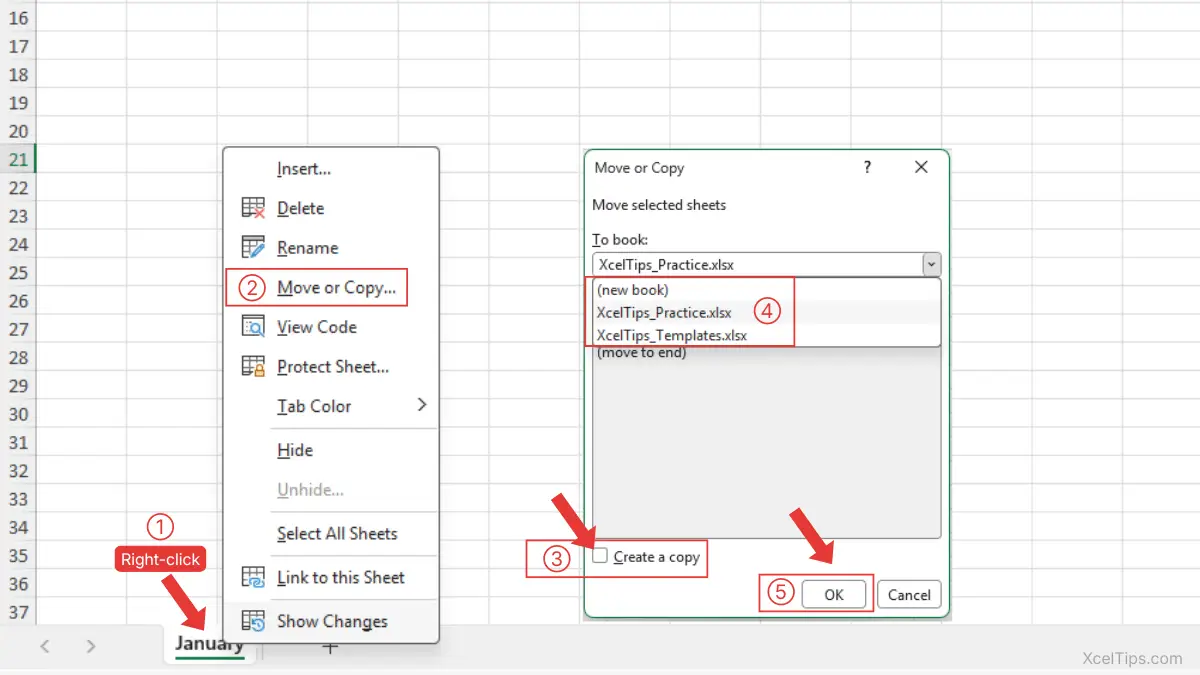
Excel will create a duplicate of the worksheet in the location you selected.
Beginner Warning:
If you do not check the Create a copy box, Excel will move the worksheet instead of duplicating it.
What Happens After Duplication?
Excel automatically names the copy like this:
- Sheet1 → Sheet1 (2)
You can rename it to something more meaningful.
When Should You Duplicate Instead of Add?
Duplicating is better than adding a blank sheet when:
- You need the same structure (templates).
- You want consistent formatting.
- You’re creating repeated reports (e.g., monthly sheets).
Beginner Tip:
Use duplication for templates instead of starting from scratch. Always rename duplicated sheets to avoid confusion
Once your workbook grows, you may also need to remove sheets you no longer need.
How to Delete a Sheet in Excel (Step-by-Step)
If your workbook starts to feel cluttered, learning how to delete a sheet in Excel helps you remove unnecessary tabs and stay organized.
Deleting worksheets is simple, but it’s important to understand that this action can permanently remove data if you’re not careful.
Steps to Delete a Sheet in Excel
Follow these steps to remove a worksheet:
- Right-click the worksheet tab you want to delete.
- Click Delete. If the sheet contains data, Excel will show a warning message.
- If prompted, click Delete again to confirm.
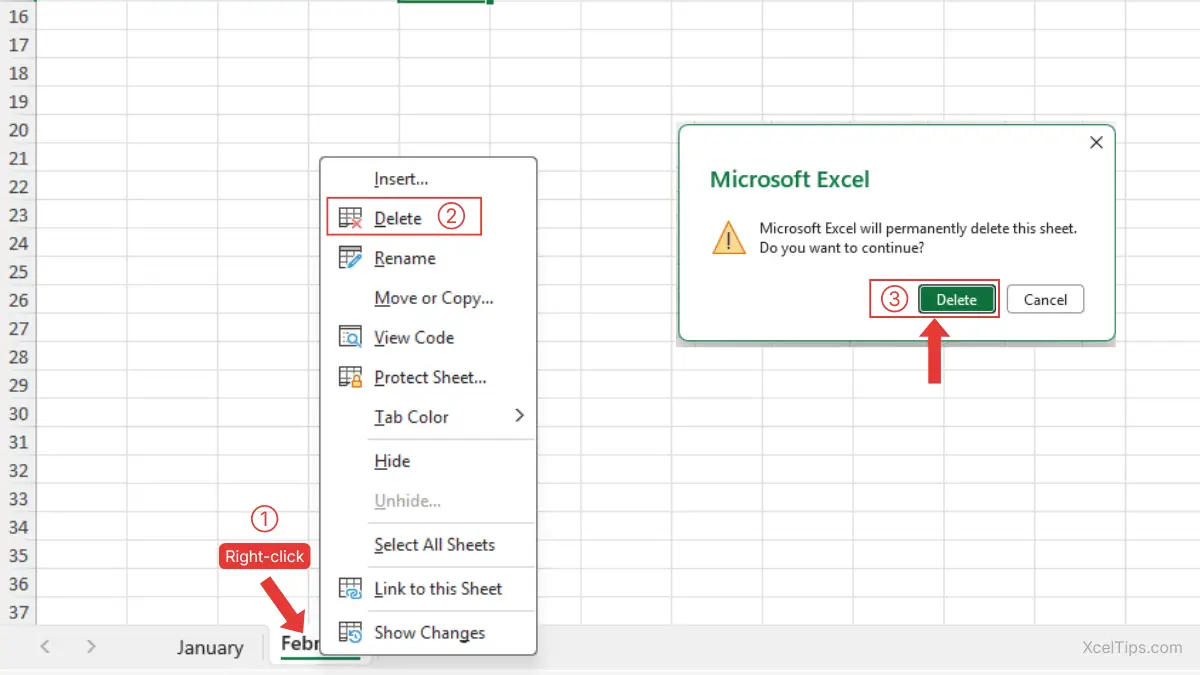
For additional details, you can also refer to the official Microsoft guide on how to insert or delete a worksheet.
What Happens When You Delete a Sheet?
Before using this feature regularly, it’s important to understand the result.
When you delete a worksheet:
- The entire sheet is removed from the workbook.
- All data inside that sheet is permanently deleted.
- The action cannot be undone after saving the file.
This is one of the most common beginner mistakes. If you accidentally delete important data, you may still be able to recover it—learn how in our guide on how to recover unsaved Excel files.
Beginner Warning:
Deleted worksheets cannot be undone after saving. Double-check before deleting important data.
Why You Might Not Be Able to Delete a Sheet
Sometimes Excel won’t allow you to delete a worksheet. Here are the most common reasons:
| Issue | Explanation |
|---|---|
| Only one sheet left | Excel requires at least one worksheet |
| Sheet is protected | The sheet or workbook is locked |
| File is read-only | You don’t have editing permission |
Now that you understand how each action works, the next step is knowing when to use each one.
When to Add, Duplicate, or Delete a Sheet in Excel
At this point, you know how each action works. The next step is understanding when to use each one. Choosing the right action helps you work faster and stay organized.
| Action | When to Use It | Example |
|---|---|---|
| Add | Starting fresh data | New monthly report |
| Duplicate | Reusing structure | Copying a template |
| Delete | Removing unused sheets | Old test data |
Real-World Workflow Example
Imagine you’re managing a workbook called Budget.xlsx:
- Add a new sheet for each month.
- Duplicate last month’s sheet to keep the same format.
- Delete any unused or test sheets.
This workflow keeps your file organized and easy to understand.
With that foundation in place, the best next step is to practice these actions yourself in a simple workbook.
Quick Practice
To build confidence, try this simple exercise:
- Open a blank workbook.
- Add two new worksheets.
- Rename them (optional for now).
- Duplicate one worksheet.
- Delete one worksheet.
This hands-on practice will help you remember the steps.
After trying these actions in Excel, it helps to review the main points so they stay fresh in your mind.
Key Takeaways
Before moving on, let’s quickly recap the most important points from this lesson. These are the core skills you should remember when managing worksheets in Excel.
- You can add a new sheet instantly using the + (New Sheet) button.
- You can delete a sheet in Excel by right-clicking the tab and selecting Delete.
- Deleting a sheet removes all data and cannot be undone after saving.
- You can duplicate a worksheet using Move or Copy → Create a copy.
- Using multiple sheets helps you organize your data more clearly.
- Always rename and review sheets to avoid confusion or mistakes.
These basic actions form the foundation of working with multiple worksheets. The more you practice them, the more confident and efficient you’ll become in Excel.
Before we wrap up, let’s go over a few common questions beginners often have about adding, duplicating, and deleting sheets in Excel.
Frequently Asked Questions (FAQs)
How do I add multiple worksheets quickly in Excel?
You can click the + (New Sheet) button multiple times to add several worksheets. Each click creates a new sheet instantly.
You can also use the keyboard shortcut Shift + F11 to insert new sheets faster.
Can I recover a deleted worksheet in Excel?
If you delete a worksheet and save the file, it usually cannot be recovered.
However, you may still be able to restore your work using backup or recovery features. Learn more in our guide on how to recover unsaved Excel files.
How do I copy a worksheet to another workbook?
Right-click the worksheet tab, then click Move or Copy….
In the dialog box, select the target workbook, check Create a copy, and click OK.
What is the fastest way to duplicate a worksheet?
The fastest method is to:
- Right-click the sheet tab
- Select Move or Copy…
- Check Create a copy
- Click OK
Why can’t I delete a sheet in Excel?
You may not be able to delete a sheet if:
- It is the only sheet in the workbook.
- The workbook or sheet is protected.
- The file is set to read-only.
Make sure at least one sheet remains and that the file is editable.
What is the difference between a sheet and a worksheet in Excel?
There is no difference—Sheet and Worksheet mean the same thing. Sheet is a shorter, more commonly used term, especially among beginners.
Now that you’ve reviewed the most common questions, let’s quickly summarize what you learned in this lesson.
Conclusion
Now that you can manage worksheets confidently, you’re ready to organize your Excel files more effectively.
Learning how to add, delete, and duplicate worksheets in Excel is a foundational skill that helps you stay organized and work more efficiently.
By using multiple worksheets properly, you can structure your data clearly and avoid confusion as your files grow.
Take a few minutes to practice these actions in your own workbook. The more comfortable you become with managing worksheets, the easier Excel will feel.
This lesson is part of the Beginner Learning Path, a structured series designed to help you learn Microsoft Excel step by step from the basics.
← Previous Lesson
Understanding Cells, Rows, Columns, and Worksheets in Excel
Next Lesson →
How to Rename a Sheet in Excel and Move It (Step-by-Step Guide)