
Written By Sophanith Dith
Last Updated April 11, 2026
Applies to Microsoft Excel 365 (Windows only)
Part of the Beginner Learning Path
Module 1 Excel Fundamentals
Lesson 11 of 12
Working in Excel is easy when your workbook has only one or two sheets. But once you start using separate sheets for months, departments, reports, or categories, moving around the file can become slower than it should be. Many beginners waste time clicking around the bottom of the Excel window, trying to find the correct sheet tab.
That is why learning how to switch between sheets in Excel is such a useful beginner skill. It helps you move through a workbook faster, stay focused, and avoid confusion when your file starts to grow. Even a simple workbook like Budget.xlsx or Sales_Report.xlsx can become much easier to use when you know the fastest navigation methods.
This tutorial will show you the easiest and most practical ways to move from one worksheet to another. You will learn how to use sheet tabs, how to use the shortcut to switch sheets in Excel, how to switch between worksheets in Excel with the keyboard, and how to move between sheets in Excel more quickly when you have many worksheets.
Before we go step by step, here is the short answer.
Quick answer:
To switch between sheets in Excel, click the sheet tabs at the bottom of the workbook, use Ctrl + Page Down and Ctrl + Page Up, or use the sheet navigation controls to reveal out-of-view tabs and jump directly to a worksheet.
Before looking at each method step by step, here is a quick reference you can scan in seconds.
Quick Reference
If you only need the essentials first, this quick reference shows how to switch between sheets in Excel using the main navigation methods beginners will use again and again.
- Click a sheet tab to open that worksheet.
- Press
Ctrl + Page Downto go to the next sheet. - Press
Ctrl + Page Upto go to the previous sheet. - Press
F6until the sheet tabs are selected, then use the Left Arrow or Right Arrow keys and press Enter. - Use the tab navigation arrows when some sheet tabs are out of view.
- Right-click the navigation arrows to view a list of all worksheets.
Beginner Tip:
Use keyboard shortcuts when switching often between nearby sheets.
With that overview in place, let’s look at how sheet navigation works and when each method is most useful.
Why Sheet Navigation Matters in Excel
When beginners first learn Excel, they often focus on entering data, formatting cells, or saving files. Those skills matter, but navigation matters too. If you cannot move around a workbook efficiently, every task feels slower than it should.
A workbook can contain many worksheets, and each worksheet may hold a different part of the project. For example, one workbook might have sheets named January, February, March, and Summary. Another might use sheets for Inventory, Orders, and Expenses. If you switch between these areas often, knowing the fastest method saves time every day.
Good sheet navigation also reduces mistakes. When you move confidently between worksheets, you are less likely to type data into the wrong place or compare the wrong numbers. This becomes especially important when you are checking reports or updating recurring files.
If worksheet basics still feel new, review Understanding Cells, Rows, Columns, and Worksheets before continuing. For now, the key idea is simple: the faster you can move between sheets, the easier your workbook becomes to manage.
Understand Where Sheet Tabs Appear
Before you try faster methods, it helps to identify the parts of the window Excel uses for worksheet navigation. All worksheet tabs appear near the bottom-left area of the workbook window. By default, they usually show names such as Sheet1, Sheet2, and Sheet3, unless you have already renamed them.
Each tab represents one worksheet. When you click a tab, Excel makes that worksheet active and displays its cells on screen. This is the most visual way to move around a workbook, so it is often the first method beginners use.
If your workbook has only a few sheets, this method is usually enough. But as more worksheets are added, not all tabs may fit at the bottom. That is where faster or more flexible navigation methods become useful.
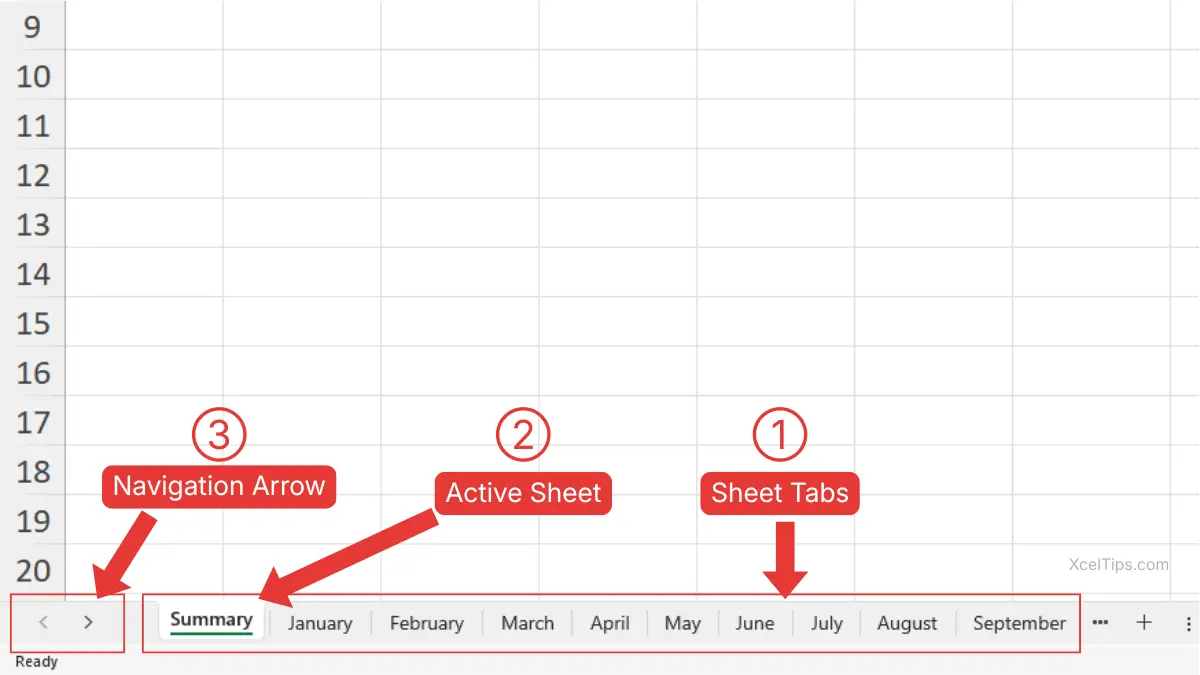
What beginners should notice first
Before trying shortcuts, take a moment to identify these parts of the worksheet area:
- The sheet tabs at the bottom.
- The active sheet tab, which appears highlighted.
- The small navigation arrows to the left of the sheet tabs.
Once you can recognize those elements easily, the rest of the lesson becomes much simpler.
Beginner Warning:
If you cannot see any sheet tabs at all, the tabs may be turned off or hidden by the workbook layout, not deleted.
With those worksheet navigation elements identified, let’s start with the simplest way to move from one sheet to another.
Method 1: Click the Sheet Tabs to Switch Sheets in Excel
The easiest way to switch between worksheets in Excel is to click the tab you want. This is the most beginner-friendly method because it is visual and immediate.
If you only have a few sheets open, clicking tabs is usually fast enough. For example, if your workbook has only Summary, Data, and Notes, clicking between them takes only a second.
Steps to switch sheets by clicking tabs
This method is simple, but it is still worth practicing in a clear order.
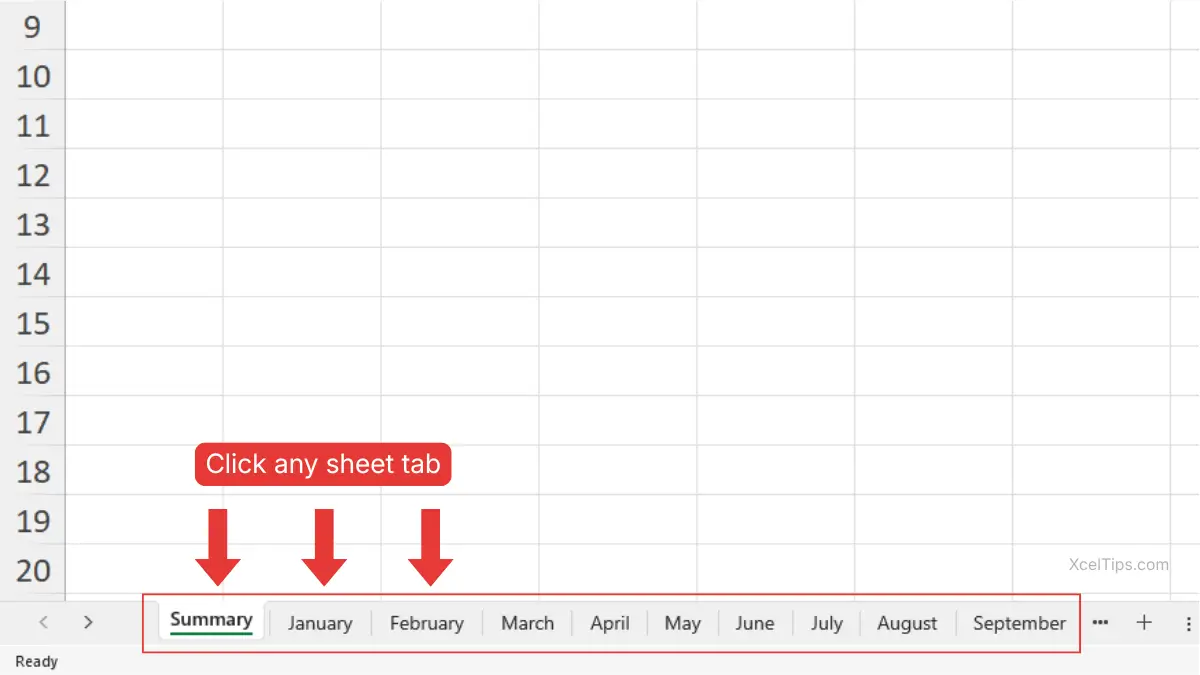
- Look at the sheet tabs at the bottom of the Excel window.
- Find the name of the worksheet you want to open.
- Click that sheet tab once.
- Excel will immediately display that worksheet.
When this method works best
Clicking sheet tabs works especially well in these situations:
- You have only a small number of worksheets.
- The sheet names are all visible on screen.
- You are still learning the workbook structure.
- You prefer using the mouse.
Beginner Tip:
If your sheet names are unclear, navigation becomes harder even if the tabs are visible. That is one reason worksheet naming matters. Clear sheet names make navigation easier. You can learn more about that in How to Rename a Sheet in Excel and Move It.
Clicking tabs is a good starting point, but it is not always the fastest method. When you need more speed, keyboard shortcuts are much better.
Method 2: Keyboard Shortcut to Switch Sheets in Excel
If you want a faster workflow, this is the section that matters most. Learning how to switch between worksheets in Excel with the keyboard is one of the easiest ways to work more efficiently.
Instead of moving your mouse to the bottom of the screen every time, you can jump between nearby sheets instantly. This is especially helpful when you are comparing data across tabs or checking multiple monthly sheets in a report.
The main Excel shortcut to switch sheets
The most important keyboard shortcuts are:
| Action | Shortcut |
|---|---|
| Move to the next sheet | Ctrl + Page Down |
| Move to the previous sheet | Ctrl + Page Up |
These are the standard shortcuts most users mean when they search for the Excel shortcut to switch sheets.
If you are looking for the best shortcut to switch sheets in Excel, these are the two shortcuts you should remember first.
Step-by-step instructions
If you have never used these shortcuts before, try them slowly the first time.
- Open a workbook with at least two worksheets.
- Click any worksheet tab to make sure the workbook is active.
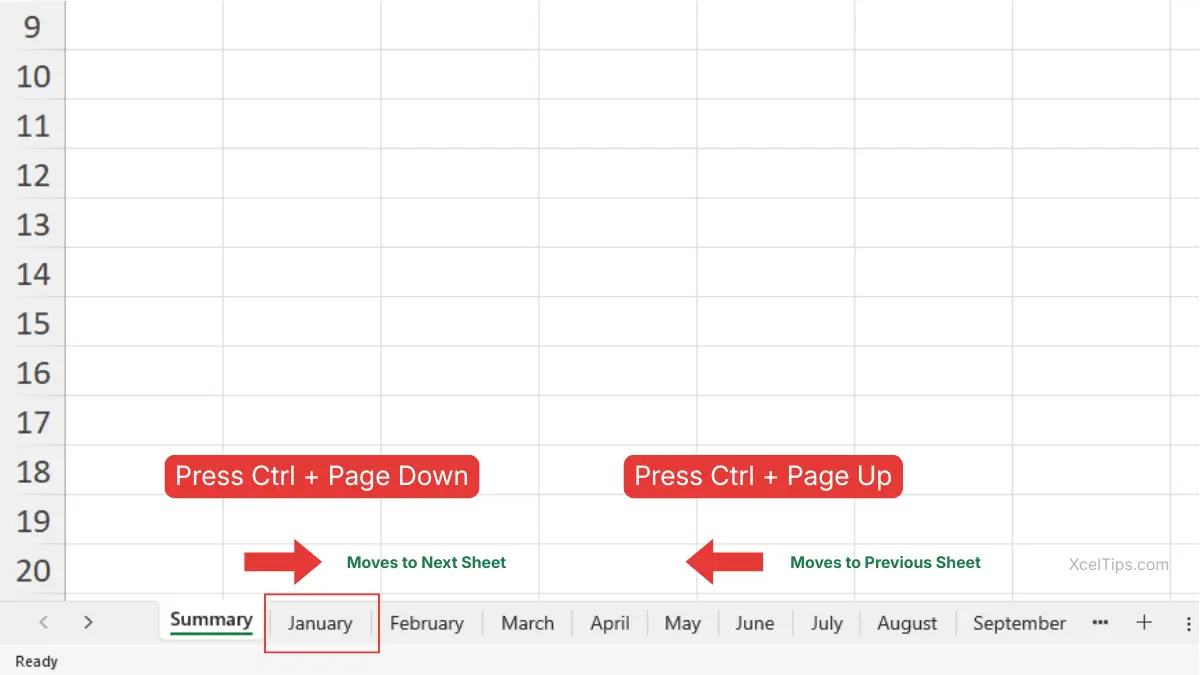
- Hold down the
Ctrlkey on your keyboard. - While holding
Ctrl, pressPage Downto move to the next worksheet. - Hold
Ctrland pressPage Upto move to the previous worksheet.
Excel will switch worksheets immediately without using your mouse.
Beginner Warning:
On some laptops, the Page Up and Page Down keys may be combined with other keys. If the shortcut does not work, you may need to use the Fn key as well, depending on your keyboard layout.
Why this shortcut is so useful
This shortcut to switch sheets in Excel is best when:
- You switch repeatedly between nearby worksheets.
- You compare monthly or weekly tabs.
- You want to keep your hands on the keyboard.
- You work with structured reports often.
For many beginners, this is the first shortcut that makes Excel feel noticeably faster.
Another useful way to switch between sheets in Excel is by using the keyboard to activate the sheet tab area and navigate across tabs.
Method 3: Switch Between Sheets Using F6 and Arrow Keys
This method is especially helpful if you want to stay fully on the keyboard without using your mouse.
Steps to Switch Sheets Using F6
Follow these steps carefully:
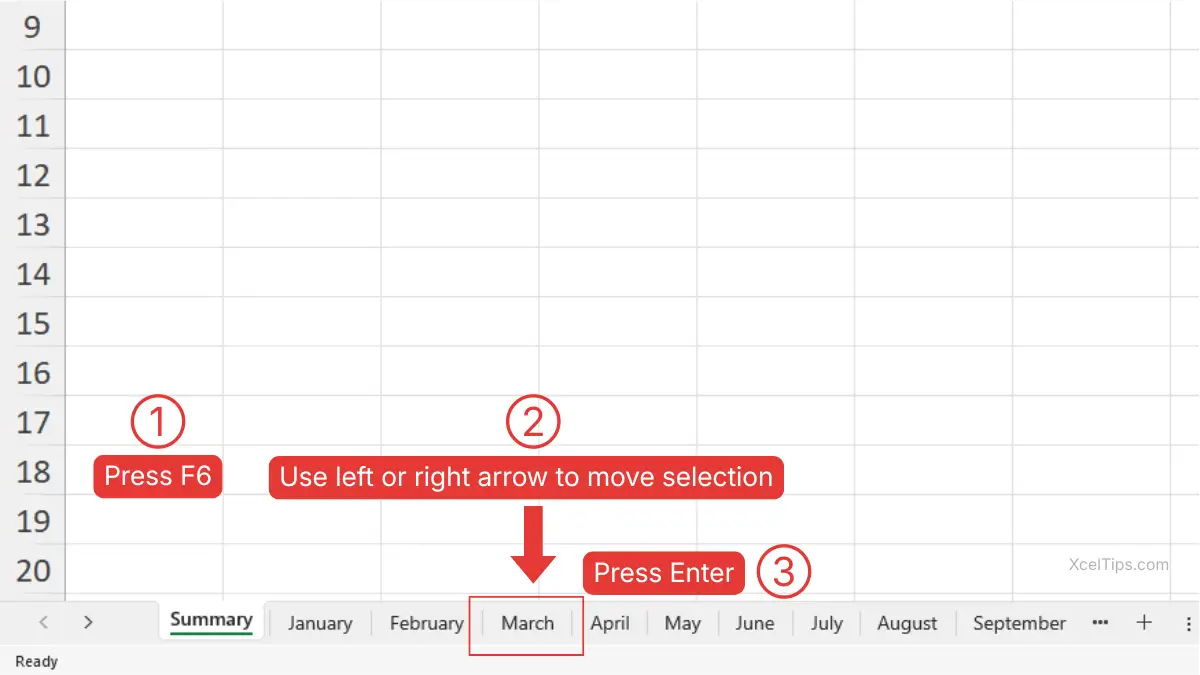
- Press
F6until the focus moves to the sheet tabs. - Use the Left Arrow or Right Arrow key to move across the visible sheet tabs.
- Press Enter to open the selected sheet.
Excel will switch to the selected worksheet.
Microsoft also covers this in its official guide to selecting worksheets.
Beginner Tips:
You may need to press F6 multiple times depending on your current position in Excel. The selection will cycle through different areas such as the Ribbon, worksheet, and sheet tabs.
Why This Method Is Useful
This method helps you jump straight to the worksheet you want.
- You prefer keyboard navigation.
- You want more control than
Ctrl + Page Up/Page Down. - You are working with many sheets.
If you prefer using the mouse, Excel also provides navigation arrows to help you reach sheet tabs that are out of view.
Method 4: Use the Navigation Arrows When Tabs Are Hidden
As your workbook grows, sheet tabs may no longer all fit on the screen. This does not mean the missing sheets are gone. It only means some tabs may be out of view because there is not enough room to display them all.
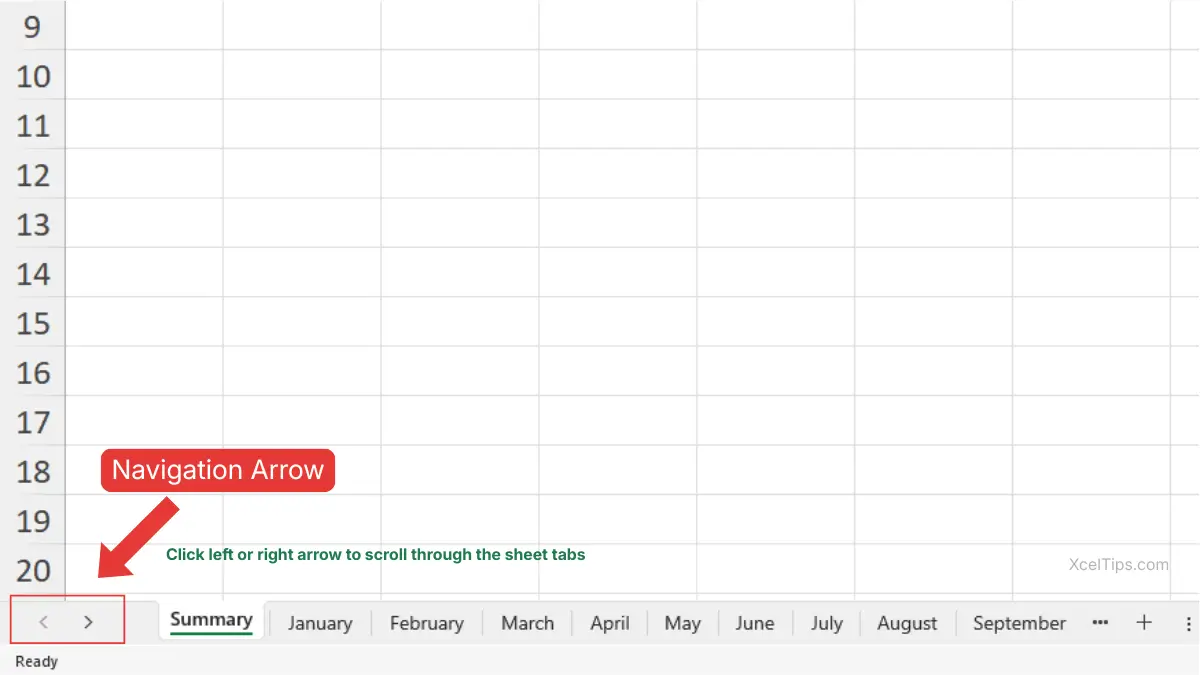
Excel solves this with the tab navigation arrows on the left side of the sheet tab area. These arrows let you scroll through the list of sheet tabs so you can reveal ones that are currently hidden.
Steps to use the tab navigation arrows
This is a useful method when you still want to navigate with the mouse.
- Go to the bottom-left corner of the workbook.
- Locate the small navigation arrows to the left of the sheet tabs.
- Click the left or right arrow to scroll through the sheet tabs.
- Continue until the tab you want becomes visible.
- Click the worksheet tab to open it.
Important Note:
The arrows do not open a sheet by themselves. They only move the tab strip left or right. After the tab becomes visible, you still need to click it.
When this method is most useful
This option works best when:
- Your workbook has many worksheets.
- You prefer using the mouse.
- The sheet you need is only a few tabs away.
- You want to reveal out-of-view tabs without using shortcuts.
This method is helpful, but if you have a very large workbook, there is an even better tool.
Method 5: View a List of All Worksheets
When a workbook contains many sheets, scrolling through tabs can still feel slow. Excel includes a hidden but very useful feature that many beginners do not know about: you can view a list of all worksheets at once.
This is one of the most practical ways to switch sheets when the workbook is crowded.
Steps to open the sheet list
Follow these instructions carefully the first time, because many users overlook this feature.
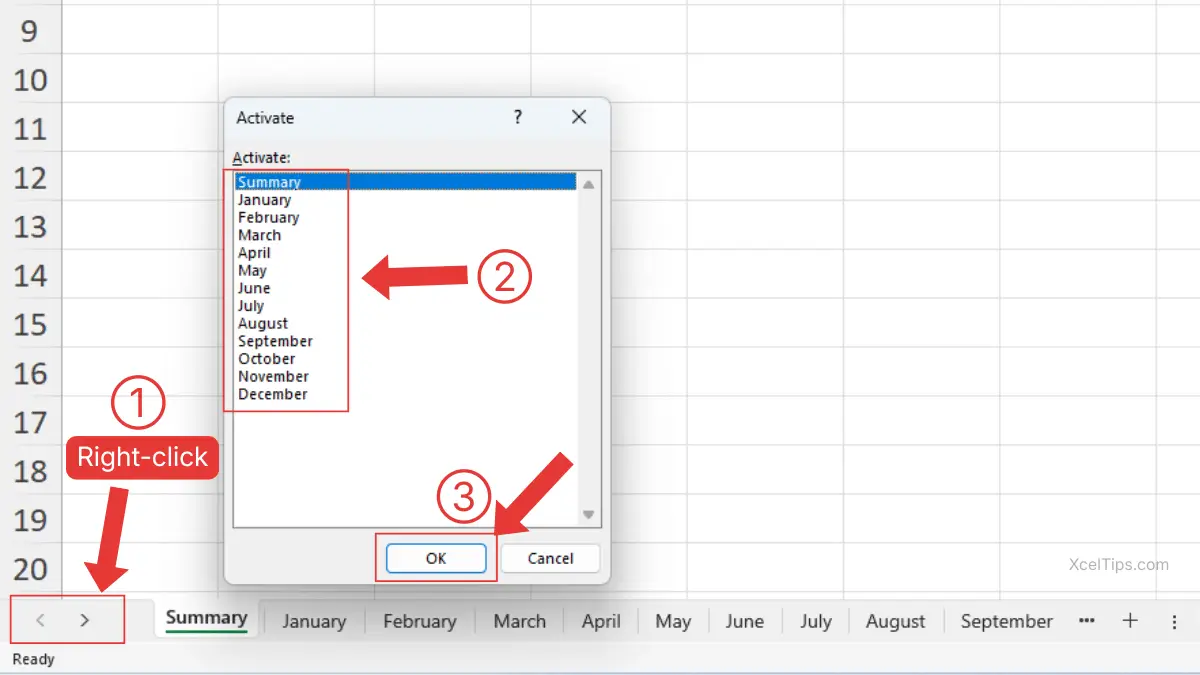
- Right-click on navigation arrows to the left of the sheet tabs.
- A list of worksheets will appear. Choose the worksheet name you want to open.
- Click ok.
Excel will jump directly to that worksheet.
Why this method is powerful
This is especially useful when:
- You have many worksheets in one workbook.
- The sheet tab is far from your current position.
- You do not want to keep scrolling left and right.
- You know the sheet name but cannot see its tab.
For example, if a workbook contains 20 monthly tabs and you are on January but need December, right-clicking the arrows is much faster than clicking through the tabs one by one.
At this point, you have seen the most useful ways to move between worksheets. Now let’s compare them so you know when each one works best.
Which Method Should You Use to Switch Sheets in Excel?
No single method is best in every situation. The right choice depends on the size of the workbook, how often you move between sheets, and whether you prefer using the mouse or keyboard.
Quick comparison of how to switch between worksheets in Excel
The table below makes it easier to decide which approach fits your workflow.
| Method | Best for | Speed | Mouse or keyboard |
|---|---|---|---|
| Click sheet tabs | Small workbooks with visible tabs | Medium | Mouse |
| Ctrl + Page Up/Down | Frequent switching between nearby sheets | Fast | Keyboard |
| F6 + Arrow keys + Enter | Full keyboard navigation across sheet tabs | Medium | Keyboard |
| Navigation arrows | Revealing out-of-view nearby tabs | Medium | Mouse |
| Right-click sheet list | Jumping to a specific sheet in large workbooks | Fast | Mouse |
Real-world example
Imagine you are updating a workbook called Sales_Report.xlsx with the sheets January through December plus a Summary tab.
- Use
Ctrl + Page Downwhen moving from one month to the next. - Use
F6 + Arrow keys + Enterwhen you want to stay on the keyboard and move through visible sheet tabs. - Use the right-click sheet list when jumping straight from January to December.
- Use tab clicking when only a few sheets are visible and close together.
The more you match the method to the task, the more natural sheet navigation becomes.
With the main methods and use cases in mind, let’s look at a few common beginner mistakes that can get in the way.
Common Beginner Mistakes When Switching Sheets
Beginners often struggle with worksheet navigation not because it is difficult, but because they rely on slow habits. Recognizing these mistakes early can make your practice much more productive.
Mistake 1: Only using the mouse
Clicking tabs is simple, but it becomes inefficient when you switch often. If you always reach for the mouse, even nearby worksheet changes feel slower than they should.
Better Approach:
Practice the keyboard shortcut until it feels natural.
Mistake 2: Thinking off-screen tabs mean the worksheet is gone
When some sheet tabs disappear from the bottom, beginners sometimes worry that worksheets were deleted. In most cases, the tabs are only out of view because there are too many to display at once.
A sheet can also be truly hidden in Excel, which is different from a tab being off-screen. If that happens, you need to unhide the worksheet instead of scrolling the tab area. Microsoft documents this distinction on Where are my worksheet tabs?
Better Approach:
Use the navigation arrows or right-click the arrows to see the full list.
Mistake 3: Not paying attention to sheet names
If several worksheets still use generic names such as Sheet1, Sheet2, and Sheet3, switching between them becomes confusing.
Better Approach:
Use clear worksheet names so navigation is faster and safer.
Mistake 4: Not practicing with a real workbook
Shortcuts are easy to forget if you only read about them once. Try these methods in a real workbook with several tabs so the actions feel practical.
Reading the steps helps, but using them in a real workbook is what makes them easier to remember.
Quick Practice
The best way to remember these methods is to test them yourself. A short practice session will make the steps much easier to remember later.
Practice exercise
Use the following exercise in a blank workbook or any sample file.
- Open Excel and make sure your workbook has at least five worksheets.
- Rename them something simple like Jan, Feb, Mar, Apr, and May if you want clearer labels.
- Click each sheet tab to practice mouse navigation.
- Use
Ctrl + Page Downto move forward through the workbook. - Use
Ctrl + Page Upto move backward through the workbook. - Press
F6until the sheet tabs are selected, then use the Left Arrow or Right Arrow key and press Enter to open a sheet. - Use the navigation arrows to scroll the tab area if some tabs are not visible.
- Right-click the navigation arrows and choose a sheet from the list.
What this practice teaches
This short exercise helps you learn:
- how sheet tabs behave.
- how the keyboard shortcut works.
- how to move across sheet tabs with
F6and the arrow keys - how to find sheet tabs that are out of view.
- how to move more confidently in larger workbooks.
A few minutes of practice here will save you much more time later.
Now that you have tried the main methods yourself, let’s quickly review the most important points to remember.
Key Takeaways
If you only remember a few things from this tutorial, focus on these worksheet navigation basics. They will help you move around Excel more quickly and with less confusion.
- Click the sheet tabs when you want the simplest way to switch worksheets.
- Use
Ctrl + Page DownandCtrl + Page Upwhen you want to move faster between nearby sheets. - Use
F6, the Arrow Keys, and Enter if you want to switch sheets without using the mouse. - Use the navigation arrows when some sheet tabs are out of view.
- Right-click the navigation arrows to open a full list of worksheets in a larger workbook.
- Clear worksheet names make it much easier to find the sheet you need quickly.
With those key points in mind, here are answers to common beginner questions about switching between sheets in Excel.
Frequently Asked Questions (FAQs)
How do I switch between sheets in Excel quickly?
The fastest method for nearby worksheets is usually the keyboard shortcut: Ctrl + Page Down for the next sheet and Ctrl + Page Up for the previous sheet. For larger workbooks, right-clicking the navigation arrows can be even faster when you need to jump directly to a specific sheet.
What is the shortcut to switch sheets in Excel?
The standard shortcut to switch sheets in Excel is:
Ctrl + Page Downto move to the next sheet.Ctrl + Page Upto move to the previous sheet.
These shortcuts work well when you are moving through worksheets in order.
Why can’t I see all my sheet tabs?
Sometimes there are too many tabs to fit in the window. In other cases, the tabs may be obscured by workbook layout settings, the horizontal scrollbar, or the “Show sheet tabs” option being turned off.
Can I switch sheets without using the mouse?
Yes. You can use Ctrl + Page Up/Page Down, or press F6 until the sheet tabs are selected, then use the arrow keys and press Enter. Microsoft documents F6 as a way to move between Excel’s main areas, including sheet tabs.
What should I do if the shortcut does not work on my laptop?
Check whether your keyboard requires the Fn key to use Page Up and Page Down. Some laptop keyboards combine those keys with other functions.
Can I jump straight to a specific sheet in a large workbook?
Yes. If you are trying to learn how to move between sheets in Excel in a large workbook, right-click the navigation arrows at the bottom-left of the workbook, then choose the worksheet you want from the full sheet list. This is easier when you already know the sheet name.
With those common questions answered, let’s finish by reviewing the main ideas you should remember from this lesson.
Conclusion
Learning how to switch between sheets in Excel helps you move through a workbook faster, work with less frustration, and stay more confident as your files grow.
The most useful methods are simple: click the tabs when the workbook is small, use Ctrl + Page Up/Page Down when you want speed, and use the tab navigation tools when the workbook contains many worksheets.
Improving worksheet navigation is one of those small Excel skills that pays off every time you open a multi-sheet workbook. Once these methods become familiar, everyday tasks start to feel much smoother.
This lesson is part of the Beginner Learning Path, a structured series designed to help you learn Microsoft Excel step by step from the basics.
← Previous Lesson
How to Rename a Sheet in Excel and Move It (Step-by-Step Guide)