
Written By Sophanith Dith
Last Updated April 20, 2026
Applies to Microsoft Excel 365 (Windows only)
If you make a mistake in Excel, you usually want to fix it immediately without slowing down your work. That is why the undo redo shortcut is one of the most useful tricks to learn. It gives you a fast way to reverse an action, then restore it again if needed.
If you have ever wondered how to undo in Excel or how to redo in Excel, the good news is that both actions are simple and quick. Once you know the shortcuts, correcting small errors becomes much easier during data entry, editing, and worksheet cleanup.
Why This Undo Redo Shortcut Tip Matters
Undo and Redo are small shortcuts, but they can save you time every time you make a quick editing mistake.
This tip matters because small mistakes happen constantly in Excel. You might overwrite a value, delete the wrong content, or apply formatting you did not mean to use.
Knowing the excel undo shortcut and excel redo shortcut helps you recover quickly without manually fixing every step. It is one of those small Excel habits that saves time every day, especially when you are working quickly in a busy worksheet.
How to Use the Undo Redo Shortcut
The easiest way to learn this trick is to use Undo first, then Redo. Both tools are simple, but they are even more useful when you understand when to use each one.
How to Undo in Excel – Excel Undo Shortcut
Start with Undo when something goes wrong and you want to go back one step.
- Make a change in your worksheet, such as typing over a value or deleting cell content.
- Press Ctrl + Z on your keyboard.
- Excel will reverse the last action you made.
- If needed, press Ctrl + Z again to undo earlier actions one step at a time.
According to Microsoft’s official Excel keyboard shortcuts list, Ctrl + Z is the Excel Undo shortcut.
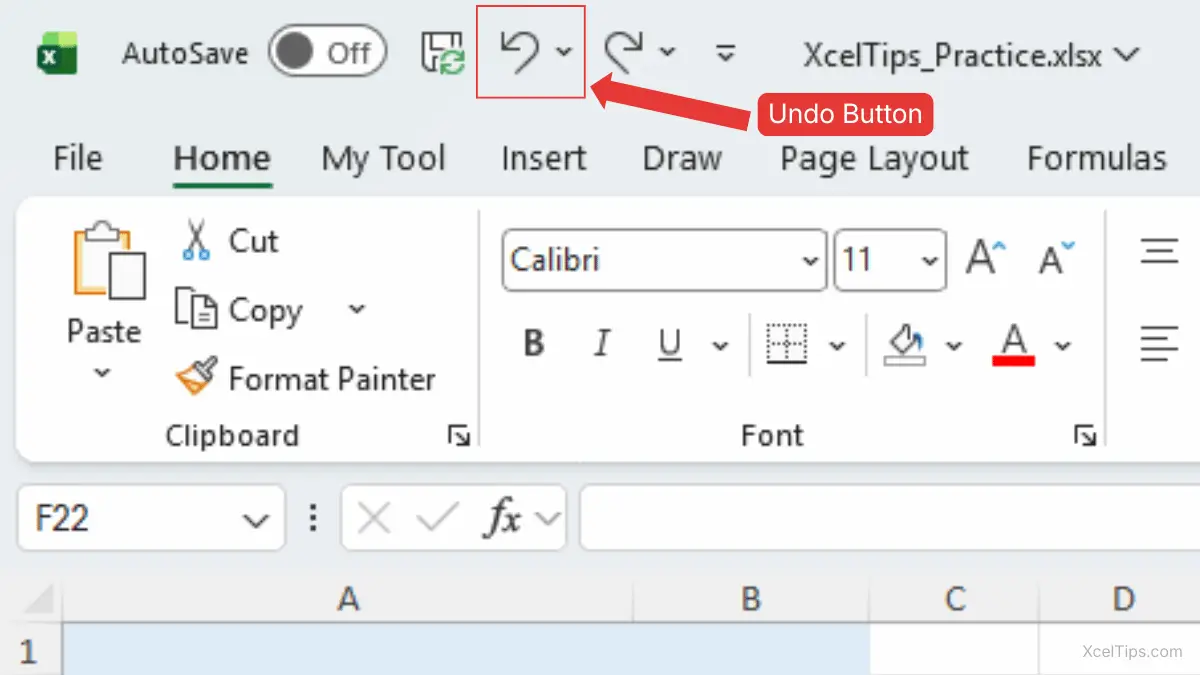
You can also click Undo on the Quick Access Toolbar, but the keyboard shortcut is usually faster once it becomes a habit.
How to Redo in Excel – Excel Redo Shortcut
Redo is helpful when you undo something and then realize you actually wanted that action after all.
- After using Undo, press Ctrl + Y on your keyboard.
- Excel will restore the action you just reversed.
- You can repeat Redo if you have undone multiple actions and want to move forward again.
This is the quickest way to restore something you just undid. Like Undo, you can also use the toolbar button, but the shortcut is often the easiest option during normal editing.
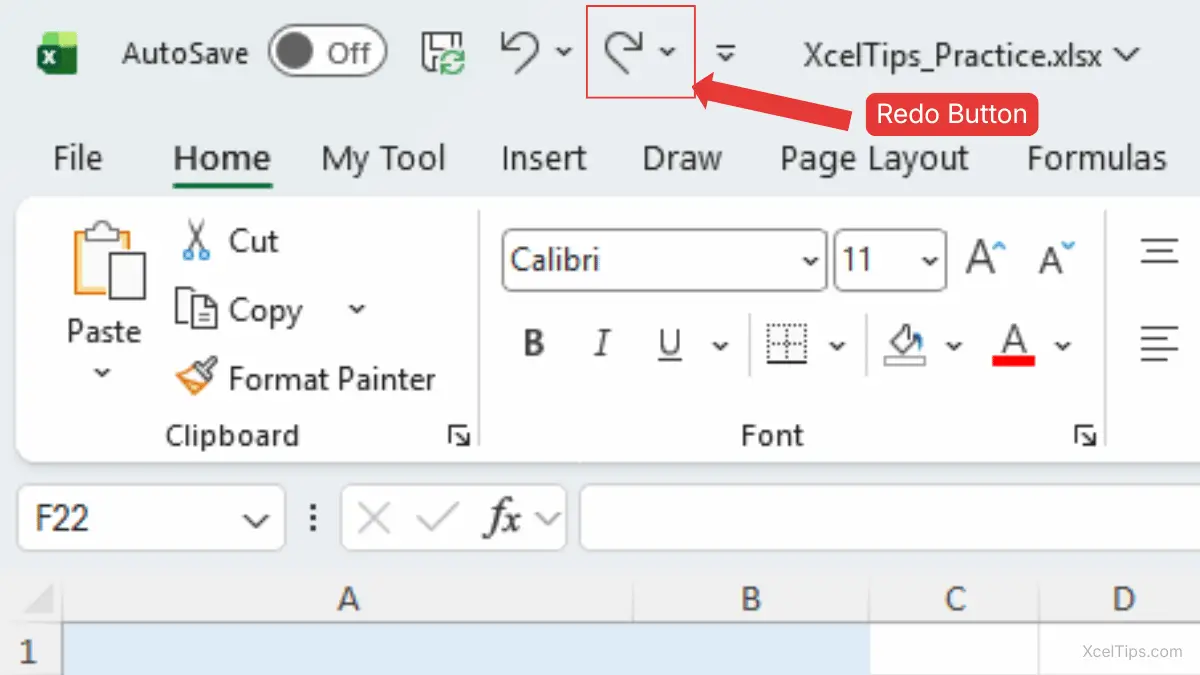
The Redo button appears only after you undo something first. Microsoft also notes in its official document on undo, redo or repeat an action that Ctrl + Y can redo an undone action, and F4 can do the same in many cases.
Use the Quick Access Toolbar if you prefer clicking
Some beginners prefer visual buttons before memorizing shortcuts. That is completely fine.
- Look for the Quick Access Toolbar near the top of the Excel window.
- Click the curved left arrow for Undo.
- Click the curved right arrow for Redo.
- Continue clicking as needed to move backward or forward through recent actions.
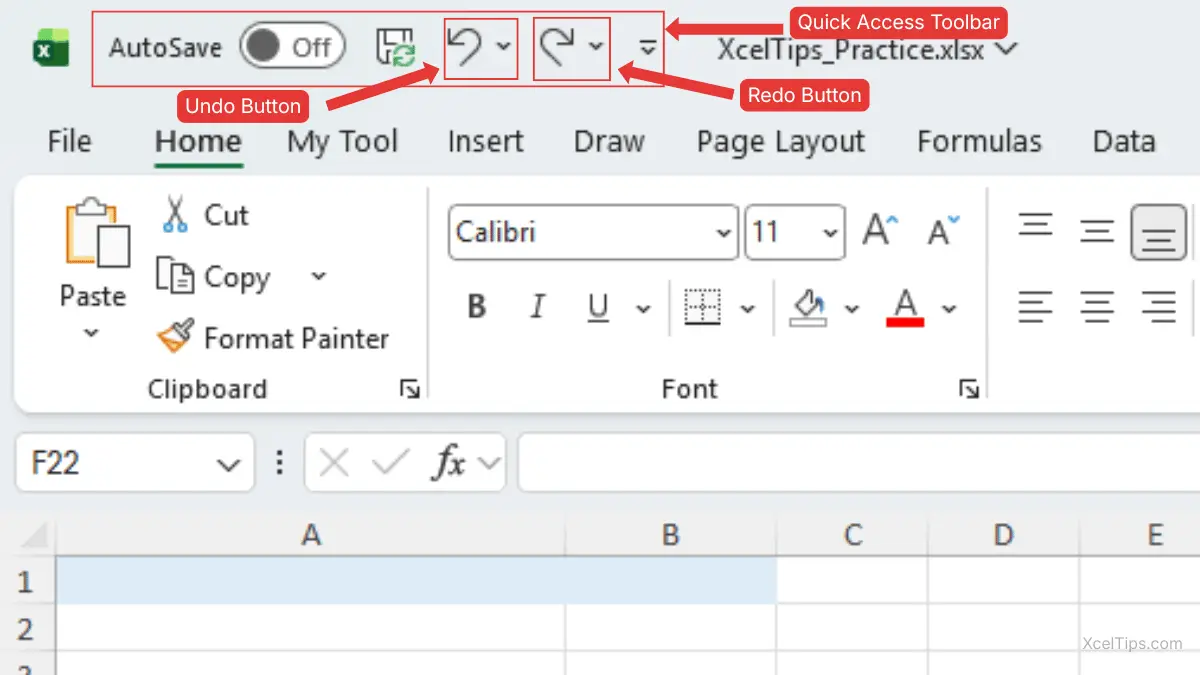
This method is useful when you are still learning the undo redo shortcut and want to recognize the buttons first before switching to the keyboard.
When to Use This Undo Redo Shortcut Tip
This shortcut is most helpful during fast, everyday editing when you want to fix a small mistake immediately.
- You typed the wrong value and want to remove it instantly.
- You deleted content by mistake and need to bring it back.
- You applied formatting accidentally and want to reverse it.
- You undid too many steps and need to restore one of them.
- You are editing quickly and want to avoid stopping to fix small errors manually.
- Confusing Redo with Repeat. In Microsoft 365 apps, Ctrl + Y can also repeat a simple action in some situations, so beginners should think of Redo as “restore what I just undid,” not as a universal reverse command.
If you are still getting comfortable with worksheet editing, this tip pairs naturally with How to Enter and Edit Data in Excel and How to Select Multiple Cells in Excel.
Common Mistakes
These shortcuts are simple, but beginners still make a few common mistakes when using them.
- Pressing Undo too many times. If you keep using the excel undo shortcut, you may remove more actions than you intended. If that happens, use Redo right away.
- Forgetting that Redo works after Undo. Many users know how to undo in Excel but forget that Redo is there to restore a step they reversed by mistake.
- Looking for the shortcut in the Ribbon. Undo and Redo are usually faster from the keyboard or Quick Access Toolbar than from searching menus.
- Assuming every action can always be undone. In most normal editing cases, Undo works well, but some actions may behave differently depending on what you just did. It is always best to correct mistakes immediately.
Now try it once yourself so the shortcut feels more natural.
Quick Practice
The best way to remember this trick is to use it once in a simple worksheet.
Open a blank workbook such as XcelTips_Practice.xlsx, then try this:
- Type any value into a blank cell, then change it to something else.
- Press Ctrl + Z to undo the change.
- Press Ctrl + Y to redo it.
That quick exercise is usually enough to make the undo redo shortcut feel natural the next time you make a mistake in Excel.
Still have questions? These FAQs cover a few common Undo and Redo questions.
Frequently Asked Questions (FAQs)
These quick answers cover common beginner questions about Undo and Redo in Excel.
What is the undo redo shortcut in Excel?
Use Ctrl + Z to undo your last action and Ctrl + Y to redo an action you just undid.
How do I undo in Excel without using the keyboard?
Click Undo on the Quick Access Toolbar near the top of the Excel window.
How do I redo in Excel after undoing something?
Press Ctrl + Y or click Redo on the Quick Access Toolbar after using Undo.
Why is the Redo button missing in Excel?
The Redo button appears only after you undo something first.
Can I undo more than one step in Excel?
Yes. Press Ctrl + Z repeatedly to go back through multiple recent actions. Microsoft says Office stores up to 100 undoable actions by default.
Can every Excel action be undone?
No. Some actions, such as saving a file or some File tab commands, cannot be undone.
With those common questions answered, let’s wrap up with the key point to remember.
Conclusion
The undo redo shortcut is one of the most practical Excel habits you can learn because it helps you correct mistakes instantly and keep moving. Instead of stopping to fix small errors manually, you can use Ctrl + Z and Ctrl + Y to work faster and with more confidence.
Small shortcuts make a big difference over time. Learning one practical trick like this can make Excel feel smoother and less frustrating, especially when you are still building confidence.
Keep practicing these small productivity habits. They are often the easiest way to get faster without feeling overwhelmed.