
Written By Sophanith Dith
Last Updated March 08, 2026
Applies to Microsoft Excel 365 (Windows only)
Part of the Beginner Learning Path
Module 1 Excel Fundamentals
Lesson 2 of 12
If you’re just starting with Microsoft Excel, one of the very first skills you need to learn is how to create a new workbook in Excel correctly. This is one of the first Excel skills you will use every time you start a new spreadsheet.
Many beginners open Excel and start typing right away without fully understanding what a workbook is or how Excel creates one. Creating a new workbook may seem simple, but learning the correct process helps you build good file habits from the start.
Before we begin, if you haven’t yet learned how Excel files work, you may want to review What Is Microsoft Excel to understand the bigger picture.
Before looking at each method step by step, here is a quick overview of the main ways to create a new workbook in Excel.
Quick Reference
Before we explore each method in detail, here is a simple overview to help you understand the process quickly.
Definition (Simple Explanation):
A workbook is an Excel file that contains one or more worksheets.
Fastest Way to Create a New Workbook:
Press Ctrl + N when Excel is already open.
Beginner-Friendly Method:
Open Excel → Click Blank workbook on the Start Screen.
If Excel Is Already Open (File Tab Method):
Click File → New → Blank workbook.
Create from a Template:
Open Excel → Click New → Choose a template → Click Create.
Important Reminder:
A new workbook is not saved automatically. You must save it manually after creating it.
What Is a Workbook in Excel?
Before learning how to create a new workbook in Excel, it’s important to understand what a workbook actually is. In Excel, a workbook is the entire file you work in.
Think of it this way:
- Workbook = the file
- Worksheet = a single sheet inside that file
When you create a new Excel file, you are creating a new workbook. That workbook can contain:
- One or more worksheets
- Data
- Formulas
- Charts
- Formatting
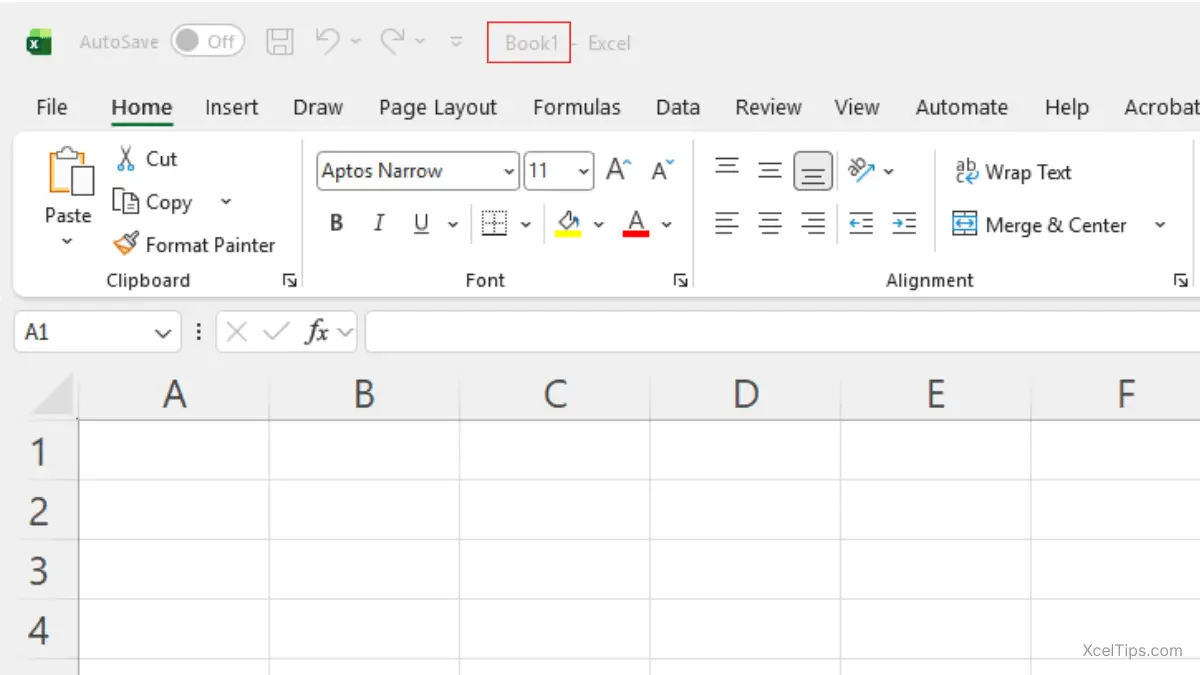
By default, when Excel opens a new file, it gives it a temporary name like: Book1.
This name appears in the title bar at the top of the Excel window. At this stage, the file is not saved yet. It becomes a real file only after you save it.
Understanding this difference between a workbook and a worksheet prevents confusion later when you begin working with multiple sheets.
For a clearer beginner explanation of the grid structure, read cells, rows, columns, and worksheets in Excel next.
Example:
If you’re tracking monthly expenses, each month could be a separate worksheet (January, February, March) inside one workbook called Budget_2026.xlsx.
When you start organizing multiple tabs like this, learn how to rename and move a sheet in Excel it so your workbook stays tidy.
With that understanding in place, let’s create one.
Method 1: Create a New Workbook from the Excel Start Screen (Recommended)
This is the easiest method for beginners.
Step-by-Step Instructions:
When Excel opens, the Start Screen appears. In the main area of the screen, click Blank workbook.
Excel will open a new blank workbook immediately.
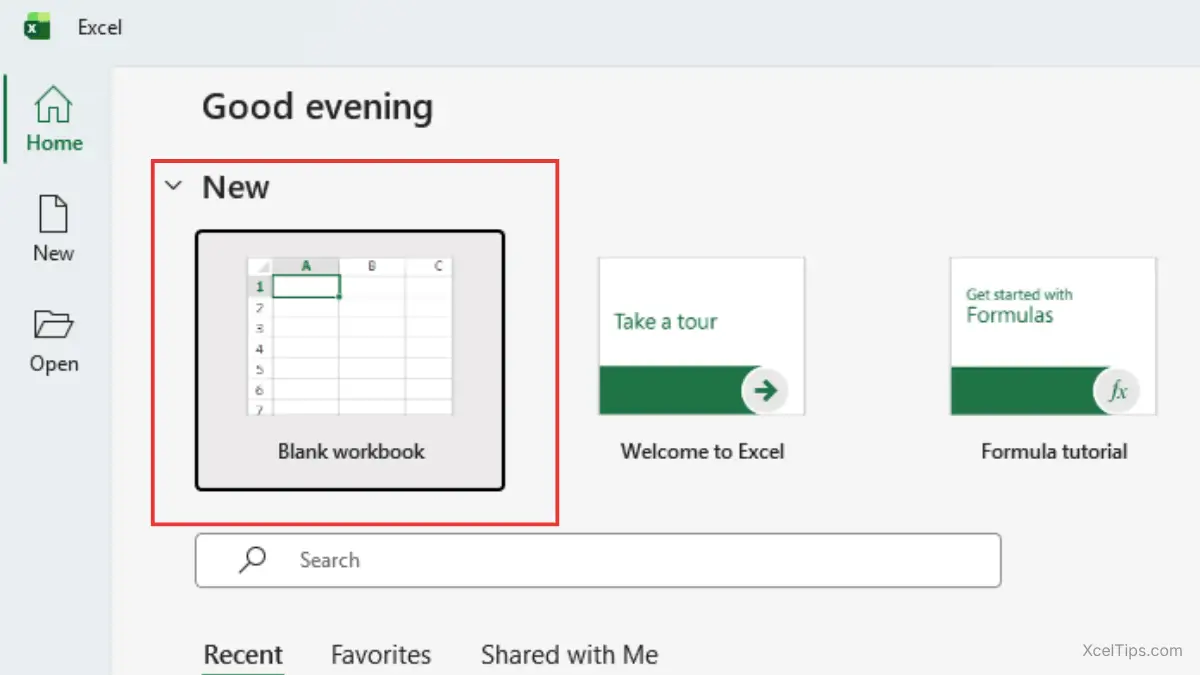
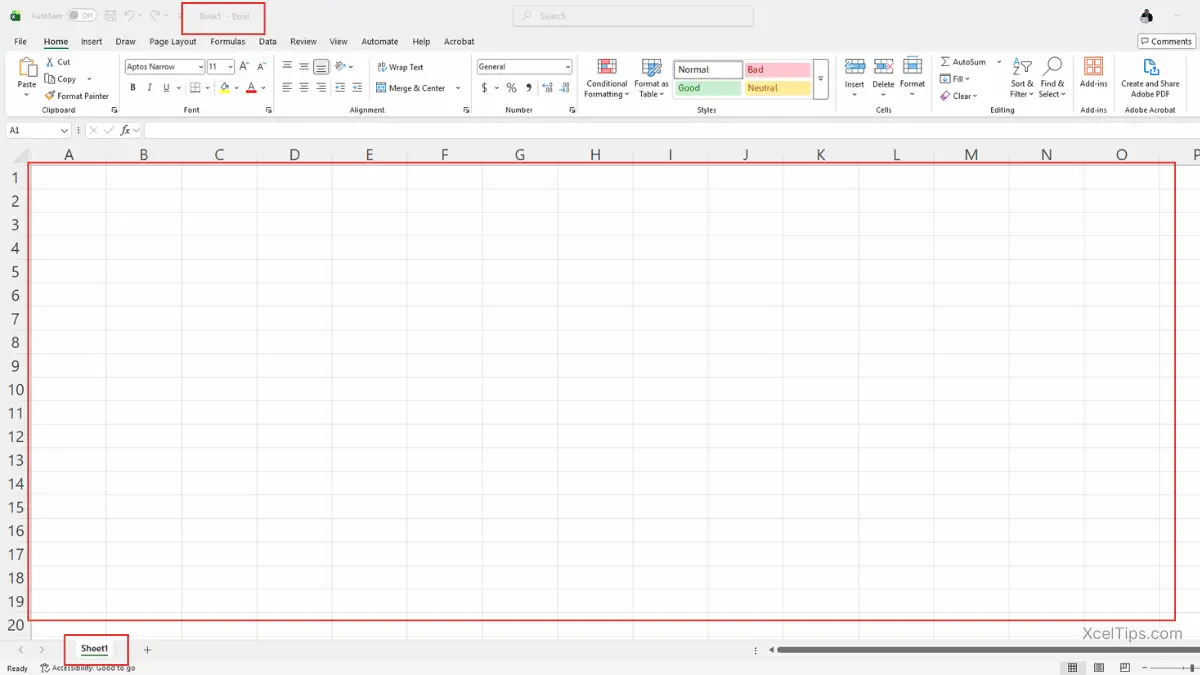
You will now see:
- A grid of cells.
- A worksheet tab (usually named
Sheet1). - A temporary file name at the top (
Book1).
This is now your working area.
Why This Method Is Best for Beginners
This method is recommended because:
- It is clear and visual.
- It reduces confusion.
- It ensures you are starting from a blank file.
- It helps you avoid accidentally editing an old file.
If you are just learning Excel, always start this way until you feel comfortable navigating inside the program.
Another way to create a workbook is through the File tab.
Method 2: Create a New Workbook Using the File Tab (While Excel Is Open)
If you are already working inside Excel and prefer using the menu instead of a keyboard shortcut, you can create a new workbook from the File tab.
This method is helpful when:
- You want to stay inside the Excel interface.
- You prefer clicking menus instead of using shortcuts.
- You are still becoming familiar with Excel navigation.
Step-by-Step Instructions:
To do this:
- Click the File tab in the top-left corner of Excel.
Excel will open Backstage view, the full-screen area where you manage files and settings.
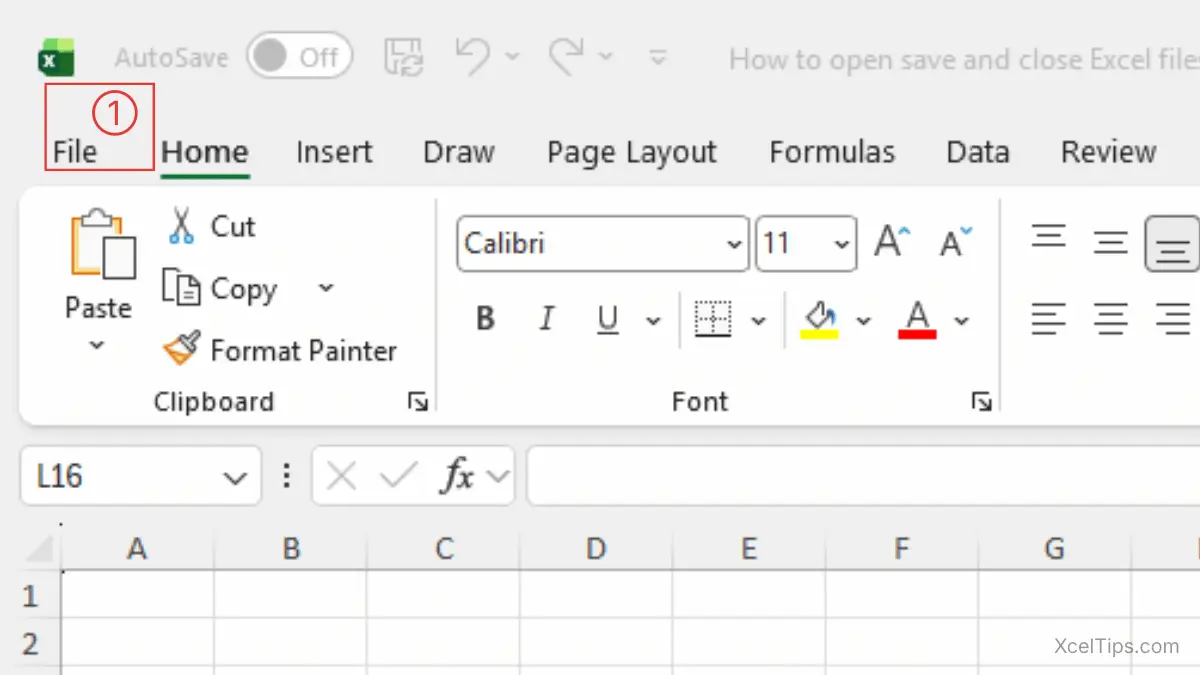
You are now in Backstage view, where you can create, open, save, and manage files. If the screen layout still feels unfamiliar, start with understanding the Excel interface so the File tab and other parts make more sense.
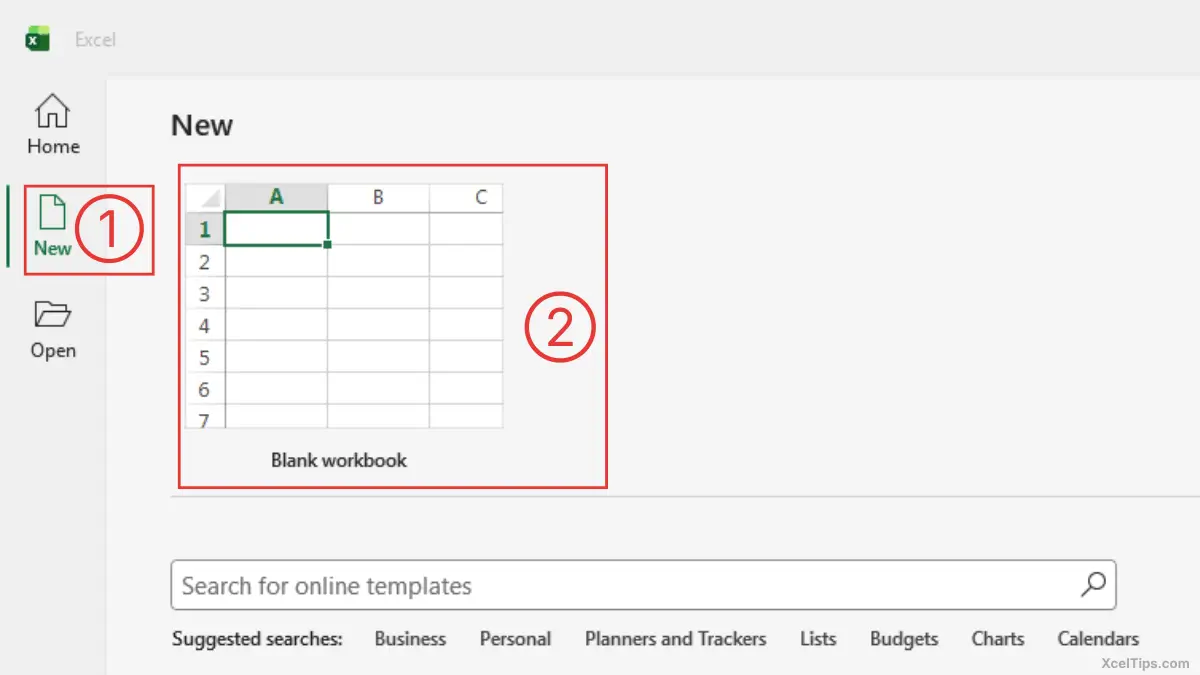
- Click New from the left panel.
- Select Blank workbook.
Excel opens another new workbook window.
If Excel is already open, the fastest way to create another workbook is with a keyboard shortcut.
Method 3: Create a New Workbook Using a Keyboard Shortcut (Ctrl + N)
If Excel is already open and you want to create another workbook, you do not need to return to the Start Screen.
Instead, use this keyboard shortcut: Ctrl + N.
Pressing Ctrl + N instantly creates a new blank workbook.
Pro Tip:
Most Excel professionals use Ctrl + N daily because it is significantly faster than navigating through menus.
This method is especially useful when:
- You are working with multiple files.
- You want to quickly start a new project.
- You prefer using keyboard shortcuts.
After pressing Ctrl + N, Excel opens a new workbook window with the default name (Book1, Book2, etc.).
Even though this method is faster, beginners should still understand what is happening:
- You are not opening an existing file.
- You are creating a completely new workbook.
So far, we’ve focused on creating a completely blank workbook. But sometimes starting from scratch isn’t the most efficient option
Method 4: Create a New Workbook from a Template
Sometimes you don’t want to start from scratch. Excel includes built-in templates that give you a ready-made starting point.
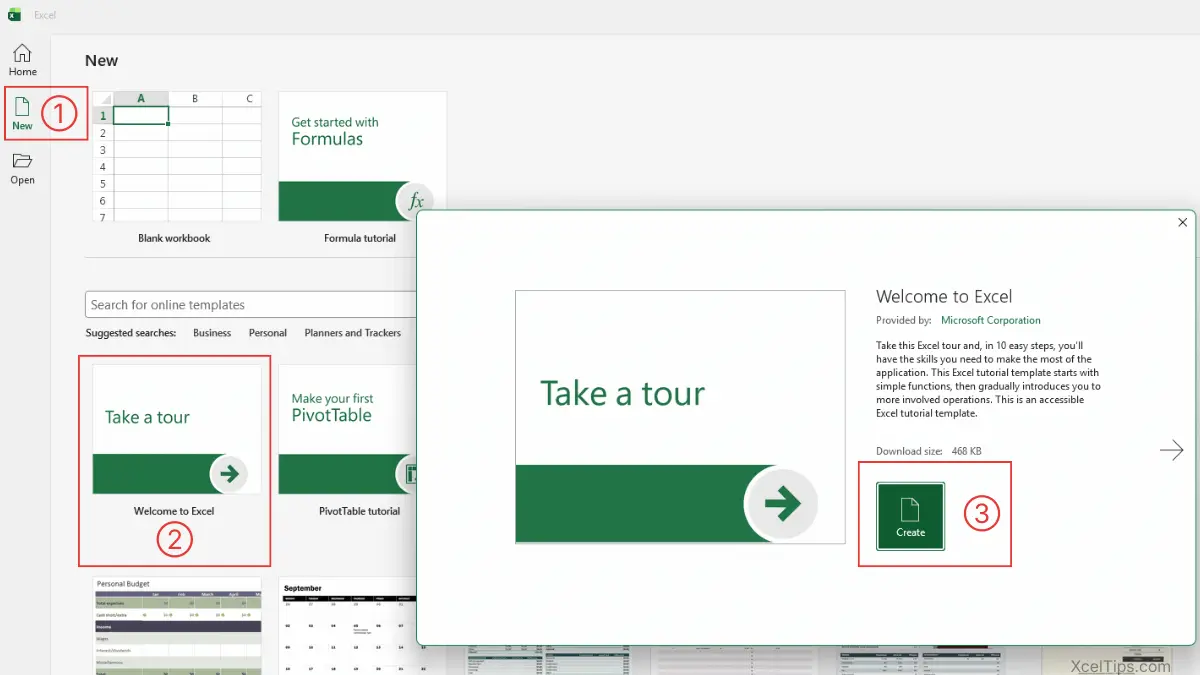
To use a template:
- On the Start Screen, click New in the left panel.
- Browse available templates. Then, choose any template to preview it.
- Click Create.
Excel will generate a new workbook based on that template.
Templates may include:
- Budget planners
- Calendars
- Schedules
- Expense trackers
- Reports
They are helpful because they:
- Save time
- Provide professional layouts
- Include prebuilt formulas
However, a template is not the same as an existing file. When you select a template, Excel generates a completely new workbook using that structure. The original template remains unchanged.
Whether you start with a blank workbook or a template, Excel always creates a new file for you to work in. Since each method works slightly differently, let’s compare them to see which one makes the most sense for you.
Beginner Tips:
Most beginners should start with a blank workbook first, then try templates later.
Which Method You Should Use
All four methods create the same type of blank workbook. The difference is when each method is most useful.
The table below helps you decide quickly:
| Situation | Recommended Method | Why |
|---|---|---|
| You just opened Excel | Start Screen | Easiest and most beginner-friendly |
| You are already working in a file | File → New | Lets you create a new workbook without closing Excel |
| You prefer working quickly with shortcuts | Keyboard Shortcut | Fastest method when Excel is open |
| You need a pre-designed layout (budget, calendar, etc.) | Template | Saves time with built-in structure and formulas |
Simple Beginner Recommendation
If you are new to Excel, use the Start Screen method first.
As you become more comfortable:
- Use Ctrl + N for speed.
- Use File → New when managing multiple files.
- Use Templates when you want a ready-made layout.
Now that you know the different ways to create a workbook, let’s understand what actually happens behind the scenes when a new file opens.
What Happens After You Create a New Workbook?
When a new workbook opens, several important things happen:
- Excel assigns a temporary name (Book1, Book2, etc.).
- The file is not saved yet.
- You can begin typing immediately.
- The workbook contains at least one worksheet.
You can confirm the file has not been saved by looking at the title bar. If it shows “Book1” and no file path, it is unsaved.
At this stage, build one important beginner habit: save your file immediately.
We cover saving in detail in our complete guide: How to Open, Save, and Close Excel Files (Beginner Guide). That guide explains:
- Save vs Save As
- File formats (
.xlsx,.csv) - Avoiding data loss
- Closing safely
Important:
Creating a workbook and saving it are two separate actions.
Common Beginner Mistakes When Creating a New Workbook
Even simple actions can cause confusion for beginners. Here are common mistakes to avoid.
Mistake 1: Confusing Workbook and Worksheet
Some beginners say, “I created a new sheet,” when they actually created a new workbook.
Remember:
- Workbook = file
- Worksheet = tab inside the file
Keeping this clear prevents confusion later.
Mistake 2: Forgetting to Save Immediately
Creating a workbook does not automatically save it. If your computer shuts down unexpectedly, your work may be lost.
Always save your workbook as soon as you create it. This prevents losing your work and helps you stay organized. If you’re not familiar with saving files in Excel, see our guide on how to open, save, and close Excel files.
Excel also includes safety features like AutoRecover, which may help restore your work if Excel closes unexpectedly. If that happens, you may still be able to recover unsaved Excel files.
Microsoft also provides official guidance on how Excel file recovery works.
Important:
Excel does not auto-save a brand-new file until you save it for the first time. If Excel closes before that first save, here’s how to recover unsaved Excel files step by step.
Mistake 3: Editing a Template Without Renaming
When using a template, some beginners start editing without saving a new copy. Always save the template-based workbook with a clear name before making major edits.
Example:
Instead of leaving it as Budget Template, rename it to: Budget_March_2026.xlsx.
Mistake 4: Opening Multiple Blank Workbooks Accidentally
If you click Blank workbook multiple times, you may see Book1, Book2, Book3, or another number depending on how many unsaved workbooks are already open.
If you see multiple workbook windows open, check the file name at the top.
Best Practices When Starting a New Workbook
Now that you understand how to create a new workbook, let’s build strong habits.
1. Save Immediately
Don’t wait until you finish working. Save the file as soon as you create it.
2. Use Clear File Names
Avoid names like:
Book1.xlsxNewFile.xlsx
Instead use:
Sales_Report_April_2026.xlsxPractice_Data.xlsx
Clear names help you stay organized.
3. Keep Files in Organized Folders
Create a simple structure like:
- Documents → Excel Files → 2026 Projects
This makes your files easier to find later.
4. Add Worksheets Only When Needed
A new workbook starts with one worksheet. Add more sheets only when your data requires it. Keeping workbooks clean makes them easier to manage.
When you’re ready to expand the workbook, learn how to add, duplicate, and delete a sheet in Excel the right way.
Understanding best practices is important, but applying them is what builds real confidence.
Quick Practice
Let’s reinforce what you’ve learned with a simple exercise.
Follow these steps:
- Open Excel 365.
- On the Start Screen, Click Blank workbook.
- Notice the current file name (Book1).
- Press Ctrl + N to create a second workbook.
- Notice the new file name (Book2).
- Return to the first workbook and save it as:
Xceltips_Practice.xlsx - Close the file properly.
- Reopen the saved file to confirm it saved correctly.
If you can complete these steps comfortably, you have understood the lesson well.
Practice builds confidence. Now let’s review the key ideas you should remember moving forward.
Key Takeaways
Let’s quickly review the most important ideas from this lesson.
Creating a new workbook in Excel is the starting point for every spreadsheet task. Understanding this simple process prevents confusion later when working with multiple files.
Here’s what you should remember:
- A workbook is the entire Excel file (
.xlsx). - A worksheet is one tab inside the workbook.
- You can create a new workbook from the Start Screen, from the File tab, or by using keyboard shortcut Ctrl + N.
- Always save your workbook immediately after creating it.
- Use clear file names to stay organized.
If these points feel clear, you’re ready to move forward confidently.
Even though creating a new workbook is simple, beginners often have small but important questions.
Frequently Asked Questions (FAQs)
Even though creating a new workbook is simple, beginners often have a few common questions.
How do I create a new workbook in Excel 365?
You can create a new workbook in Excel 365 in several ways:
- Open Excel and click Blank workbook on the Start Screen.
- Click File → New → Blank workbook.
- Press Ctrl + N when Excel is already open.
All three methods create a new blank Excel file.
What is the difference between a workbook and a worksheet?
A workbook is the entire Excel file (for example, Budget_2026.xlsx). A worksheet is one tab inside that workbook (for example, January or February).
A workbook can contain multiple worksheets, but a worksheet cannot exist on its own.
Why does Excel call my file Book1?
When you create a new workbook, Excel assigns a temporary name like Book1. This simply means the file has not been saved yet. Once you save the workbook and choose a file name, Book1 is replaced with your chosen name.
What happens if I close Excel without saving?
If you close Excel without saving, any changes made to the workbook will be lost. Excel may show a warning message asking if you want to save before closing. Always click Save if you want to keep your work.
Can I create multiple Excel workbooks at the same time?
Yes. You can open multiple blank workbooks at the same time. Each workbook opens in its own Excel window and will have a temporary name such as Book1, Book2, or Book3 until saved.
Can I start with a template instead of a blank workbook?
Yes. Templates give you a ready-made layout, but Excel still creates a new workbook for you.
With these common questions answered, you now have a clear understanding of how to create and manage a new workbook with confidence.
Conclusion
Creating a new workbook is the starting point for every task in Excel. Understanding how to begin a new file correctly helps you stay organized and avoid confusion when working with multiple spreadsheets.
Although this process is simple, building good habits early, such as saving your file and using clear names, will make working in Excel much easier as your skills grow.
Take a few minutes to practice creating new workbooks using the different methods shown in this lesson. The more comfortable you become with starting a new file, the more confident you will feel using Excel.
This lesson is part of the Beginner Learning Path, a structured series designed to help you learn Microsoft Excel step by step from the basics.