
Written By Sophanith Dith
Last Updated March 22, 2026
Applies to Microsoft Excel 365 (Windows only)
Part of the Beginner Learning Path
Module 1 Excel Fundamentals
Lesson 6 of 12
When you first start using Excel, the Ribbon displays a fixed set of tabs such as Home, Insert, Page Layout, and Formulas. While this layout works for most tasks, many beginners eventually want to customize the Excel Ribbon so their most frequently used commands are easier to access.
Customizing the Excel Ribbon means modifying the tabs and command groups located at the top of the Excel window. You can add new tabs, create custom groups, move commands, or remove tabs you don’t use. This helps organize Excel tools so frequently used commands are easier to access.
If you’re still learning how the Excel interface works, you may want to review understanding the Excel interface: Ribbon, Tabs, and Toolbar before customizing the Ribbon.
By customizing the Ribbon, you can:
- Add commands you use frequently.
- Create your own tabs.
- Remove tabs you rarely use.
- Organize tools in a way that matches your workflow.
Learning how to customize the Excel Ribbon can make Excel faster and easier to use as you become more comfortable working with spreadsheets.
Quick Reference
Before we dive into the details, here are the key ideas about customizing the Ribbon:
- The Ribbon is the main command bar at the top of Excel.
- You can add or remove Ribbon tabs.
- You can create your own custom tab.
- Commands can be added to custom groups inside a tab.
- Ribbon customization is managed through Excel Options.
With these basics in mind, let’s explore how the Ribbon works and how you can personalize it.
Understanding the Excel Ribbon Structure
Before customizing anything, it helps to understand how the Ribbon is organized. Earlier lessons introduced the Ribbon as the main place where Excel commands are located.
The Ribbon follows a simple structure with three levels:
| Level | Description | Example |
|---|---|---|
| Tab | Main category of tools | Home, Insert |
| Group | Section inside a tab | Font, Alignment |
| Command | Individual button | Bold, Fill Color |
For example:
Home tab → Font group → Bold command
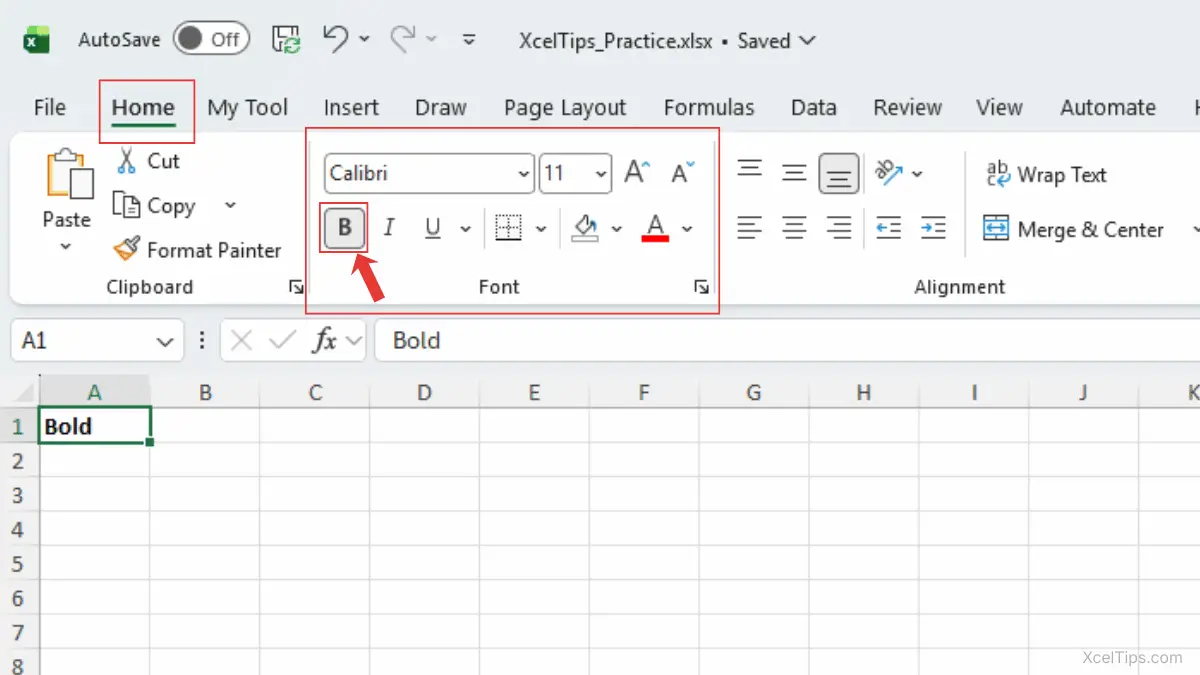
When customizing the Ribbon, you are mainly working with tabs and groups.
Important things to know:
- Built-in tabs already exist in Excel.
- You cannot modify built-in groups directly.
- You can create custom groups inside tabs.
This structure keeps Excel organized while still allowing flexibility.
Now that you understand how the Ribbon is structured, the next step is learning why customizing it can make Excel easier to use.
Why Customize the Excel Ribbon?
Many beginners use Excel exactly as it appears by default. While that works perfectly fine, customizing the Ribbon can make everyday tasks faster.
Instead of searching through multiple tabs, you can place your most frequently used commands exactly where you want them.
For faster one-click access to common commands, you can also learn how to use the Quick Access Toolbar in Excel.
Here are some common situations where customizing the Excel Ribbon can make your work easier.
| Situation | Why Customization Helps |
|---|---|
| You frequently use the same commands | Keep them in one place |
| You want a cleaner interface | Remove tabs you rarely use |
| Your work requires specific tools | Create a dedicated custom tab |
| You want faster workflow | Reduce navigation between tabs |
For example, if you regularly use Sort, Filter, and Freeze Panes, you might want those commands inside one custom tab rather than searching across multiple tabs.
Productivity Tip:
Many Excel users create a custom tab containing frequently used tools such as Sort, Filter, Freeze Panes, and Conditional Formatting. Grouping these commands together can reduce the time spent switching between Ribbon tabs.
Customizing the Ribbon allows you to build a layout that fits your work style. Now that you understand why customization is useful, let’s look at where to access these settings in Excel.
How to Open the Ribbon Customization Settings
Excel provides a dedicated settings panel where you can manage Ribbon customization.
Steps to Access Ribbon Settings
- Click the File tab in the top-left corner of Excel.
- Select Options at the bottom of the menu.
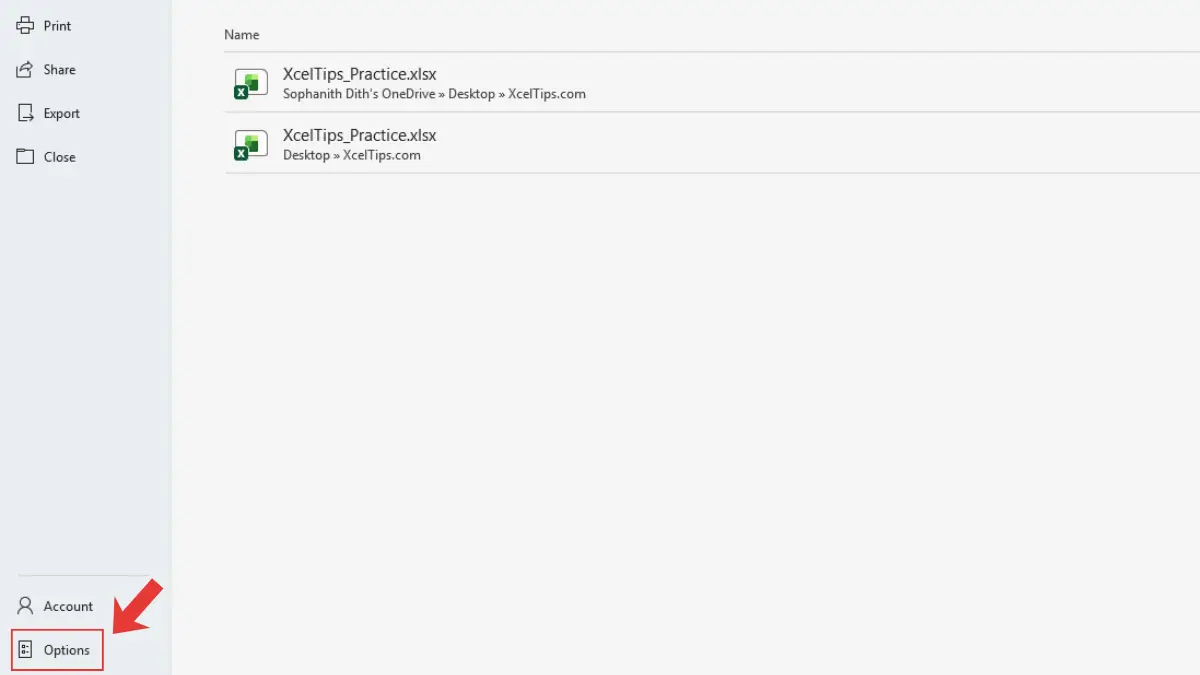
- In the Excel Options window, click Customize Ribbon.
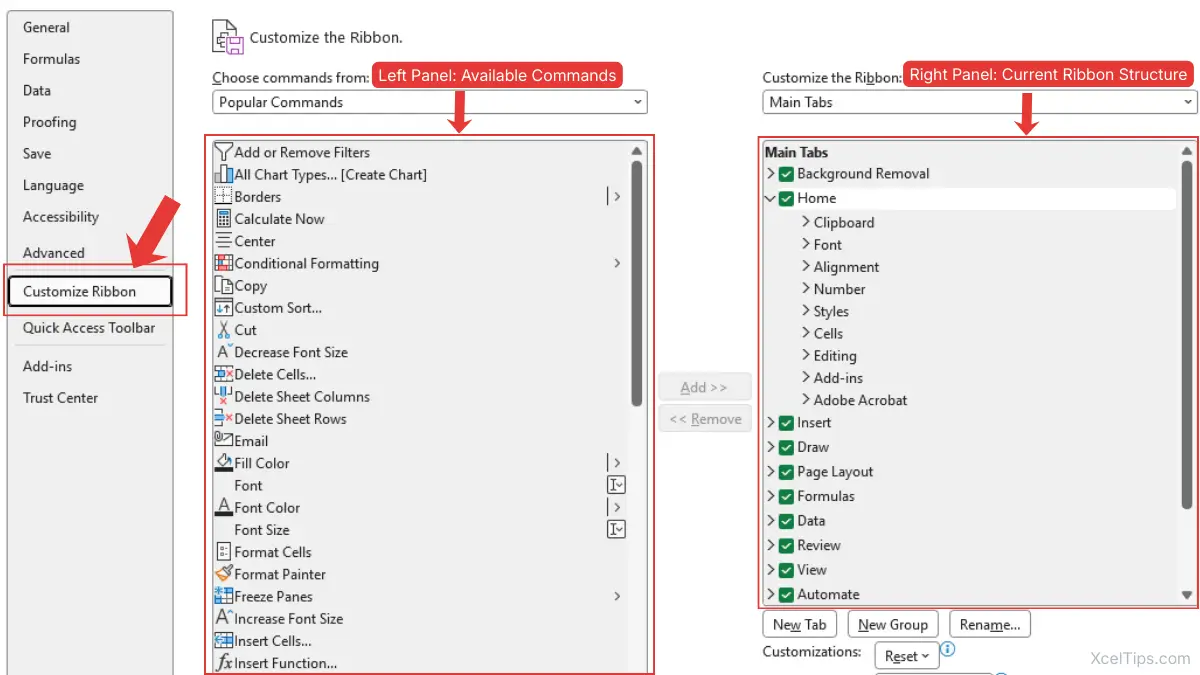
You will now see the Ribbon customization interface.
This screen typically displays two panels:
| Panel | Purpose |
|---|---|
| Left panel | Available commands |
| Right panel | Current Ribbon structure |
This interface allows you to add, remove, and rearrange Ribbon elements.
Beginner Tip:
If something goes wrong while customizing the Ribbon, Excel allows you to reset the Ribbon to default settings.
How to Customize the Excel Ribbon by Adding a Custom Tab
One of the most powerful customization options is creating your own tab. This lets you organize tools specifically for your workflow.
For example, you could create a tab called My Tools containing your favorite commands.
Productivity Tip:
Many professionals create a custom tab called My Tools that contains their most frequently used commands in one place. This makes it easier to access important tools without switching between multiple Ribbon tabs.
Steps to Create a Custom Ribbon Tab
Follow these steps to add a new tab.
- Open File → Options.
- Select Customize Ribbon.
- Click New Tab in the right panel under Customize Ribbon.
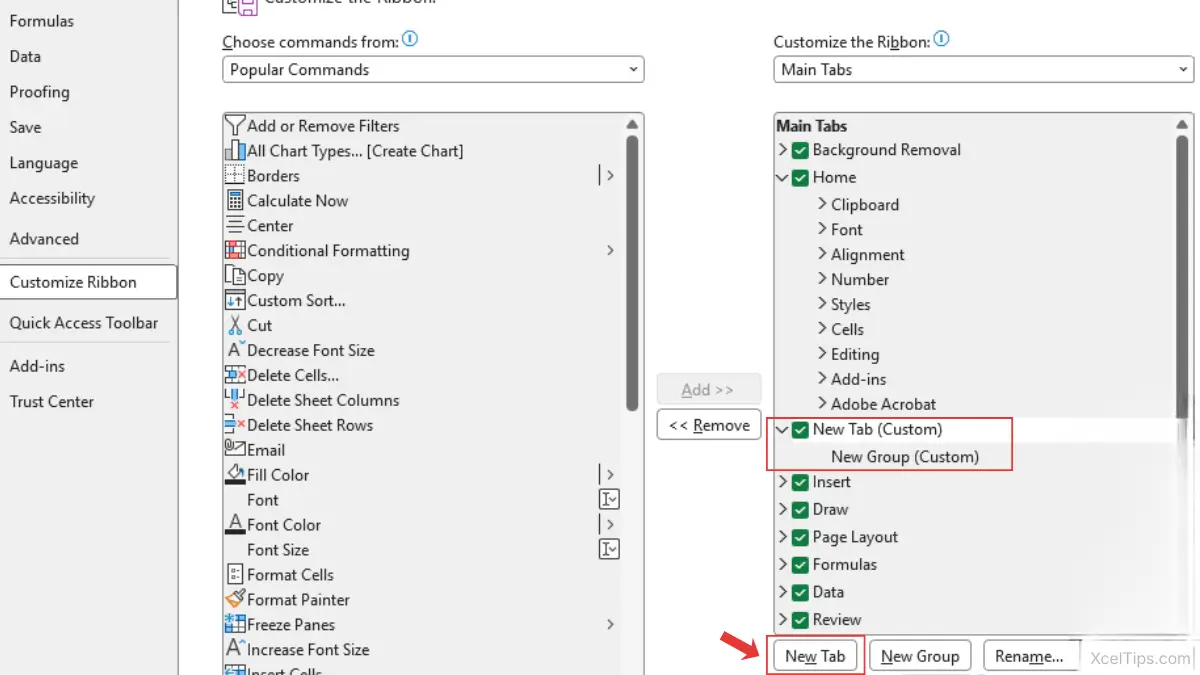
- Rename the tab to something meaningful, for example
My Tools. - Click OK.
The new tab appears immediately on the Excel Ribbon at the top of the Excel window.
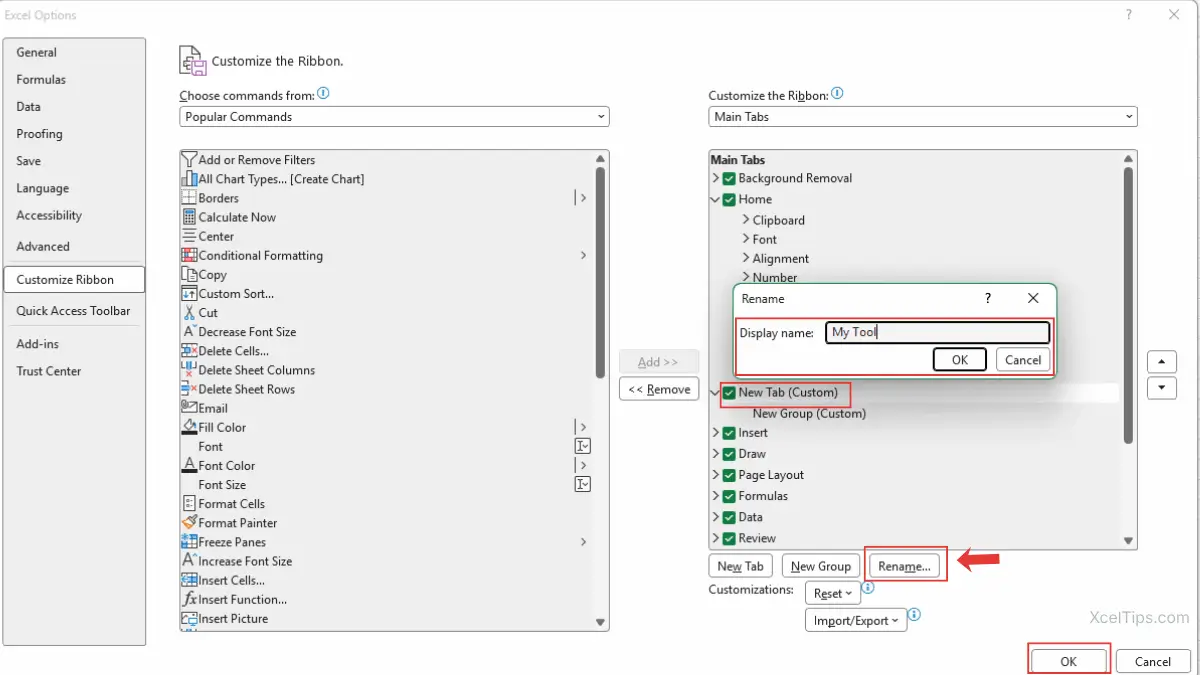
However, the tab will initially be empty. To make it useful, you need to add commands to it.
How to Add Commands to a Ribbon Tab
After creating a custom tab, you need to add commands so the tab becomes useful.
In Excel, commands must be placed inside a group. A group is a small section inside a tab that organizes related commands.
Steps to Add Commands
Follow these steps to add commands to your custom tab.
- Open File → Options → Customize Ribbon.
- In the right panel, select your custom tab.
- Click New Group.
- Select the group and click Rename if desired. Make sure your custom group is selected before clicking Add >>, otherwise the command will not be placed correctly.
- In the left panel (Available Commands), select the command you want to add, for example, Freeze Panes.
- Click Add >>.
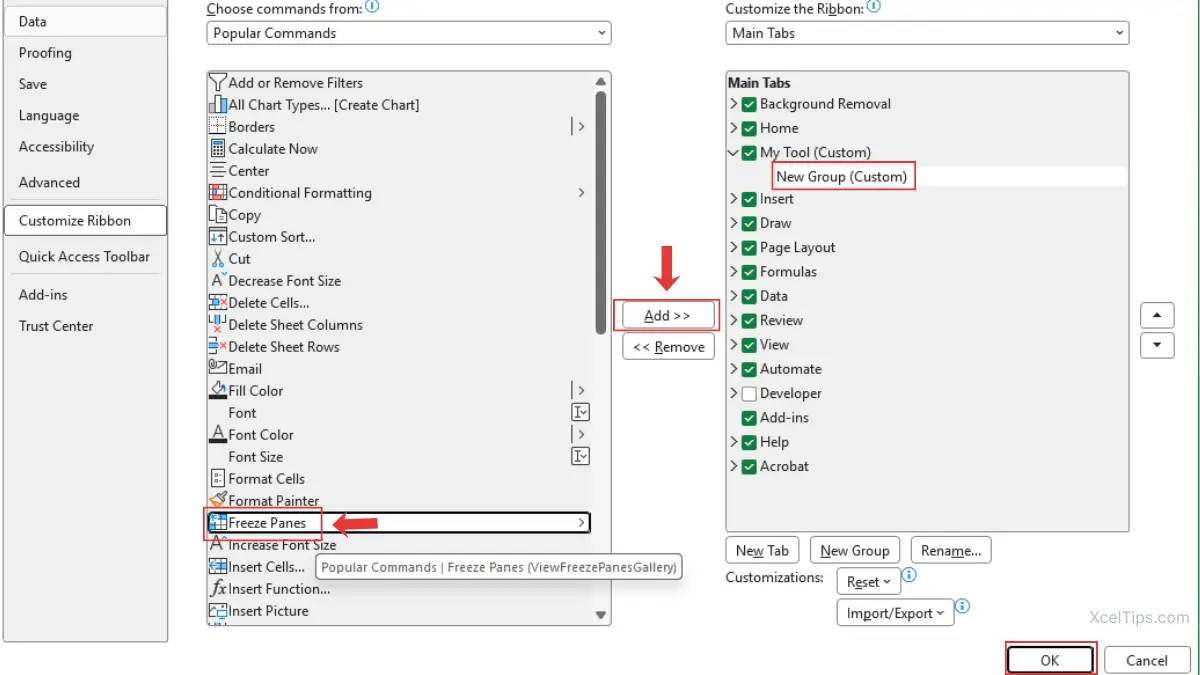
The command will now appear in your custom group. You can also find the Freeze Panes command in your My Tools tab on the Excel Ribbon, as shown below.
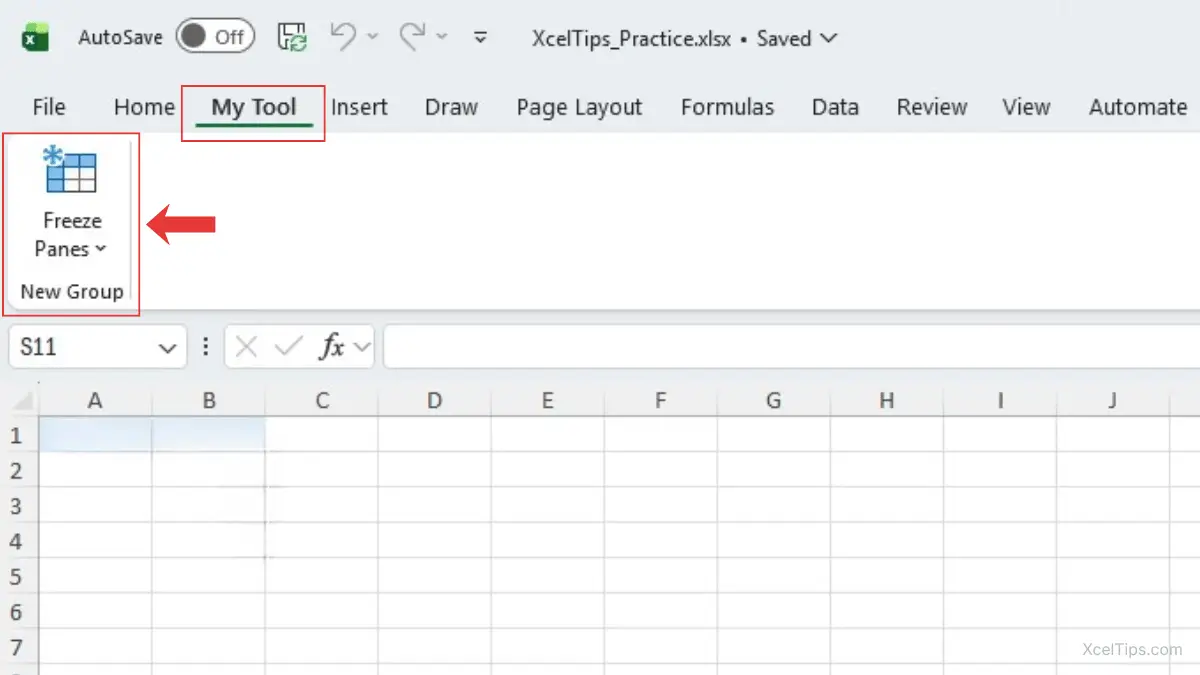
You can repeat these steps to add multiple commands.
Beginner Tip:
You can change the command list filter from Popular Commands to All Commands to access the full list of Excel features.
How to Remove or Hide Ribbon Tabs
Sometimes you may want a simpler Ribbon layout with fewer tabs visible. Excel allows you to hide tabs you don’t use frequently. This does not delete them; it simply removes them from the Ribbon interface.
If you want a deeper explanation of how the Ribbon can be shown or minimized, you can also read the Microsoft support article on showing or hiding the Ribbon.
Steps to Hide a Ribbon Tab
Follow these steps to remove a tab from the Ribbon.
- Open File → Options → Customize Ribbon.
- In the right panel, locate the tab you want to hide, for example, My Tool tab.
- Uncheck the box next to the tab name.
- Click OK.
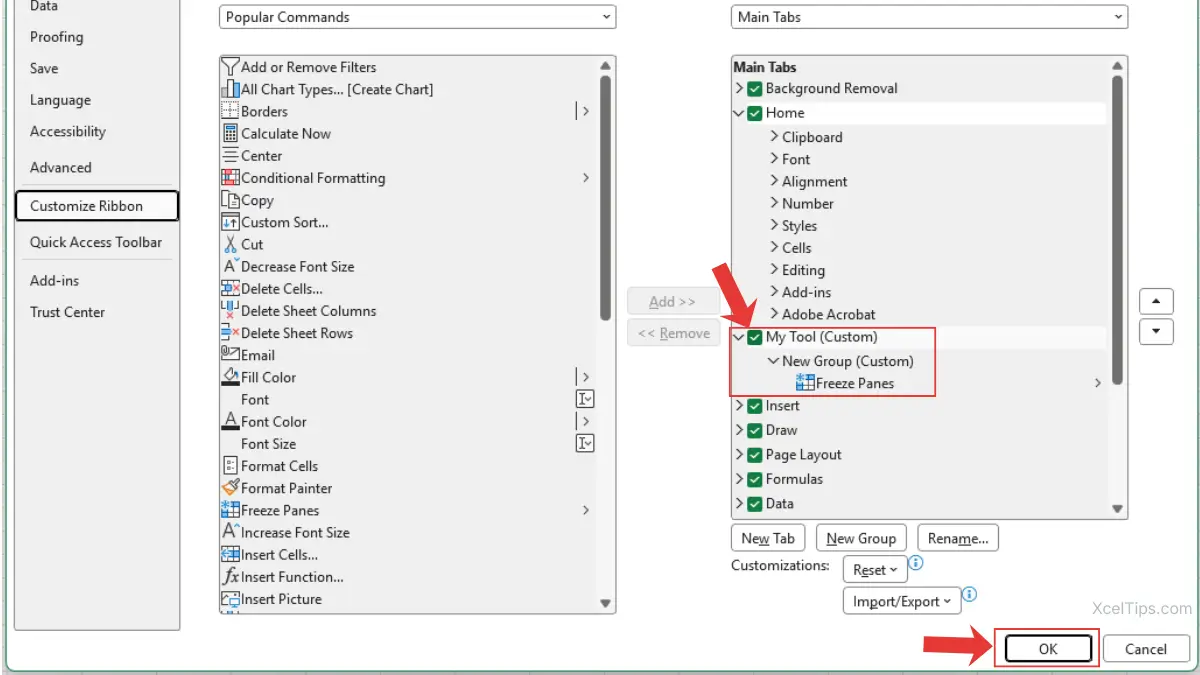
The tab will disappear from the Ribbon. If you want it back later, simply check the box again.
Beginner Warning:
Avoid hiding tabs like Home or Insert if you still rely on them frequently.
How to Reset the Ribbon to Default
If you experiment with customization and decide you want the original layout back, Excel provides a reset option. If Excel closes unexpectedly while you are experimenting with settings, you may still be able to recover your work. See our guide on how to recover unsaved Excel files.
This restores the Ribbon exactly as it appeared when Excel was first installed.
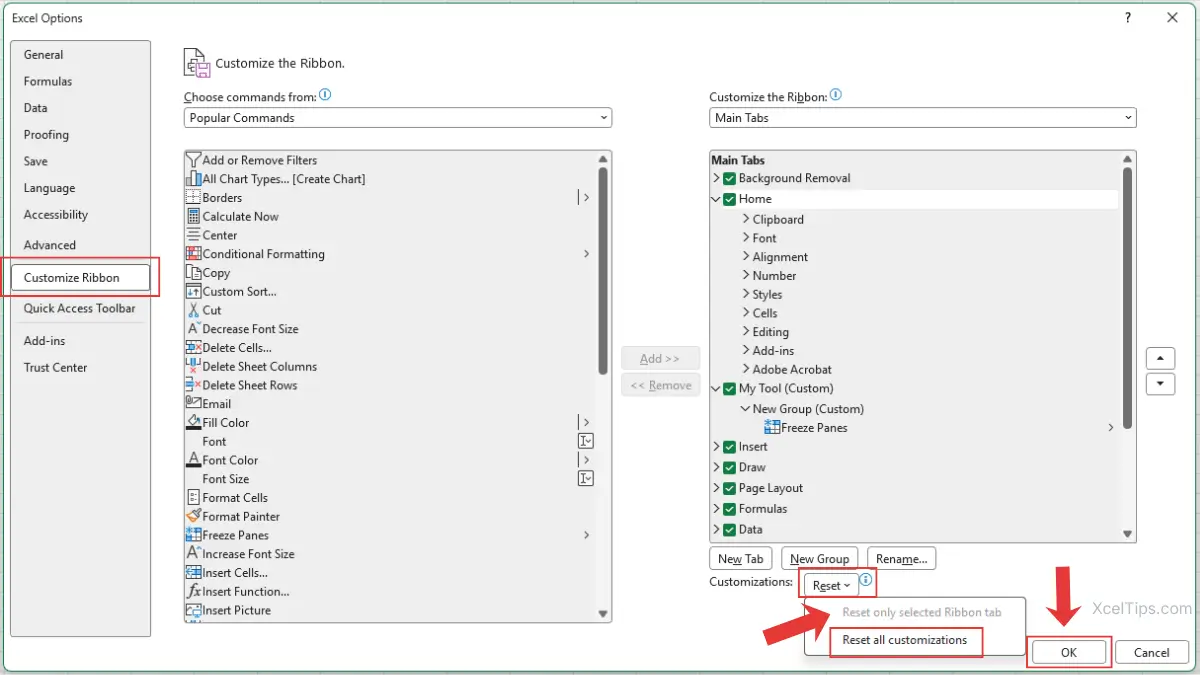
Steps to Reset the Ribbon
Follow these steps to reset the Ribbon.
- Open File → Options → Customize Ribbon.
- Click the Reset button at the bottom of the window.
- Choose Reset all customizations.
- Click OK.
Beginner Warning:
Resetting the Ribbon removes all custom tabs and groups you created, not just the most recent change.
Beginner Mistakes When Customizing the Excel Ribbon
Customizing the Excel Ribbon is simple, but beginners sometimes make small mistakes while learning.
Here are some common ones to watch for.
| Mistake | Explanation |
|---|---|
| Adding too many commands | This can make the Ribbon crowded |
| Not organizing commands into groups | Groups help keep commands structured |
| Removing important tabs | Some tabs contain essential tools |
| Forgetting how to reset | Resetting restores the default layout |
The best approach is to start with a simple custom tab and adjust it over time.
Quick Practice
To reinforce what you learned, try this short exercise in Excel.
- Open the Ribbon customization settings.
- Create a new tab named Practice Tools.
- Add a group called Formatting.
- Add the commands Bold, Fill Color, and Borders.
- Click OK and explore your new tab.
This small exercise helps you understand how tabs, groups, and commands work together. After completing the exercise, try opening the Ribbon customization settings again and experiment with adding one more command you use frequently.
Before moving on, let’s quickly review the most important ideas from this lesson.
Key Takeaways
Customizing the Excel Ribbon allows you to organize Excel tools so they match the way you work. Before moving on, review the most important ideas from this lesson.
• The Excel Ribbon contains tabs, groups, and commands.
• You can create custom Ribbon tabs to organize frequently used tools.
• Commands must be added to custom groups inside a tab.
• Built-in Ribbon tabs can be hidden if you don’t use them.
• You can reset the Ribbon to default settings anytime.
Frequently Asked Questions (FAQs)
If you still have a few questions about how Ribbon customization works, these quick answers will help clear up the most common beginner concerns.
Can you customize the Excel Ribbon?
Yes. Excel allows you to customize the Ribbon by adding new tabs, creating custom groups, and adding commands you use frequently. These changes help organize tools so they are easier to access during everyday work.
Can I remove built-in Ribbon tabs?
You cannot permanently delete built-in tabs, but you can hide them by unchecking them in the Customize Ribbon settings.
Will Ribbon customization affect other Excel files?
No. Ribbon customization affects the Excel application interface, not individual files.
Can I restore the Excel Ribbon after customizing it?
Yes. If you change the Ribbon layout and later want the original design back, Excel allows you to reset it. Go to File → Options → Customize Ribbon, then click Reset and choose Reset all customizations. This restores the Ribbon to the default Excel layout.
Why can’t I add commands directly to built-in groups?
Excel does not allow commands to be added directly to built-in groups. Instead, you must create a custom group inside a tab and place your commands there.
Where are the Ribbon customization settings located?
Ribbon customization settings are located in File → Options → Customize Ribbon. This panel allows you to add new tabs, create custom groups, and rearrange commands on the Ribbon.
Now that you’ve seen the most common questions and answers, let’s wrap up with the key takeaway from this lesson.
Conclusion
If you’re learning Excel step by step, customizing the Ribbon can make the interface feel more comfortable and easier to navigate as you continue practicing.
Customizing the Excel Ribbon allows you to organize Excel’s commands in a way that fits your workflow. By creating custom tabs, adding useful commands, and hiding unnecessary ones, you can make Excel easier and faster to use.
This lesson is part of the Beginner Learning Path, a structured series designed to help you learn Microsoft Excel step by step from the basics.
← Previous Lesson
Understanding the Excel Interface: Ribbon, Tabs, and Toolbar Explained