
Learn Excel basics step-by-step and build a strong foundation from day one.
Excel is one of the most widely used tools in business, finance, and data analysis. Learning the Excel fundamentals is the first step toward using it effectively in real-world situations.
If you’re new to Microsoft Excel, this is the perfect place to start. This module teaches the Excel basics you need to build a strong foundation by learning how Excel works, how to navigate the interface, and how to manage basic files and worksheets.
By the end of this section, you’ll feel comfortable opening Excel, understanding what you see on the screen, and performing essential tasks with confidence.
This module is part of the Beginner Learning Path, a structured series designed to help you learn Microsoft Excel step by step from the basics.
Lessons in Excel Fundamentals
There are 12 lessons in this module. Follow them in order for the best results. Each lesson builds on the previous one to help you learn Excel the right way. We are currently publishing them gradually — start with the available lessons below.

What Is Microsoft Excel and What Can You Do With It?
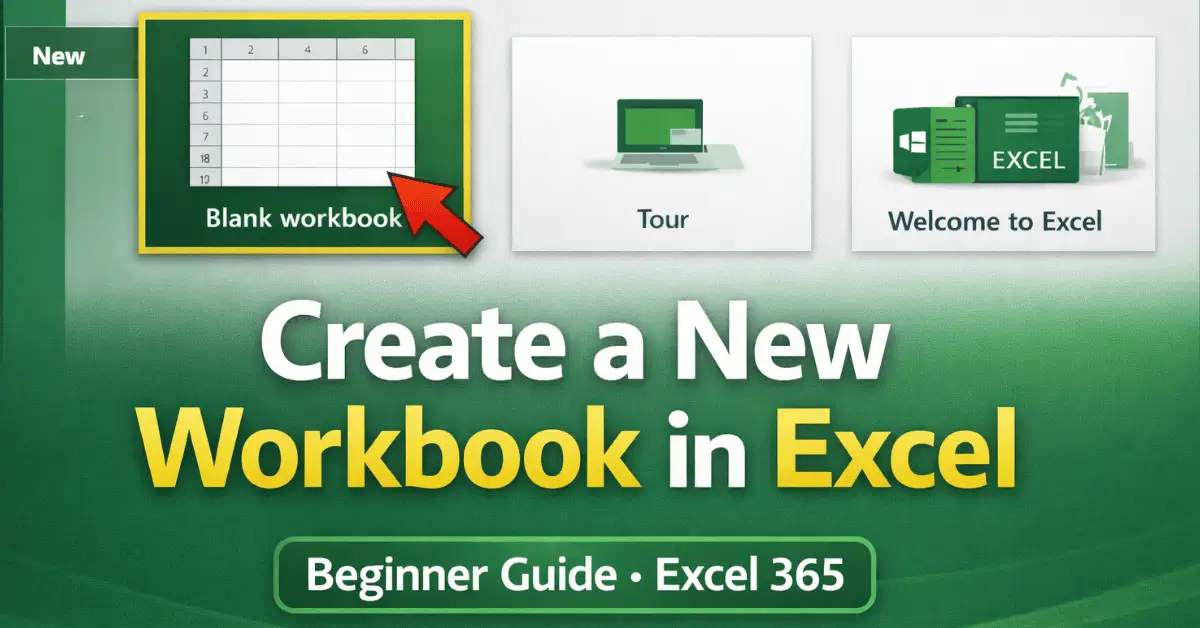
How to Create a New Workbook in Excel (Beginner Guide)
How to Open, Save, and Close Excel Files (Step-by-Step Guide)
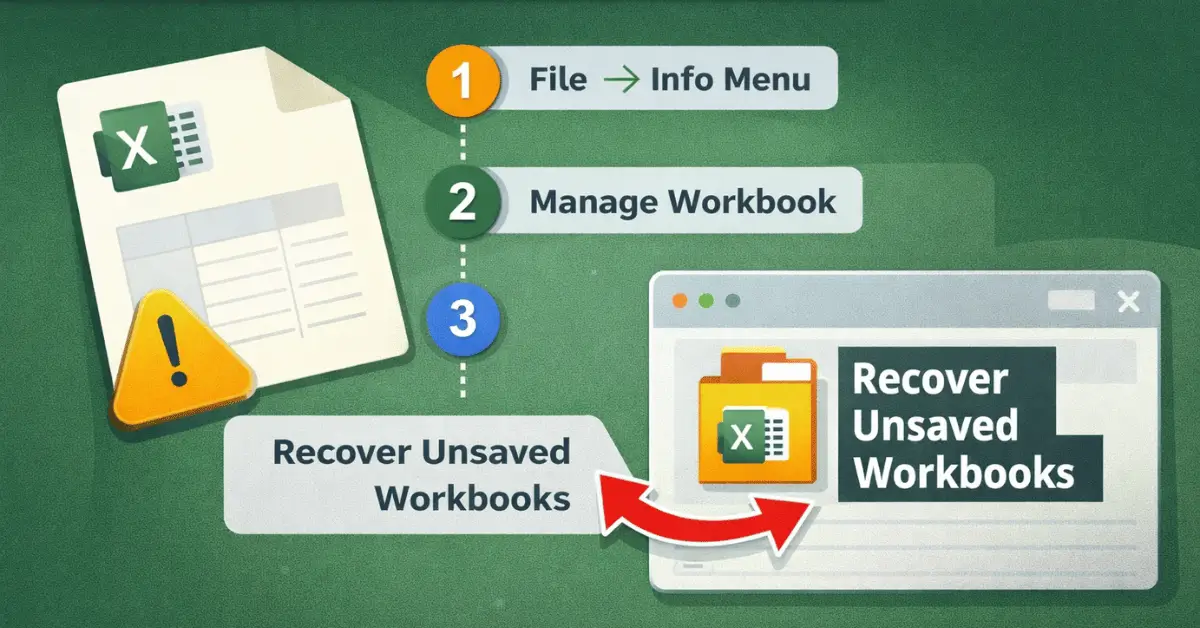
How to Recover Unsaved Excel Files (Step-by-Step Guide for Beginners)
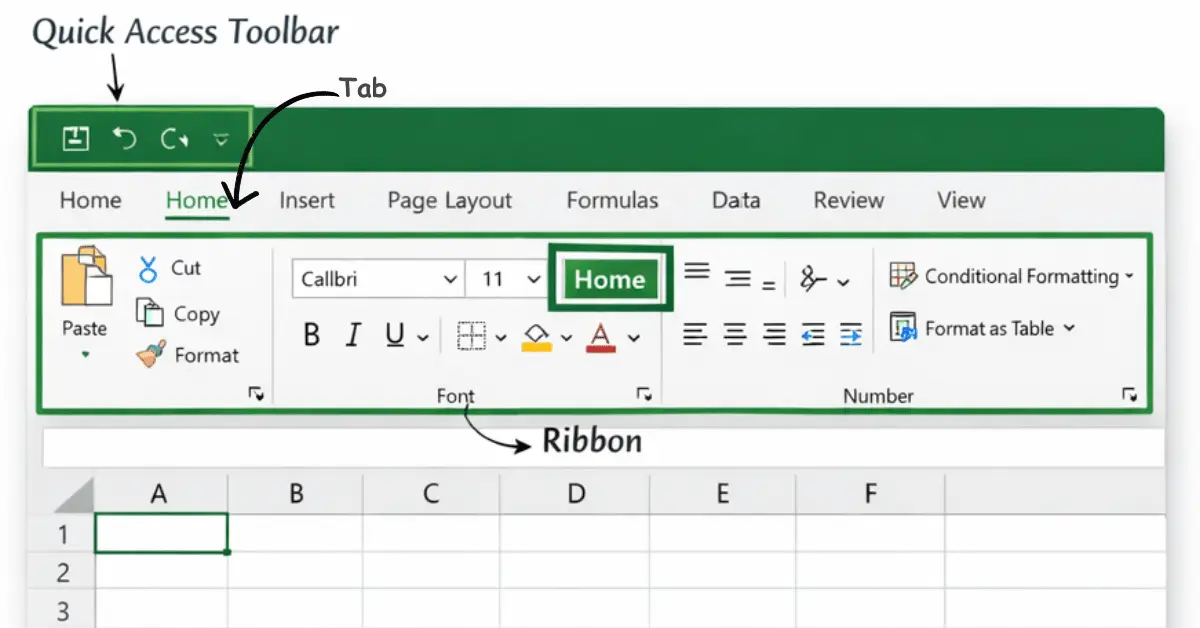
Understanding the Excel Interface: Ribbon, Tabs, and Toolbar Explained
How to Customize the Excel Ribbon (Beginner Guide)
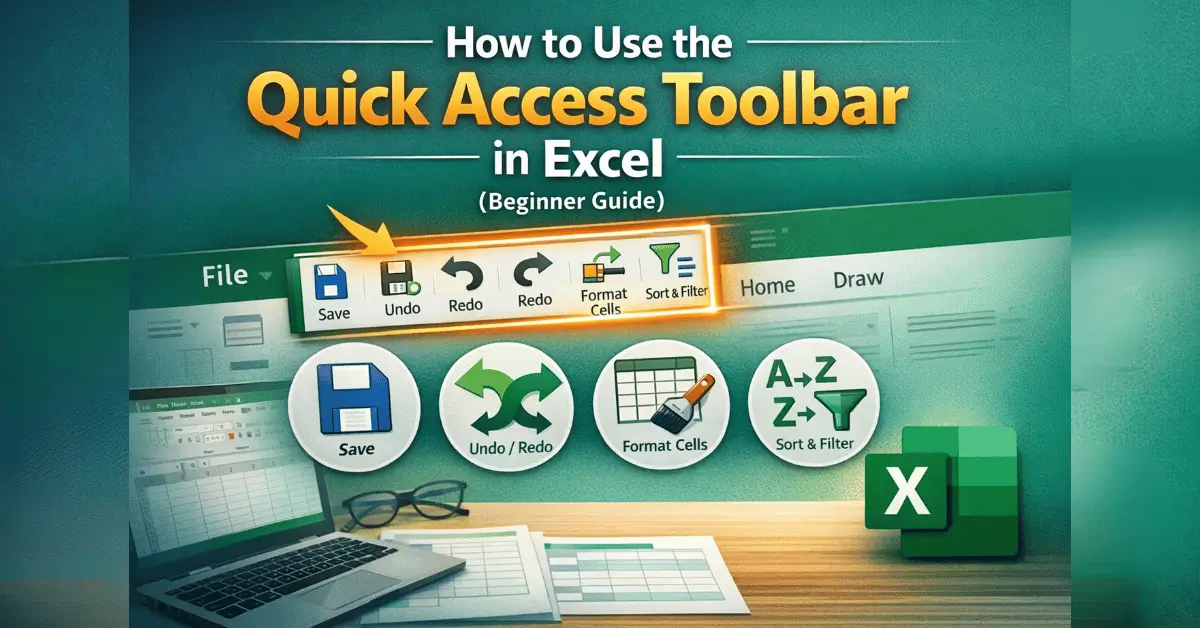
How to Use the Quick Access Toolbar in Excel (Beginner Guide)
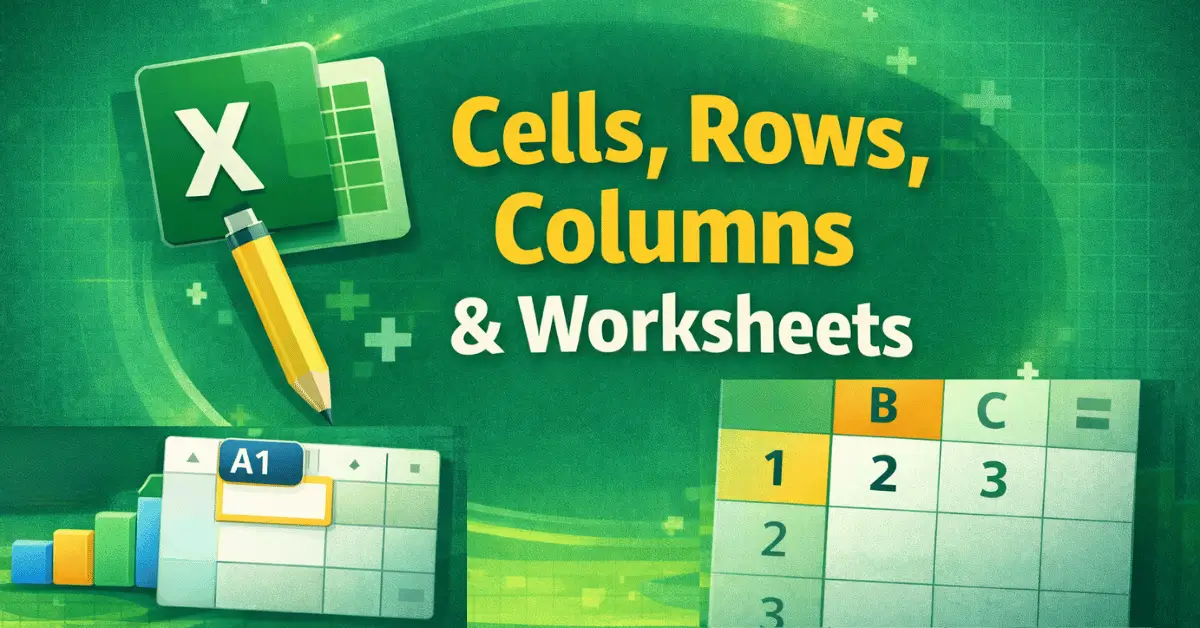
Understanding Cells, Rows, Columns, and Worksheets in Excel
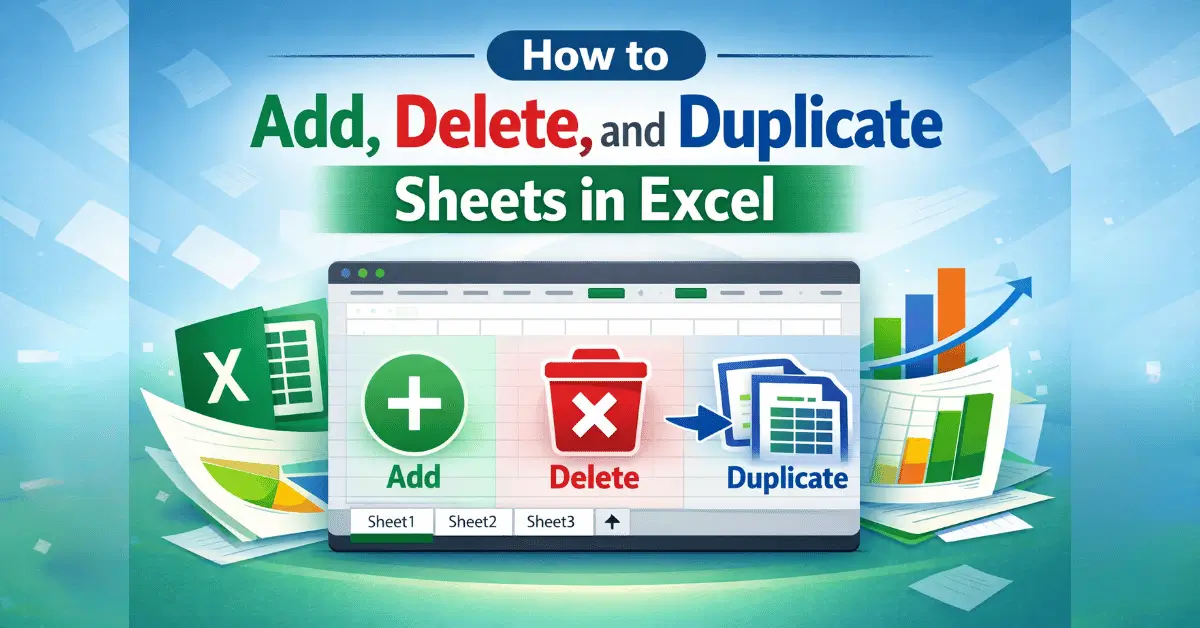
How to Add, Duplicate, and Delete a Sheet in Excel
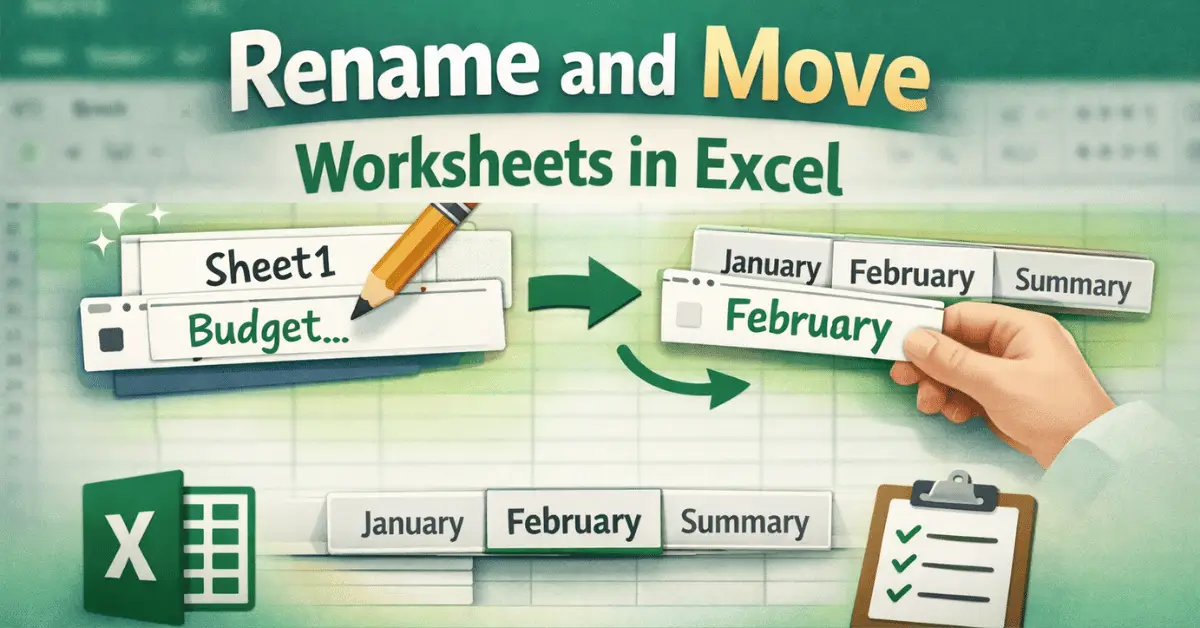
How to Rename a Sheet in Excel and Move It (Step-by-Step Guide)
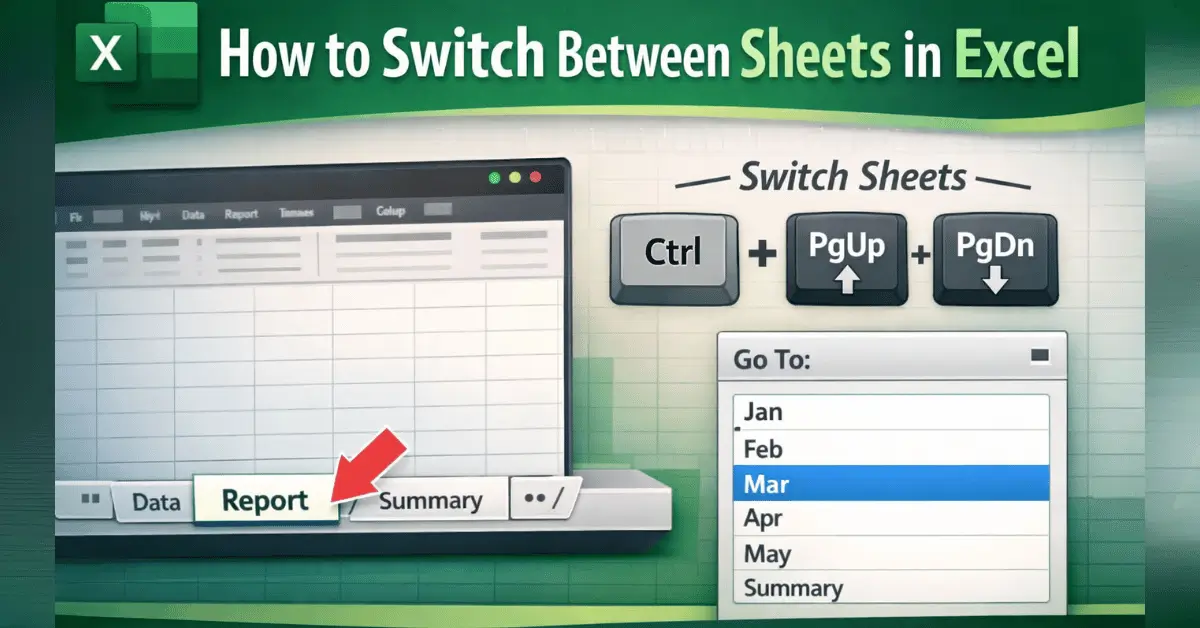
How to Switch Between Sheets in Excel Properly
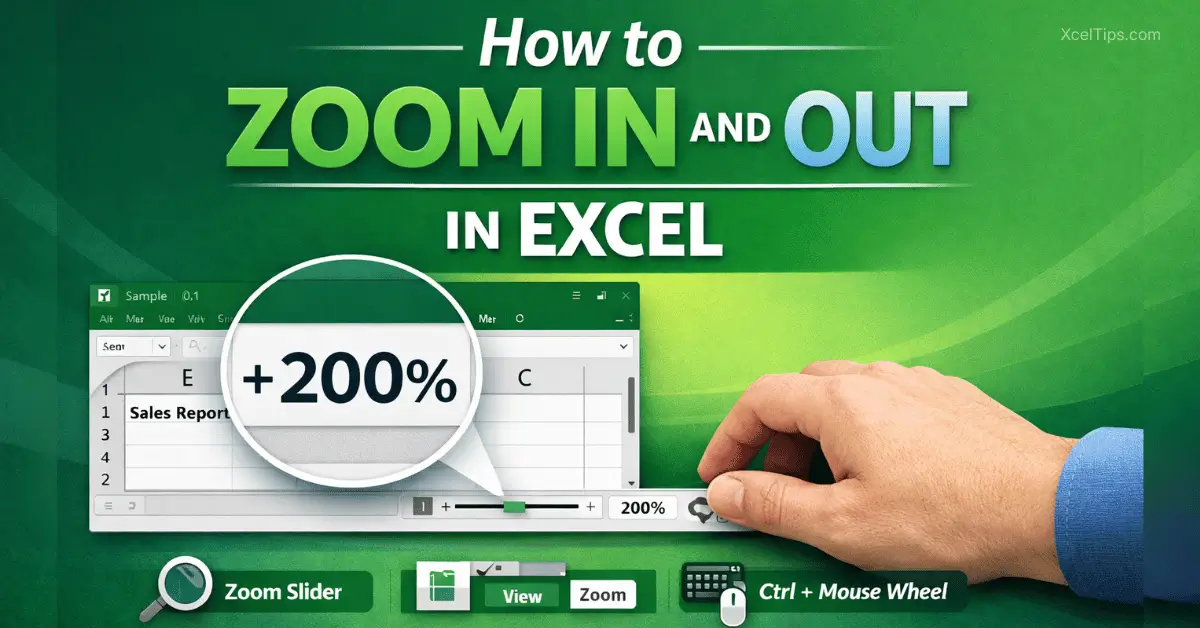
How to Zoom In and Out in Excel (Step-by-Step Guide)
What Are Excel Basics?
Excel basics refer to the fundamental skills you need to use Microsoft Excel effectively. These include understanding how workbooks and worksheets function, how to navigate the interface, and how to perform essential tasks like saving files and entering data.
For beginners, mastering these basics is the most important step. Without a strong foundation, more advanced topics like formulas, data analysis, and automation can quickly become confusing.
This module focuses on building that foundation so you can use Excel with confidence.
How to Use This Module
To get the best results from this module:
- Follow the lessons in order (don’t skip ahead).
- Practice each step directly in Excel.
- Repeat lessons if something feels unclear.
- Focus on understanding, not memorizing.
Tip:
Keep Excel open while learning and try each step immediately.
Why Excel Fundamentals Matter
Excel often feels difficult for beginners simply because the basics are skipped.
This module ensures you:
- Understand how Excel is structured.
- Avoid common beginner mistakes.
- Build confidence before learning formulas and advanced tools.
A strong foundation will make everything else in Excel much easier, especially formulas and data analysis.
Common Beginner Mistakes in Excel
Many beginners struggle with Excel not because it is difficult, but because they skip essential basics.
Some common mistakes include:
- Jumping straight into formulas without understanding cell structure.
- Not saving files properly (leading to lost work).
- Ignoring how rows, columns, and worksheets work together.
- Relying on memorization instead of understanding.
This module helps you avoid these mistakes by teaching Excel step by step in the right order.
What You Will Be Able to Do After This Module
After completing the Excel Fundamentals module, you will have a clear understanding of how Excel works and how to use it confidently for basic tasks.
You will be able to:
- Open and navigate Excel without confusion.
- Create, save, and manage workbooks properly.
- Understand the structure of rows, columns, and cells.
- Move between worksheets efficiently.
- Recognize key parts of the Excel interface such as the Ribbon and toolbar.
- Avoid common beginner mistakes that slow down learning.
These skills form the foundation for everything else in Excel. With these basics in place, you can approach formulas, formatting, and data tasks with greater confidence.
What’s Next?
Once you’re comfortable with the basics, the next step is learning how to work with data in Excel effectively.
Next Module →
Working with Data in Excel (Beginner Guide)
In this module, you’ll learn how to enter, edit, and organize data efficiently in Excel.