
Written By Sophanith Dith
Last Updated April 21, 2026
Applies to Microsoft Excel 365 (Windows only)
Many beginners hear people talk about formulas and functions in Excel as if they mean the same thing. They are closely connected, but they are not exactly the same. If you understand the difference early, Excel becomes much easier to read and use.
This guide explains formula vs function in Excel in simple language. For a broader official explanation, you can also read Microsoft’s overview of formulas in Excel.
You will learn what is a formula in Excel, what is a function in Excel, how each one is written, and why this difference matters when building worksheets.
What Formulas and Functions in Excel Mean
To understand formulas and functions in Excel, start with this simple idea: a formula is the full calculation you type into a cell, while a function is a built-in tool that Excel provides to help perform that calculation.
For example, in a workbook like Budget.xlsx, you might type:
=B2-C2
That is a formula. It tells Excel to subtract one cell from another.
Now look at this:
=SUM(B2:B6)
This is also a formula, but it contains a function. The word SUM is a function because Excel already knows what SUM means and how it works.
So when people ask about the difference between formula and function in Excel, the answer is this: a formula is the whole expression, and a function is one predefined part that can be used inside a formula. This is the most important point to remember.
If you want a broader introduction to entering formulas in worksheets, see Excel Formulas for Beginners.
Now that the overall difference is clear, let’s look more closely at what is a formula in Excel and how it works on its own.
What Is a Formula in Excel?
Before comparing the two more deeply, it helps to answer a common beginner question: what is a formula in Excel?
A formula in Excel is any expression that starts with an equals sign (=) and tells Excel to calculate something. A formula can use:
- Cell references.
- Numbers.
- Operators such as
+,-,*, and/. - Functions such as
SUMorIF.
Here are a few simple formula examples:
=A1+B1=C2*D2=E5/2=SUM(A1:A10)
All of these are formulas because they begin with = and return a result.
In other words, when someone asks what is a formula in Excel, the easiest answer is: it is any calculation you enter into a cell to produce a result.
Once you understand what is a formula in Excel, the next step is to see how a function fits inside many Excel formulas.
What Is a Function in Excel?
Now let’s answer the second common question: what is a function in Excel?
A function in Excel is a built-in calculation that has a name and a specific purpose. Instead of writing every part of the calculation yourself, you use Excel’s predefined function name with arguments inside parentheses.
For example:
SUMadds numbers.AVERAGEcalculates the mean.COUNTcounts numeric cells.IFreturns one result when a condition is true and another when it is false.
A function is usually written like this:
=FUNCTION_NAME(arguments)
For example:
=SUM(A1:A5)
In this example, SUM is the function, and A1:A5 is the argument. So if someone asks what is a function in Excel, you can explain that it is a built-in Excel command used inside a formula to perform a specific task.
With both terms defined, it becomes much easier to compare formula vs function in Excel by looking at their structure side by side.
Formula vs Function in Excel Syntax
The best way to understand formula vs function in Excel is to compare how they look in a worksheet. Both begin with =, but their structure is different.
| Type | Example | Explanation |
|---|---|---|
| Formula | =B1+B2+B3+B4 | Adds the values in B1, B2, B3, and B4 |
| Formula with function | =SUM(B1:B4) | Adds the values in B1 through B4 using a built-in function |
| Formula with logic function | =IF(C2>=70,"Pass","Review") | Returns text based on a condition |
Here is the difference in plain language:
- A formula can be as simple as
=A1+B1. - A function is a named tool like
SUM,AVERAGE, orIF. - A function is normally placed inside a formula.
- A formula can exist without a function, but a function entered in a cell becomes part of a formula.
This is why the difference between formula and function in Excel can confuse beginners at first. They often see functions so often that they assume every formula is a function. That is not true. Some formulas use functions, and some do not.
After reviewing the syntax, a simple worksheet example makes the difference between formula and function in Excel much easier to see.
Basic Example of Formulas and Functions in Excel
A simple worksheet example makes the concept much clearer. Imagine a sheet where cell A2 contains 40 and cell B2 contains 60.
You could write this formula:
=A2+B2
Excel returns 100.
You could also write this formula:
=SUM(A2:B2)
Excel also returns 100.
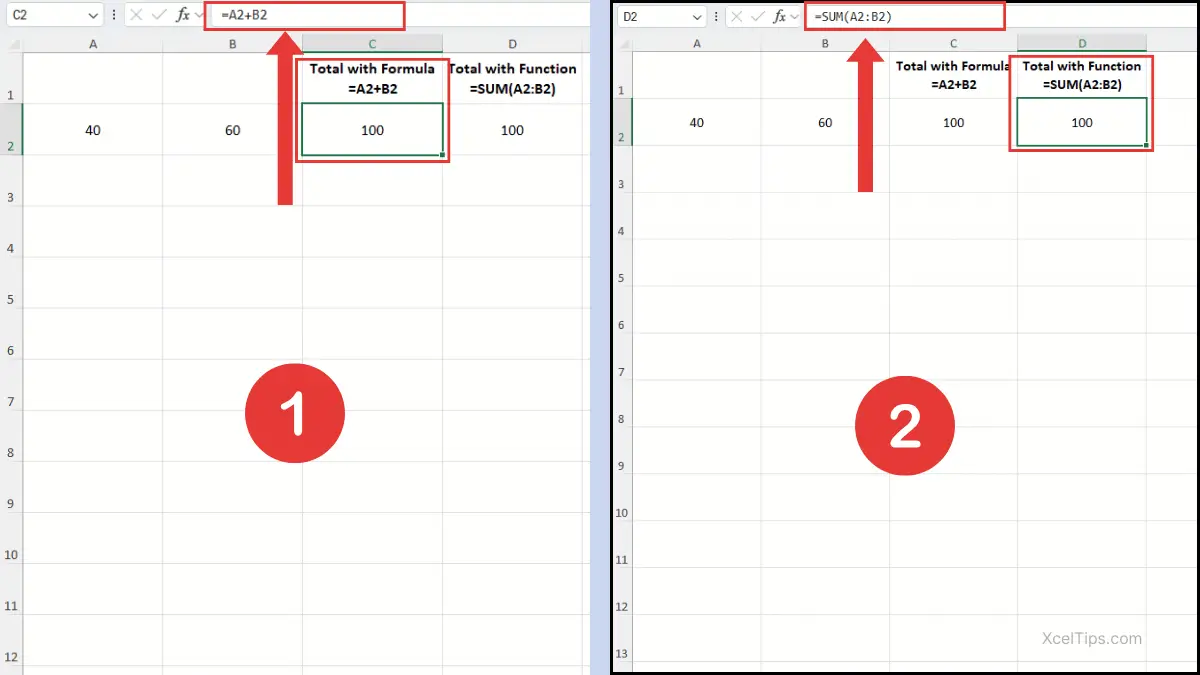
Both results are correct, but the structure is different. The first is a formula using an arithmetic operator. The second is a formula using a function. This is one of the easiest ways to explain formulas and functions in Excel to absolute beginners.
The basic example shows the structure clearly, but real worksheet situations help explain how formulas and functions in Excel are used in everyday tasks.
Practical Real-World Examples
Now let’s look at realistic examples so the meaning of formulas and functions in Excel feels more practical.
Example 1: Remaining budget with a basic formula
In Budget.xlsx, suppose:
B2= monthly income.C2= monthly expenses.
To calculate the net income, use:
=B2-C2
If B2 is 2500 and C2 is 1800, Excel returns 700.
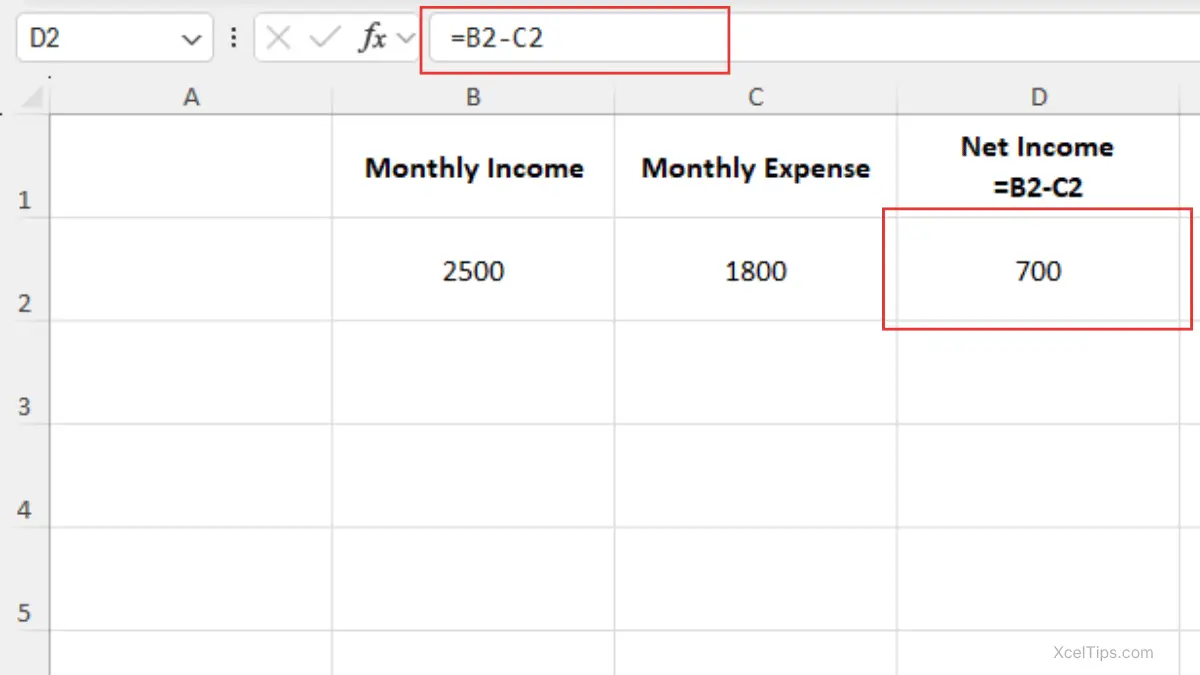
This is a simple formula. You do not need a function because the calculation only subtracts one value from another. This is a good example when teaching what is a formula in Excel.
Example 2: Total weekly sales with a function
In Sales_Report.xlsx, imagine B2:B6 contains sales from Monday to Friday.
Use:
=SUM(B2:B6)
If the values in cells B2 through B6 are 120, 150, 130, 170, and 110, Excel returns 680.
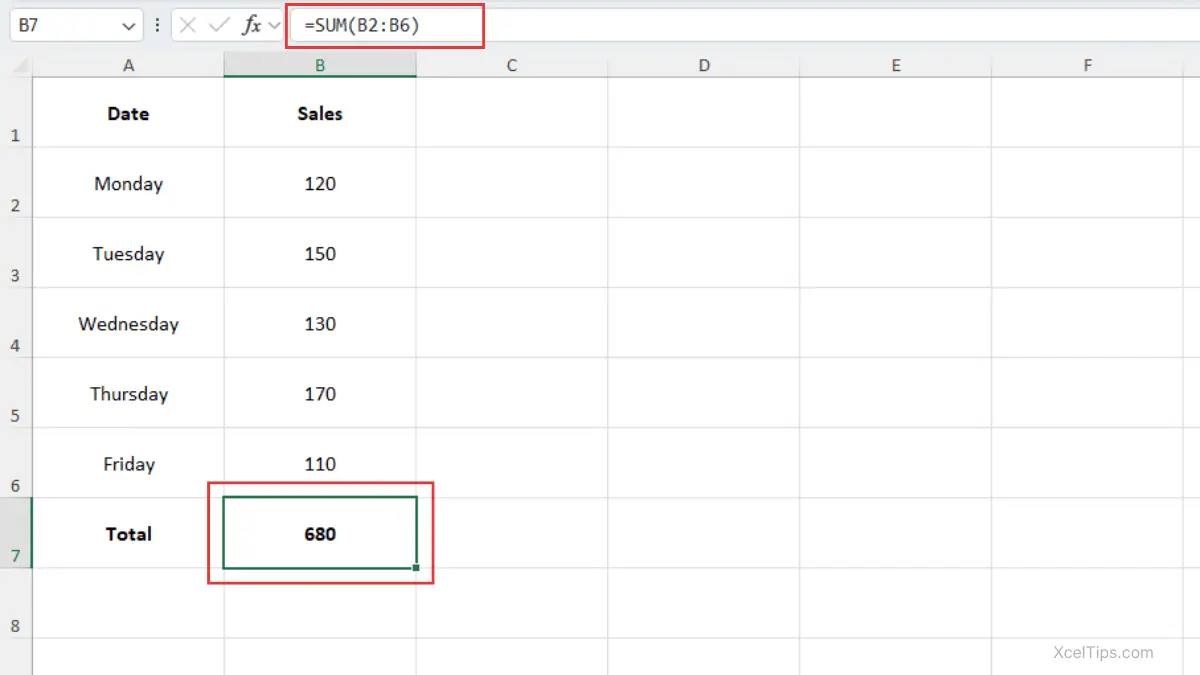
This is a stronger choice than writing =B2+B3+B4+B5+B6. The function keeps the formula shorter and easier to manage. This is a practical example of what is a function in Excel.
Example 3: Average test score with a function
In Student_Scores.xlsx, suppose C2:C6 contains five quiz scores.
Use:
=AVERAGE(C2:C6)
If the scores from cell C2 to C6 contain 80, 75, 90, 85, and 70, Excel returns average score 80.
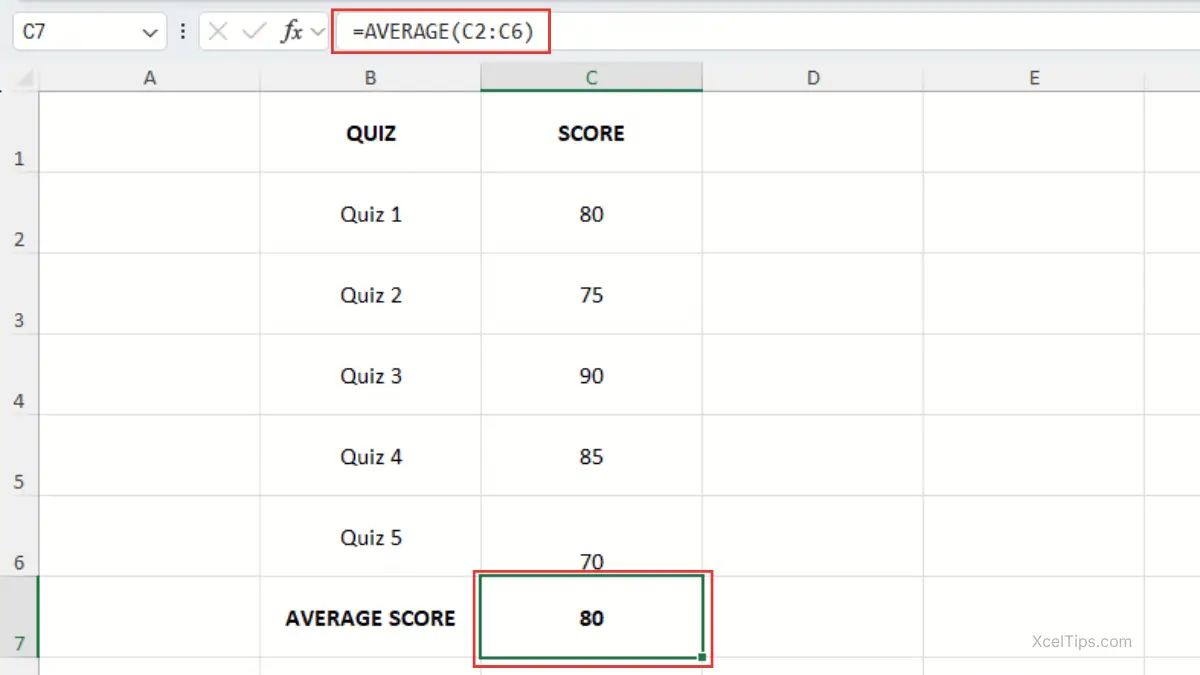
This example shows that functions do not only add numbers. They can also summarize data in other ways. That is another important part of understanding formula vs function in Excel.
Example 4: Return a text label using IF
In Employee_List.xlsx, suppose:
A1= Performance Score.B1= Result.- The actual score is entered in
A2.
In B2, use:
=IF(A2>=70,"Pass","Review")
If the performance score in A2 is 82, Excel returns Pass in B2.
If the performance score in A2 is 65, Excel returns Review in B2.
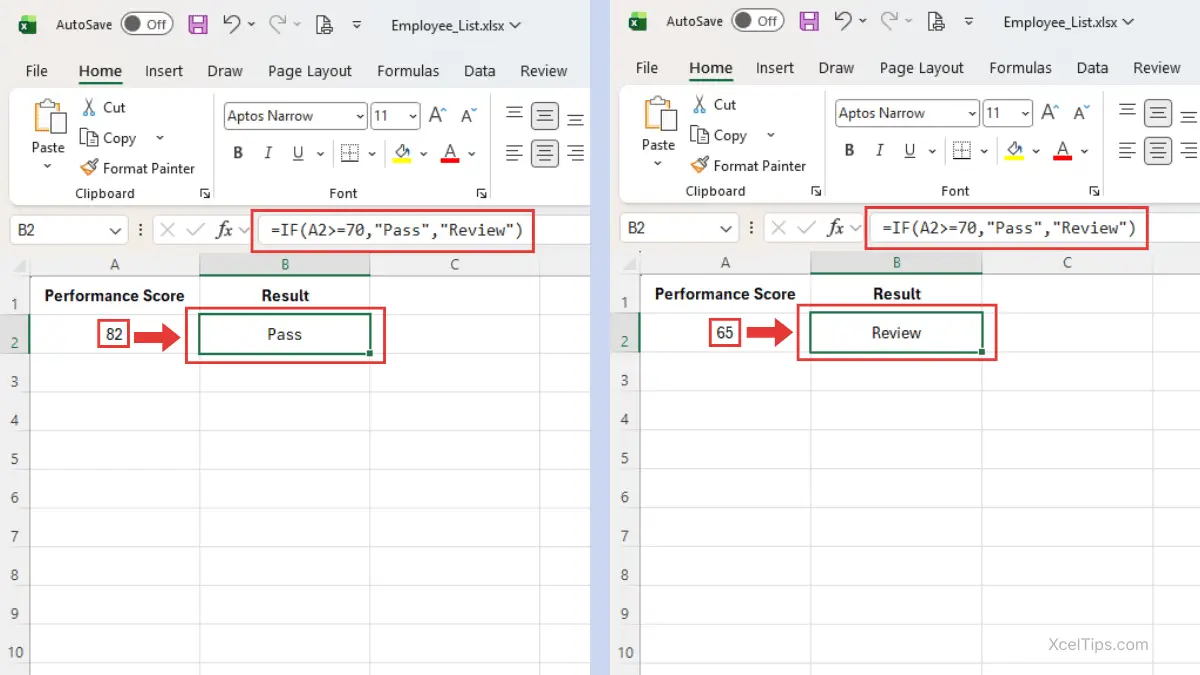
This example shows that functions can return text, not just numbers. It also helps explain formulas and functions in Excel by showing that a formula can use a function like IF to display a result based on a condition.
For deeper examples, you can link readers to How to Use the SUM Function in Excel or How to Use the IF Function in Excel.
Once you see these examples in action, it is also important to understand the common mistakes that can cause confusion when using formulas and functions in Excel.
Common Mistakes Beginners Make
Once you understand formulas and functions in Excel, the next step is avoiding beginner mistakes. These are some of the most common ones.
1. Thinking formulas and functions are exactly the same
This creates confusion when learning Excel. A formula is the full expression, while a function is a built-in tool used inside many formulas.
Correction: Remember that =A1+B1 is a formula, and =SUM(A1:B1) is also a formula, but it includes a function.
2. Forgetting the equals sign
If you type SUM(A1:A5) without =, Excel may treat it as plain text.
Correction: Start formulas with = every time.
3. Forgetting parentheses in a function
A beginner may type =SUM A1:A5, which is not valid syntax.
Correction: Functions need parentheses, like =SUM(A1:A5).
4. Selecting the wrong cells
A function may return the wrong total or average if the selected range is incorrect.
Correction: Double-check the range before pressing Enter. If needed, review How to Select Multiple Cells in Excel.
5. Using a function when a simple formula is easier
Sometimes a short calculation such as =B2-C2 is clearer than using a more complicated structure.
Correction: Use direct formulas for simple arithmetic, and use functions when they make the worksheet easier to read or update.
After learning what to avoid, it helps to look at a few related Excel functions that beginners often learn next.
Related Formulas
Once the difference between formulas and functions in Excel is clear, it becomes much easier to learn specific functions one at a time.
SUM: Adds numbers in cells or ranges. It is one of the clearest examples of a function inside a formula.AVERAGE: Returns the mean of selected numbers.COUNT: Counts how many cells contain numbers.IF: Returns different results based on whether a condition is true or false.
If your formula results look wrong, How to Fix Excel Formula Errors is a helpful next guide.
The best way to remember the difference between formula and function in Excel is to practice with a few short examples yourself.
Quick Practice
A short practice section helps reinforce the idea without turning this article into a broader tutorial.
Open XcelTips_Practice.xlsx and try these three exercises:
- Enter
=A2+B2using two numbers in cellsA2andB2. - In another cell, enter
=SUM(A2:B2)and compare the result. - Replace
SUMwithAVERAGEon a small list of numbers and observe how the result changes.
These quick exercises help readers understand formula vs function in Excel through direct comparison.
Before finishing, here are a few common beginner questions about formulas and functions in Excel.
Frequently Asked Questions (FAQs)
These short answers help clear up common beginner confusion around formulas and functions in Excel.
What is the difference between formula and function in Excel?
A formula is any calculation entered in a cell. A function is a built-in Excel tool, such as SUM or IF, that can be used inside a formula.
What is a formula in Excel for beginners?
A formula in Excel is an expression that starts with = and tells Excel what to calculate.
What is a function in Excel in simple words?
A function is a named, built-in calculation that helps Excel perform a task more easily.
Can a formula work without a function?
Yes. A formula like =A1-B1 does not use any function.
Are formulas and functions in Excel important for beginners?
Yes. Understanding the difference helps you read formulas more confidently and learn Excel functions faster.
With the main questions answered, the next step is simply to review the main idea behind formulas and functions in Excel one more time.
Conclusion
Understanding formulas and functions in Excel is one of the best early steps for any beginner. A formula is the full instruction typed into a cell, while a function is a built-in tool Excel uses inside many formulas. When you clearly understand that relationship, it becomes much easier to build, read, and fix worksheet calculations.
Once you understand how formulas and functions in Excel work together, worksheet logic starts to feel much more manageable. You do not need to memorize dozens of functions at once. Start by recognizing the difference, then practice with a few common examples.
If you are still new to Excel, you may also want to follow the Beginner Learning Path first. It will help you build a stronger foundation before moving deeper into formulas and functions.