
Written By Sophanith Dith
Last Updated April 27, 2026
Applies to Microsoft Excel 365 (Windows only)
If you want to add numbers quickly in a worksheet, learning how to use the SUM function in Excel is one of the best places to start. The SUM function adds numbers, cell references, or ranges and returns the total, which makes it useful for budgets, sales sheets, expense lists, and many other beginner spreadsheets.
Many beginners search for the Excel SUM function when they want a fast way to total values without doing the math manually. Once you understand the syntax and see a few real examples, it becomes much easier to see how to sum in Excel and how to calculate totals with confidence.
Before looking at examples, it helps to understand exactly what the SUM function does and why it is so useful in everyday worksheets.
What the SUM Function Does
The SUM function adds one or more numbers and returns a numeric total. In simple terms, it answers the question, “What is the total of these values?” This is why it is one of the most commonly used formulas for beginners.
For example, in Budget.xlsx, you might list monthly expenses in cells B2:B6. Instead of using a calculator and typing the answer yourself, you can use the SUM function to total the values directly in Excel. This saves time and reduces mistakes because Excel recalculates the result automatically when the source numbers change.
If you have ever wondered how to calculate total on Excel, the SUM function is usually the first and most practical answer.
Once you know the purpose of the function, the next step is learning how the SUM formula is written so you can use it correctly.
SUM Function in Excel Syntax
Before using the formula in real worksheets, it helps to understand the structure.
=SUM(number1, [number2], …)
Here is what each part means:
number1: The first number, cell reference, or range to add. This argument is required.[number2]: Additional numbers, cells, or ranges to include. This argument is optional.- Return value: The function returns a number.
- Case sensitivity: The SUM function is not case-sensitive.
- Works with ranges: Yes. For example,
A1:A10 - Works with separate cells: Yes. For example,
A1, C5, E51 - Works with typed numbers: Yes. For example,
=SUM(10,20,30)
These are all valid examples of the Excel SUM function:
=SUM(5,10,15)
=SUM(A1:A5)
=SUM(A1:A5,C1:C3,100,E80)
In beginner worksheets, the most common version is usually a simple range such as =SUM(B2:B10).
If you want to review the official syntax and examples from Microsoft, see the SUM function guide.
Now that the syntax is clear, the easiest way to understand it is to see a simple example of the SUM function in Excel in action.
Basic Example of How to Use the SUM Function in Excel
The easiest way to understand the formula is to see one simple example from start to finish.
Imagine Sales_Report.xlsx has sales values in cells B2:B5:
B2=120B3=150B4=90B5=140
To calculate the total sales, click cell B6 and enter:
=SUM(B2:B5)
Excel returns 500 because it adds 120 + 150 + 90 + 140.
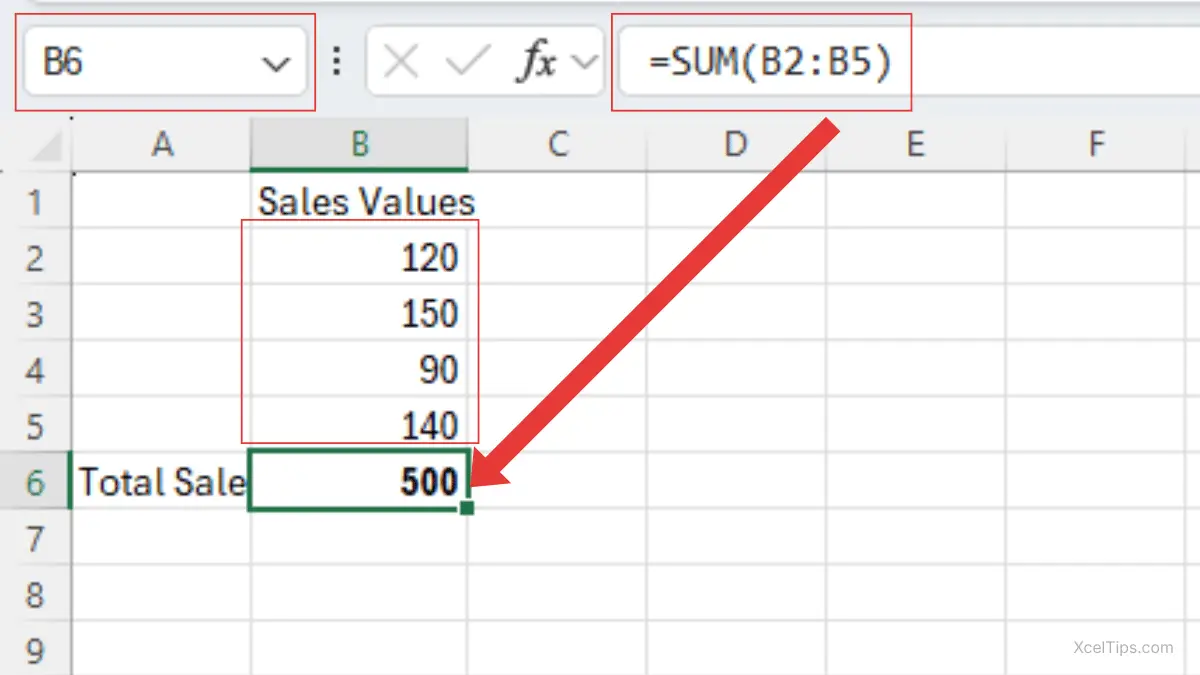
This example clearly shows how to use the SUM function in Excel. Instead of typing =120+150+90+140, you only need to reference the range that contains the numbers.
After seeing one simple formula, it becomes easier to understand how to sum in Excel in more practical, real-world situations.
How to Sum in Excel with Real-World Examples
Once the basic idea is clear, it helps to see how the formula works in practical situations beginners actually use.
Example 1: Calculate a Monthly Budget Total
In Budget.xlsx, cells B2:B7 contain expense amounts for rent, groceries, transport, utilities, internet, and entertainment.
In B8, enter:
=SUM(B2:B7)
If the values are 800, 220, 60, 95, 40, and 85, Excel returns 1300.
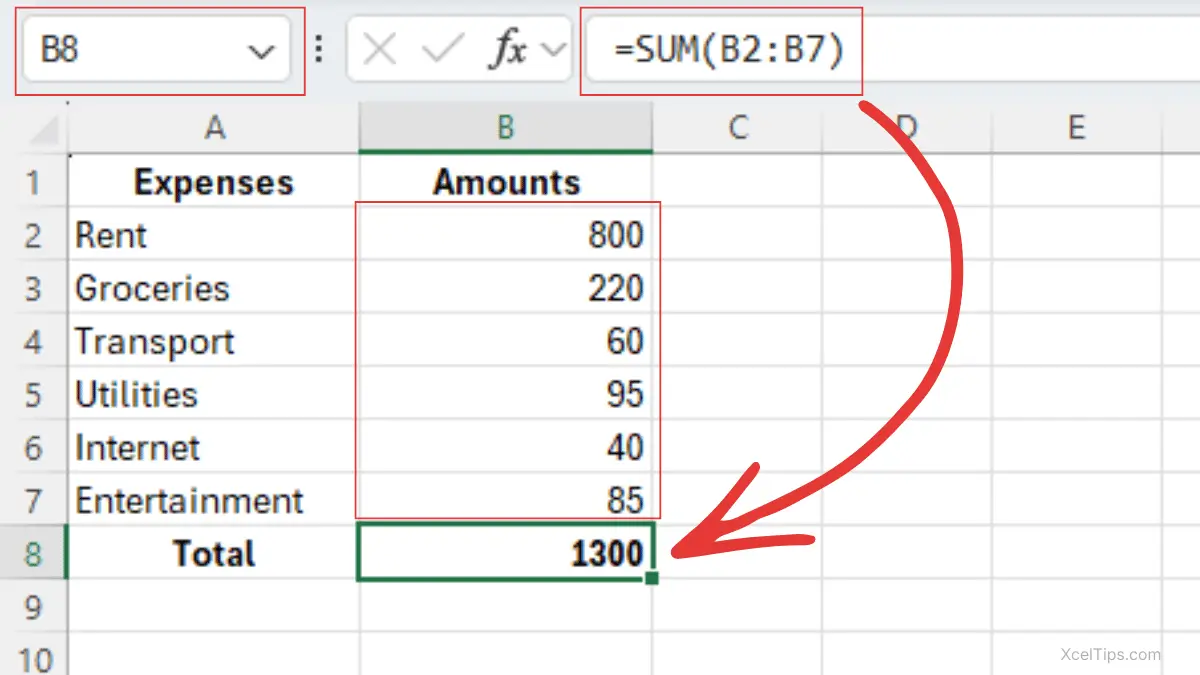
This is one of the most common ways people learn how to calculate total on Excel. A budget changes often, so using SUM means the total updates automatically whenever one expense changes.
Example 2: Total Weekly Sales
In Sales_Report.xlsx, daily sales are listed in C2:C8 for one week.
In C9, enter:
=SUM(C2:C8)
If those values add up to 4,275, Excel returns 4275.
This is useful in reports because totals are often placed at the bottom of a list. If one sales figure changes later, the total updates immediately. That is one reason the Excel SUM function is so important for everyday spreadsheet work.
If your source values need correction before you total them, this is a good place to link to How to Enter and Edit Data in Excel rather than explaining data entry in full here.
Example 3: Add Non-Adjacent Cells
Sometimes the cells you want to add are not next to each other. The SUM function can still handle that.
In Employee_List.xlsx, suppose bonus amounts are stored in B2, B5, and B8. To total only those cells, enter:
=SUM(B2,B5,B8)
If the values are 100, 150, and 200, Excel returns 450.
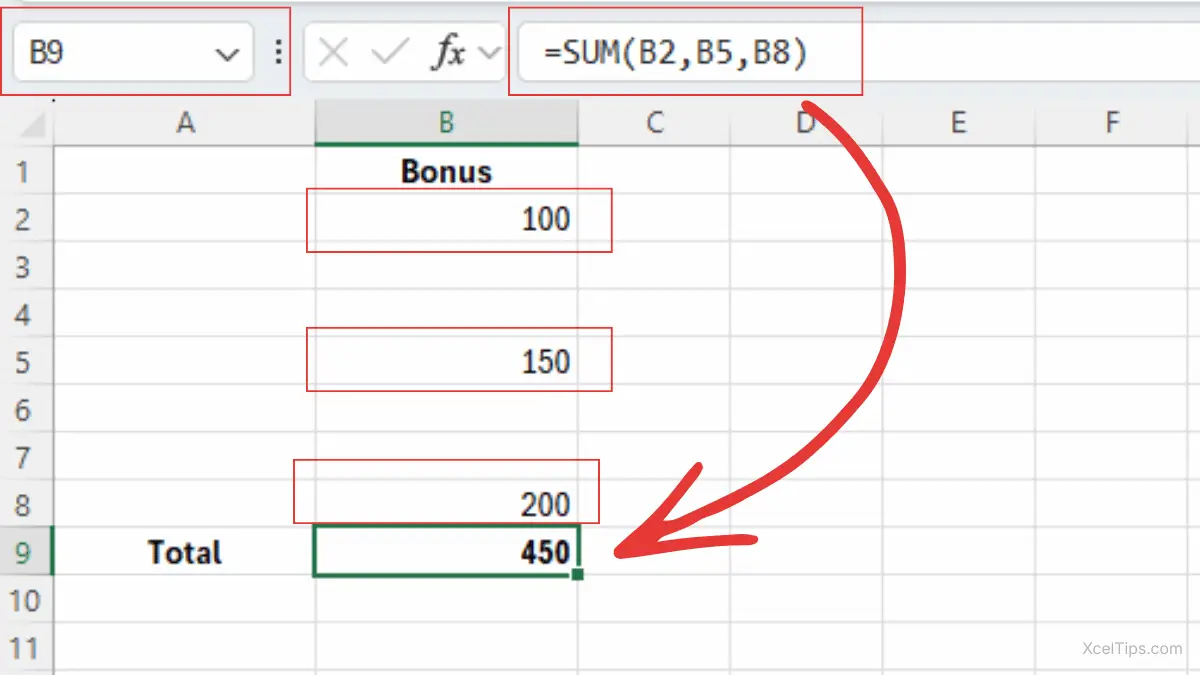
This example helps beginners see how to sum in Excel when the values are separated. You are not limited to one continuous block of cells.
Example 4: Mix a Range with a Typed Number
You can also combine a cell range with a typed number inside the formula.
Suppose Budget.xlsx has values in B2:B4, and you want to add a fixed extra fee of 25. Use:
=SUM(B2:B4,25)
If B2:B4 total 300, Excel returns 325.
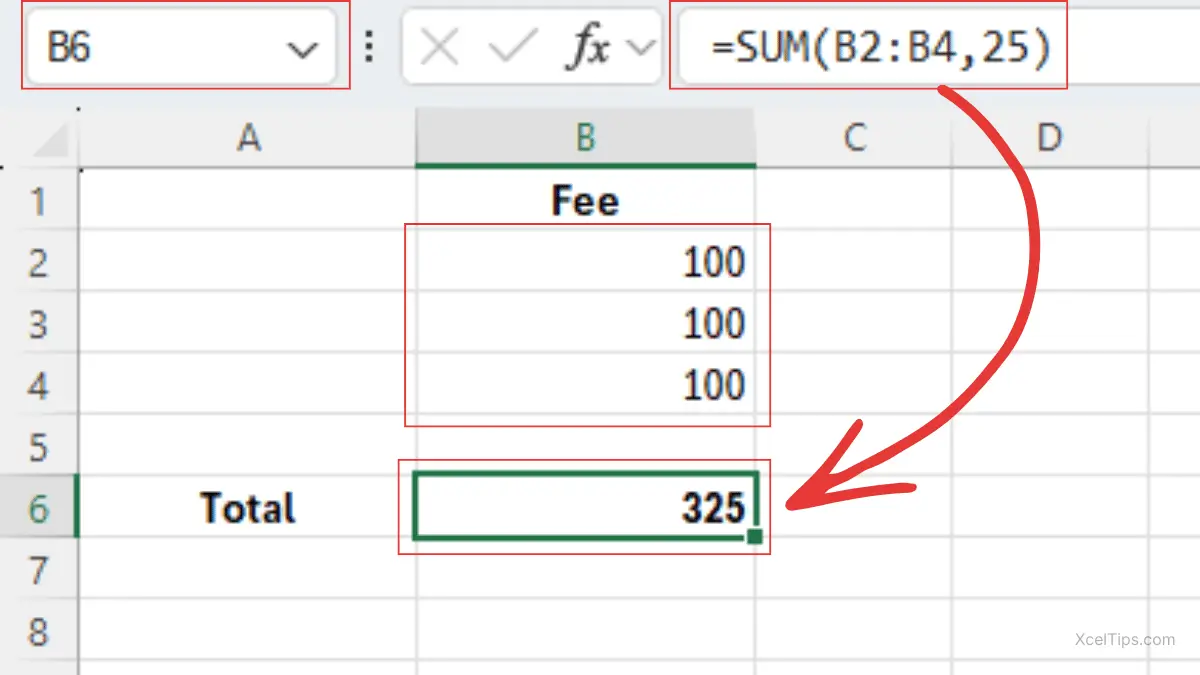
This can be useful in small worksheets, but beginners should be careful with typed numbers inside formulas because they are easier to forget later than values stored directly in cells.
These examples show how useful SUM can be, but beginners also need to know the common mistakes that can lead to incorrect totals.
Common Mistakes When Using the SUM Function
Even though SUM is simple, there are a few beginner mistakes that can lead to wrong totals. Knowing these early will help you use the formula more confidently.
1. Selecting the Wrong Range
A very common mistake is including too many cells or not enough cells. For example, if your real data is in B2:B6 but the formula uses =SUM(B2:B5), the last value is missing. Always check that the full range is selected.
2. Including the Total Cell in the Formula
If your total is in B6 and you accidentally type: =SUM(B2:B6).
Excel may create a circular reference because the formula includes its own result cell. The correction is simple: use only the source values, such as =SUM(B2:B5).
3. Numbers Stored as Text
If a value looks like a number but is stored as text, Excel may not add it correctly. This often happens after copying data from a website or imported file. If the total looks wrong, check whether all source cells are truly numeric.
4. Using Commas When You Need a Continuous Range
Some beginners type:
=SUM(B2,B6)
when they actually want everything from B2 through B6. That formula adds only B2 and B6. For a continuous range, use a colon:
=SUM(B2:B6)
5. Assuming Every Phrase People Search is Technically Correct
Some users search for a sum formula on excel, but the more accurate wording is SUM function in Excel or sum formula in Excel. That difference does not stop the formula from working, but using the correct term helps you understand Excel better as you learn.
Once you understand how SUM works and how to avoid errors, it also helps to know which related formulas you may want to learn next.
Related Formulas
Once you understand SUM, a few related formulas become much easier to learn. These functions support the same topic without taking the focus away from the main formula.
SUMIF: Adds values that meet one condition. Use it when you want totals for one category only.SUMIFS: Adds values based on multiple conditions. This is useful for more detailed reports.AVERAGE: Returns the mean instead of the total. Use it when you want the typical value rather than the full sum.SUBTOTAL: Returns totals in filtered lists and works better thanSUMin some table-based reports.
After reviewing the related functions, the best next step is a little hands-on practice so the SUM function feels more familiar.
Quick Practice
The best way to remember how to use the SUM function in Excel is to try a few small exercises yourself.
Use XcelTips_Practice.xlsx and complete these tasks:
- Enter five numbers in cells
B2:B6and use=SUM(B2:B6)inB7. - Enter three numbers in
C2,C4, andC6and use=SUM(C2,C4,C6)inC7. - Change one of the original numbers and watch the total update automatically.
These short exercises make it easier to understand both the syntax and the result.
With the basics and practice covered, here are a few common questions beginners often have about using SUM in Excel.
Frequently Asked Questions (FAQs)
Before finishing, it helps to answer a few questions beginners often ask when learning the SUM function.
What is the SUM function in Excel used for?
It adds numbers and returns the total. You can use it with single cells, ranges, or typed numbers.
How do I use SUM for a whole column?
Click the result cell and enter a formula like:
=SUM(B2:B10)
This adds the values from B2 through B10.
Is the SUM function the same as adding numbers manually?
It gives the same result, but it is much faster and updates automatically when the source numbers change.
How do I know how to sum in Excel when cells are not next to each other?
Use commas between the cell references, such as:
=SUM(B2,B5,B8)
Why is my total wrong in Excel?
The most common reasons are the wrong range, numbers stored as text, or accidentally including the total cell in the formula.
At this point, you have seen what the SUM function does, how to write it, and how to use it in practical examples.
Conclusion
Now you know how to use the SUM function in Excel, what the syntax looks like, and how to apply it in simple real-world situations. The SUM function is one of the most useful formulas for beginners because it helps you total values quickly, accurately, and without repeated manual math.
As you practice, try using the Excel SUM function in small budgets, sales lists, or expense trackers until it feels natural. When you are ready for the next step, continue with a related guide such as How to Use the SUMIF Function in Excel, and then explore the Beginner Learning Path to keep building your Excel skills.