
Written By Sophanith Dith
Last Updated April 24, 2026
Applies to Microsoft Excel 365 (Windows only)
Part of the Beginner Learning Path
Module 2 Working with Data
Lesson 4 of 22
Starting your first worksheet can feel easy until it is time to actually enter something. Many beginners click the wrong cell, replace existing text by mistake, or are not sure whether they should type directly in the cell or use the Formula Bar instead.
If you are learning how to enter data in Excel, the good news is that the basic process is simple once you understand how Excel handles typing, moving, and editing. This is one of the first practical skills every beginner needs because nearly every worksheet begins with Excel data entry.
In this guide, you will learn how to type information into cells, move through a worksheet while entering values, and update existing content without confusion. You will also see a few simple shortcuts that make Excel data entry easier without making the lesson feel too advanced.
Before we begin, here is a quick summary of the most useful actions.
Quick Answer:
To enter data in Excel, click a cell, type your text, number, or date, and press Enter or Tab to confirm it. To edit existing content, use F2, double-click the cell, or click in the Formula Bar. For faster Excel data entry, use Ctrl + Enter for repeated values and the fill handle for simple patterns.
This lesson focuses on the most common beginner actions you will use in real worksheets.
Quick Reference
Before you go through the full lesson, this quick reference shows the actions you will use most often during basic data entry and editing.
- Click a cell, type, and press Enter to confirm the value.
- Press Tab to move to the next cell on the right.
- Press F2 to edit part of an existing entry.
- Press Esc to cancel an edit before confirming it.
- Press Ctrl + Enter to place the same value into multiple selected cells.
- Use the Fill Handle to repeat a value or continue a simple pattern.
With those core actions in mind, let’s walk through the basic process step by step.
How to Enter Data in Excel Step by Step
The first skill to learn is the basic method for typing into a cell. This may sound obvious, but getting comfortable with cell entry helps prevent many beginner mistakes later.
Type Text, Numbers, or Dates Into a Cell
When people search for how to enter data in Excel, this is usually what they mean: how to click a cell, type something, and save it correctly.
- Click the cell where you want the data to go.
- Type your text, number, or date.
- Press Enter to confirm the entry and move down one cell.
- Or press Tab to confirm the entry and move one cell to the right.
That is the basic process. Excel places the data in the selected cell, then moves the selection based on the key you use.
If you are still learning the basic parts of a worksheet, review cells, rows, and columns in Excel first.
For example, if you are building a simple contact list, you might enter these headers across Row 1:
A1:NameB1:PhoneC1:City
You can type Name in A1, press Tab, type Phone in B1, press Tab again, and type City in C1, and then press Enter.
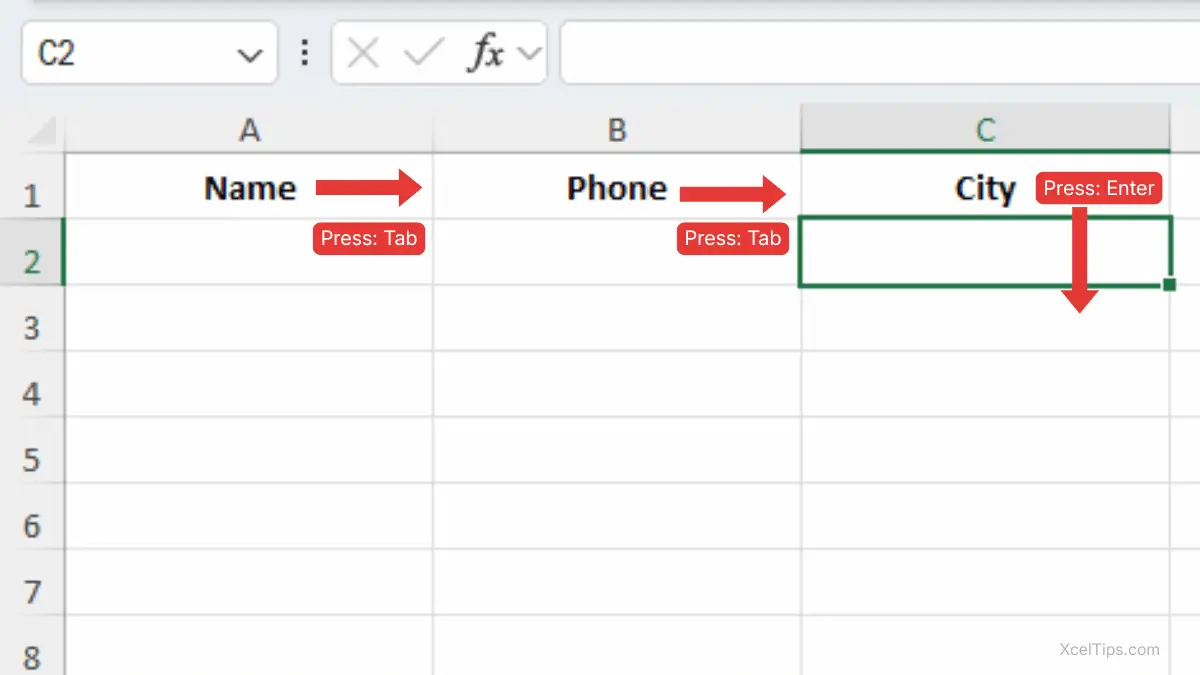
Beginner Tip:
Use Enter when filling a list down a column and Tab when entering labels across a row.
Understand What Enter and Tab Do During Data Entry
A big part of learning how to input data in Excel is understanding how Excel moves after you type.
By default:
- Enter confirms the value and moves down.
- Tab confirms the value and moves right.
This small difference matters more than beginners expect. If you are entering a list of names, Enter usually feels better. If you are setting up headings across the top of a table, Tab is usually faster.
Using the right key helps your hands follow the structure of the worksheet instead of constantly reaching for the mouse.
Once you are comfortable typing into one cell, the next step is adding several rows without losing your place.
How to Add Data in Excel Without Getting Lost
Once you know the basic typing process, the next step is learning how to keep adding information smoothly. This is especially important when you are entering several rows of data in one session.
Build a Simple List One Row at a Time
If you are wondering how to add data in Excel for a beginner list, start with a small and organized layout.
Imagine you are creating a basic employee list with these columns:
- Name
- Department
- Start Date
Here is a simple way to add data:
- Enter the column headings (
Name,Department, andStart Date) inRow 1. - Press Enter to move to the next row or click the first data cell below a heading.
- Type the first row of information.
- Continue row by row until the list is complete.
For example:
A2:Emma ReedB2:SalesC2:April 24, 2026
Then move to the next row and continue.
This approach keeps your data clean and makes later steps like sorting or turning the range into a table much easier. If you still need help selecting areas of a worksheet, see how to select multiple cells in Excel.
Keep Each Column Focused on One Type of Information
A common beginner mistake is mixing different types of information in the same column. Good Excel data entry works best when each column has one job.
For example:
- Put names in one column.
- Put phone numbers in another.
- Put dates in another.
- Put notes in another.
Beginner Warning:
Do not place a full contact record in one single cell if the parts should be separated. Clean structure makes editing easier now and organizing easier later.
After entering a list, you will often need to fix or update something. That is where cell editing becomes important
How to Edit Cells in Excel
Typing new data is only half of the skill. In real worksheets, you often need to fix spelling, change numbers, update dates, or correct text that is already in a cell.
If you want to learn how to edit cells in Excel, there are three beginner-friendly ways to do it. The best method depends on whether you want to replace the whole entry or only change part of it.
Method 1: Replace the Entire Cell Content
This is the fastest method when the current entry is completely wrong.
- Click the cell with the old value.
- Type the new value directly.
- Press Enter or Tab.
Excel will replace the old content with the new content.
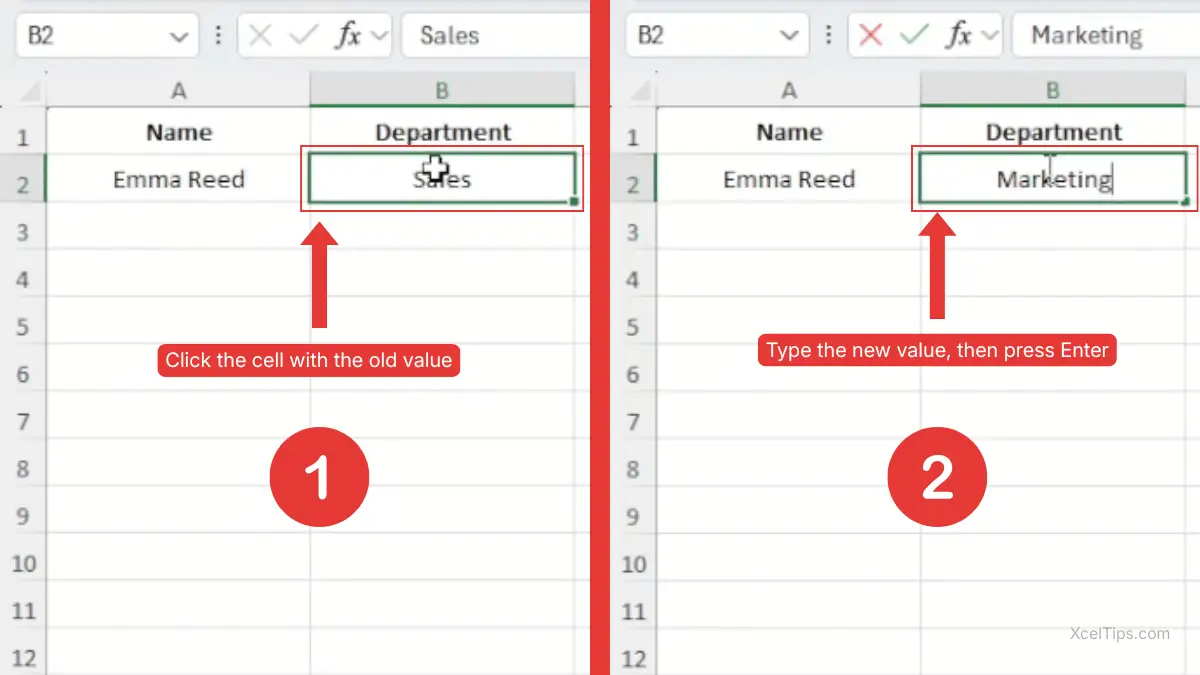
This method is simple, but beginners sometimes use it when they only meant to fix one small part of the cell.
Beginner Warning:
If you start typing in a cell that already has data, Excel replaces the entire cell contents.
Method 2: Edit Directly Inside the Cell
This method is better when only part of the entry needs to change.
- Click the cell you want to edit.
- Press F2 or double-click the cell.
- Move the cursor to the exact part you want to change.
- Edit the text, number, or date.
- Press Enter to confirm.
This is one of the most useful ways to edit a cell in Excel because it lets you keep most of the original entry while changing only the part that is wrong.
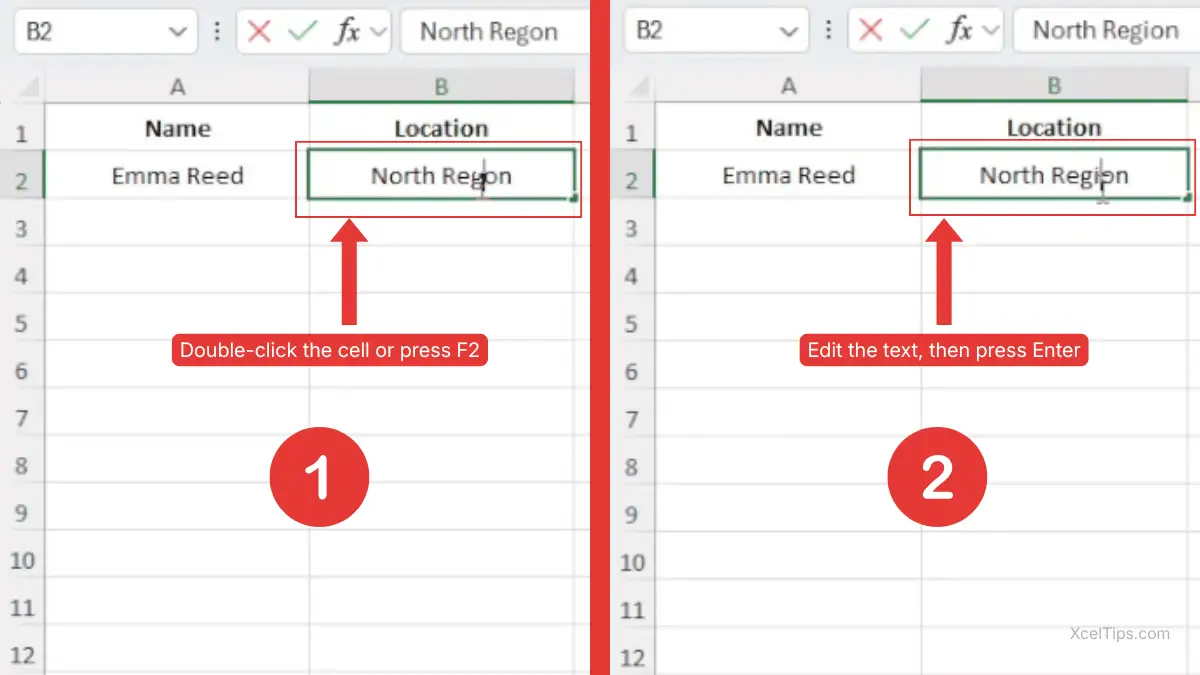
For example, if a cell contains North Regon instead of North Region, pressing F2 lets you fix just the spelling mistake instead of typing the whole entry again.
Method 3: Edit in the Formula Bar
Once you can enter and edit data normally, a few small shortcuts can help you work faster. Some beginners prefer the Formula Bar, especially when the cell contains longer text. If you want a clearer introduction, see The Formula Bar in Excel.
- Click the cell you want to edit.
- Click inside the Formula Bar.
- Make your changes.
- Press Enter.
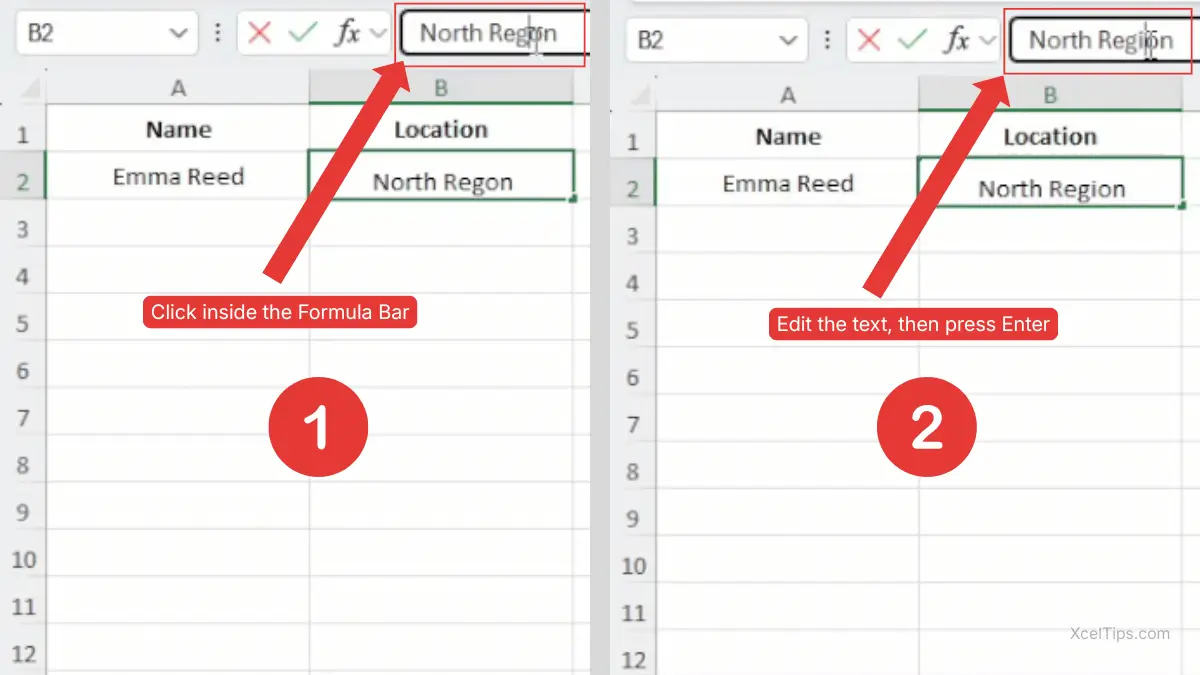
This method can feel easier when the text inside the cell is hard to read because the column is narrow. If you want Microsoft’s official instructions, see how to edit cell contents in Excel.
Simple Shortcuts that Make Excel Data Entry Easier
Once you are comfortable with the basics, a few shortcuts can speed things up without making the lesson too advanced. These are especially useful when the same value appears more than once or when your data follows a simple pattern.
Enter the Same Value Into Multiple Cells
This is a useful Excel data entry trick when several cells need the exact same value.
Follow the followin steps:
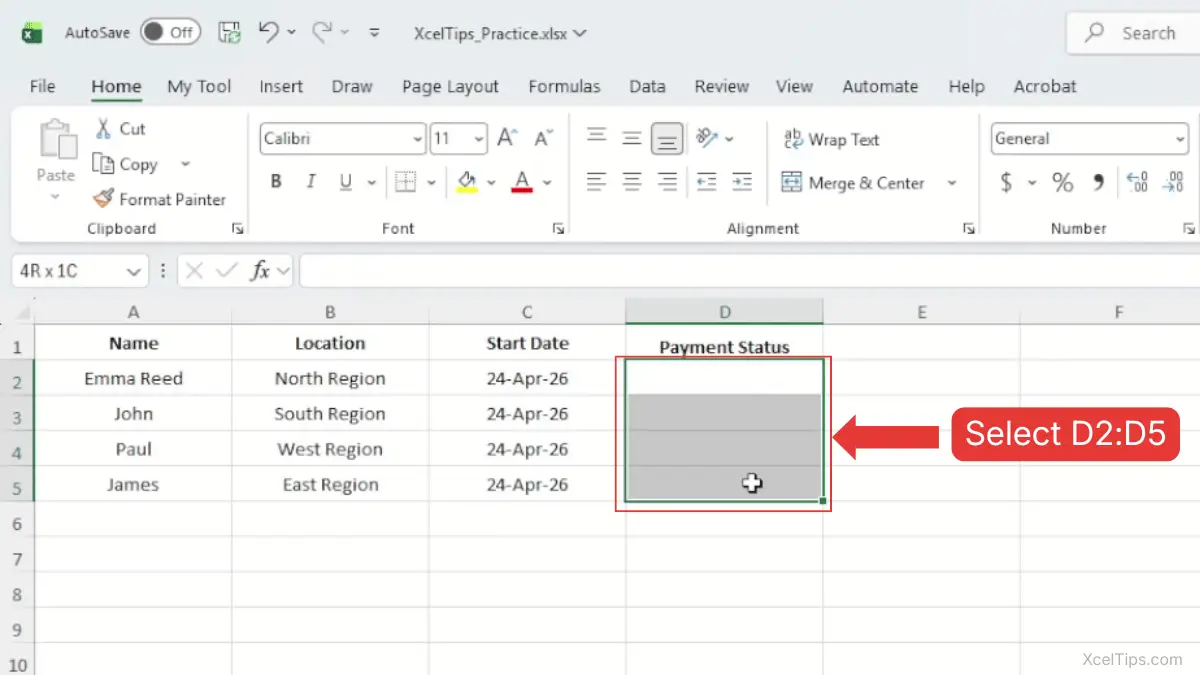
- Select all the cells that should contain the same value.
Example: selectD2:D5.
Do not click anywhere else after selecting.
Keep the whole range selected
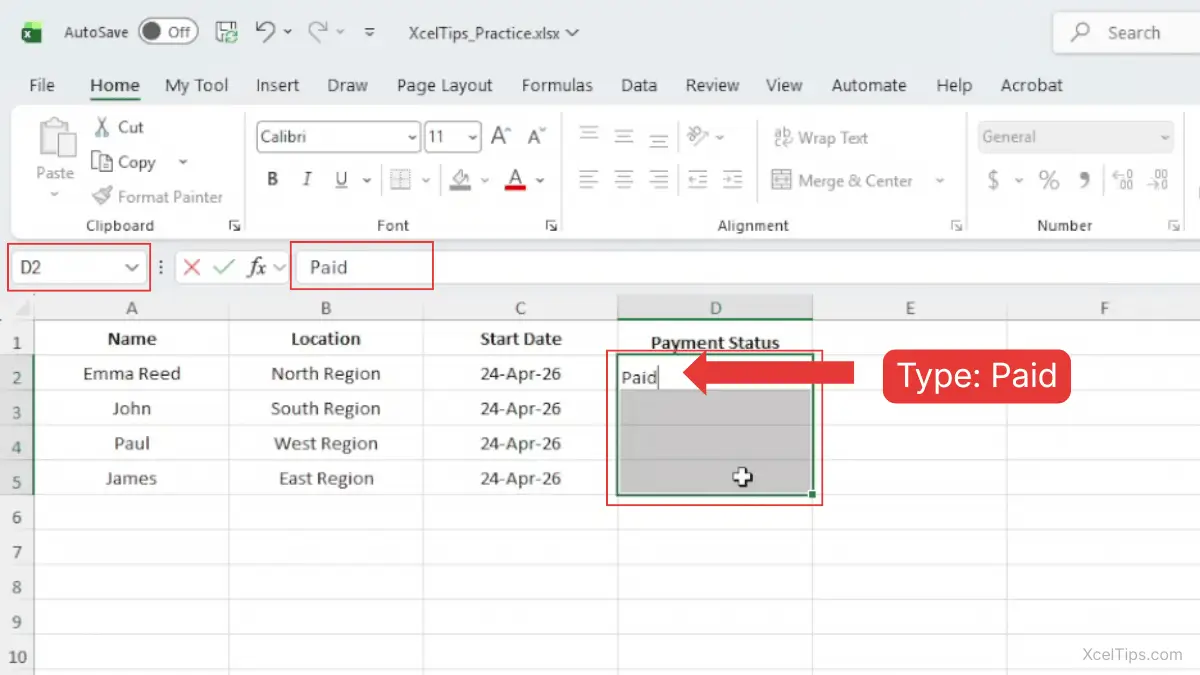
- Start typing the value.
Example: typePaid.
Look carefully: the word Paid will appear in both the active cell (D2) and in the Formula Bar.
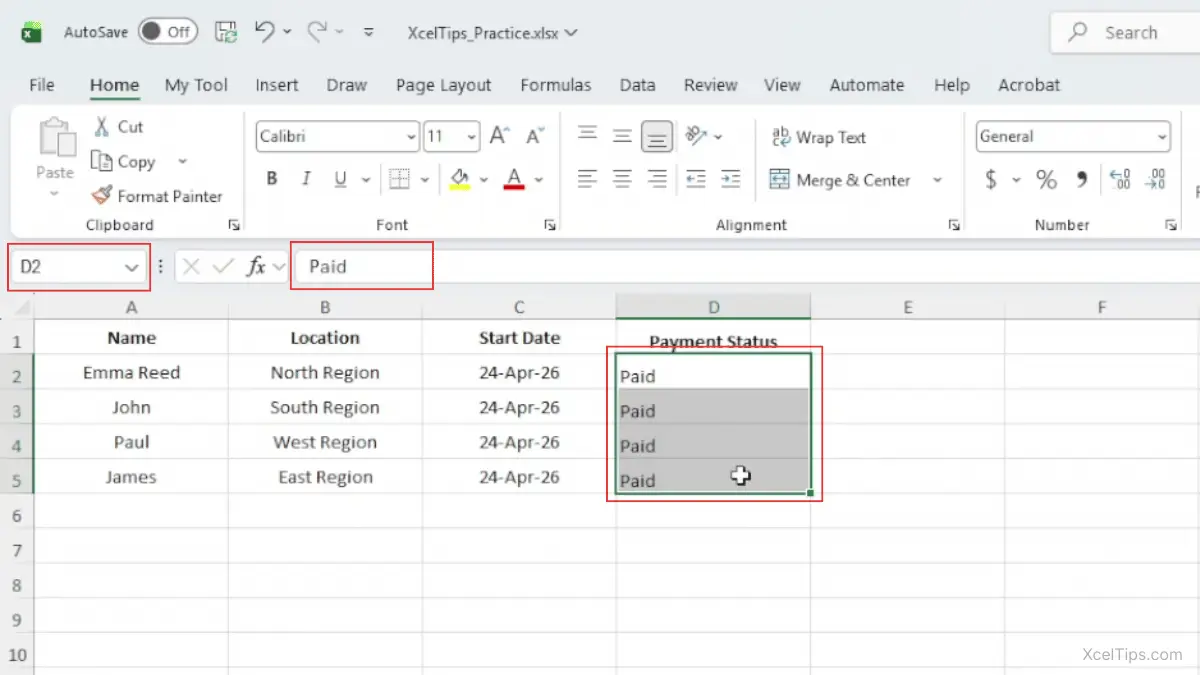
- Now press Ctrl + Enter together.
Do not press just Enter.
Excel should place the same value into every selected cell.
If you need help with selections before using this method, review How to Select Multiple Cells in Excel Using Keyboard and Mouse.
Use the Fill Handle for Repeated or Sequential Data
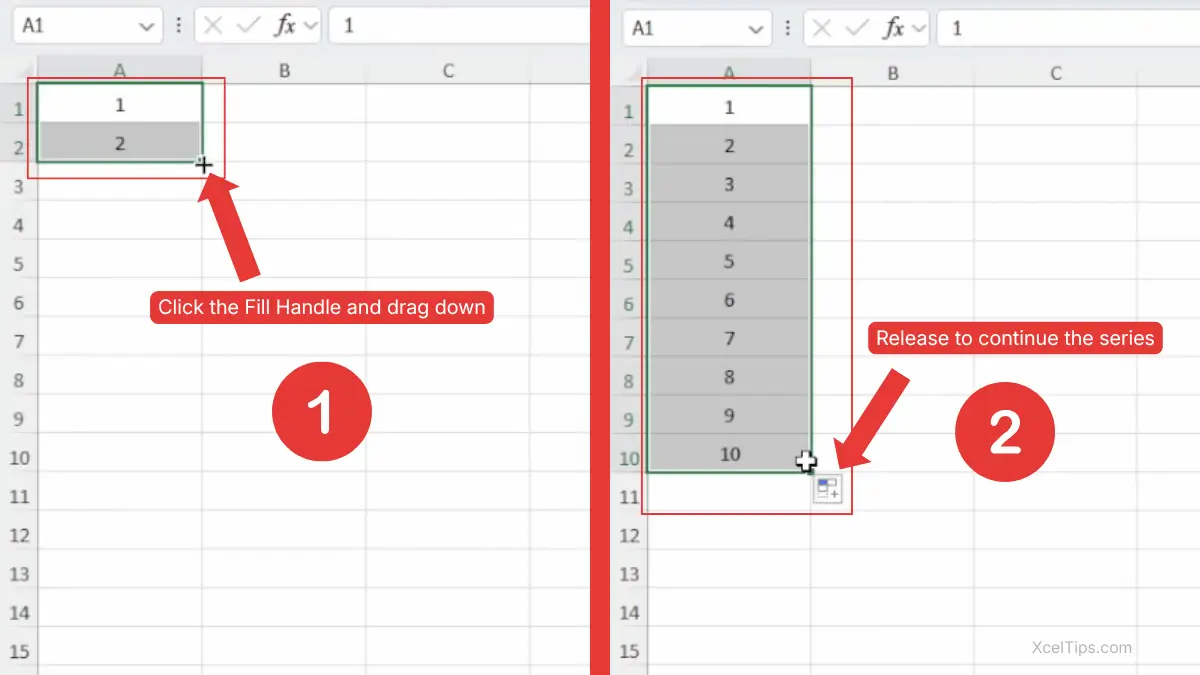
The Fill Handle is the small square in the bottom-right corner of the selected cell or range. It is useful when values repeat or follow a simple pattern.
Here is how to use it:
- Type the starting value in a cell.
- For a pattern like
1,2,3, enter the first two values. - Select the cell or cells.
- Drag the Fill Handle down or across.
This is not the same as advanced cleanup tools like Flash Fill. In this lesson, we are only using the Fill Handle for simple repeated or predictable entry.
Use Alt + Enter for a New Line Inside One Cell
Sometimes one cell needs more than one line, such as an address or a note.
- Click the cell and start typing, or press F2 if it already contains text.
- Place the cursor where the line break should appear.
- Press Alt + Enter.
Excel will start a new line inside the same cell.
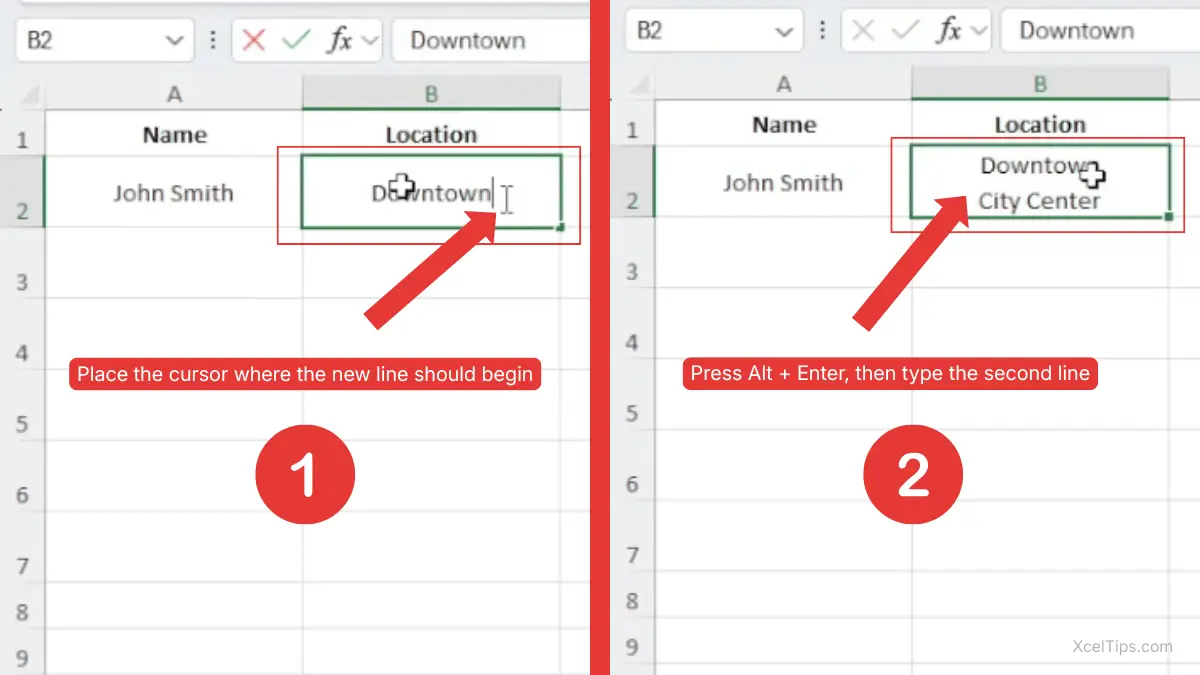
This is helpful when you want to keep related information together without moving it into a separate cell.
Even when you follow the right steps, a few common issues can still confuse beginners during data entry.
Common Beginner Problems During Data Entry and Editing
Even after learning the basics, beginners often run into a few confusing situations. These do not usually mean anything is wrong with Excel. Most of the time, the issue is simple once you know what caused it.
Type in a Cell and Replace the Old Value by Mistake
This happens when you type directly into a selected cell that already contains data. Excel assumes you want to replace the full contents.
The fix is easy:
- Press Ctrl + Z right away to undo it.
- Then press F2 to edit the existing value instead.
This is one of the most common beginner mistakes when learning how to edit cells in Excel.
Stop Editing Without Saving the Change
If the cursor is inside the cell and you decide not to keep the change, press Esc before pressing Enter. Excel will cancel the edit and restore the original cell contents.
This is a good habit to remember because it reduces the fear of making mistakes while learning.
See ##### Instead of Number or Date
This usually does not mean your data is lost. In most cases, the column is simply too narrow to display the full value.
You can fix it by widening the column. Later in your learning path, formatting and layout lessons will make this much easier to manage.
Double-Click Does Not Edit the Cell
Sometimes beginners try to double-click and expect the cursor to appear inside the cell, but it does not work as expected. When that happens, use F2 instead. It is more reliable and easier to remember.
Once you know how to avoid these common problems, a few good habits can help keep your worksheet clean from the start.
Best Practices for Clean Beginner Data Entry
Good worksheets are not just about typing faster. They are also about entering information in a clean, consistent way so the worksheet stays useful later.
Use Consistent Entry Styles
If you start with full names, keep using full names. If you enter dates in a normal date format, keep doing that. If one column contains only cities, do not suddenly place comments in the same column.
Consistency helps your worksheet look cleaner and reduces confusion when you review it later.
Check the Active Cell Before You Type
Many data entry mistakes happen because the wrong cell is selected. Before typing, take a quick look at the active cell border. That one-second habit can save a lot of cleanup time.
Review Your Entries Before Moving On
Before you sort, filter, or format a list, do a quick check for spelling mistakes, missing values, or entries in the wrong column. Clean entry now makes later Excel tasks much easier.
Quick Practice
The best way to make this lesson stick is to practice it in a blank worksheet such as XcelTips_Practice.xlsx and work through the steps below.
- Open a blank workbook.
- In
A1, typeNameand press Tab. - In
B1, typeDepartmentand press Tab. - In
C1, typeCityand press Enter. - Add three sample rows of information below the headings, such as employee names, departments, and cities.
- Go back to one cell and press F2 to edit part of the entry.
- Use Alt + Enter to create a new line inside one cell.
- Select two blank cells and press Ctrl + Enter to place the same word in both.
- Type
1and2in two cells and drag the Fill Handle to continue the series.
This practice covers the main beginner actions for typing, updating, and repeating values.
After a few minutes of practice, these are the main points worth remembering.
Key Takeaways
Here are the main ideas to remember before you move to the next lesson.
- Learning how to enter data in Excel starts with clicking a cell, typing, and pressing Enter or Tab.
- If you want to change only part of a value, use F2 instead of typing over the whole cell.
- To enter data more smoothly, choose Enter for lists down a column and Tab for headings across a row.
- To keep a simple list organized, put one type of information in each column.
- To edit a cell, use F2, double-click the cell, or click in the Formula Bar.
- Simple Excel data entry shortcuts like Ctrl + Enter and the Fill Handle can save time without making the worksheet harder to manage.
Now that you have reviewed the main points, take a moment to check how well you understand Excel data entry and cell editing with this short quiz.
Test Your Knowledge
Use the questions below to test your understanding of the basic Excel skills covered in this lesson. Choose the best answer for each question before checking the correct answer and explanation.
Do not worry if you do not answer every question correctly the first time. You can review the relevant section, practice the steps in a blank worksheet, and try again.
Results
Great job! You understand the key points from this lesson. Review any explanations above, then continue to the frequently asked questions.
Good try! Review the correct answers and explanations above, then try the quiz again to strengthen your understanding.
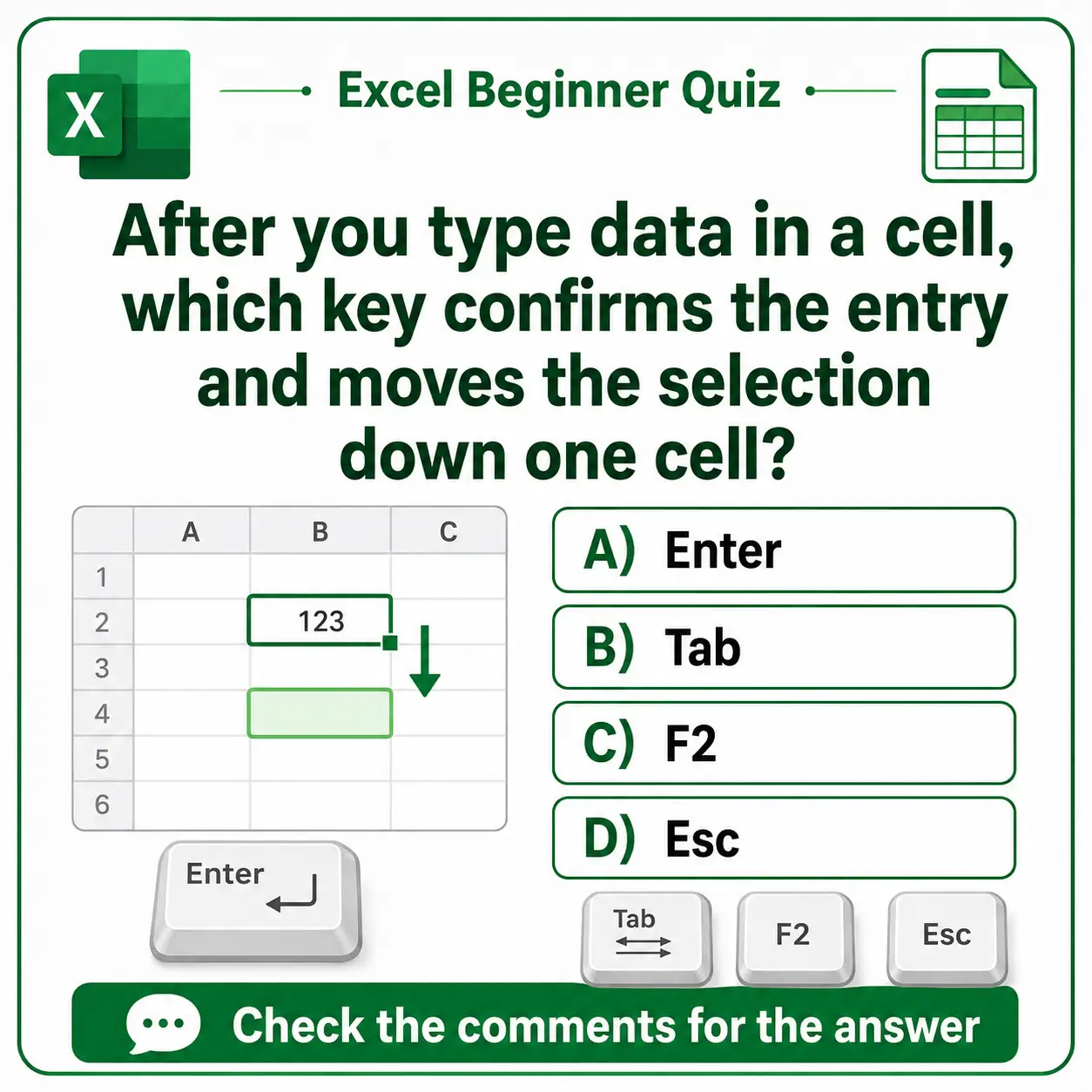
#1. After you type data in a cell, which key confirms the entry and moves the selection down one cell?
Correct answer: A) Enter.
Pressing Enter confirms the value and moves the active cell down by default. Tab also confirms the value, but it moves the selection one cell to the right.
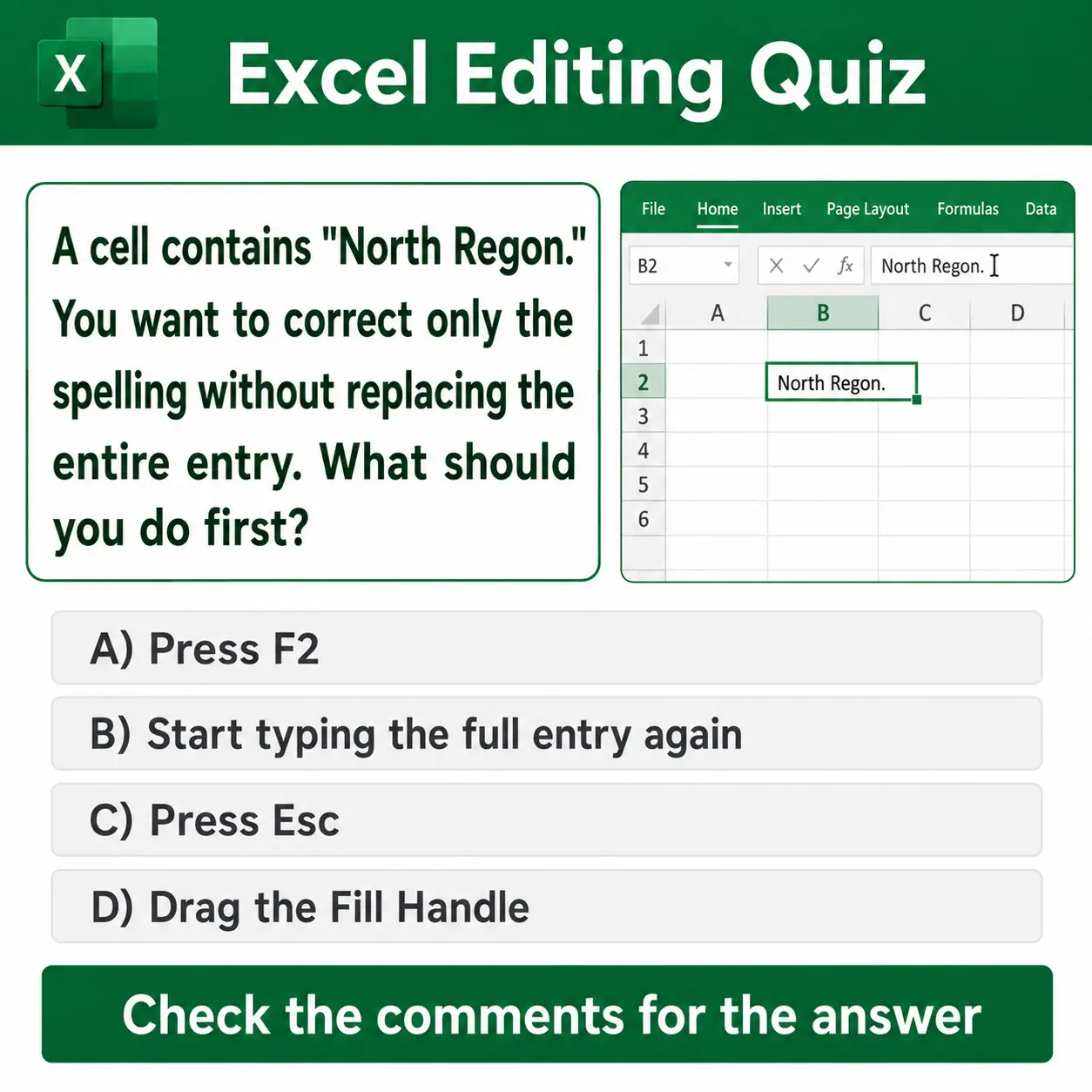
#2. A cell contains “North Regon.” You want to correct only the spelling without replacing the entire entry. What should you do first?
Correct answer: A) Press F2.
Pressing F2 places the cell in edit mode, allowing you to move the cursor and correct only the part that is wrong. Typing directly into a selected cell would replace the entire existing entry.
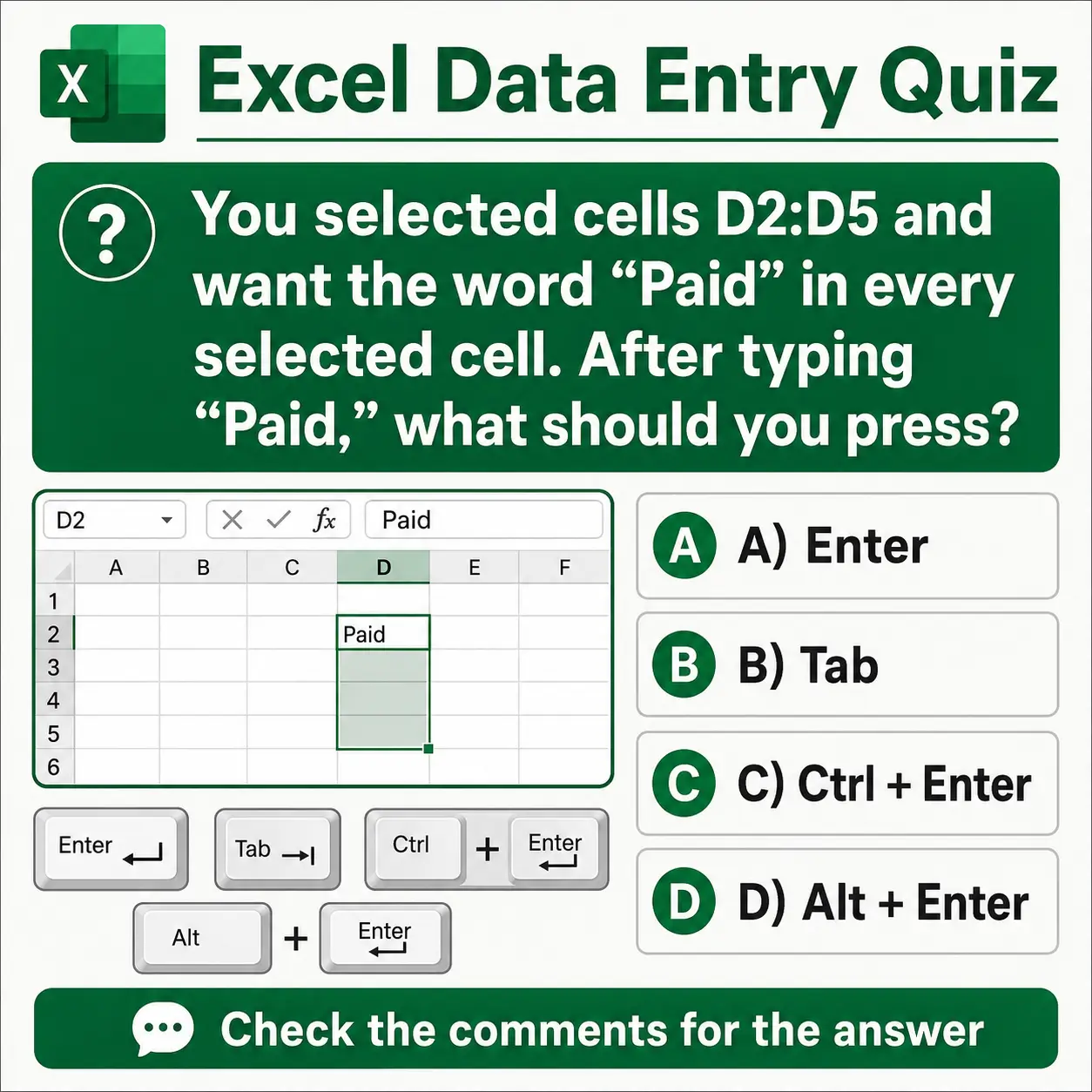
#3. You selected cells D2:D5 and want the word “Paid” in every selected cell. After typing “Paid,” what should you press?
Correct answer: C) Ctrl Enter.
After selecting all the required cells and typing the value, pressing Ctrl Enter places that same value into every selected cell. Pressing Enter alone does not perform the same multi-cell action.
After testing your knowledge, review these common questions beginners often ask when entering and editing data in Excel.
Frequently Asked Questions (FAQs)
Beginners often have a few questions after practicing data entry and editing for the first time. Here are the most common ones.
How do I enter data in Excel?
Click the cell where you want the value, type your text, number, or date, and press Enter or Tab to confirm it. That is the basic method for entering data in Excel.
How to input data in Excel without using the mouse every time?
You can click the first cell, type your value, and then use Enter or Tab to move through nearby cells. This helps you continue entering data without clicking each new cell manually.
How to add data in Excel to an existing list?
Go to the next empty row or cell in the list, click it, type the new data, and press Enter. Keep each column focused on one type of information so the list stays organized.
How to edit cells in Excel without deleting the full value?
Press F2 or double-click the cell. Then place the cursor exactly where you want to make a change. This lets you edit only part of the cell contents instead of replacing everything.
What is the easiest shortcut for Excel data entry?
The most useful beginner shortcuts are Enter, Tab, F2, Ctrl + Enter, and Alt + Enter. Together, these cover most basic Excel data entry tasks.
A little practice goes a long way here. Even a short five-minute session in a blank workbook can make data entry feel much more natural.
Conclusion
Learning how to enter data in Excel is one of the first skills that makes the program feel practical instead of confusing.
Once you can type into the right cell, move smoothly through a worksheet, and update existing values with confidence, you have a strong base for everything that comes next.
Keep practicing with short lists, names, dates, and simple labels until the process feels natural.
This lesson is part of the Beginner Learning Path, a structured series designed to help you learn Microsoft Excel step by step from the basics.