
Written By Sophanith Dith
Last Updated April 18, 2026
Applies to Microsoft Excel 365 (Windows only)
Part of the Beginner Learning Path
Module 2 Working with Data
Lesson 1 of 22
When you are new to Excel, it is surprisingly easy to click the wrong cell, drag too far, or highlight a block you did not mean to select. That often leads to typing in the wrong place, copying the wrong data, or changing part of a worksheet by mistake.
Learning how to select multiple cells in Excel is one of the most important beginner skills because almost every task starts with selection. Before you can enter data, edit values, format a section, or copy information, Excel needs to know exactly which cells you want to work with.
Once this becomes natural, Excel feels much easier to control. Instead of guessing where your changes will go, you can confidently select the right cell or range the first time.
If the worksheet feels too small while you practice, reviewing How to Zoom In and Out in Excel can make selection easier to see.
Quick Answer
To learn how to select multiple cells in Excel, drag across connected cells, use Shift to extend a selection, and use Ctrl to select separate cells or ranges. You can also use keyboard shortcuts for more precise Excel cell selection.
Quick Reference
Here is a quick reference to help you see the main methods at a glance for how to select multiple cells in Excel.
- Click once to select a single cell.
- Click and drag to select multiple adjacent cells.
- Click and drag to select a connected range.
- Use
Shiftto extend a selection from one cell to another. - Use
Ctrlto select non adjacent cells or separate ranges. - Use keyboard shortcuts when you want more control.
- Check the highlighted area before typing, copying, or formatting.
Now let’s start with what Excel is actually showing you when something is selected.
What Excel Cell Selection Means
Before you practice the steps, it helps to understand what selection means. In Excel, a selection tells the program which cell or group of cells should receive your next action.
A single selected cell is called the active cell. This is where your typing usually goes when you start entering data.
If you need a quick refresher on how Excel cells are named, see Understanding Cells, Rows, Columns, and Worksheets in Excel. That lesson explains cell references such as A1, B3, or D10.
For an official reference, you can also review Microsoft’s guide to selecting specific cells or ranges in Excel.
How to tell what is selected
When a cell or range is selected, Excel usually shows:
- A border around the active cell.
- Highlighting across the selected area.
- A clear visual outline around the full range.
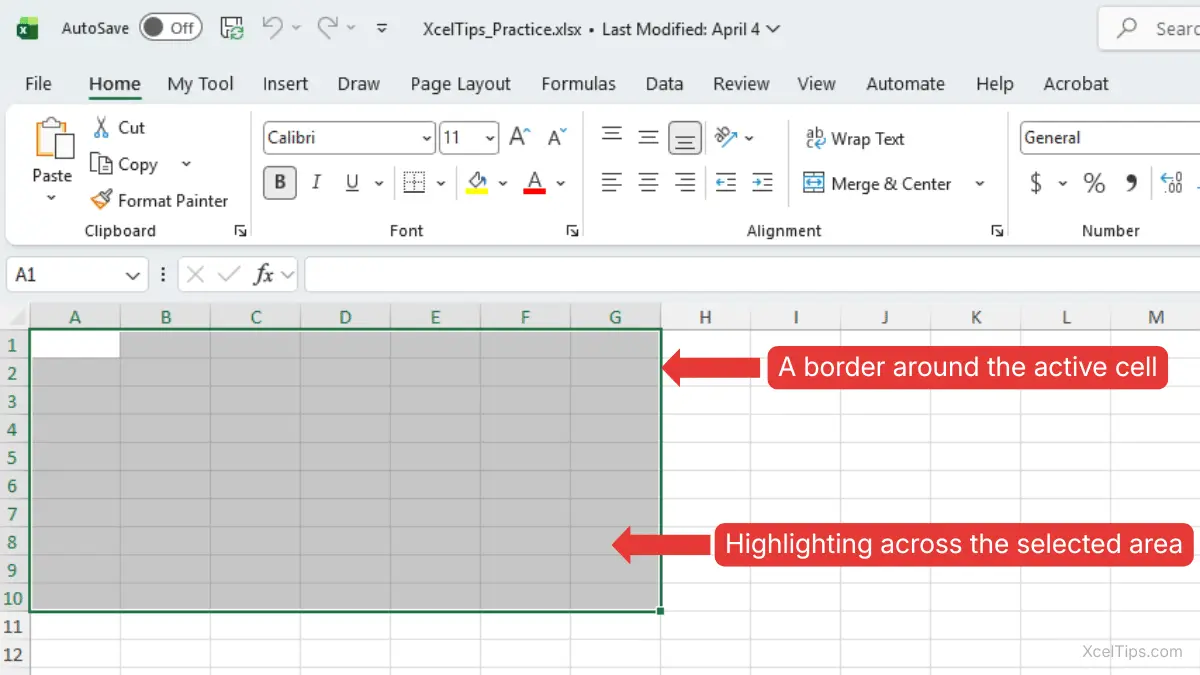
That visual feedback matters because it confirms what Excel is about to affect.
Once you know what Excel is highlighting, the next step is learning the easiest selection methods with the mouse.
How to Select Multiple Cells in Excel with the Mouse
The mouse is the easiest way for most beginners to learn how to select multiple cells in Excel. It helps you see what Excel is doing in real time and makes Excel cell selection easier to understand.
Start with one cell before selecting multiple cells
Before learning how to select cells in Excel in larger groups, it helps to start with one cell. This is the simplest type of selection and gives you a base for selecting multiple cells more accurately.
- Move your mouse pointer over the cell you want.
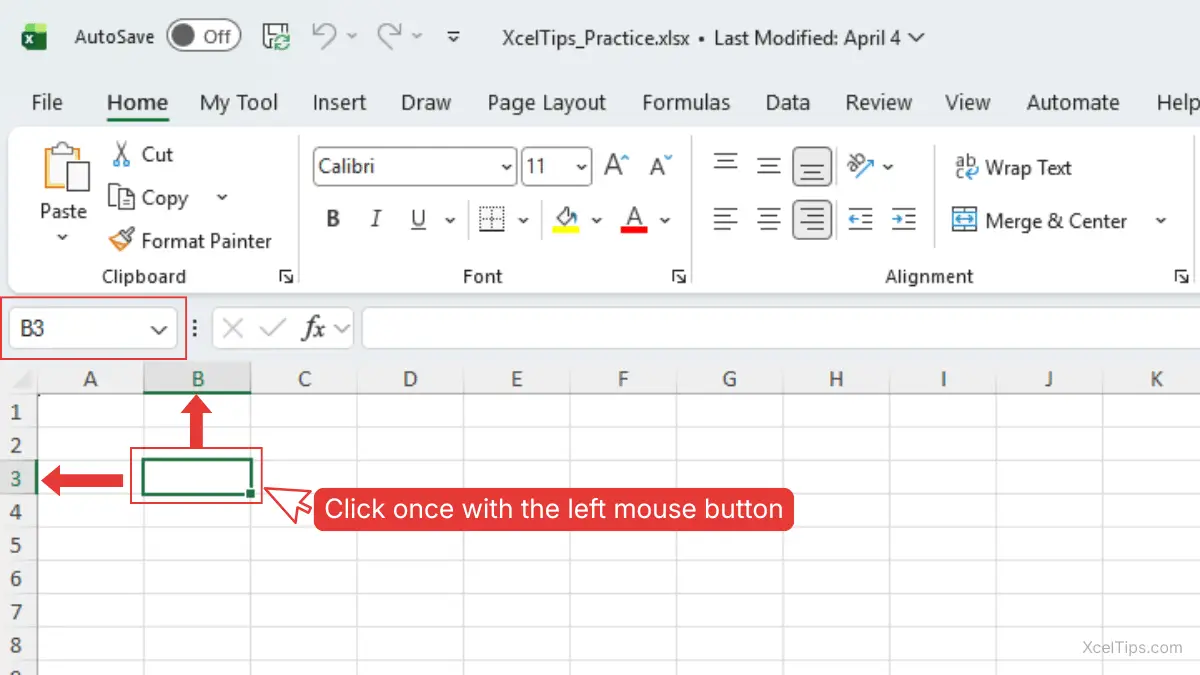
- Click once with the left mouse button.
- Check that a border appears around that cell.
For example, if you click B3, B3 becomes the active cell. Anything you type next will go there.
Beginner Tip:
Always glance at the active cell before typing. Many beginner mistakes happen because the wrong cell was selected first.
Select a connected range (adjacent cells) by dragging
A connected range is a block of cells that touch each other. This is the most common method for how to select multiple cells in Excel when the cells are next to each other. It is useful when you want to copy a block of data, apply formatting to several cells, or work with a small table.
- Click the first cell in the range.
- Hold down the left mouse button.
- Drag across the cells you want to include.
- Release the mouse button when the full area is highlighted.
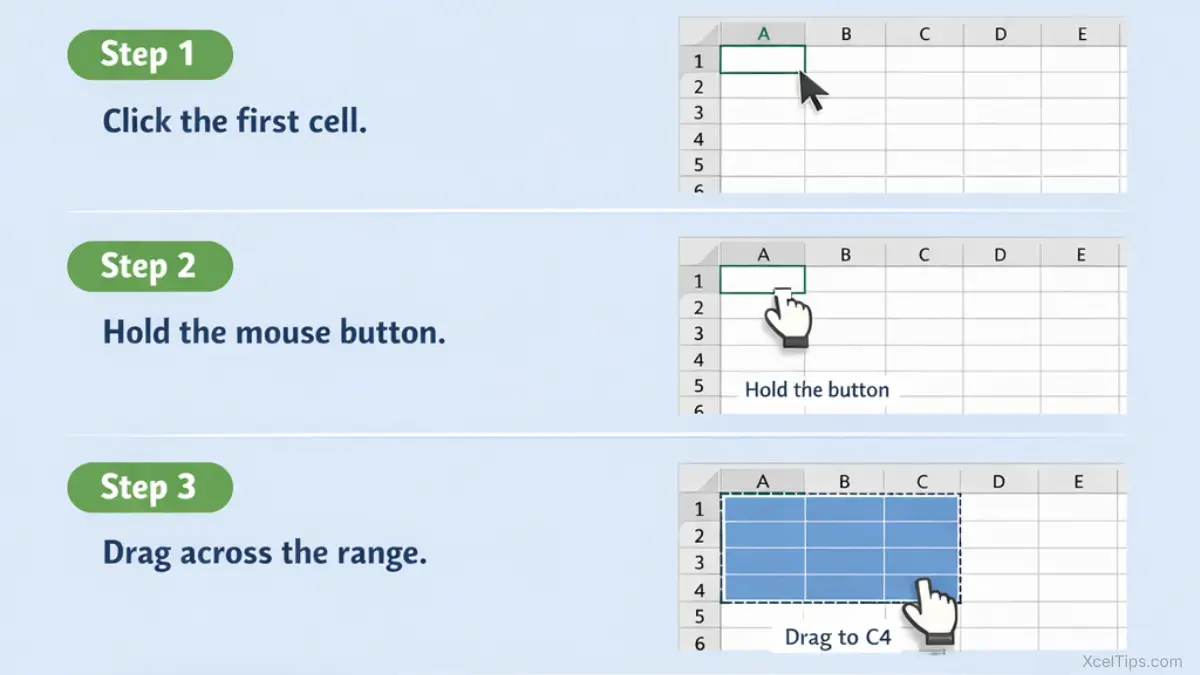
If you drag from A1 to C4, Excel selects every cell inside that rectangle.
Select a range using Shift
This method is useful when the first and last cells are easier to click than dragging across the worksheet. It is another easy way to learn how to select cells in Excel across a connected range.
- Click the first cell.
- Hold
Shift. - Click the last cell in the range.
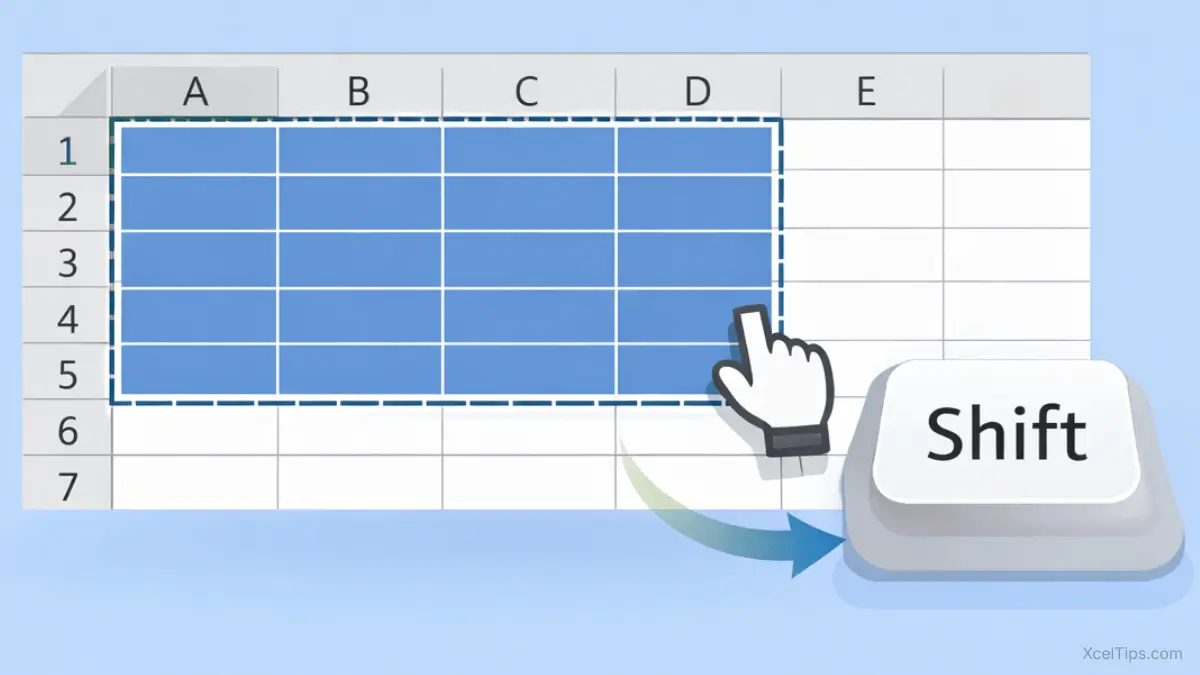
Excel will select all cells between those two points. If the last cell is off-screen, scroll until you can see it, then hold Shift and click it.
For example, click A1, hold Shift, then click D5. Excel will highlight the full A1:D5 range.
How to select non adjacent cells in Excel
Sometimes you need to select separate cells that are not next to each other. If you want to know how to select non adjacent cells in Excel, this is the method to use. It is useful when only a few specific cells need formatting or clearing.
- Click the first cell.
- Hold
Ctrl. - Click each additional cell you want to add.
- Keep holding
Ctrluntil all needed cells are selected.
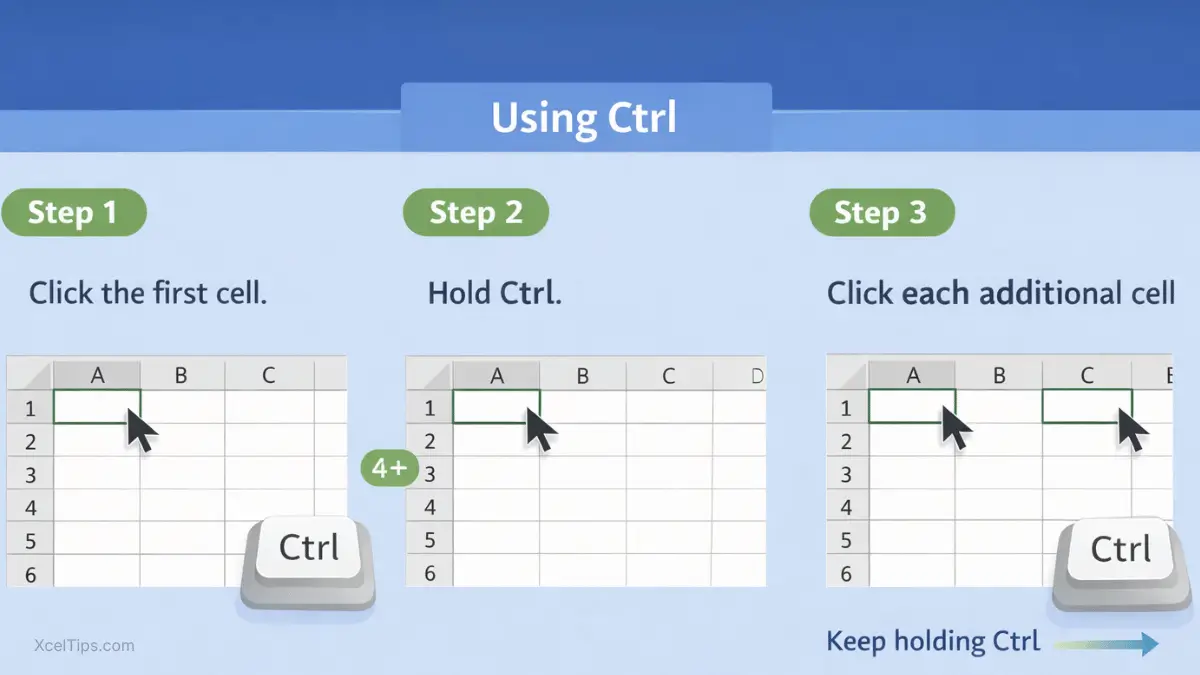
You might use this to select A1, C1, and E1 without selecting B1 or D1.
Select non-adjacent ranges
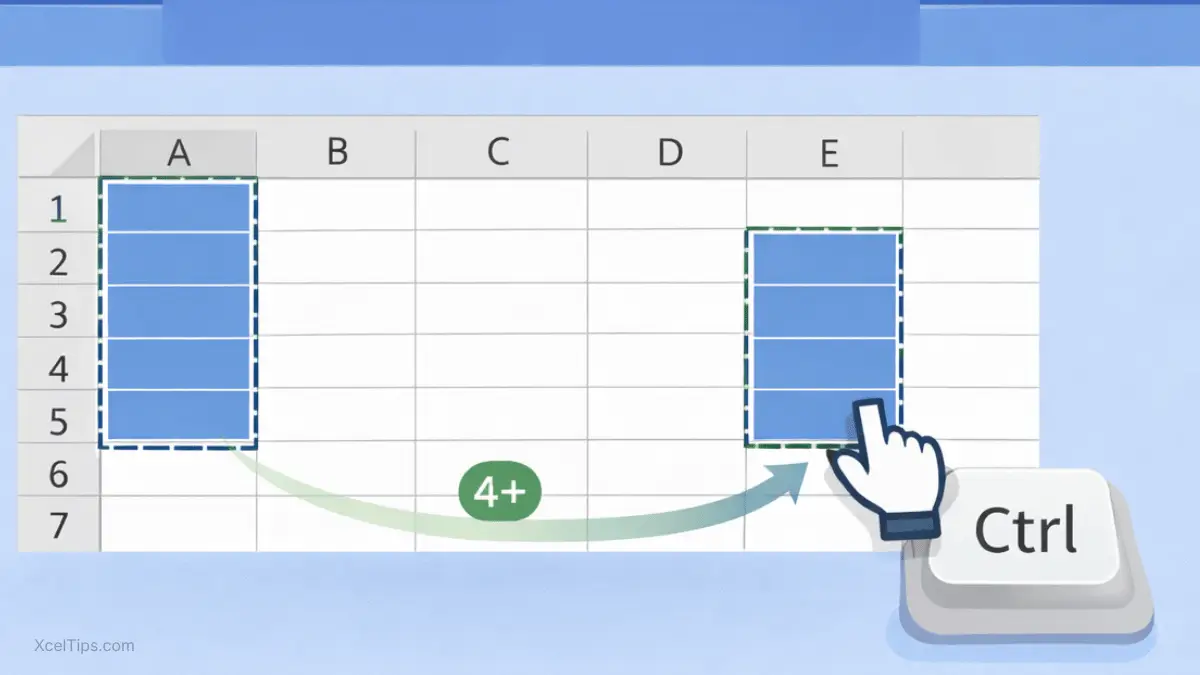
Excel also lets you select multiple separate blocks, not just single separate cells. This is especially useful when how to select multiple cells in Excel involves more than one area of the worksheet.
- Select the first range normally.
- Hold
Ctrl. - Drag to select another range.
- Repeat while still holding
Ctrl.
For example, you can select A1:A5 and E2:E5 at the same time.
Beginner Warning:
If you release Ctrl before selecting the next area, Excel will replace the earlier selection.
Mouse selection is the easiest place to start, but keyboard methods can help when you want more control.
How to Select Cells in Excel with Keyboard
Once you understand mouse selection, keyboard methods can help you work more precisely.
Keyboard shortcuts are useful when you want to move more precisely or avoid dragging too far with the mouse.
Move the active cell
You can move one cell at a time with the arrow keys.
Right Arrowmoves one cell right.Left Arrowmoves one cell left.Up Arrowmoves one cell up.Down Arrowmoves one cell down.
This is helpful when you want exact control over the active cell.
Extend a selection with Shift
To build a range from the keyboard and improve Excel cell selection accuracy:
- Select a starting cell.
- Hold
Shift. - Press the arrow keys to extend the selection one cell at a time.
For example, starting in B2:
Shift+Right ArrowselectsB2:C2.Shift+Down Arrowextends the range downward.
This is one of the simplest Excel selection shortcuts for beginners.
Select the current data block
When your data is arranged as one connected block, Excel can quickly select it.
- Click any cell inside the block of data.
- Press
Ctrl+A.
Excel usually selects the current data region first. If you press Ctrl + A again, Excel may expand the selection further depending on the worksheet.
This shortcut is useful, but beginners should use it carefully.
Beginner Tip:
If Ctrl + A selects more than expected, click one cell to reset and try a smaller manual selection instead.
If you already know the cell or range you want, there is an even faster method than dragging or pressing arrow keys.
Use the Name Box to Select a Cell or Range
Many beginners overlook the Name Box, but it can be very useful when you want to jump directly to a cell or highlight a known range. It is another practical method for how to select multiple cells in Excel without dragging.
The Name Box sits to the left of the formula bar and usually shows the active cell reference.
Use the Name Box to select a cell
- Click inside the Name Box.
- Type a cell reference such as
B10. - Press Enter.
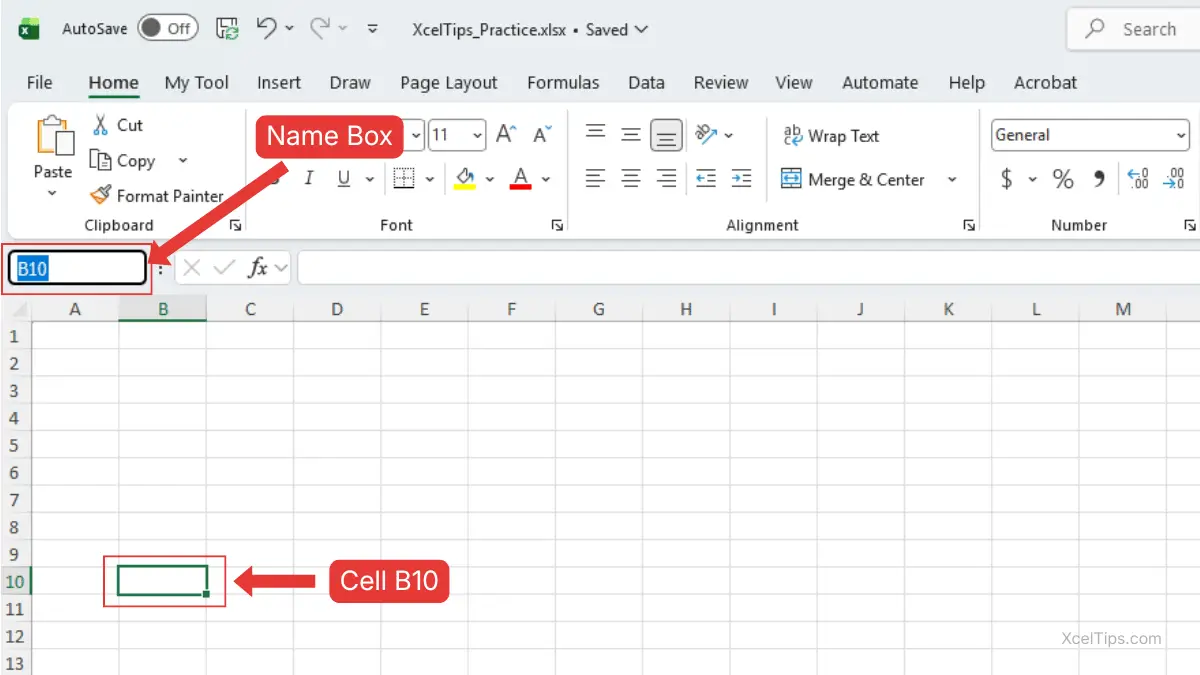
Excel will move the selection directly to that cell.
Use the Name Box to select a range
- Click inside the Name Box.
- Type a range such as
A1:C5. - Press Enter.
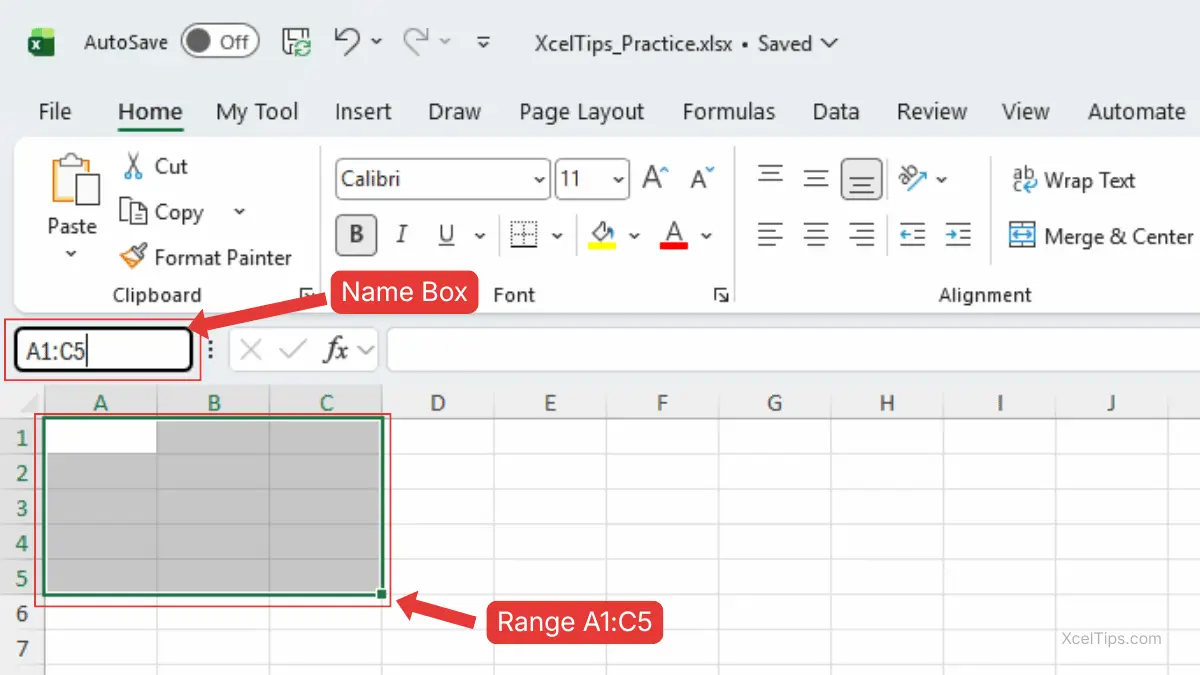
Excel will highlight that full range.
This method is especially helpful when the area you want is not visible on screen.
After learning the methods, the next question is when to use each one. This quick comparison makes it easier to choose the best option for the task.
When to Use Each Selection Method
Beginners often wonder which method is best. The answer depends on what you are trying to do.
The table below makes the choice easier.
| If you want to… | Best method | Why |
|---|---|---|
| Type in one location | Click a single cell | Fastest for one exact spot |
| Select a nearby block | Click and drag | Easy for connected cells |
| Select from one known point to another | Shift + click | Good for larger connected ranges |
| Select separate cells or blocks | Ctrl + click | Works for non-adjacent selections |
| Jump to a specific cell or range | Name Box | Useful when the target is far away |
| Build a selection carefully | Shift + Arrow keys | Gives precise keyboard control |
As you continue learning Excel, selecting the right range becomes even more important. For example, when you later learn How to Enter and Edit Data in Excel, accurate selection helps you avoid typing into the wrong place.
Even when the methods are simple, beginners often make the same small selection mistakes.
Common Beginner Mistakes When Selecting Cells and Ranges
Selection looks simple, but a few common mistakes can quickly lead to confusion. Spotting them early makes practice much easier.
Mistake 1: Dragging too far
This is one of the most common beginner issues. You intend to select a small range, but your mouse goes too far.
To reduce this problem:
- Zoom in slightly if the worksheet feels crowded.
- Drag more slowly.
- Check the highlighted area before continuing.
Mistake 2: Forgetting which cell is active
Inside a large range, only one cell is the active cell. If you start typing, Excel uses that cell.
Always pause and check where the active border sits before entering data.
Mistake 3: Replacing a selection by mistake
When selecting separate cells or ranges, forgetting to hold Ctrl causes Excel to cancel the earlier selection.
This is normal when you are still building the habit. Just try again and keep Ctrl pressed while adding each new area.
Mistake 4: Selecting too much with Ctrl + A
Beginners sometimes use Ctrl + A without realizing how much it will highlight.
That shortcut is powerful, but manual selection is often safer when you are still learning.
Once readers know the main methods and the common mistakes, a short hands-on exercise helps the skill stick.
Quick Practice
Open a blank workbook such as XcelTips_Practice.xlsx and try these short actions one at a time.
- Click cell
B2. - Drag from
A1toC3. - Click
A1, holdShift, then clickD4. - Click
A1, holdCtrl, then clickC1andE1. - Select
A1:A5, then holdCtrland selectC1:C5. - Click
B2and useShift+Right Arrowtwo times. - Type
A1:C5into the Name Box and press Enter.
This short exercise will help the main selection methods feel much more natural.
After a little hands-on practice, it helps to pause and review the main ideas.
Key Takeaways
This quick recap reinforces the selection habits that matter most before you move on to the common questions beginners usually have.
- Click once to select a single cell.
- Click and drag to select a connected range of cells.
- Use
Shiftto extend a selection from one cell to another. - Use
Ctrlto select non-adjacent cells or separate ranges. - Use
Shift+Arrow keyswhen you want more precise keyboard control. - Use the Name Box to jump to or select a specific cell or range quickly.
- Always check the highlighted area before typing, copying, or formatting.
With these core selection methods in mind, let’s look at a few common questions beginners often ask while practicing.
Frequently Asked Questions (FAQs)
How to select multiple cells in Excel?
For connected cells, click and drag. For separate cells that are not next to each other, hold Ctrl and click each one.
How to select a range in Excel without dragging?
Click the first cell, hold Shift, and click the last cell. You can also type the range reference, such as A1:C5, into the Name Box.
How to select non adjacent cells in Excel?
Hold Ctrl and click each cell or range you want to add.
Why does Ctrl + A select more than I expected?
If you are inside a block of data, Ctrl + A often selects that current data region first. Pressing it again can select the whole worksheet.
Why does Excel keep clearing my earlier selection?
This usually happens because Ctrl was not held while selecting another non-adjacent cell or range.
What is the easiest keyboard shortcut for selecting cells in Excel?
Shift + Arrow keys is one of the easiest because it lets you expand the selection one cell at a time.
After covering the most common beginner questions, let’s finish with the key idea to remember as you practice cell and range selection in Excel.
Conclusion
Learning how to select multiple cells in Excel gives you one of the most useful beginner skills in the program. When you can manage Excel cell selection more confidently, you reduce mistakes and gain more control over every action that follows.
Practice these methods in a blank worksheet until they feel natural. The more you practice how to select cells in Excel, how to select non adjacent cells in Excel, and how to select cells in Excel with keyboard, the easier later Excel tasks will feel.
This lesson is part of the Beginner Learning Path, a structured series designed to help you learn Microsoft Excel step by step from the basics.