
Learn how to enter, edit, and organize data in Excel efficiently and accurately.
Your work becomes truly useful when you start working with data in Excel. Whether you’re tracking expenses, managing lists, or preparing reports, knowing how to handle data correctly is an essential skill.
In this module, you’ll learn how to enter data, edit it, and organize it in a structured way. These skills will help you avoid common mistakes and make your worksheets easier to read and use.
By the end of this section, you’ll be able to work with data confidently, ensuring your information is accurate, well-organized, and ready for formatting or analysis.
This module is part of the Beginner Learning Path, a structured series designed to help you learn Microsoft Excel step by step from the basics.
Lessons in Working with Data in Excel
This module is designed to help you learn how to work with data in Excel step by step. Each lesson builds on the previous one, so following them in order will give you the best results.
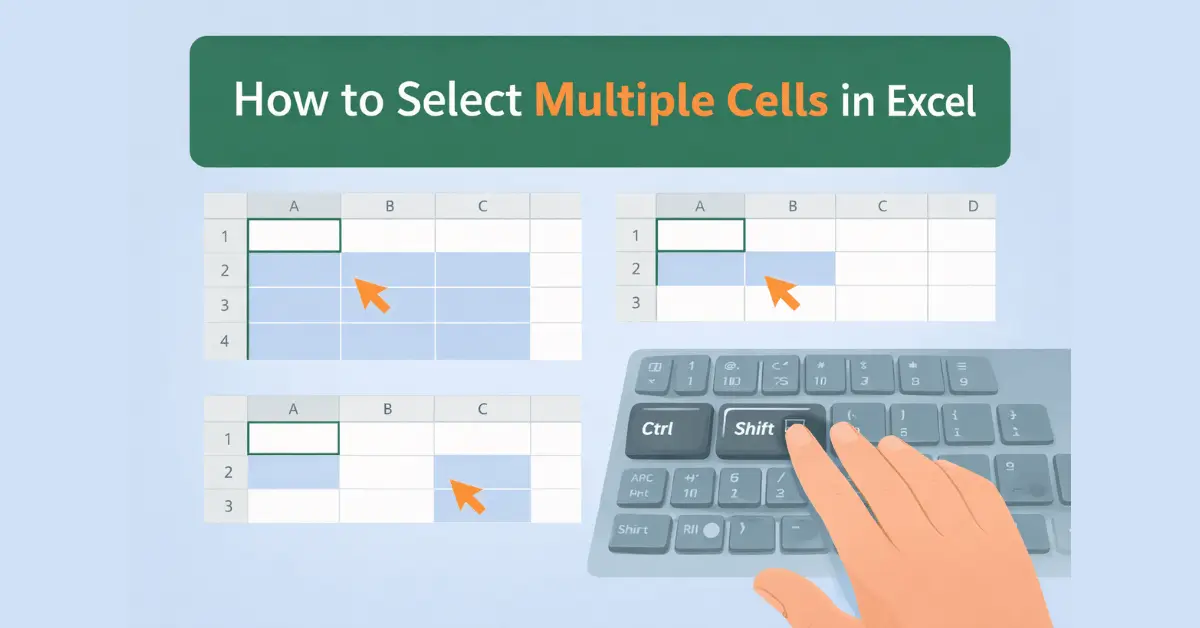
How to Select Multiple Cells in Excel Using Keyboard and Mouse
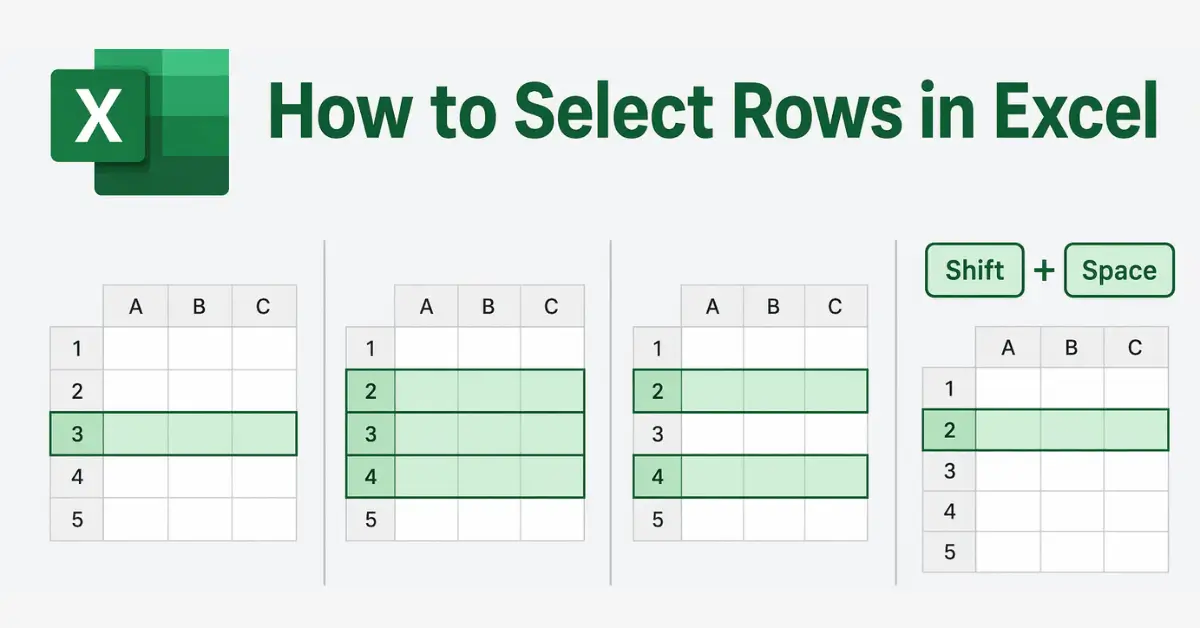
How to Select Multiple Rows in Excel Using Keyboard and Mouse
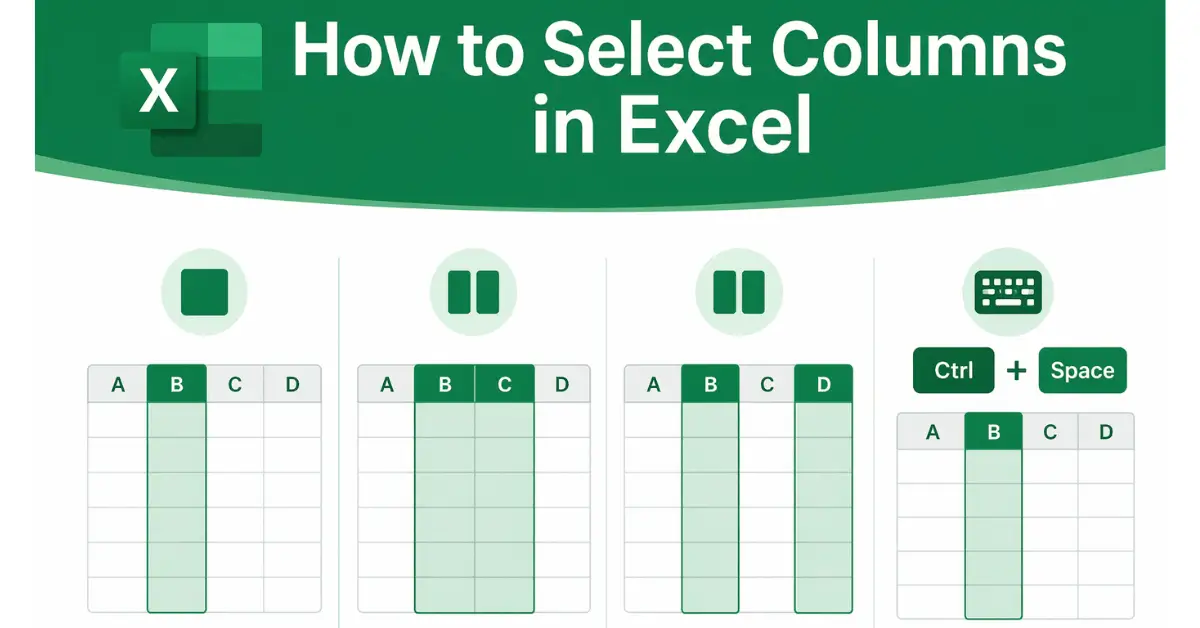
How to Select Columns in Excel Using Keyboard and Mouse
How to Enter Data in Excel and Edit Cell Content for Beginners
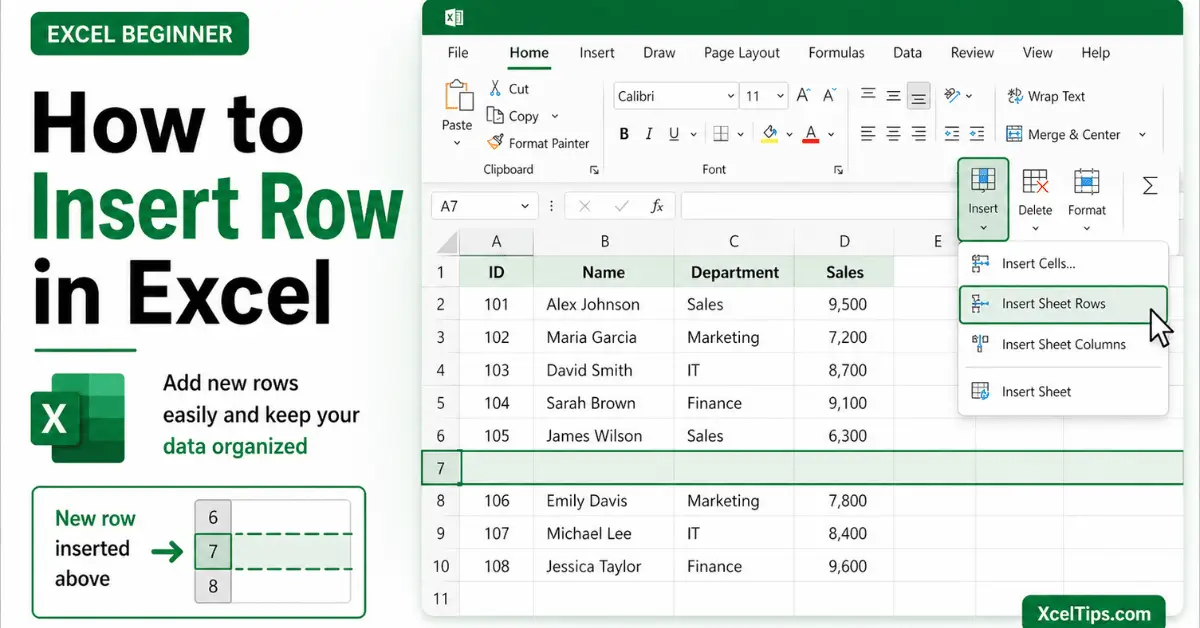
How to Insert Rows in Excel: Step-by-Step Guide for Beginners
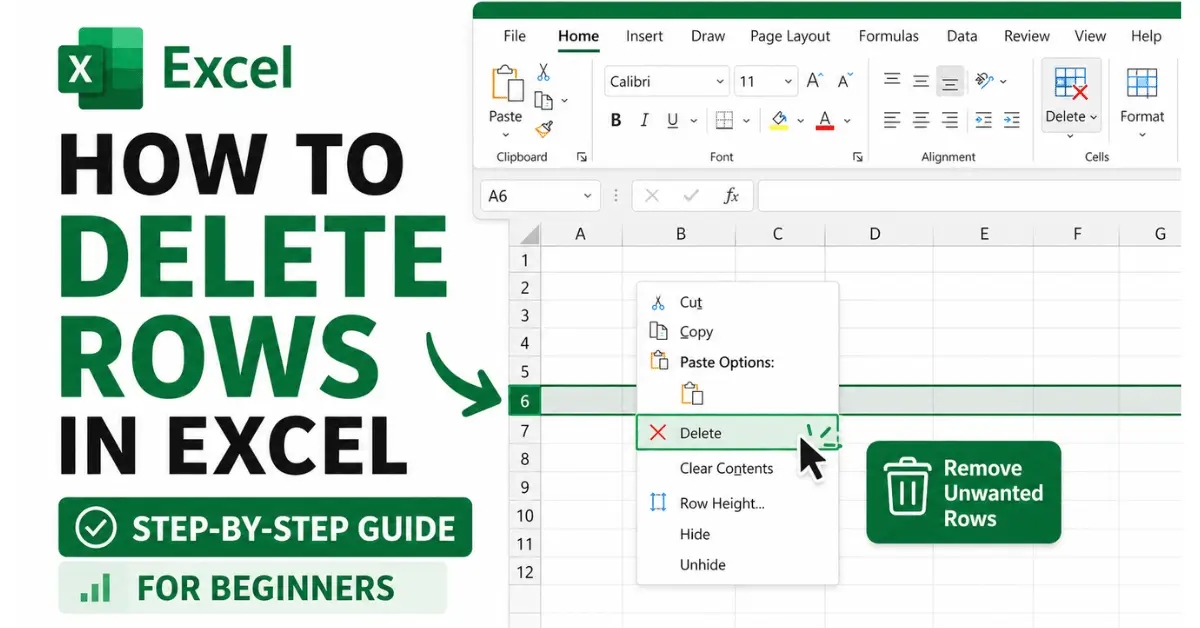
How to Delete Rows in Excel: Step-by-Step Guide for Beginners
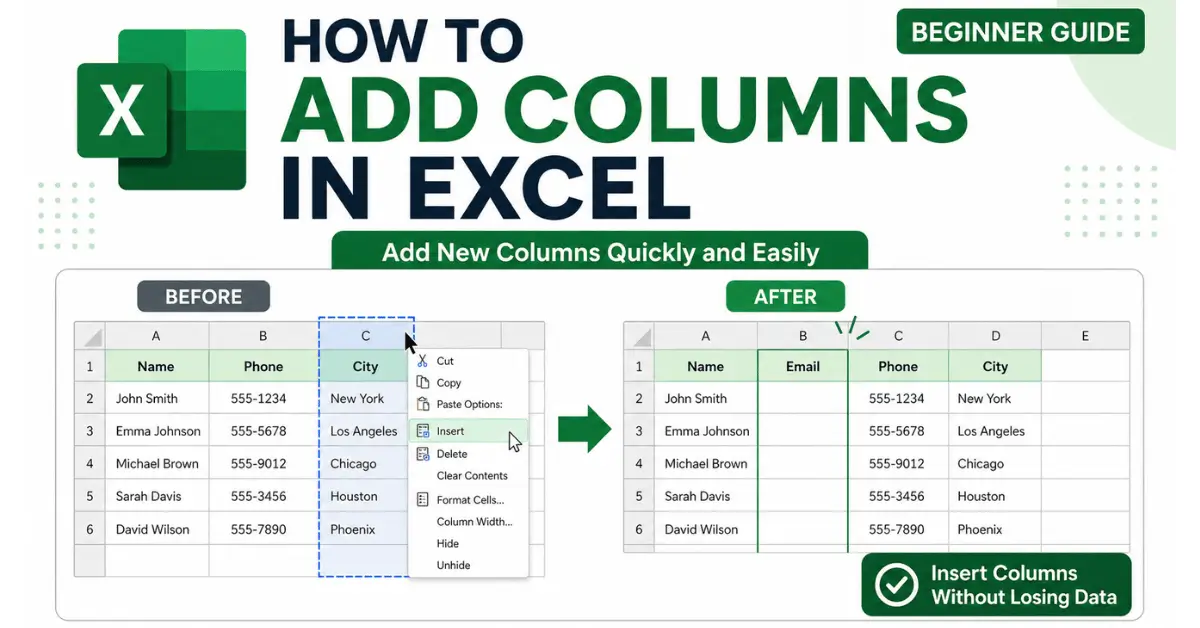
How to Add Columns in Excel: Beginner’s Step-by-Step Guide
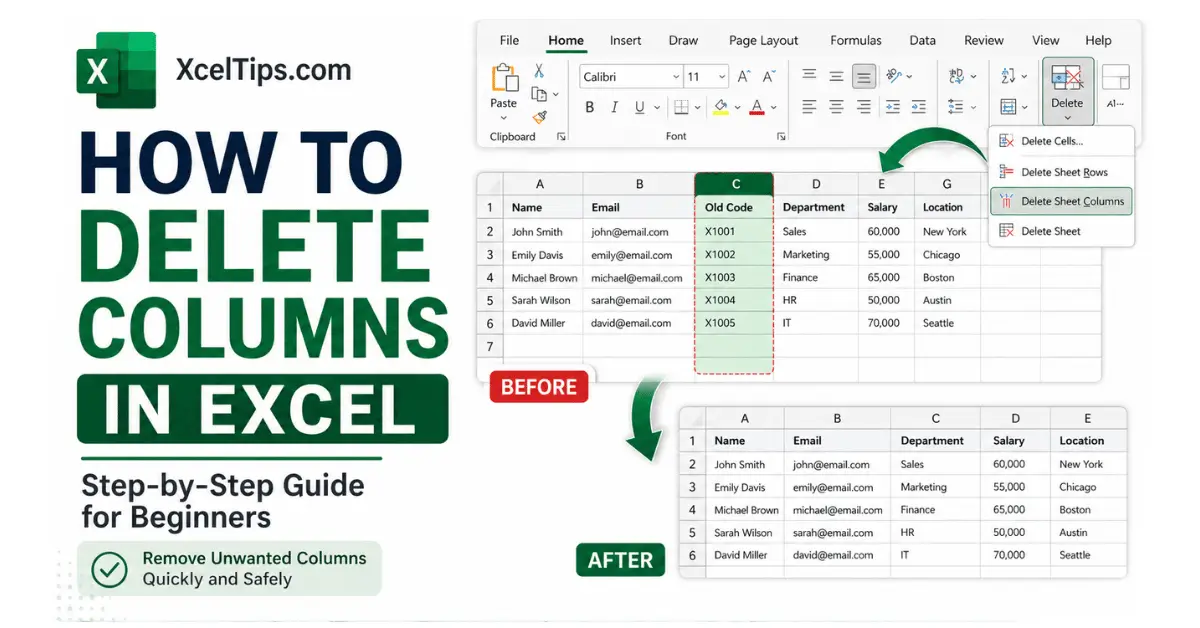
How to Delete Columns in Excel: Beginner’s Step-by-Step Guide
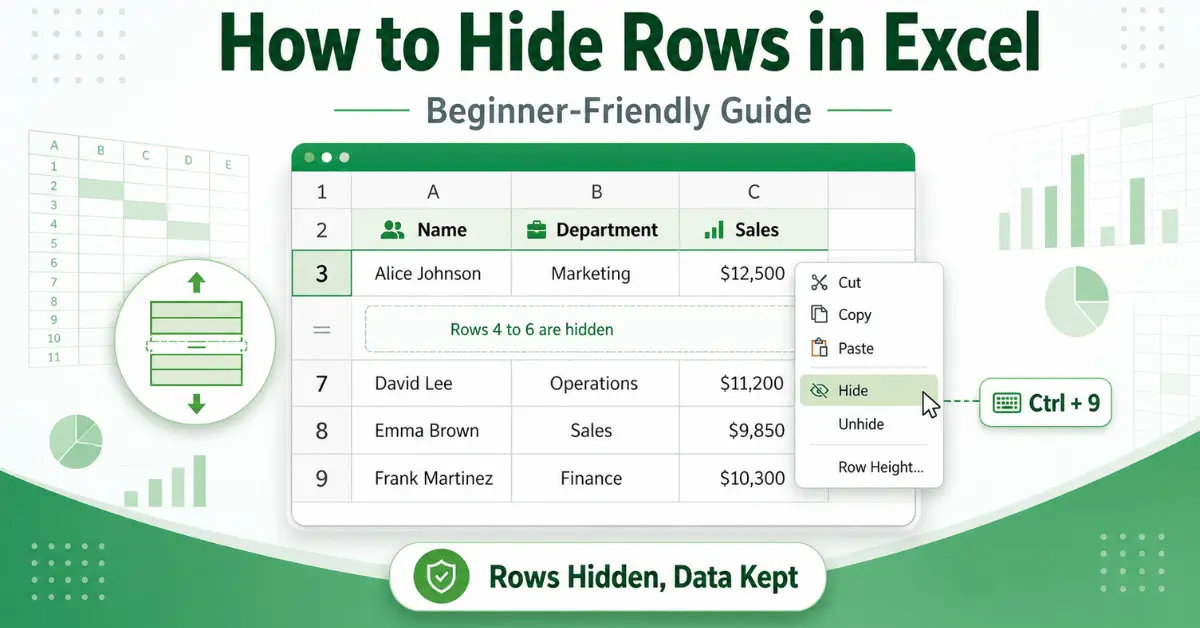
How to Hide Rows in Excel Without Deleting Your Data
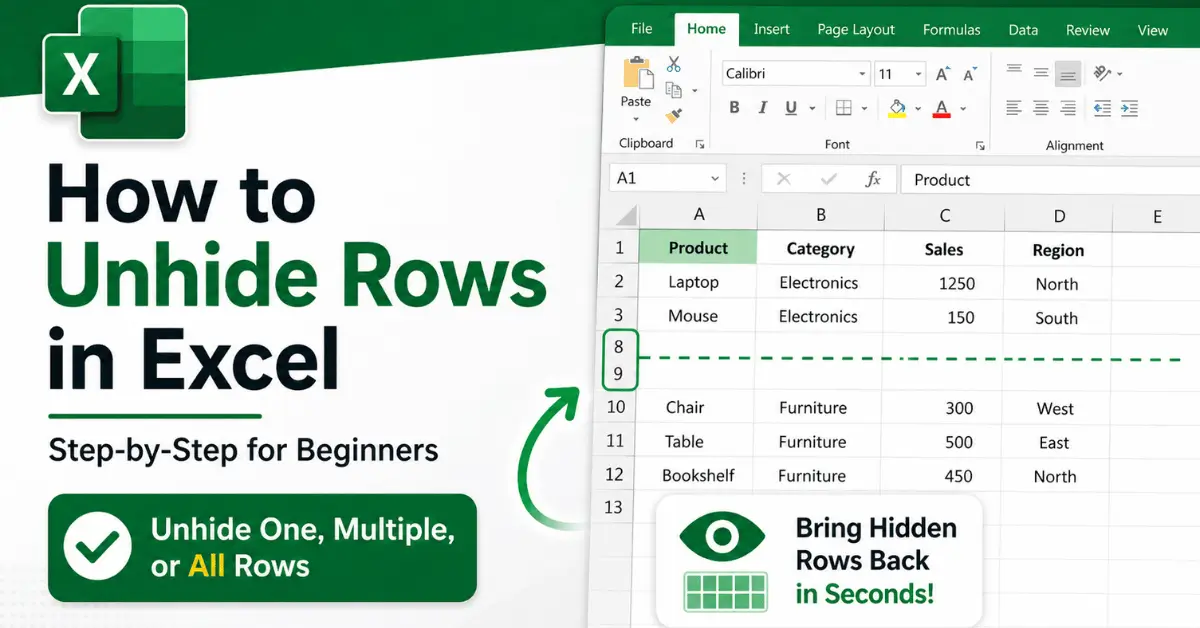
How to Unhide Rows in Excel: A Beginner’s Guide to Showing Hidden Rows
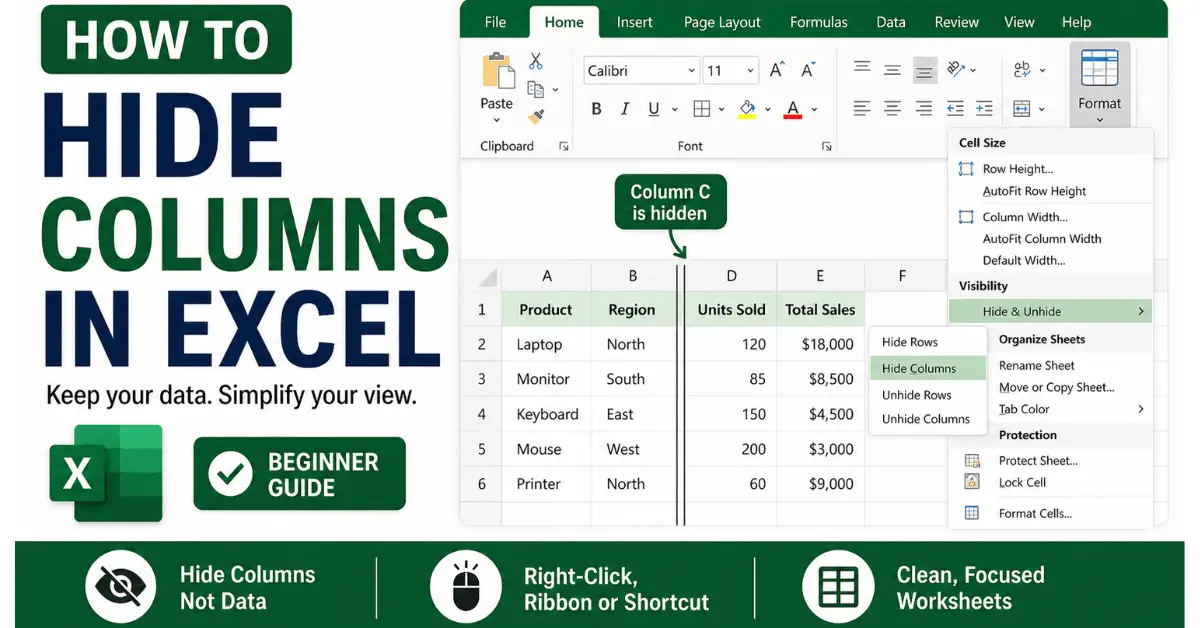
How to Hide Columns in Excel Without Deleting Your Data
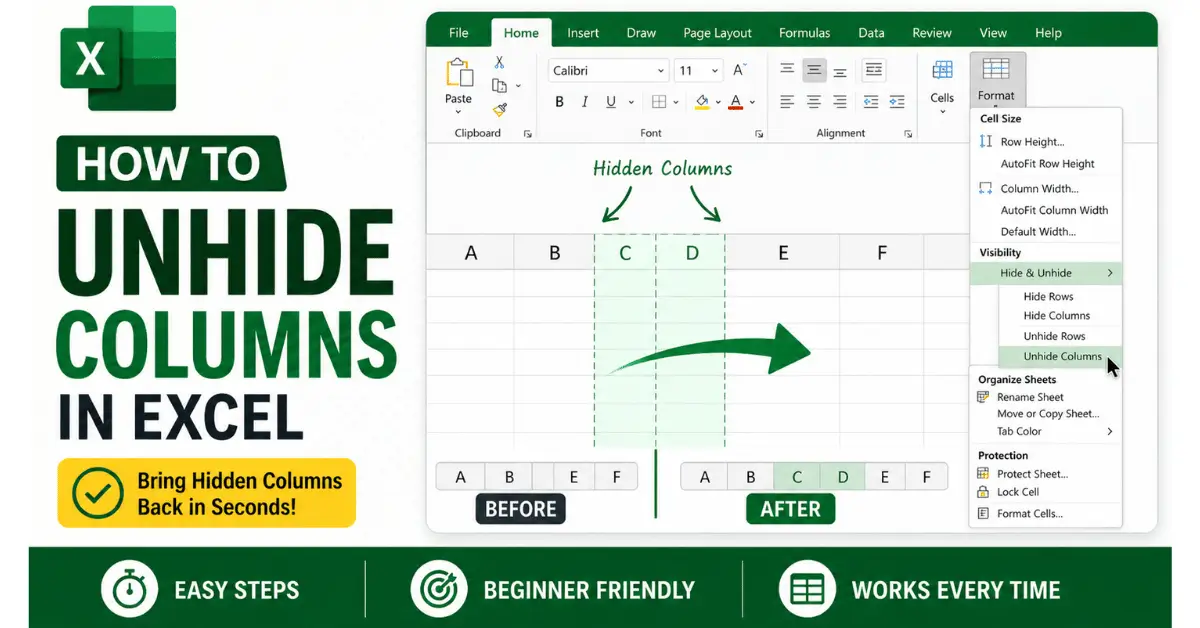
How to Unhide Columns in Excel: Bring Back Hidden Columns in Seconds
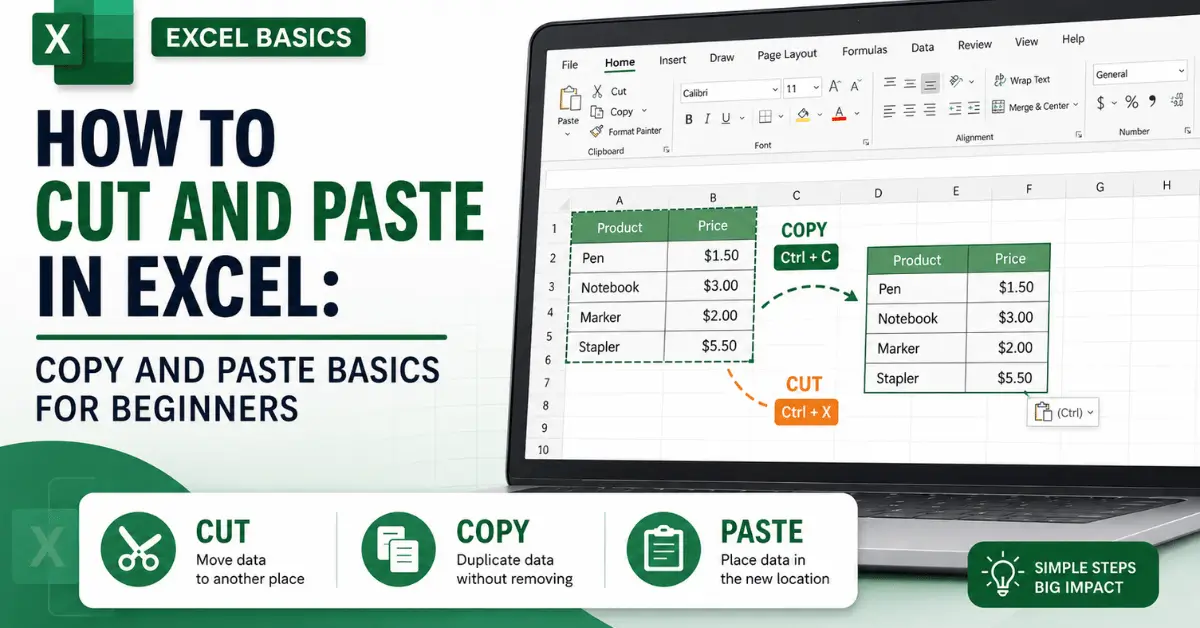
How to Cut and Paste in Excel: Copy and Paste Basics for Beginners
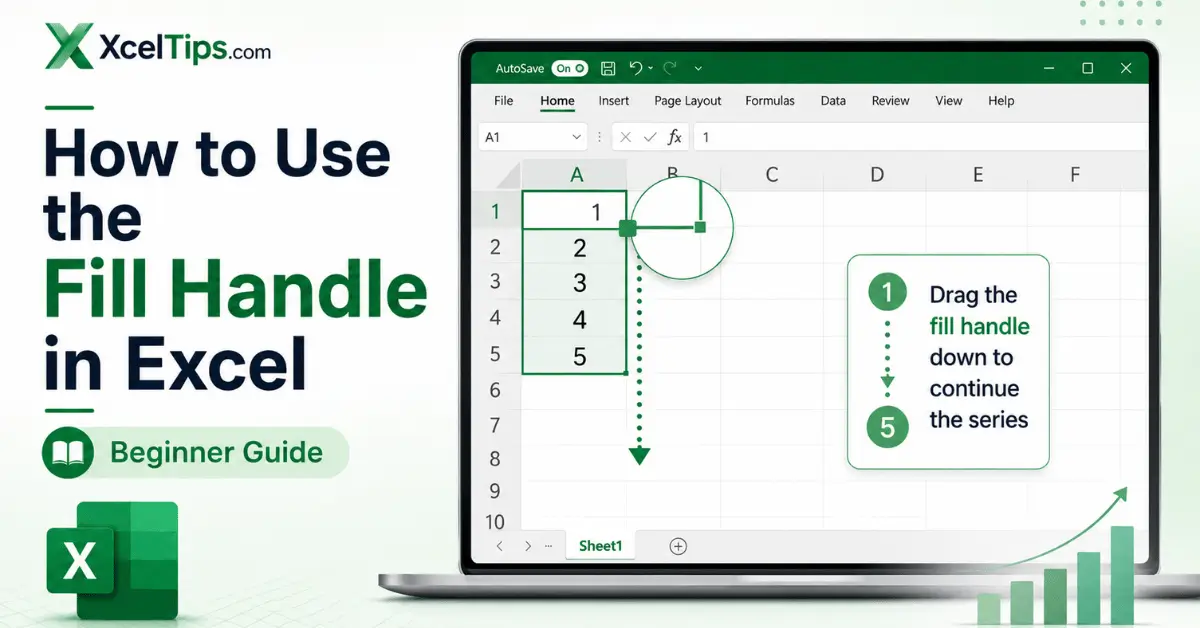
How to Use the Fill Handle in Excel to Copy and Fill Data Quickly
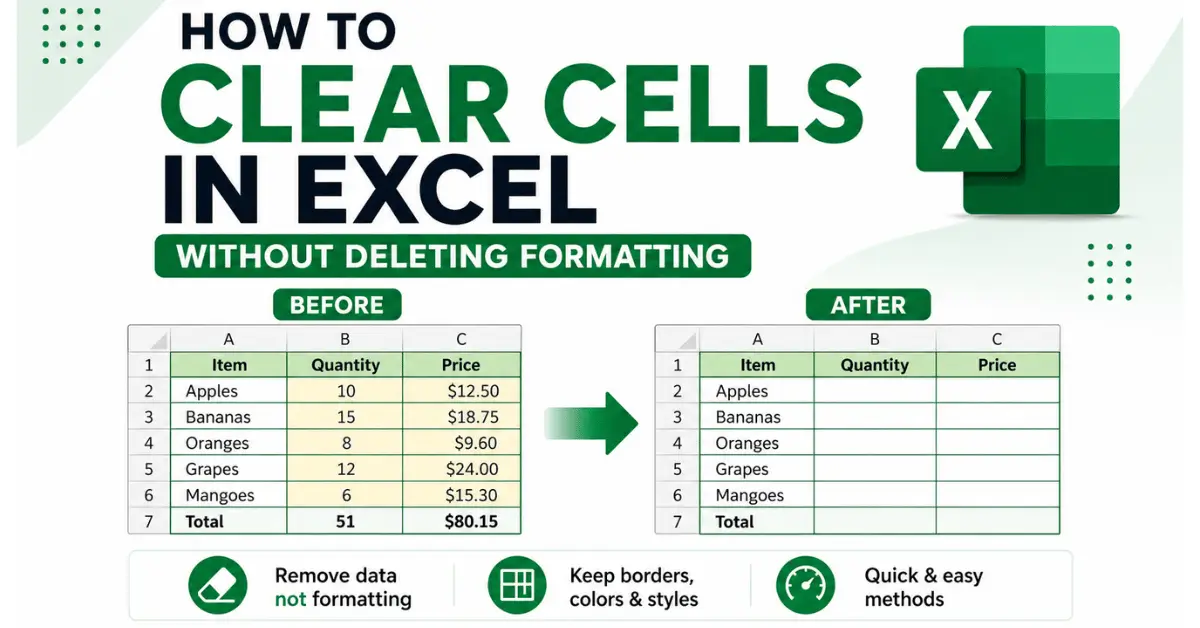
How to Clear Cells in Excel Without Deleting Formatting
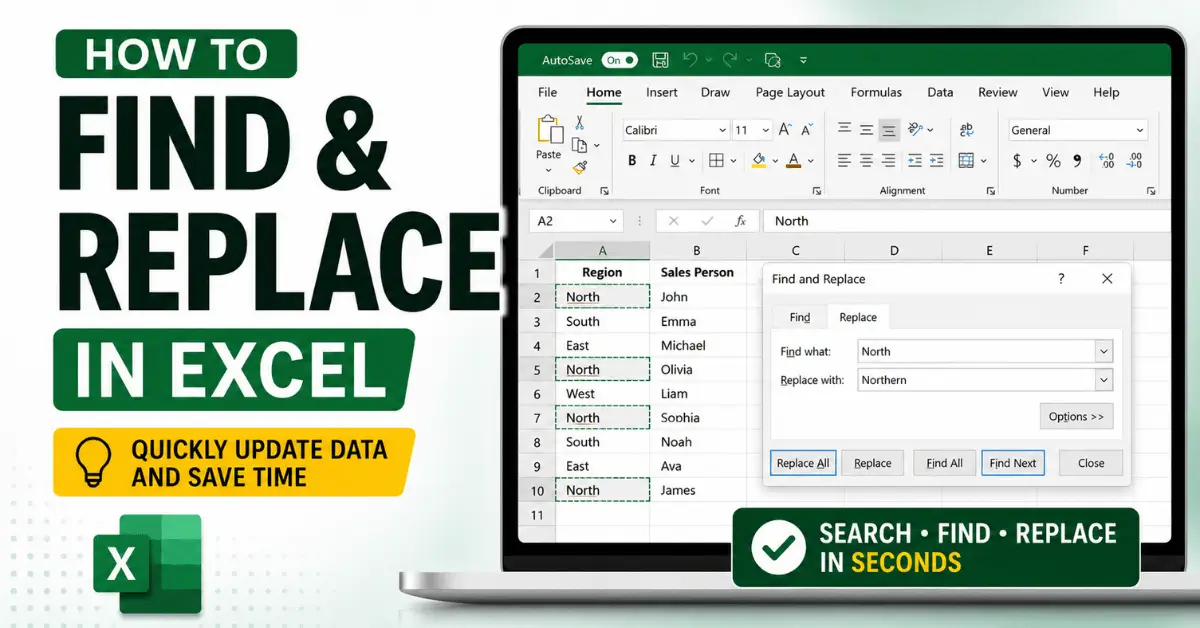
How to Find and Replace in Excel to Quickly Update Data
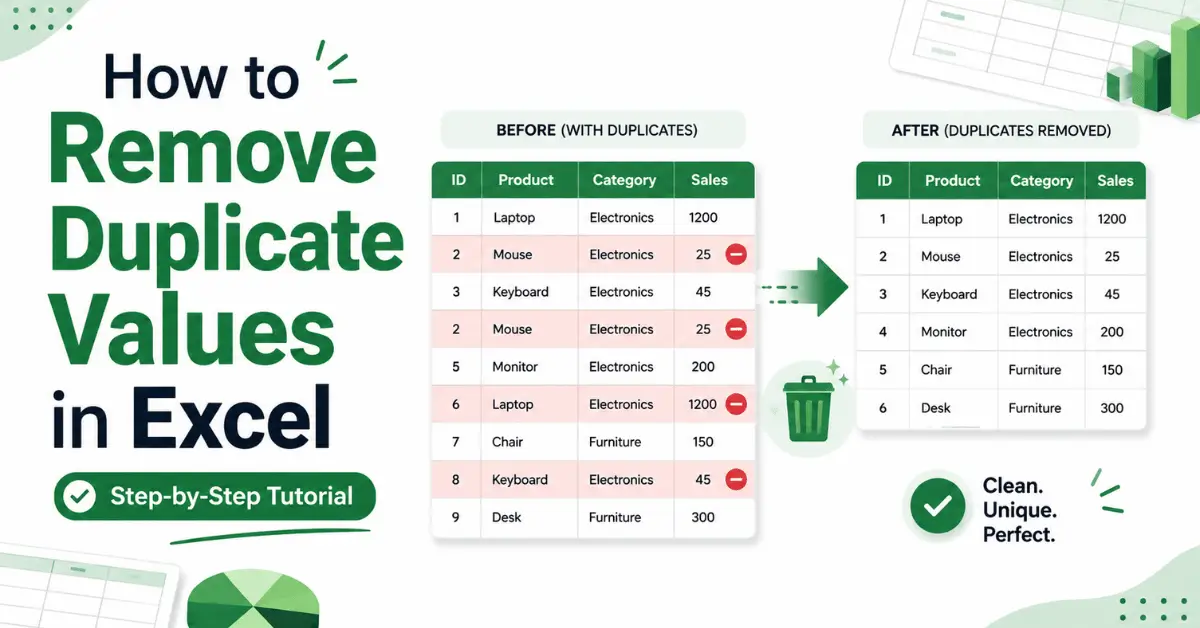
How to Remove Duplicate Values in Excel: Step-by-Step Tutorial
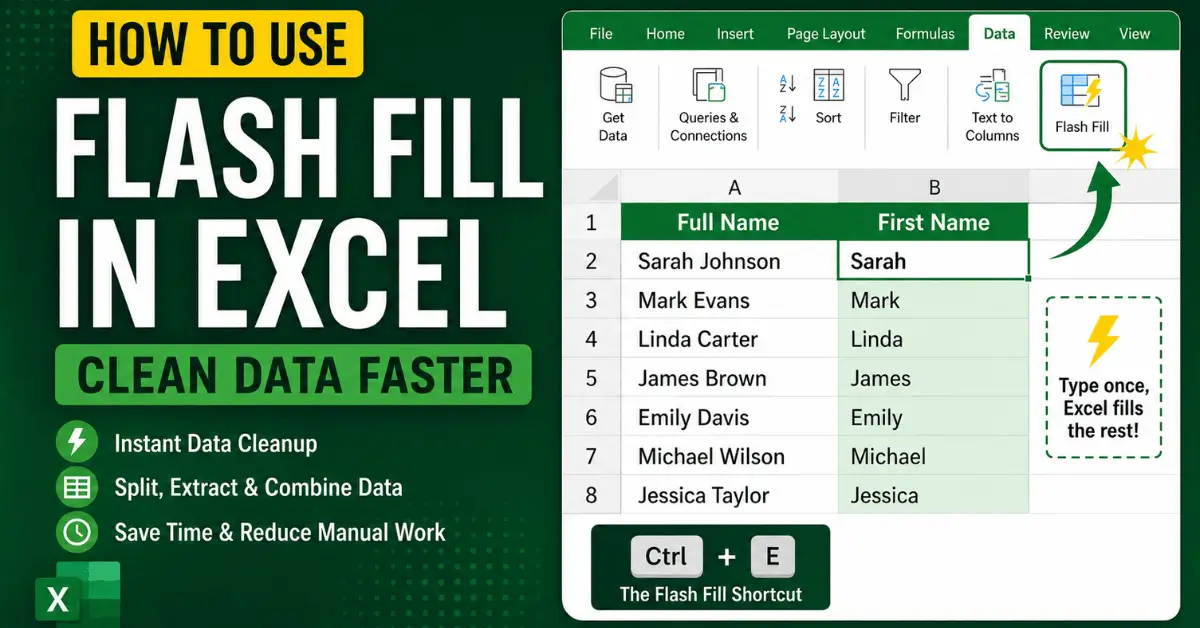
How to Use Flash Fill in Excel to Clean Data Faster
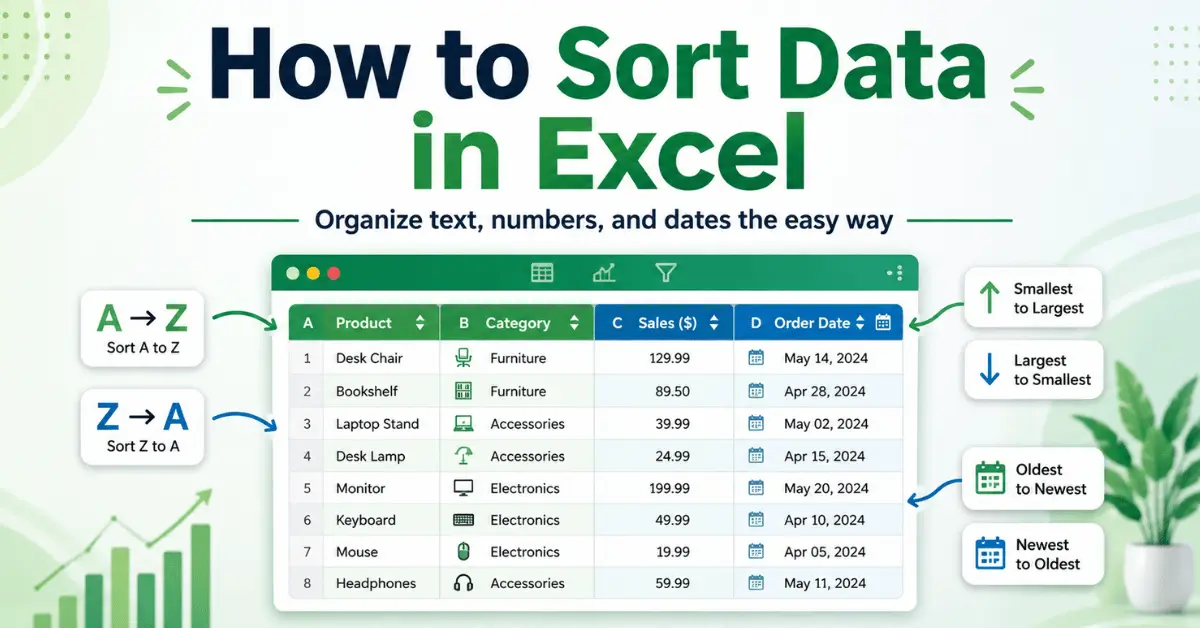
How to Sort Data in Excel to Organize Your Spreadsheet Faster
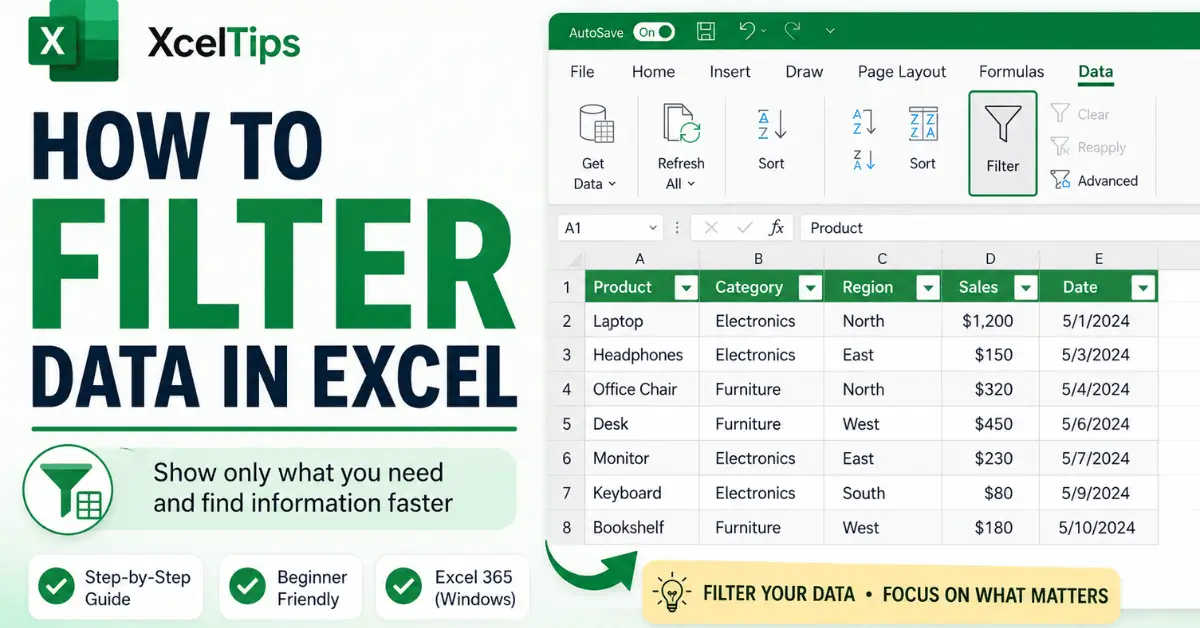
How to Filter Data in Excel to Find Information Faster
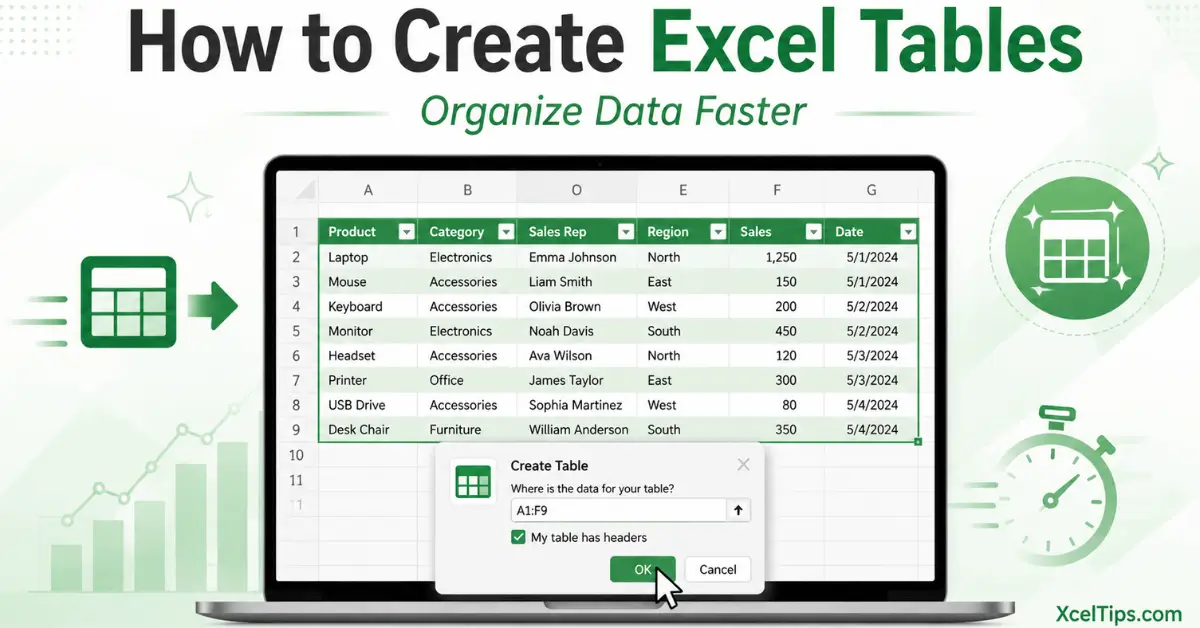
How to Create Excel Tables to Organize Data Faster
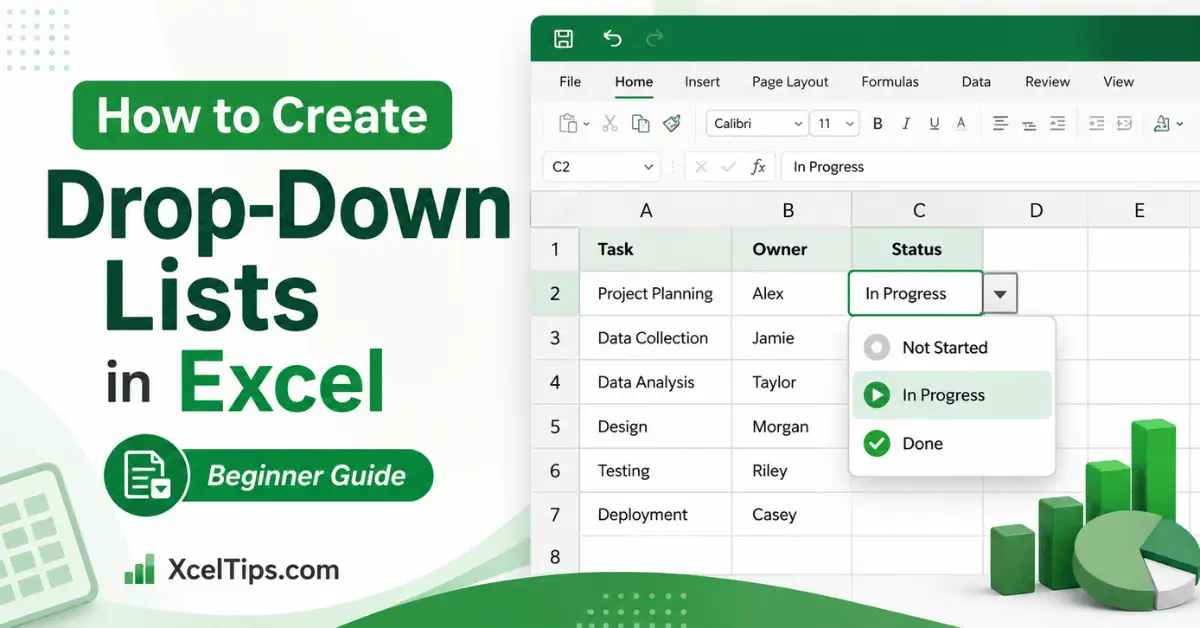
How to Create Drop Down Lists in Excel to Make Data Entry Easier
What Does Working with Data in Excel Mean?
Working with data in Excel refers to the process of entering, modifying, and organizing information inside a worksheet. You can also explore Microsoft’s official guide to learn more about entering and editing data in Excel.
This includes:
- Typing text, numbers, and dates correctly.
- Editing existing data without errors.
- Selecting and moving data efficiently.
- Copying and filling data automatically.
For beginners, these skills are critical. If your data is not entered or organized properly, even simple tasks like formatting or using formulas can become difficult.
This module focuses on helping you build good habits when working with data so you can avoid errors and work more efficiently.
How to Use This Module
To get the best results from this module:
- Follow the lessons in order (don’t skip ahead).
- Practice each step directly in Excel.
- Repeat lessons if something feels unclear.
- Focus on accuracy, not speed.
Tip:
Small mistakes in data entry can cause big problems later. Take your time and double-check your work.
Why Working with Data Matters
Many Excel problems happen because data is entered incorrectly.
This module helps you:
- Enter data accurately from the beginning.
- Organize information clearly.
- Work faster with tools like Autofill and Copy/Paste.
- Prepare your data for formatting and formulas.
When your data is clean and well-structured, everything else in Excel becomes much easier.
Common Beginner Mistakes When Working with Data
Many beginners struggle at this stage because they overlook small but important details. Some common mistakes include:
- Typing inconsistent data (e.g., mixing text and numbers).
- Not checking for typing errors.
- Copying data incorrectly.
- Overwriting important data by accident.
- Not understanding how selection works.
This module helps you avoid these mistakes by teaching you how to handle data properly from the start.
What You Will Be Able to Do After This Module
After completing this module, you will be able to work with data in Excel confidently and efficiently.
You will be able to:
- Enter different types of data correctly (text, numbers, dates).
- Edit and update data without errors.
- Select cells, rows, and columns with precision.
- Copy and paste data efficiently.
- Use Autofill to speed up repetitive tasks.
- Avoid common data entry mistakes.
These skills are essential before moving on to formatting and formulas.
What’s Next?
Once you’re comfortable working with data in Excel, the next step is learning how to format and organize your worksheets clearly.
Next Module →
Formatting and Layout in Excel (Beginner Guide)
In this module, you’ll learn how to make your data clear, readable, and professional using formatting tools.