
Written By Sophanith Dith
Last Updated April 23, 2026
Applies to Microsoft Excel 365 (Windows only)
Part of the Beginner Learning Path
Module 2 Working with Data
Lesson 3 of 22
When you are new to Excel, selecting a column can feel less obvious than selecting a cell. Many beginners click inside a column and expect Excel to highlight the whole vertical section, but Excel selects only one cell instead.
That is why learning how to select columns in Excel is an important beginner skill. Many worksheets organize data by columns, such as names, prices, dates, or departments. When you can select a full column correctly, it becomes much easier to review and work with that field.
Once this feels natural, Excel becomes easier to control. Instead of changing one cell at a time or dragging awkwardly through long lists, you can select exactly the column you need and work with more confidence.
If you want to review the related skill first, it helps to read How to Select Rows in Excel before practicing full-column selection.
Quick Answer
To select a column in Excel, click the column letter at the top of the worksheet. To select multiple columns, drag across column letters or use Shift for adjacent columns and Ctrl for non-adjacent columns. You can also press Ctrl + Space to select the entire column that contains the active cell.
Quick Reference
Before going step by step, here is a quick reference to make the lesson easier to follow.
- Click a column letter to select one full column.
- Drag across column letters to select multiple adjacent columns.
- Use Shift to select a continuous group of columns.
- Use Ctrl to select non-adjacent columns.
- Click any cell in the column you want, then press Ctrl + Space to select that entire column.
- Check the highlighted column letters before making changes.
Before you try the methods, it helps to understand what selecting a column actually means in Excel.
What Column Selection Means in Excel
A column is a vertical line of cells in the worksheet, and each column is identified by a letter at the top, such as A, B, C, or D. When you select a column, Excel highlights every cell in that vertical section, not just one cell.
That is what makes Excel column selection different from normal cell selection. If you click inside the grid, Excel usually selects a single cell. If you click the column letter, Excel understands that you want the full column.
This matters because many worksheets store one type of information per column. One column might contain only names, another only dates, and another only amounts. Selecting the full column helps you work with that field consistently.
If you need a quick refresher on how worksheet structure works, see Understanding Cells, Rows, Columns, and Worksheets in Excel. That lesson explains how columns fit into the Excel grid.
Before practicing the methods, it helps to know how a correct column selection looks on screen.
How to Recognize a Selected Column
When a column is selected, you will usually notice:
- The column letter is highlighted.
- The full vertical section of cells is shaded.
- The active cell sits somewhere inside the selected column.
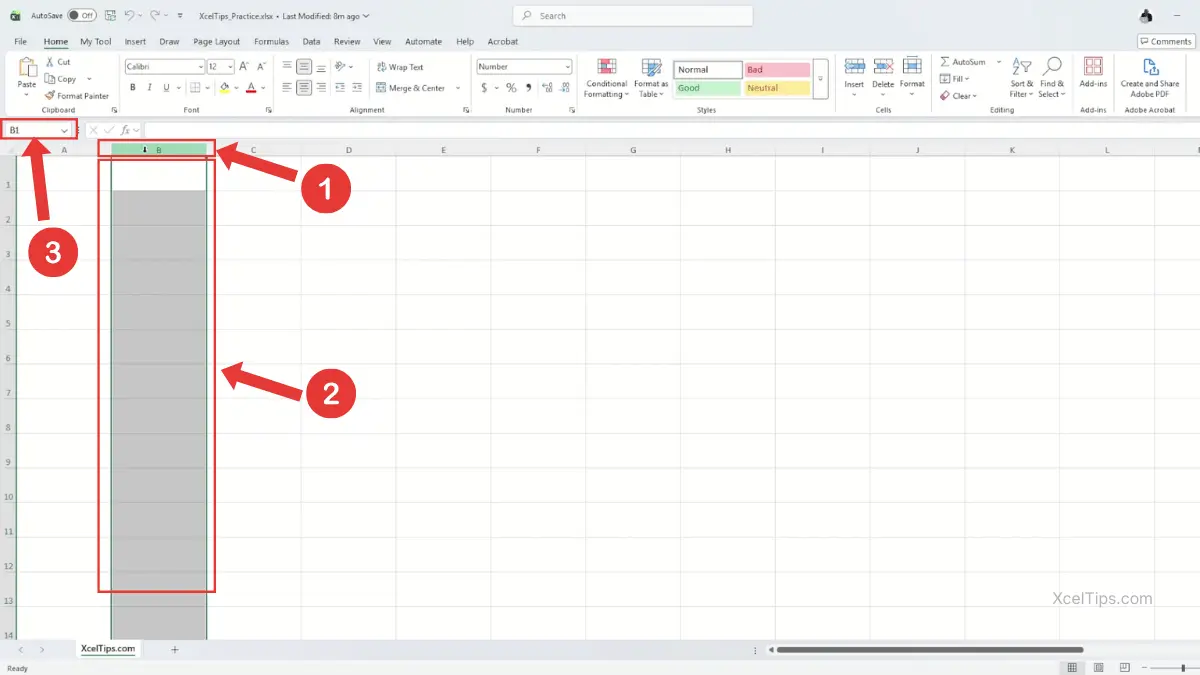
This visual feedback matters because it confirms that Excel is about to work on the full column, not just one cell.
Once you know these visual signs, selecting a full column becomes much easier to check.
How to Select Entire Column in Excel
The easiest way to select an entire column is by using the column header at the top of the worksheet. Start with this method first because it is the simplest for beginners.
This is the fastest way to select a full column when the column letter is visible on screen.
Select a Single Column with the Mouse
The easiest method for beginners is using the mouse. This is the most direct answer to how to select a column in Excel. For example, if you click column B, Excel selects every cell in column B.
To select one full column:
- Move your mouse pointer to the column letter at the top of the worksheet.
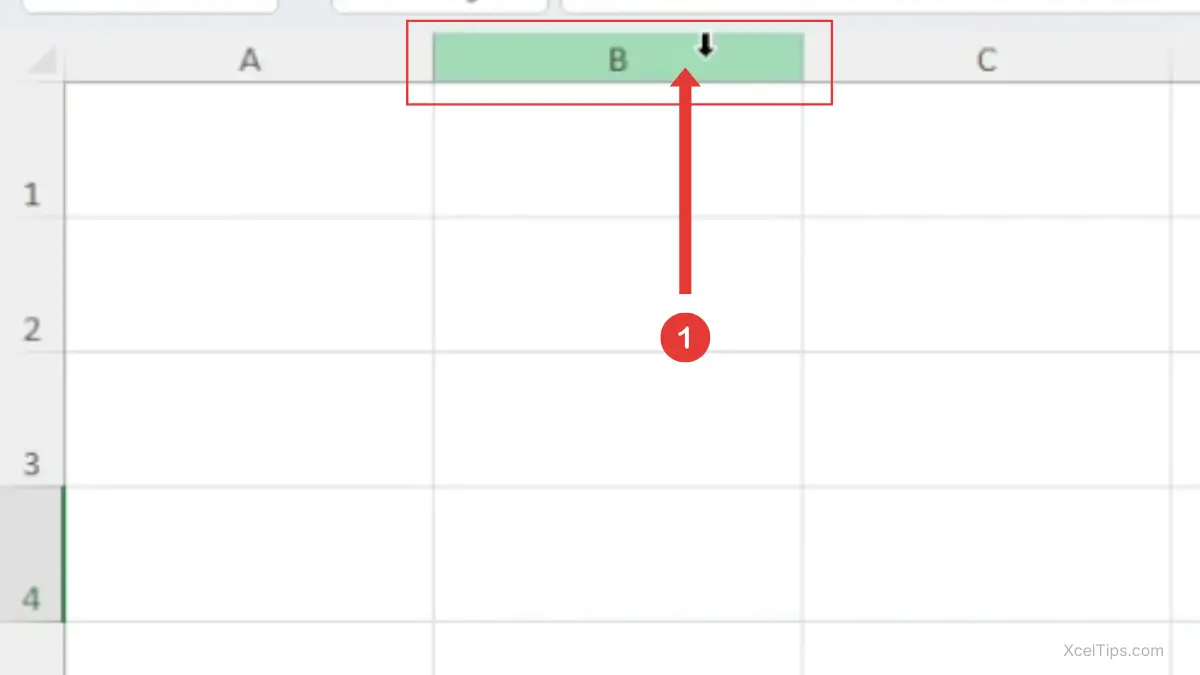
- Click the column letter once.
- Confirm that the full column is highlighted.
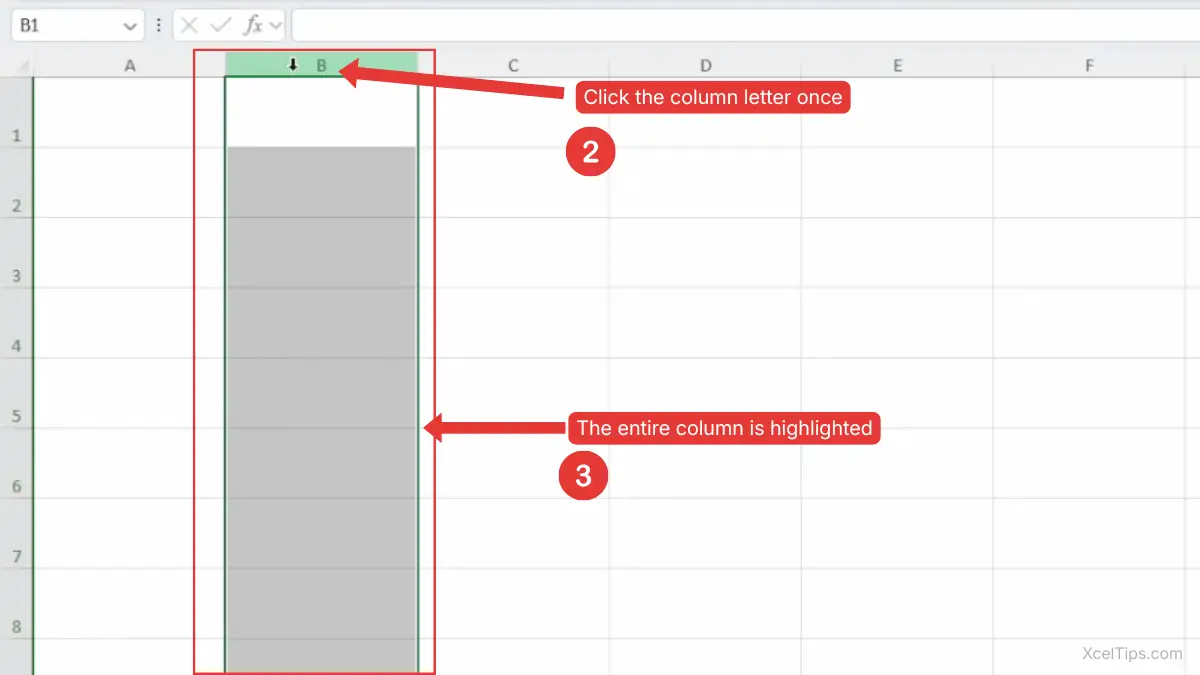
Beginner Tip:
The important detail is where you click. Clicking a cell inside column B selects one cell. Clicking the letter B selects the whole column.
A Simple Beginner Example
Imagine you have a worksheet where column B contains all employee names. If you want to review or work with that full field, selecting the entire column is much faster than clicking each cell one by one.
That is why full-column selection is useful whenever one vertical field represents one category of data.
Once you can select one column, the next step is learning how to select multiple columns in Excel. This is common when related fields sit side by side.
How to Select Multiple Columns in Excel
In many worksheets, you need to work with more than one column at the same time. Excel gives you a few easy ways to select multiple columns depending on whether they are next to each other.
Select Multiple Adjacent Columns by Dragging
When the columns are next to each other, dragging is one of the easiest methods.
For example, dragging from column B to column E selects columns B, C, D, and E.
- Click the first column letter.
- Hold down the left mouse button.

- Drag left or right across the column letters you want.
- Release the mouse button when all needed columns are highlighted.

This is one of the most common methods for how to select multiple columns in Excel because it feels simple and visual.
Select Multiple Adjacent Columns with Shift
If dragging feels imprecise, Shift gives you another easy method.
- Click the first column letter.
- Hold Shift.
- Click the last column letter in the group.
Excel will select all columns between those two points.

For example, if you click column C, hold Shift, and click column F, Excel selects columns C through F.
This method is useful when the first and last columns are visible and you want a cleaner way to build the selection.
When to Use Dragging vs Shift
Both methods work well for adjacent columns, but they suit slightly different situations.
| Method | Best for | Why |
|---|---|---|
| Dragging | Nearby visible columns | Fast and visual |
| Shift + Click | Precise column range | Easier when you know the first and last column |
If you often drag too far, Shift may feel more controlled.
Those methods work well when the columns are next to each other. If the columns are separated, you need a different approach.
How to Select Non-Adjacent Columns in Excel
Sometimes the columns you need are separated by other data. In that case, Excel lets you build the selection one column at a time.
Select Non-Adjacent Columns with Ctrl
To select columns that are not next to each other:
- Click the first column letter.
- Hold Ctrl.
- Click each additional column letter you want.
- Keep holding Ctrl until you finish clicking all the extra column letters.
For example, you can select columns A, C, and F without selecting B, D, or E.
This is the main method for how to select non adjacent columns in Excel.
Beginner Warning:
If you forget to hold Ctrl, Excel replaces the earlier column selection with the new one.
A Practical Example
Imagine you are reviewing a worksheet and only the Name, Department, and Salary fields matter for a quick check. If those fields are not next to each other, Ctrl lets you select only those specific columns.
That makes non-adjacent column selection useful for focused review and targeted worksheet work.
Once the mouse methods make sense, the next step is using shortcuts. Learning how to select columns in Excel with the keyboard can save time and give you more precise control.
How to Select Columns in Excel with Keyboard Shortcuts
If your hands are already on the keyboard, shortcuts can make column selection faster. These methods are especially helpful when you want a quick, precise selection.
Excel Column Selection Shortcut: Ctrl + Space
The most useful column shortcut for beginners is:
Ctrl + Space
This selects the entire column of the active cell.
To use it:
- Click any cell inside the column you want.
- Press Ctrl + Space.
- Excel will highlight the full column.
This is one of the easiest ways to handle Excel column selection without moving to the column header.
Microsoft also explains this in its guide to selecting cell contents in Excel.
Select Multiple Adjacent Columns with Shift + Arrow Keys
Once the current column is selected, you can extend the selection with the keyboard.
- Select a cell in the column you want.
- Press Ctrl + Space.
- Hold Shift and press Right Arrow or Left Arrow to extend the selection.
This lets you build a connected column range without using the mouse.
Beginner Tip:
This works after the full column is already selected with Ctrl + Space.
For example:
- Ctrl + Space selects the current column.
- Shift + Right Arrow adds the next column to the right.
- Shift + Left Arrow adds the next column to the left.
Use the Name Box to Jump to a Column Area
The Name Box can help when the target column is far across the worksheet.
For example:
- Click the Name Box.
- Type a cell reference in the column you want, such as
M1. - Press Enter.
- Press Ctrl + Space to select the full column.
This is useful when the needed column is not currently visible on screen.
Useful Column Shortcut Reference
Here is a simple shortcut table for the main beginner methods.
| Task | Shortcut | Result |
|---|---|---|
| Select current column | Ctrl + Space | Selects the full column of the active cell |
| Extend selection right | Shift + Right Arrow | Adds the next column on the right |
| Extend selection left | Shift + Left Arrow | Adds the next column on the left |
| Jump to a known column area | Type cell in Name Box | Moves selection to that location |
These shortcuts are enough for most beginner column-selection tasks.
After learning the selection methods, it helps to know when choosing a full column is actually the better option.
When You Should Select a Full Column Instead of Cells
Beginners often wonder when it is better to select an entire column instead of only a few cells. The answer depends on what that column represents in the worksheet.
Choosing the right type of selection matters. In some cases, selecting a full column is clearer and safer than selecting only a few cells.
A full column is usually the better choice when:
- One column contains one type of related data.
- You want to work with all entries in that field.
- You want consistent changes across the entire field.
- You want to review a complete category such as names, dates, or prices.
For example, in a worksheet with employee information, one column may contain job titles and another may contain start dates. If you want to work with all start dates together, selecting the full column is often the clearest choice.
This is also why accurate column selection matters later in lessons like How to Enter and Edit Data in Excel. Knowing exactly what you selected helps prevent mistakes when updating data.
Before you finish, it is worth looking at a few mistakes that often cause trouble for beginners.
Common Beginner Mistakes When Selecting Columns in Excel
Most column-selection problems come from a few simple mistakes. If you know what to watch for, you can avoid them quickly.
Clicking Inside the Column Instead of the Column Letter
This is the most common problem. Clicking inside the worksheet grid selects only one cell.
To select the entire column, you need to click the column letter at the top.
Dragging Too Far Across Column Headers
Dragging is helpful, but it is easy to include one or two extra columns by mistake.
To reduce this problem:
- Drag slowly.
- Watch the highlighted column letters.
- Release the mouse as soon as the last needed column is selected.
Forgetting Ctrl for Non-Adjacent Columns
When selecting separate columns, Ctrl must stay pressed while you click each extra column. If you release it too early, the previous selection disappears.
This is normal at first and becomes easier with repetition.
Thinking Ctrl + Space Selects Multiple Columns Immediately
Ctrl + Space selects only the current column first. To add nearby columns, you still need to extend the selection with the arrow keys or use the mouse.
That small detail helps avoid confusion when you first try keyboard selection.
Beginner Warning:
Pressing Ctrl + Space selects only the current column, not all the nearby columns.
A short practice round is the best way to make these methods feel natural.
Quick Practice
Try this short exercise in a blank workbook such as XcelTips_Practice.xlsx. The goal is simply to practice the selection methods, not to create anything complicated.
- Click column letter
Cto select one column. - Drag from column
Bto columnE. - Click column
D, hold Shift, then click columnG. - Click column
A, hold Ctrl, then click columnsCandF. - Click a cell in column
Hand press Ctrl + Space. - Press Shift + Right Arrow two times to extend the column selection.
- Type
M1into the Name Box, press Enter, then press Ctrl + Space.
This short exercise helps the main column-selection methods feel much more natural.
After practicing the steps above, it helps to pause and review the main ideas. Here are the key takeaways from this lesson.
Key Takeaways
If you want to remember only the most important points from this lesson, keep these simple column-selection rules in mind. These takeaways give beginners a quick review before moving into the common questions below.
- Click the column letter at the top of the worksheet to select one full column.
- Drag across column letters to select multiple adjacent columns.
- Use Shift to select a continuous column range.
- Use Ctrl to select non-adjacent columns.
- Press Ctrl + Space to select the current column with the keyboard.
- Always check the highlighted column letters before making changes.
Now that you have reviewed the main points, it is time to check what you have learned.
Test Your Knowledge
Answer the three questions below to check your understanding of Excel file recovery. Select the best answer for each question, then click Finish to view your score, the correct answers, and a brief explanation for each one.
Results
Great job! You understand the key points from this lesson. Review any explanations above, then continue to the frequently asked questions.
Good try! Review the correct answers and explanations above, then try the quiz again to strengthen your understanding.
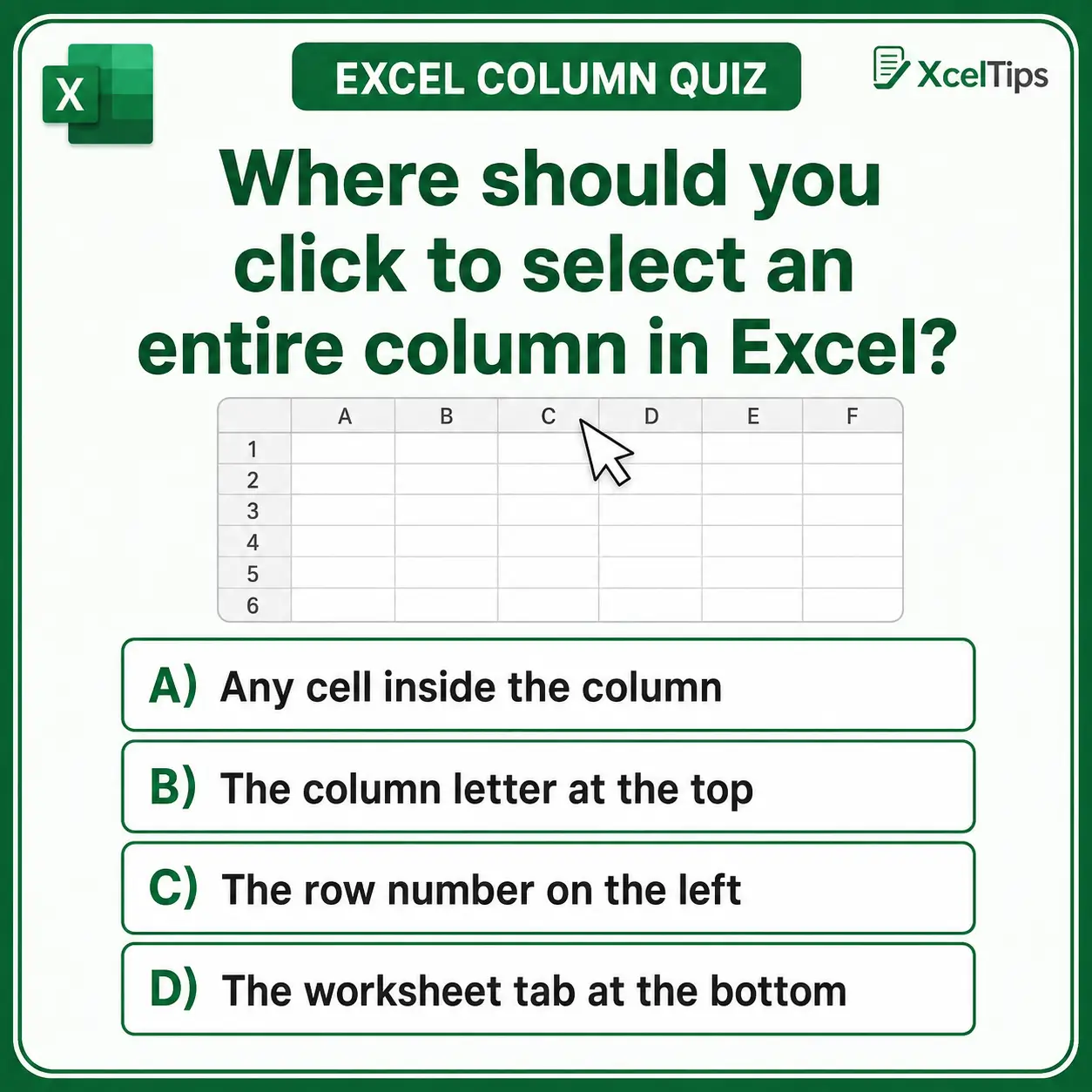
#1. Where should you click to select an entire column in Excel?
Correct answer: B) The column letter at the top.
Clicking the column letter at the top selects the entire vertical column. Clicking a cell inside the worksheet selects only that cell, not the full column.
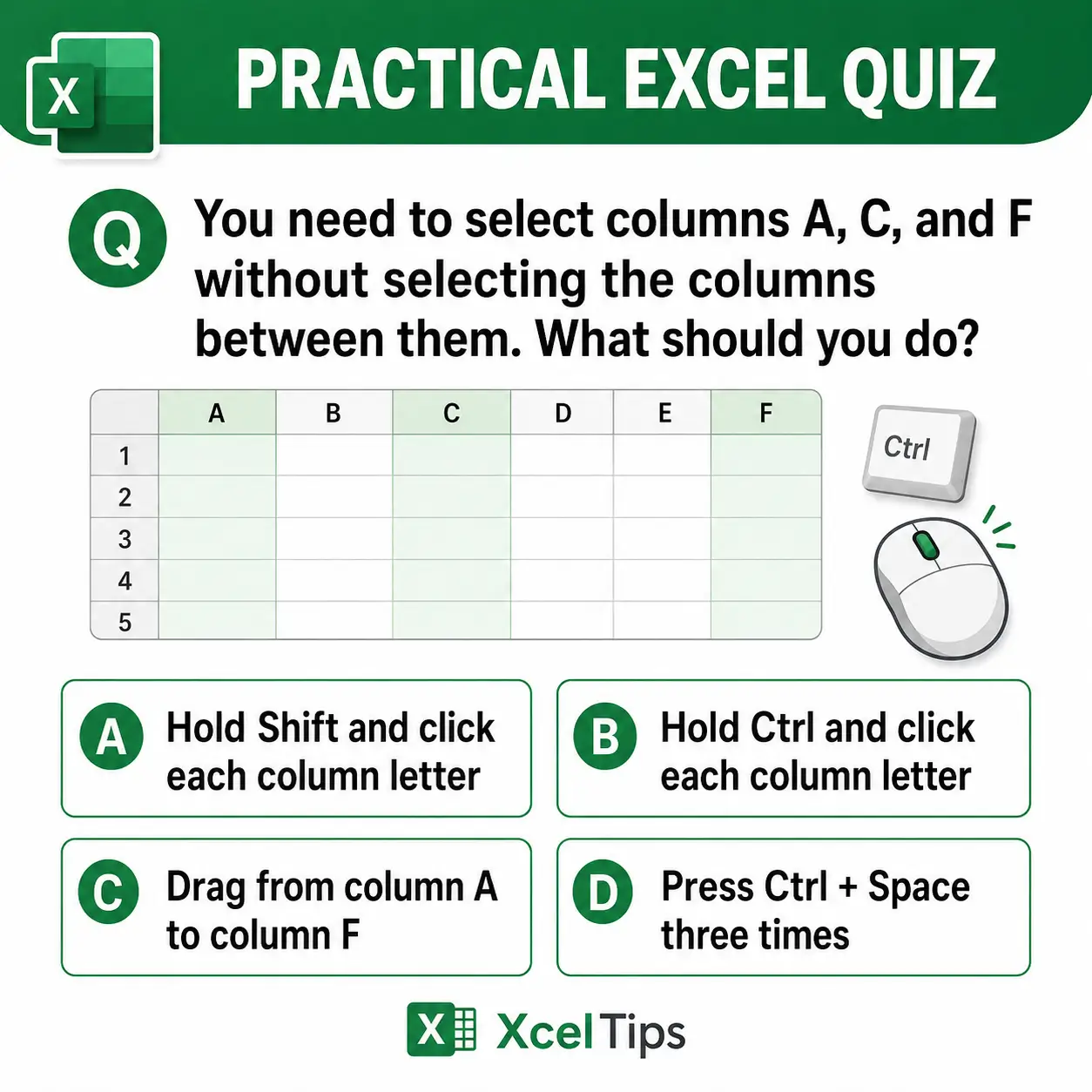
#2. How would you select columns A, C, and F without selecting the columns between them?
Correct answer: B) Hold Ctrl and click each column.
Ctrl lets you select non-adjacent columns one at a time. Keep holding Ctrl while clicking the letters A, C, and F. If you stop holding Ctrl, Excel may replace your earlier selection with the newly selected column.
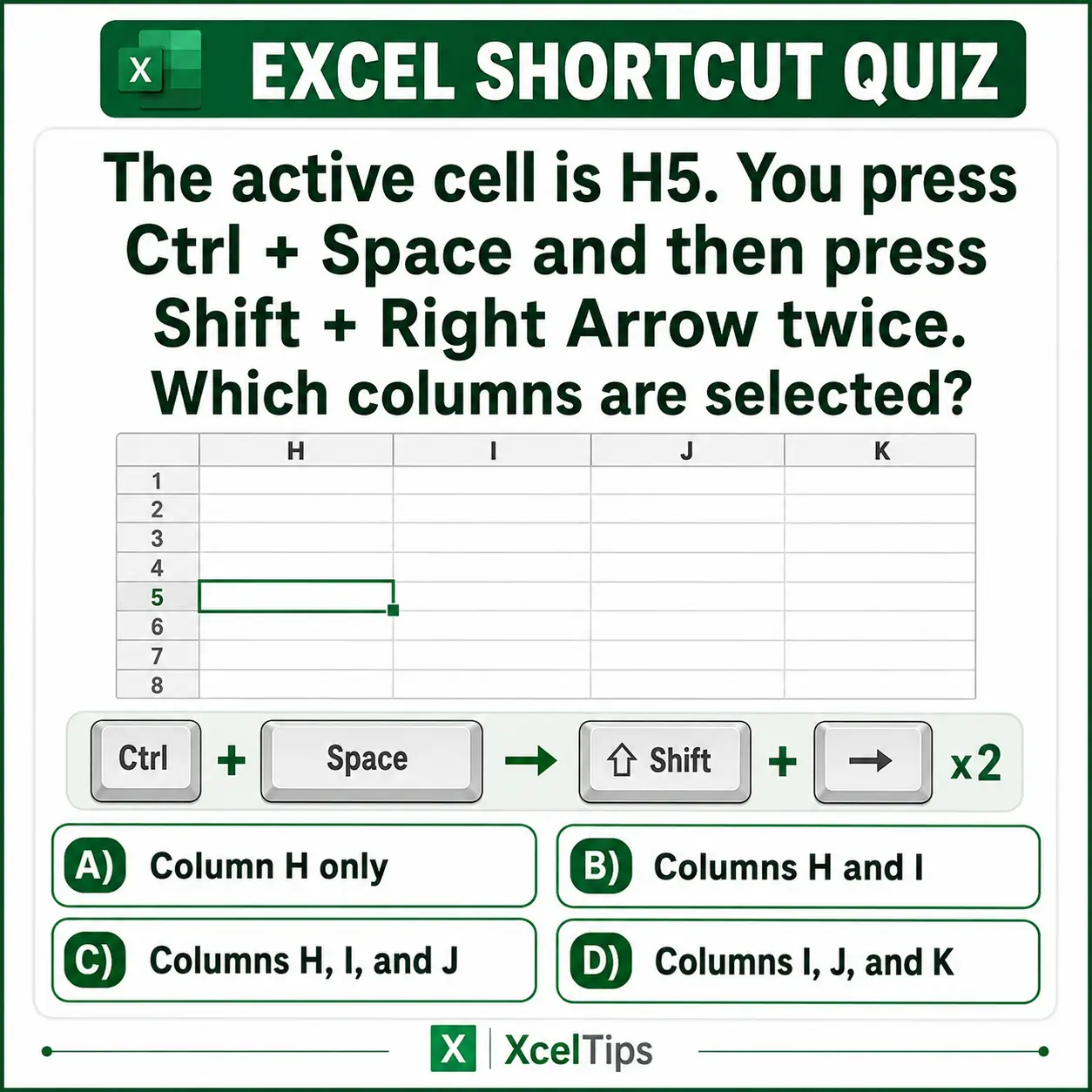
#3. Active cell H5: Press Ctrl + Space, then Shift + Right Arrow twice. What is selected?
Correct answer: C) Columns H, I, and J.
Ctrl Space selects the full column containing active cell H5, so column H is selected first. Each Shift Right Arrow adds one adjacent column on the right. Pressing it twice adds columns I and J, producing a final selection of H through J.
After completing the quiz, you may still have questions about how Excel recovery works in specific situations. The answers below clarify some of the most common questions about selecting columns in Excel.
Frequently Asked Questions (FAQs)
After practicing, beginners usually have a few common questions about how to select columns in Excel. Here are the most useful answers.
How to select an entire column in Excel?
Click the column letter at the top of the worksheet. You can also click any cell in that column and press Ctrl + Space.
How to select multiple columns in Excel?
For columns next to each other, drag across the column letters or use Shift. For separate columns, hold Ctrl and click each column letter.
How to select non-adjacent columns in Excel?
Hold Ctrl and click each column letter you want. This lets you select separate columns without selecting the ones between them.
What is the keyboard shortcut to select a column in Excel?
The main shortcut is Ctrl + Space. It selects the full column of the active cell.
Why is Excel selecting only one cell instead of the whole column?
This usually means you clicked inside the worksheet grid instead of the column letter at the top.
Can I select a column that is far off to the right?
Yes. Type a cell reference such as M1 into the Name Box, press Enter, then press Ctrl + Space.
Conclusion
Learning how to select columns in Excel gives you an important beginner skill for working with full fields of data correctly. When you can select one column, multiple columns, and non-adjacent columns with confidence, you reduce errors and work more efficiently.
Practicing this now will make later worksheet tasks feel much easier. Once column selection becomes automatic, you can work faster and with fewer mistakes.
This lesson is part of the Beginner Learning Path, a structured series designed to help you learn Microsoft Excel step by step from the basics.
← Previous Lesson
How to Select Multiple Rows in Excel Using Keyboard and Mouse