
Written By Sophanith Dith
Last Updated May 08, 2026
Applies to Microsoft Excel 365 (Windows only)
Part of the Beginner Learning Path
Module 2 Working with Data
Lesson 11 of 22
Sometimes your worksheet has columns you do not need to see right now. For example, you may have helper calculations, old notes, ID numbers, or extra details that make the sheet harder to read. Learning how to hide columns in Excel is an important beginner skill because it lets you keep the data in the workbook while removing it from view.
Hiding a column does not delete the column. The data stays in the worksheet, formulas can still refer to it, and you can bring the column back later. This makes hiding useful when you want a cleaner view without permanently changing your spreadsheet.
In this tutorial, you will learn how to hide columns in Excel using the mouse, the Ribbon, and a keyboard shortcut. You will also learn what hidden columns look like and when hiding is better than deleting.
Quick Answer:
To hide columns in Excel, select the column letters, right-click the selected column header, and choose Hide. You can also use Home tab→ Cells group→ Format → Hide & Unhide → Hide Columns. The hidden data stays in the workbook and can be unhidden later.
Before the full steps, here is a quick summary of how hiding columns works.
Quick Reference
Here is the basic idea before we go through each method in detail.
- Select the column letter at the top of the worksheet.
- Right-click the selected column header and choose Hide.
- To hide several columns together, select all the column letters first.
- Use Ctrl + 0 as the keyboard shortcut to hide selected columns.
- Hidden columns are shown by missing column letters and a double line between nearby columns.
- Hiding columns removes them from view, but it does not delete the data.
Why Hide Columns in Excel?
Hiding columns is useful when your worksheet contains information that is still needed but does not need to be visible all the time. This helps you focus on the columns that matter most without permanently changing the workbook.
For beginners, the key point is simple: hiding is temporary, while deleting is permanent unless you undo it immediately. If you are unsure whether you may need the data again, hiding is usually safer than deleting.
For example, suppose you have a sales worksheet with these columns:
| Column | Data |
|---|---|
| A | Product |
| B | Region |
| C | Salesperson ID |
| D | Units Sold |
| E | Total Sales |
If you are preparing the sheet for a quick meeting, you may not want to show the Salesperson ID column. Instead of deleting column C, you can hide it. The sheet becomes easier to read, but the ID information remains available.
This is especially useful when a worksheet is shared with others, printed, or used during a presentation. You can hide columns that support the workbook but do not need to be visible to the reader.
If you need a refresher on selecting full columns before hiding them, see the supporting lesson on how to select columns in Excel.
Once you understand why hiding is useful, the next step is learning the simplest method.
How to Hide Columns in Excel with Right-Click
The right-click method is the most beginner-friendly way to hide columns in Excel. It is fast, visual, and easy to remember because you work directly with the column letters at the top of the worksheet.
How to Hide a Column in Excel
If you are asking how to hide a column in Excel, start with this method. You only need to select the column letter, not the cells inside the column.
- Click the column letter once to select the entire column.
- Right-click the selected column letter.
- Choose Hide from the shortcut menu.
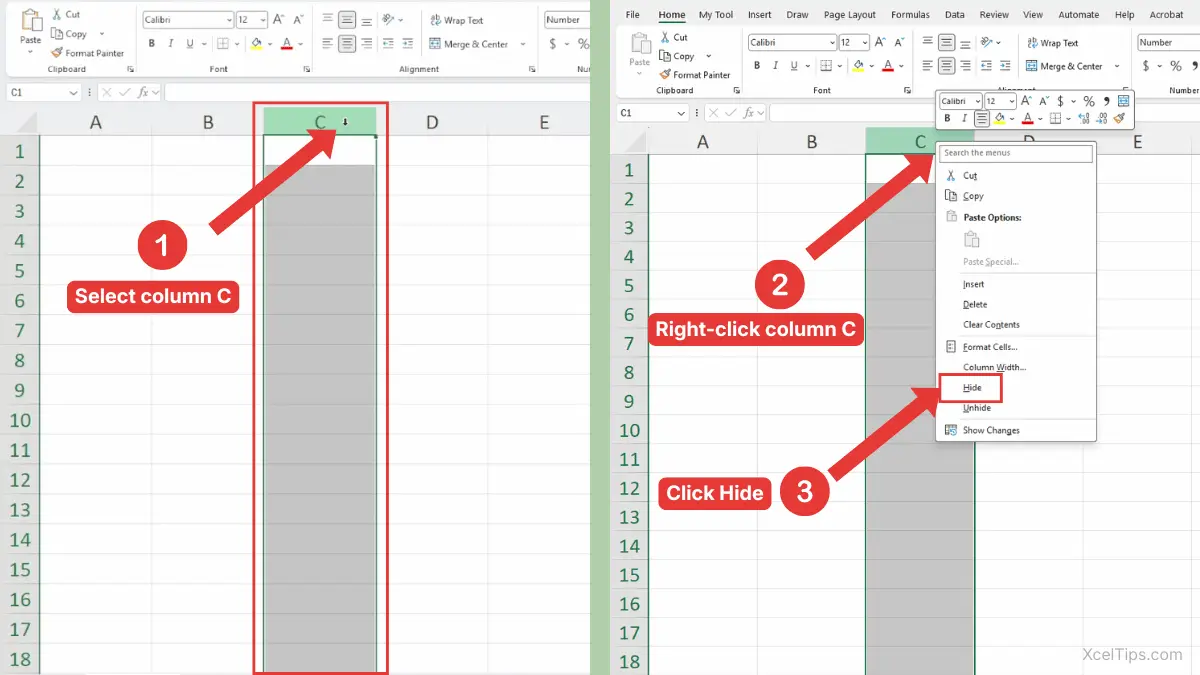
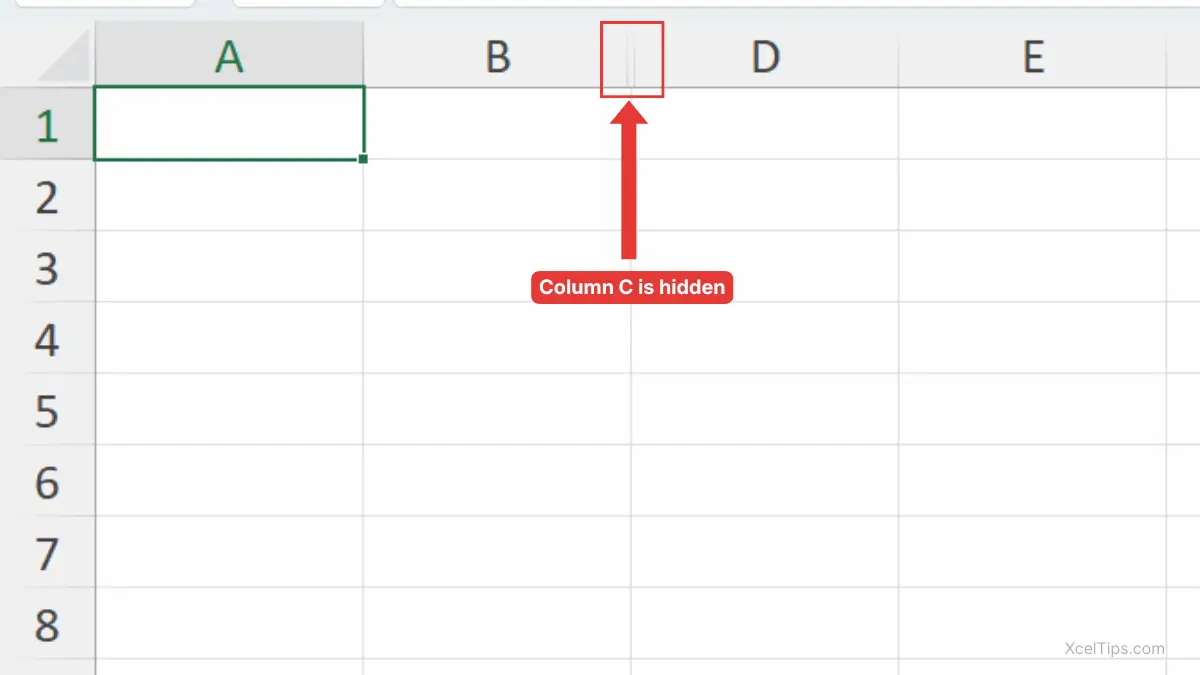
Excel hides the selected column from the worksheet view. For example, if you hide column C, the column letters will jump from B to D, showing that column C is hidden, as shown in the image below.
Beginner Tip:
Always click the column letter, such as C, D, or E. If you click only one cell inside the column, you may not be selecting the full column for the right-click method.
For additional reference, you can also review Microsoft’s guide to hiding and showing rows or columns in Excel, which explains the basic hide and unhide options for rows and columns.
How to Hide Multiple Adjacent Columns in Excel
Adjacent columns are columns that sit next to each other, such as C, D, and E. Hiding them together is useful when you want to remove a whole block of supporting data from view.
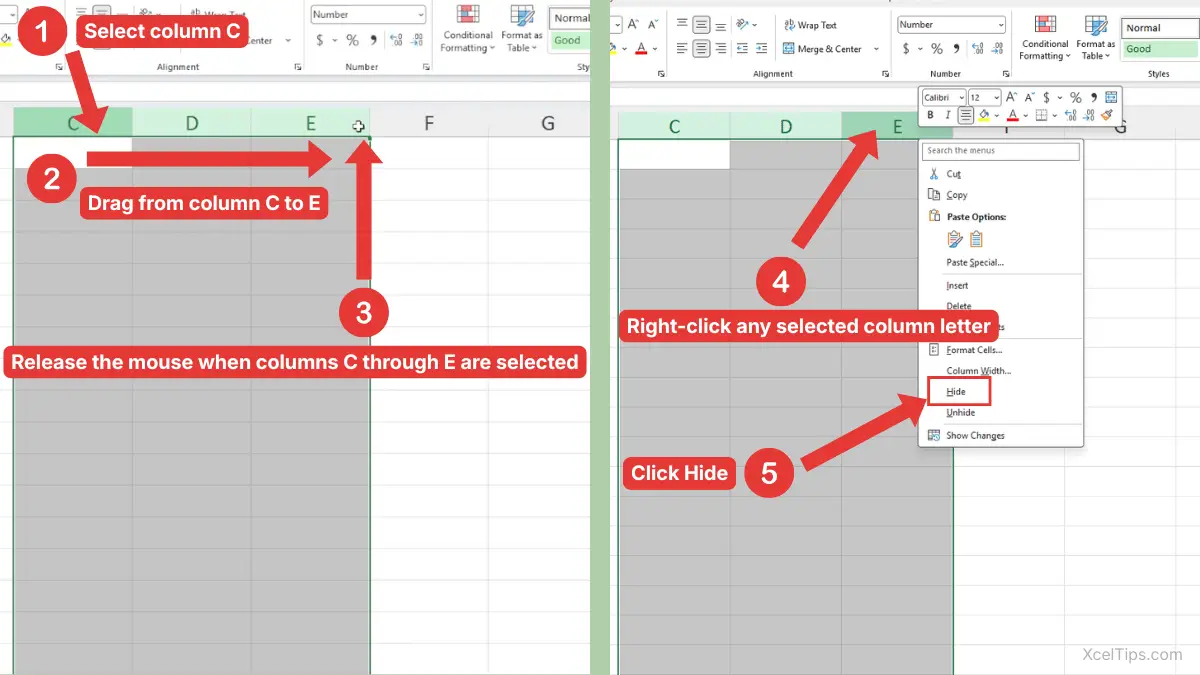
- Click the first column letter you want to hide.
- Drag across the other column letters you want to include.
- Release the mouse when all needed columns are selected.
Alternative selection method: You can also click the first column letter, hold Shift, and click the last column letter to select all adjacent columns between them. - Right-click any selected column letter.
- Choose Hide.
For example, if you want to hide columns C, D, and E, you can select all three column letters and hide them at the same time.
How to Hide Non-Adjacent Columns in Excel
Non-adjacent columns are columns that are not next to each other, such as B, D, and F. Excel lets you select and hide these columns together.
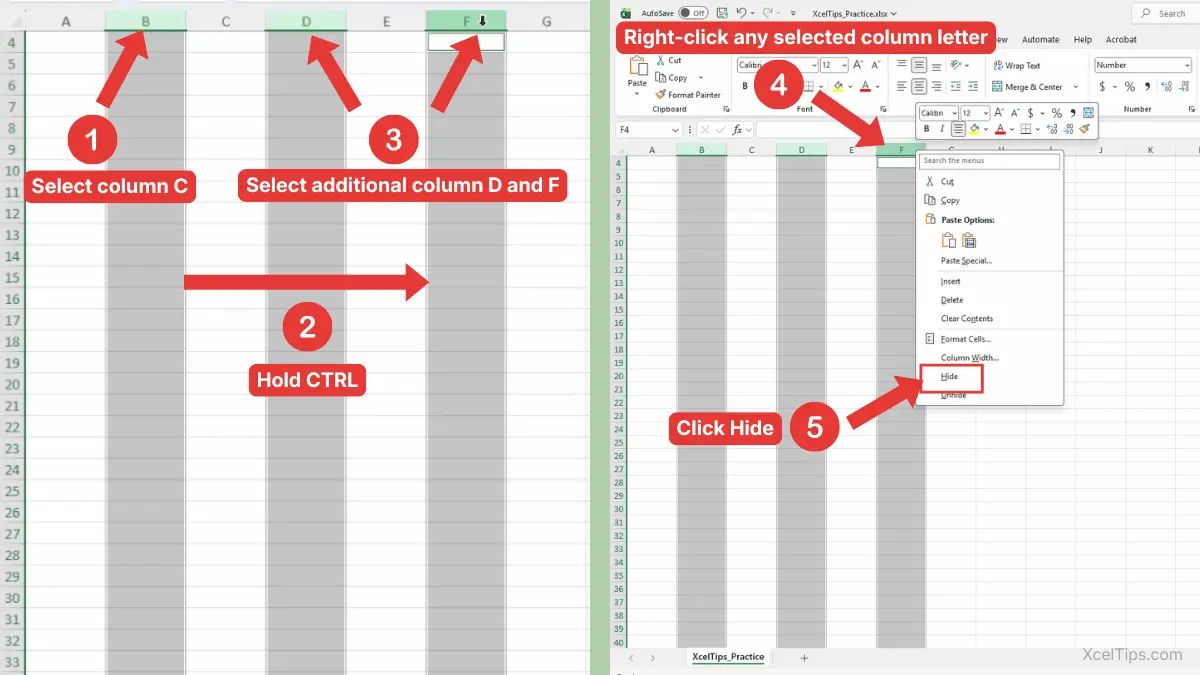
- Click the first column letter you want to hide.
- Hold Ctrl on your keyboard.
- While holding Ctrl, click each additional column letter.
- Release Ctrl after all columns are selected.
- Right-click one of the selected column letters.
- Choose Hide.
For example, you might hide columns B, D, and F if they contain extra reference fields that are not needed in the current view.
Beginner Warning:
Be careful when selecting non-adjacent columns. If you accidentally release Ctrl too early and click another column, Excel may replace your selection instead of adding to it.
The right-click method is usually the fastest for everyday use, but Excel also gives you a Ribbon command that does the same thing.
How to Hide Columns in Excel from the Ribbon
The Ribbon method is helpful if you prefer using Excel’s tabs and commands instead of the right-click menu. It is also useful when you are learning where Excel keeps layout and worksheet visibility tools.
This method uses the Home tab, which is where many beginner worksheet commands are located. The result is the same as the right-click method: the selected columns are hidden, not deleted.
Before using the command, select the column or columns you want to hide. The same Ribbon steps work whether you are hiding one column, adjacent columns, or non-adjacent columns. Excel needs to know which columns the command should affect.
- Select the column letter you want to hide.
- Go to the Home tab.
- In the Cells group, click Format.
- Hover over Hide & Unhide.
- Choose Hide Columns.
If you are following written instructions, the Ribbon path is:
Home tab → Cells group → Format → Hide & Unhide → Hide Columns
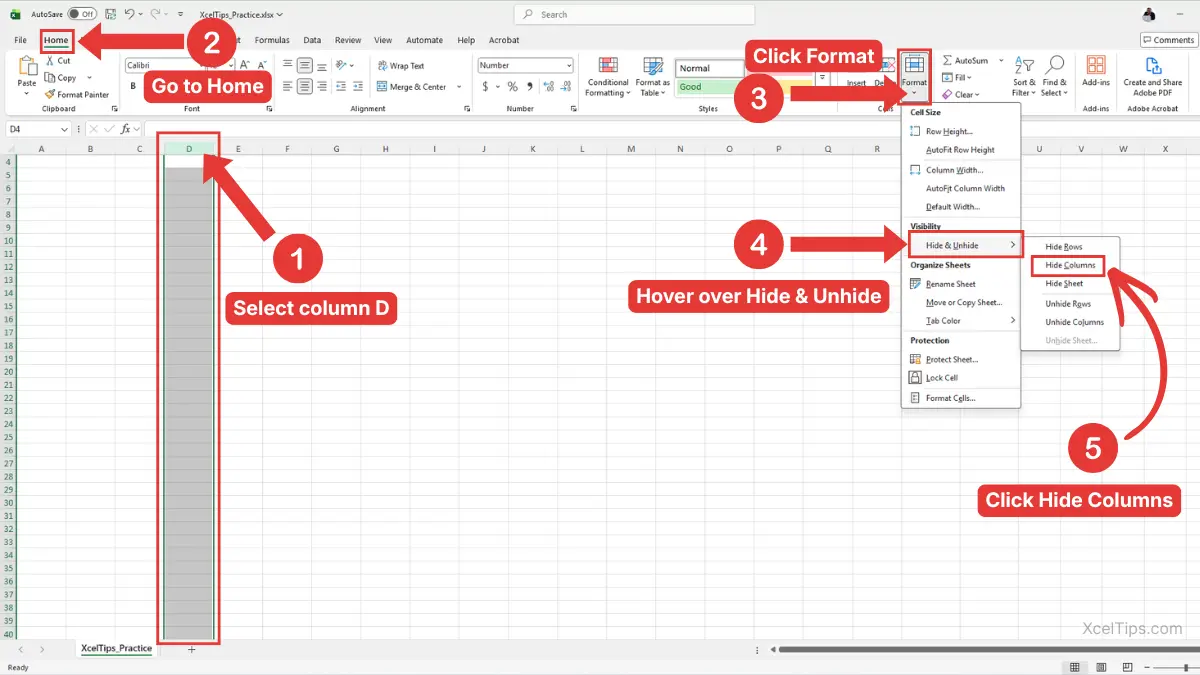
Excel hides the selected columns from the worksheet.
This method is a good answer when a beginner asks, “How do you hide columns in Excel from the toolbar?” The command is not called “toolbar” in the modern Excel interface, but many beginners use that word when they mean the Ribbon.
The Ribbon method is easy to follow, but when you repeat this action often, a keyboard shortcut may feel much faster.
Shortcut to Hide Columns in Excel
Excel also has a keyboard shortcut for hiding selected columns. This is useful when you already have the column selected and want to hide it without opening a menu.
For absolute beginners, it is best to learn the mouse method first. Once you understand what the command does, the shortcut becomes easier to remember and less confusing.
Before pressing the shortcut, make sure the entire column is selected. The shortcut works best when you select the column letter first, and it can be used to hide one column, adjacent columns, or non-adjacent columns.
- Click the column letter you want to hide.
- To hide more than one column, select the additional column letters, whether they are adjacent or non-adjacent.
- Press Ctrl + 0.
Excel hides the selected column or columns immediately.
For example, if you select column D and press Ctrl + 0, Excel hides column D. If you select columns D through F and press the shortcut, Excel hides all selected columns.
Beginner Warning:
Do not confuse Ctrl + 0 with Ctrl + 9. In Excel, Ctrl + 0 hides columns, while Ctrl + 9 hides rows.
Here is a quick comparison of the three beginner methods.
| Method | Best For | Beginner Difficulty |
|---|---|---|
| Right-click → Hide | Most everyday use | Easy |
| Home → Format → Hide Columns | Learning the Ribbon path | Easy |
| Ctrl + 0 | Fast repeated work | Medium |
Use whichever method feels most natural. They all hide the selected columns without deleting the data.
After hiding a column, the next beginner question is usually: “Where did it go?”
How Hidden Columns Look in Excel
When you hide a column, Excel does not leave a blank column space. Instead, the nearby column letters move together, and the hidden column letter disappears from view.
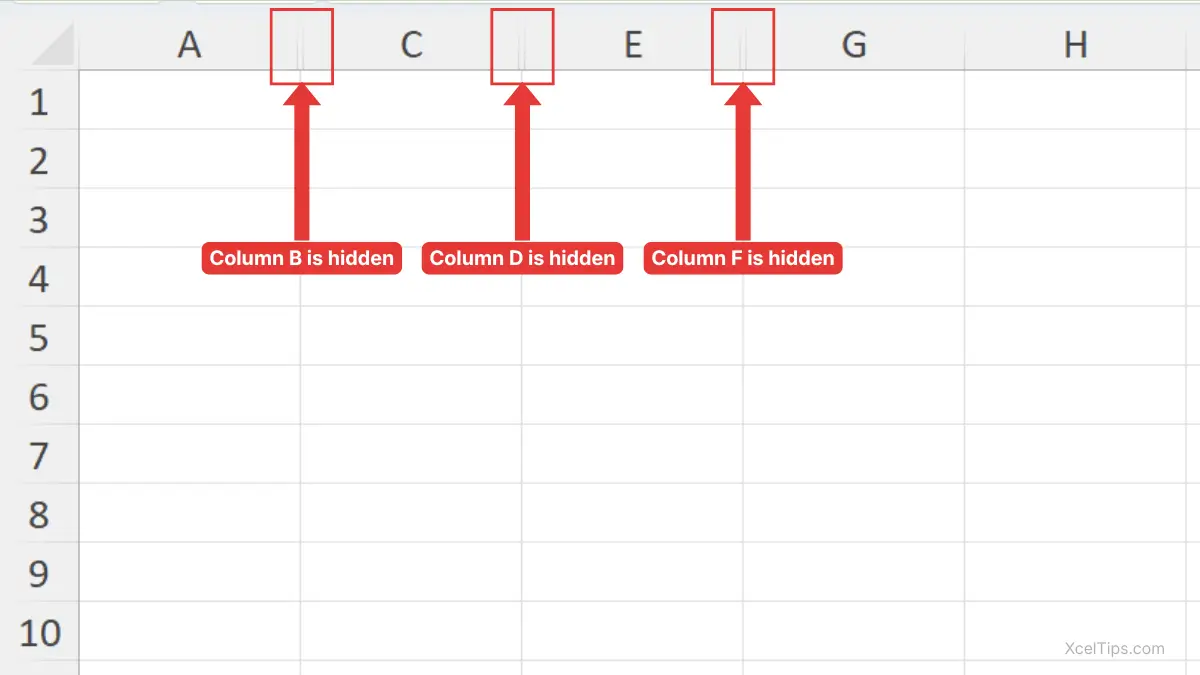
For example, if columns B, D, and F are hidden, you may see column letters A, C, E, G, and H. The missing B, D, and F indicate that those columns are hidden.
You may also notice a double line between the two visible column headers. Microsoft describes this double line as an indicator that a column is hidden.
Here are common signs that columns are hidden:
- A column letter is missing.
- There is a double line between two column letters.
- Formulas may still calculate using data you cannot currently see.
- The worksheet may look narrower than expected.
Beginner Tip:
If some column letters are missing, do not assume the columns were deleted. For example, if you see columns A, C, E, G, and H, the missing B, D, and F may simply be hidden.
This is why hiding is safer than deleting when you only want to clean up the view.
Hide Columns Without Deleting Data
One of the most important beginner lessons is understanding the difference between hiding and deleting. Both actions can make a column disappear from your screen, but they do very different things.
Hiding keeps the column in the workbook. Deleting removes the column and its data from the worksheet. If formulas or charts depend on that deleted data, they may change or break.
| Action | What Happens | Can You Bring It Back Later? | Best Use |
|---|---|---|---|
| Hide a column | Removes it from view | Yes, by unhiding | Temporarily simplify the worksheet |
| Delete a column | Removes the column and data | Only with Undo or backup | Permanently remove unwanted data |
For example, suppose column F contains helper calculations used by formulas in column G. If you delete column F, the formulas may stop working correctly. If you hide column F, the formulas can still use the values.
This is why hiding is often better when you are preparing a workbook for viewing, printing, or sharing.
If your real goal is to permanently remove a column, see the previous lesson on how to delete columns in Excel instead.
Once you understand the difference, it becomes easier to avoid common beginner mistakes.
Common Mistakes When Hiding Columns
Hiding columns is simple, but a few small mistakes can confuse beginners. Knowing these mistakes helps you work more confidently and prevents accidental workbook problems.
Most issues happen because beginners think hidden data is gone, select the wrong area, or forget that hidden columns still affect formulas.
Mistake 1: Thinking Hidden Columns Are Deleted
When a column disappears, it can look like the data was removed. In most cases, it is still there.
Hidden columns remain part of the worksheet. You can bring them back later by unhiding them.
Mistake 2: Hiding the Wrong Column
It is easy to hide the wrong column if you click the wrong letter at the top of the worksheet.
Before choosing Hide, look carefully at the highlighted column letters. If you accidentally selected C instead of D, click somewhere else and start again.
Mistake 3: Forgetting Hidden Columns Before Sharing
If you share a workbook, another person may unhide columns and see the hidden data. Hiding is not the same as protecting or securing information.
Beginner Warning:
Do not use hiding as a security method for private or sensitive information. It only changes what is visible on the worksheet.
Mistake 4: Confusing Hidden Columns with Filtered Data
Hiding columns affects the worksheet layout. Filtering affects which rows of data are shown based on criteria.
If your goal is to show only certain records, that belongs to filtering. If your goal is to remove a whole field from view, hiding columns is the better fit.
Now you can practice hiding columns in a simple worksheet.
Quick Practice
Use this short practice to make the skill feel natural. Open a simple worksheet such as XcelTips_Practice.xlsx or create a small sample table before you begin.
- Create a worksheet with five columns:
Product,Region,Product ID,Units Sold, andTotal Sales. - Select the
Product IDcolumn. - Right-click the selected column letter.
- Choose Hide.
- Look at the column letters and notice which letter is missing.
- Select two adjacent columns and hide them together.
- Try selecting two non-adjacent columns with Ctrl, then hide them.
- Press Ctrl + 0 after selecting a column to practice the shortcut.
After practicing the steps, review the main points so you remember when and how to hide columns.
Key Takeaways
Hiding columns is a simple way to clean up your worksheet without removing data. It is useful when you want to focus on important information while keeping supporting details available.
- Hiding a column removes it from view but does not delete it.
- The easiest method is to right-click a selected column letter and choose Hide.
- You can hide one column, adjacent columns, or non-adjacent columns.
- The Ribbon path is Home tab → Cells group → Format → Hide & Unhide → Hide Columns.
- The keyboard shortcut to hide selected columns is Ctrl + 0.
- Missing column letters and double lines can indicate hidden columns.
- Hiding is not a security feature because others may be able to unhide the data.
Before wrapping up, here are quick answers to common beginner questions about hiding columns in Excel.
Frequently Asked Questions (FAQs)
How do I hide columns in Excel?
Select the column letter or column letters you want to hide, right-click the selected column header, and choose Hide. You can also use Home tab → Format → Hide & Unhide → Hide Columns.
How to Hide Columns in Excel without deleting data?
Use the Hide command instead of Delete. Hiding removes the column from view, but the data stays in the worksheet and can be unhidden later.
How do you hide columns in Excel with a shortcut?
Select the column or columns first, then press Ctrl + 0. This hides the selected columns immediately.
Can I hide multiple columns at the same time?
Yes. Select the column letters first, then right-click and choose Hide. For adjacent columns, drag across the column letters. For non-adjacent columns, hold Ctrl while selecting each column.
Why are column letters missing in my worksheet?
Missing column letters usually mean one or more columns are hidden. For example, if the letters jump from B to D, column C may be hidden.
Is hiding a column the same as deleting it?
No. Hiding only removes the column from view. Deleting removes the column and its data from the worksheet.
Can hidden columns still be used in formulas?
Yes. Formulas can still refer to hidden columns. Hiding changes what you see, not whether the data exists.
With the common questions answered, let’s finish with a simple recap and the next step in your Excel learning path.
Conclusion
Learning How to hide columns in Excel gives you a safe way to simplify a worksheet without deleting important data. You can hide one column, several columns, or non-adjacent columns using the right-click menu, the Ribbon, or the Ctrl + 0 shortcut.
Practice with a small worksheet until you feel comfortable selecting column letters and recognizing hidden columns. This skill is especially useful when you want a cleaner view for reading, sharing, or presenting your data.
This lesson is part of the Beginner Learning Path, a structured series designed to help you learn Microsoft Excel step by step from the basics.