
Written By Sophanith Dith
Last Updated May 11, 2026
Applies to Microsoft Excel 365 (Windows only)
Part of the Beginner Learning Path
Module 2 Working with Data
Lesson 12 of 22
Sometimes a worksheet looks confusing because a column letter is missing. For example, you may see column B and column D beside each other, but column C is not visible. The data is usually not deleted. It is simply hidden.
In this tutorial, you will learn how to unhide columns in Excel using beginner-friendly methods. You will see how to bring back one hidden column, several hidden columns, all hidden columns, and even column A when it is hidden.
Unhiding columns is useful when you are reviewing a workbook, checking for hidden data, or working with a file someone else prepared. It helps you make sure you are seeing the full worksheet before editing, printing, or analyzing the data.
Once you understand what hidden columns look like, the unhide steps become much easier.
Quick Answer:
To unhide columns in Excel, select the visible columns on both sides of the hidden column, right-click the selected column letters, and choose Unhide. You can also use Home tab→ Cells group→ Format → Hide & Unhide → Unhide Columns.
If you just need the main idea first, this quick reference shows which method to use for each hidden-column situation.
Quick Reference
Before we go through each method step by step, here is a quick summary of the main ways to unhide columns in Excel.
- Hidden columns are usually shown by missing column letters, such as A, B, D.
- To unhide one column, select the columns on both sides of it and choose Unhide.
- To unhide multiple columns, select a wider range that includes the hidden columns.
- To unhide all columns, select the whole worksheet and use the Unhide Columns command.
- If column A is hidden, use the Name Box to select cell
A1first. - If Unhide does not work, the sheet may be protected or the column may simply be very narrow.
Before you can unhide a column, it helps to know what Excel is showing you.
How to Tell If a Column Is Hidden in Excel
A hidden column is still in the worksheet, but Excel temporarily removes it from view. The data inside the hidden column remains in the workbook unless someone deletes it separately.
Beginners often think hidden columns mean the data is gone. In most cases, the easiest clue is the column letters at the top of the worksheet. Column letters normally appear in order from left to right, such as A, B, C, D, and E.
If a column is hidden, the letters may skip. For example:
| What You See | What It Means |
|---|---|
| A, B, D, E | Column C is hidden |
| A, C, D, E | Column B is hidden |
| B, C, D,F | Columns A and E are hidden |
| A, B, F, G | Columns C, D, and E are hidden |
You may also notice a slightly thicker line or double border between two column headers. For example, if column C is hidden, you may see a boundary between column B and column D. This is the easiest way to recognize hidden columns before you try to unhide them.
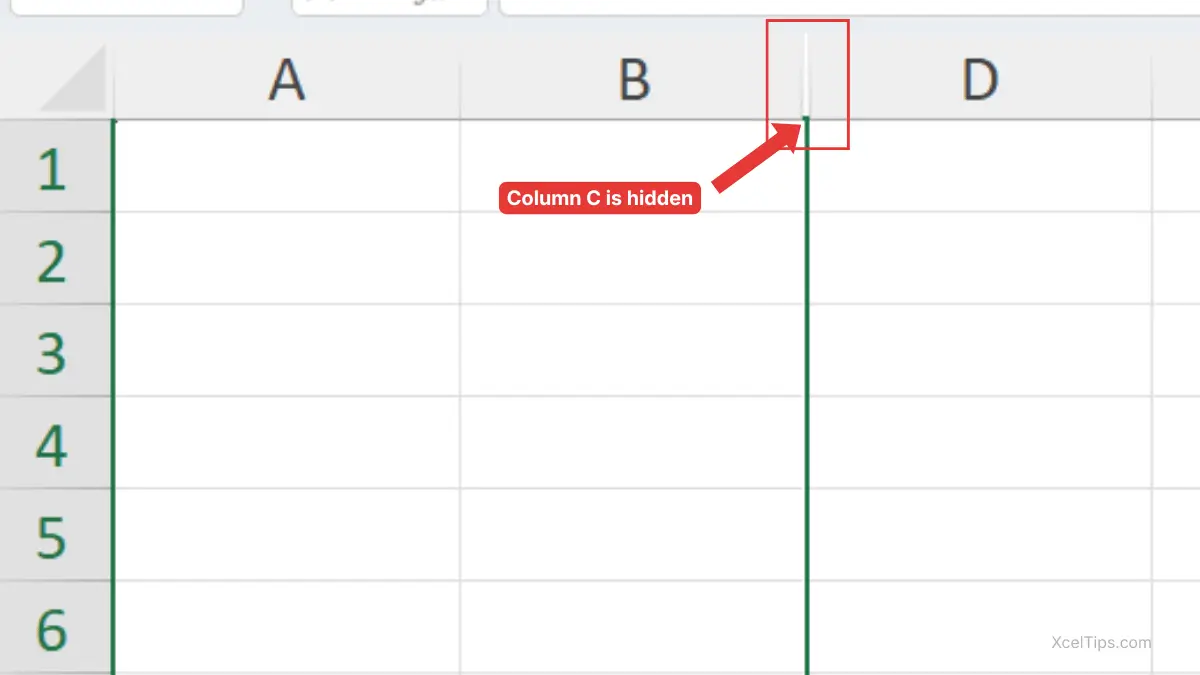
Once you can identify the hidden column, you can bring it back with the right-click method.
How to Unhide Columns in Excel with Right-Click
The right-click method is one of the easiest ways to unhide columns in Excel. It works directly from the column letters at the top of the worksheet.
This method is best when you can see the visible columns around the hidden column. You select the surrounding columns, then tell Excel to reveal anything hidden inside that selected area.
How to Unhide One Column with Right-Click
Use this method when one hidden column sits between two visible columns. For example, suppose column C is hidden, and you can see column B and column D.
If you need help selecting full columns, review how to select columns in Excel before following the steps below.
- Select columns B through D.
- Right-click one of the selected column letters.
- Choose Unhide.
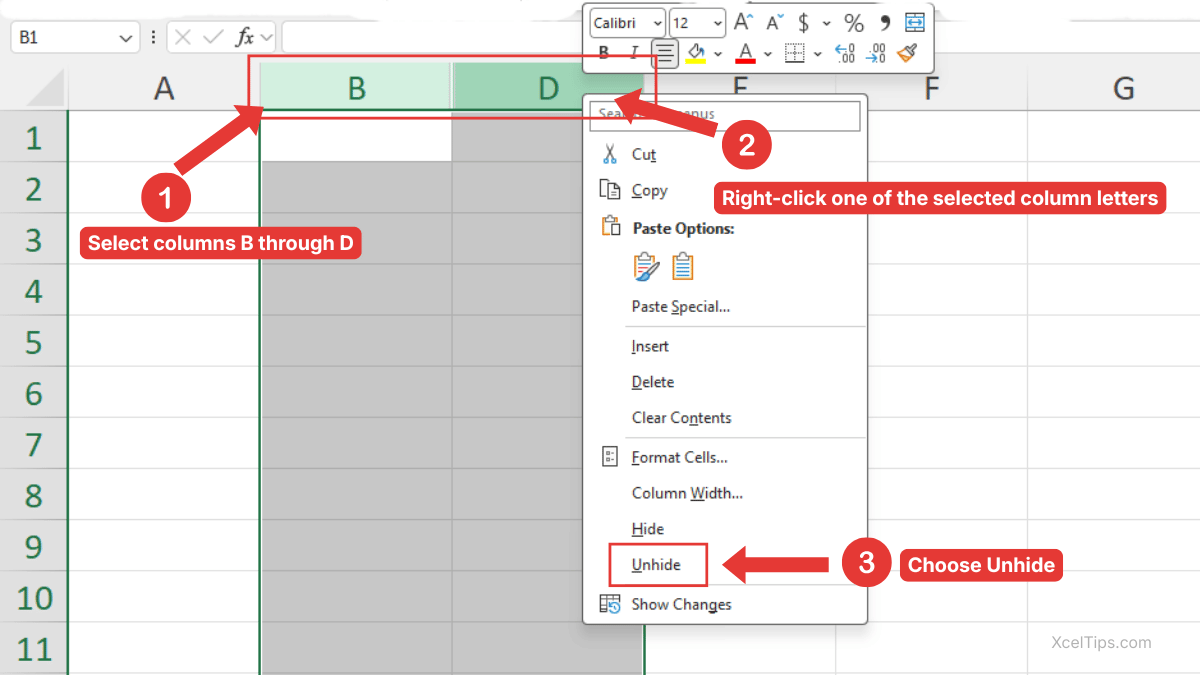
Excel makes column C visible again.
Beginner Warning:
Do not select only column B or only column D. If column C is hidden between them, Excel needs the surrounding columns selected so it knows which hidden column to restore.
How to Unhide Multiple Adjacent Columns with Right-Click
The same right-click method also works when several hidden columns are next to each other. You just need to select a wider range.
For example, suppose columns C, D, and E are hidden between columns B and F.
- Select columns B through F.
- Right-click one of the selected column letters.
- Choose Unhide.
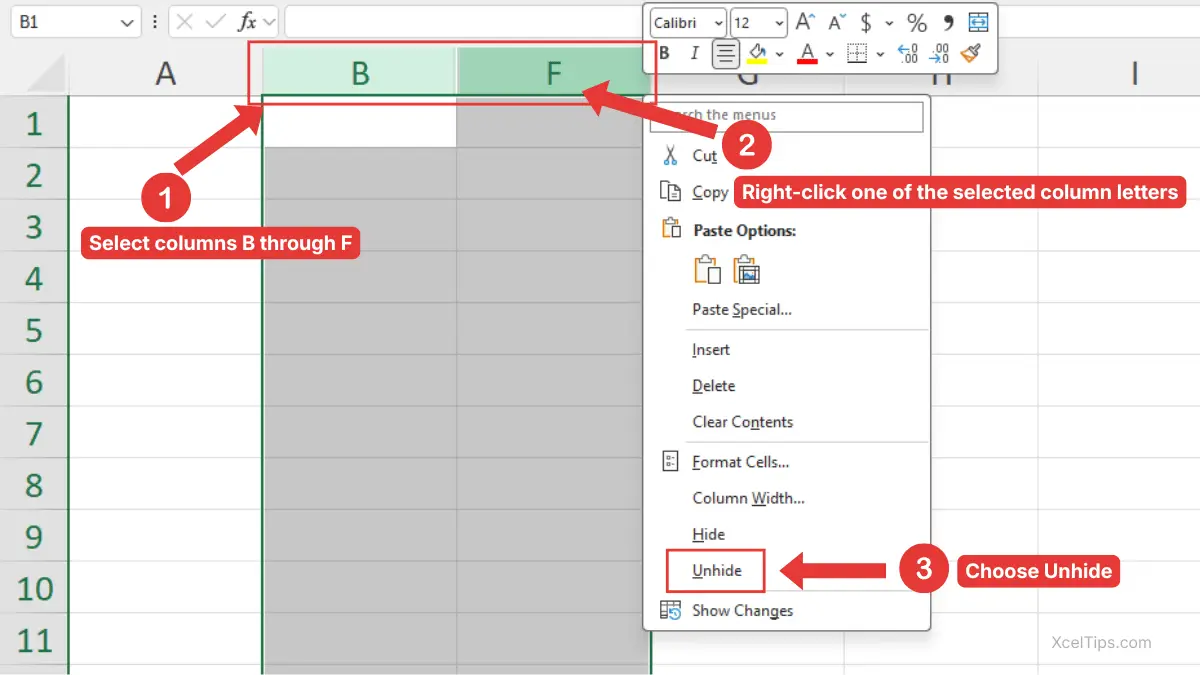
Excel makes columns C, D, and E visible again.
This is the simplest method for how to unhide multiple columns in Excel when the hidden columns are beside each other.
Beginner Tip:
You do not need to unhide each hidden column separately. If the hidden columns are next to each other, select the visible columns around the whole hidden area.
What If Hidden Columns Are Not Next to Each Other?
Sometimes hidden columns may be in different parts of the worksheet. For example, column C might be hidden near the left side, and column H might be hidden farther to the right.
In that case, you have two beginner-friendly options:
- Unhide each hidden area separately.
For example, to unhide column C, select columns B through D, right-click, and choose Unhide. Then, to unhide column H, select columns G through I, right-click, and choose Unhide. - Use the Select All button later in this tutorial to unhide all columns at once.
If you are not sure where all hidden columns are, you can select the whole worksheet and use Unhide Columns. This method is explained in the How to Unhide All Columns in Excel section later in this tutorial.
For most beginners, unhiding each area separately is easier when you know exactly where the hidden columns are. If the worksheet has many hidden columns or you are checking a file from someone else, the all-columns method is usually faster.
The right-click method is fast, but Excel also has a Ribbon command that gives you a clear menu path.
How to Unhide Columns in Excel from the Ribbon
The Ribbon method is useful when you prefer using Excel’s menu commands instead of right-clicking. It is also helpful if you are teaching someone else because the command path is easy to follow.
In Excel, the column unhide command is inside the Format menu on the Home tab. This method works for one hidden column, multiple adjacent hidden columns, or separate hidden column areas, depending on what you select first.
For example, if column C is hidden, select columns B through D first. If columns C, D, and E are hidden, select columns B through F first. If hidden columns are in separate areas, you can unhide each area separately or use the all-columns method later in this tutorial.
After selecting the correct columns, follow these steps. In this example, assume column C is hidden between column B and column D.
- Select columns B through D.
- Go to the Home tab.
- In the Cells group, click Format.
- Hover over Hide & Unhide.
- Choose Unhide Columns.
The full Ribbon path is:
Home tab → Cells group → Format → Hide & Unhide → Unhide Columns
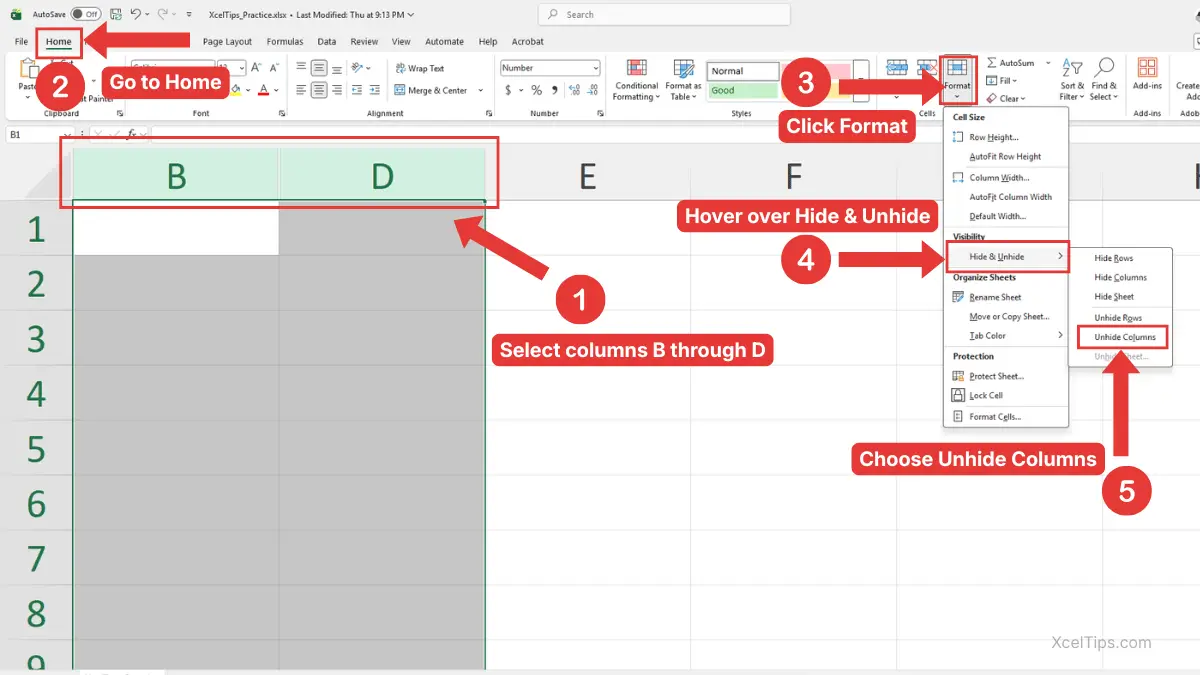
Excel unhides any hidden columns inside the selected area.
If you want Microsoft’s official reference, you can link to their guide here: Microsoft’s guide to hiding and showing rows or columns in Excel.
Some users also look for a keyboard shortcut, but beginners should understand the normal method first.
Shortcut to Unhide Columns in Excel
Excel has keyboard shortcuts for hiding and unhiding columns, but the unhide shortcut can be less reliable for beginners. On some Windows setups, the shortcut may conflict with system or keyboard settings.
Still, it is useful to know the common shortcut if you prefer working from the keyboard.
To unhide selected columns, try: Ctrl + Shift + 0
Before using the shortcut, select the visible columns around the hidden column. For example, if column C is hidden, select columns B through D first, then press Ctrl + Shift + 0.
If the shortcut works, Excel unhides the hidden column inside the selected area.
Beginner Warning:
If Ctrl + Shift + 0 does not work on your computer, use the right-click method or the Ribbon method instead. Those methods are easier to see and more consistent for beginners.
A shortcut can save time later, but when you are learning, the right-click and Ribbon methods are usually clearer.
When you do not know where the hidden columns are, the best approach is to unhide every column in the worksheet.
How to Unhide All Columns in Excel
Sometimes you may receive a worksheet and not know which columns are hidden. Instead of checking each missing column letter one by one, you can select the entire worksheet and unhide all columns at once.
This is the best method for how to unhide all columns in Excel when you want to make sure every hidden column on the current worksheet is visible.
Method 1: Use the Select All Button
The Select All button selects the entire worksheet. It is the small triangle in the top-left corner where the row numbers and column letters meet.
- Click the Select All button in the top-left corner of the worksheet.
- Right-click any column letter.
- Choose Unhide.
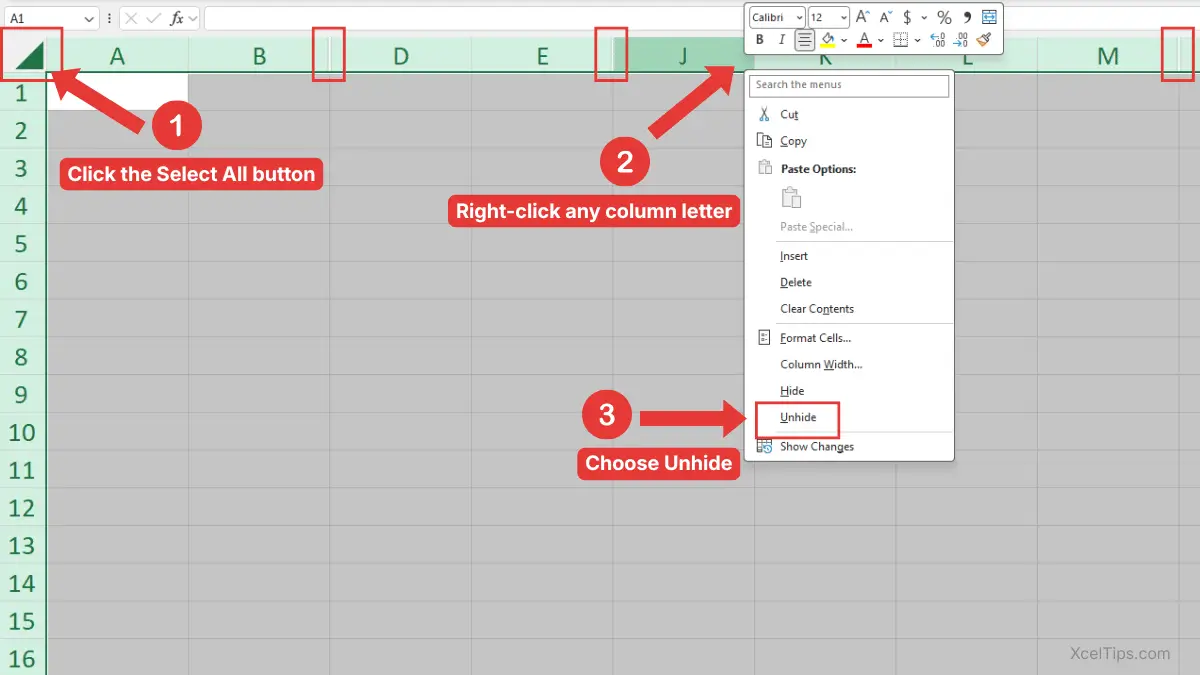
Excel unhides all hidden columns in the active worksheet.
This is a quick method when you want to use the mouse and avoid searching through the Ribbon.
Beginner Tip:
This affects only the current worksheet. If your workbook has multiple sheet tabs, repeat the steps on any other sheet where columns may be hidden.
Method 2: Use the Ribbon After Selecting the Whole Worksheet
You can also select the whole worksheet first, then use the Ribbon command. This is helpful if you prefer visible menu commands.
- Click the Select All button in the top-left corner of the worksheet.
- Go to the Home tab.
- In the Cells group, click Format.
- Hover over Hide & Unhide.
- Choose Unhide Columns.
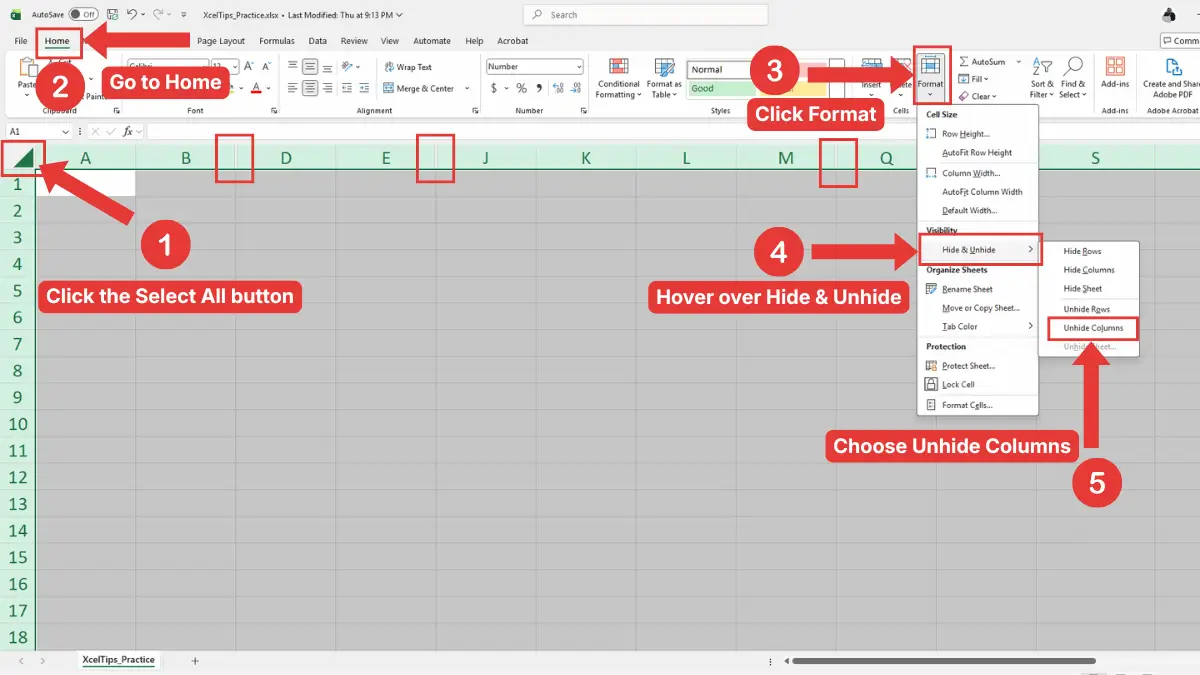
Excel makes all hidden columns visible on the active worksheet.
The full path is:
Select All button → Home tab → Cells group → Format → Hide & Unhide → Unhide Columns
This method is especially useful when you are checking a workbook before editing, printing, or sharing it.
Beginner Warning:
Unhiding all columns may reveal columns that someone intentionally hid to simplify the worksheet. If you are working in a shared file, check before changing the layout permanently.
Unhiding all columns also helps with column A, but there is another specific method for column A when it is hidden.
How to Unhide only Column A in Excel
Column A is a special case because it is the first column in the worksheet. If column A is hidden, there is no visible column on the left side that you can select.
This is why beginners often get stuck when the worksheet appears to start at column B. The easiest solution is to use the Name Box to select cell A1, then use the Ribbon command.
- Click inside the Name Box to the left of the formula bar. Type
A1. Then press Enter. - Go to the Home tab.
- In the Cells group, click Format.
- Hover over Hide & Unhide.
- Choose Unhide Columns.
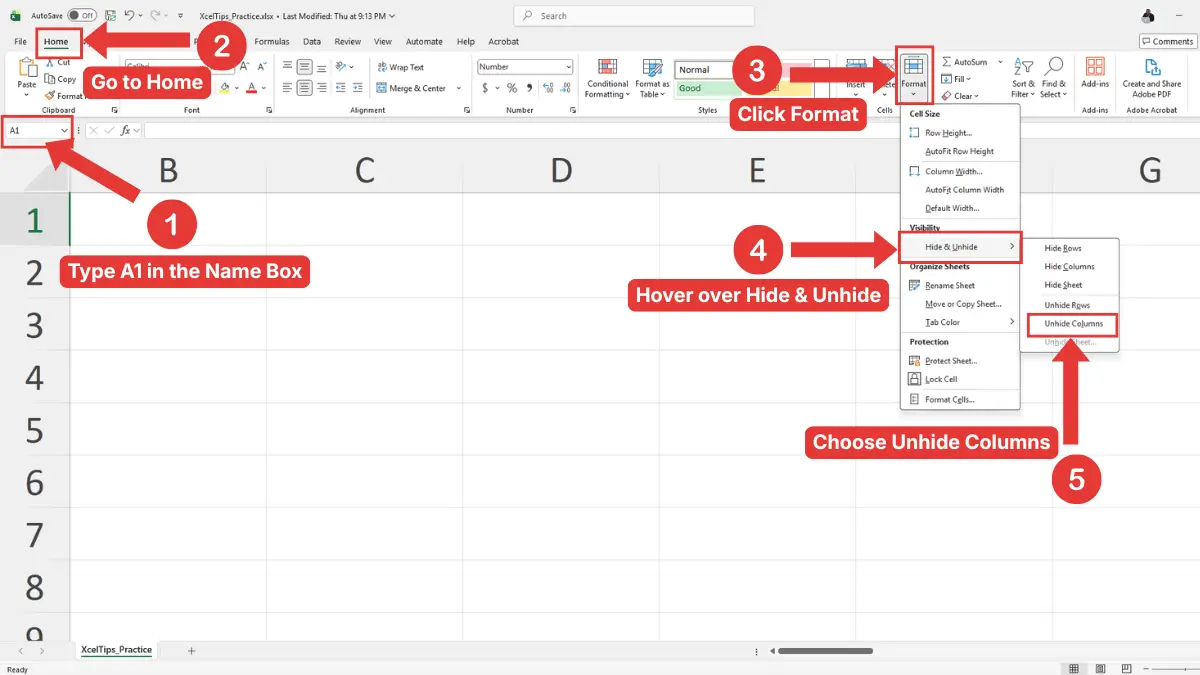
Excel unhides column A.
The Name Box lets you jump to a cell even when the column is hidden. After Excel selects cell A1, the unhide command can restore the hidden column.
Beginner Warning:
Do not type A1 into a normal worksheet cell. Use the Name Box beside the formula bar.
You can also unhide column A by using the earlier How to Unhide All Columns in Excel method. That method shows every hidden column in the active worksheet, including column A.
Most hidden columns are easy to restore, but a few problems can make the process seem like it is not working.
Why Unhide Columns May Not Work
If you try to unhide columns and nothing appears, it does not always mean the steps are wrong. Excel may be dealing with a different issue, such as a very narrow column, worksheet protection, or an incorrect selection.
Use this table to check the most common beginner problems.
| Problem | What It Looks Like | What to Try |
|---|---|---|
| Wrong columns selected | The hidden column stays missing | Select the visible columns on both sides of the hidden column |
| Column is very narrow | The column letter exists, but data is hard to see | Adjust the column width |
| Sheet is protected | Unhide commands may be unavailable | Unprotect the sheet if you have permission |
| Column A is hidden | The worksheet starts at column B | Use the Name Box method or Select All method |
| Hidden columns are on another sheet | Current sheet looks normal | Check other worksheet tabs |
A hidden column and a very narrow column can look similar at first. The main clue is the column letter.
If the column letter is missing, the column is probably hidden. If the column letter is still visible, but the space is very small, the column may only need a wider width.
For example, if you can still see column C but it is squeezed tightly, adjust the column width instead of using Unhide. This connects to the next layout skill: how to adjust column width in Excel.
Beginner Tip:
Before assuming data is missing, check the column letters carefully. Many “missing data” problems are really hidden or narrow column problems.
Now that you know the main methods and common problems, practice the skill in a simple worksheet.
Quick Practice
Practice helps you remember how hidden columns behave. Open a blank workbook or a practice file such as XcelTips_Practice.xlsx, then try this simple exercise:
- Type headings in cells
A1throughE1, such asName,January,February,March, andTotal. - Hide column C.
- Notice that the column letters jump from B to D.
- Select columns B through D.
- Right-click one of the selected column letters.
- Choose Unhide.
- Confirm that column C appears again.
Then try this second exercise:
- Hide columns B, C, and D.
- Select columns A through E.
- Right-click one of the selected column letters.
- Choose Unhide.
- Confirm that columns B, C, and D appear again.
Finally, try selecting the whole worksheet and using:
Home tab → Cells group → Format → Hide & Unhide → Unhide Columns
This practice helps you understand that unhiding columns does not recreate deleted data. It only makes hidden worksheet columns visible again.
After you practice the steps, review the main points so you can choose the right unhide method quickly
Key Takeaways
Unhiding columns is a simple layout skill, but it is important when working with real Excel files. Hidden columns can make a worksheet look incomplete if you do not know what to check.
- Hidden columns still exist in the worksheet.
- Missing column letters usually mean one or more columns are hidden.
- To unhide one column, select the visible columns on both sides and choose Unhide.
- To unhide multiple adjacent columns, select the visible columns around the hidden range.
- To unhide all columns, select the whole worksheet and use Unhide Columns.
- To unhide column A, use the Name Box, or use the earlier Unhide All Columns method.
- If unhide does not work, check for sheet protection, narrow columns, or the wrong selection.
Before you finish, here are answers to common beginner questions about unhiding columns in Excel.
Frequently Asked Questions (FAQs)
How do you unhide columns in Excel?
Select the visible columns on both sides of the hidden column, right-click the selected column letters, and choose Unhide.
You can also use Home tab → Cells group → Format → Hide & Unhide → Unhide Columns.
How do I know if a column is hidden?
Look at the column letters. If the letters skip, such as A, B, D, then column C is hidden. A thicker line or double border between column headers can also be a clue.
How do I unhide a column in Excel?
Select the columns on both sides of the hidden column, right-click the selected column letters, and choose Unhide. For example, if column C is hidden, select columns B through D first.
How do I unhide multiple columns in Excel?
Select the visible columns around the hidden columns. For example, if columns C, D, and E are hidden between B and F, select columns B through F, right-click, and choose Unhide.
How do I unhide all columns in Excel?
Click the Select All button in the top-left corner of the worksheet. Then right-click any column letter and choose Unhide, or use Home tab → Format → Hide & Unhide → Unhide Columns.
How do I unhide column A in Excel?
Click the Name Box, type A1, and press Enter. Then go to Home tab → Cells group → Format → Hide & Unhide → Unhide Columns.
Why can’t I unhide columns in Excel?
The sheet may be protected, the wrong columns may be selected, or the column may only be very narrow instead of hidden. Check whether the column letters are missing before using Unhide.
With the most common questions covered, let’s wrap up the main skill and the next step in your Excel learning path.
Conclusion
Learning how to unhide columns in Excel helps you bring back hidden worksheet data without worrying that it has been deleted. Once you recognize missing column letters, you can quickly restore one column, multiple columns, all columns, or column A.
Practice with a simple worksheet until the steps feel natural. This skill is especially useful when reviewing shared workbooks or checking files created by someone else.
This lesson is part of the Beginner Learning Path, a structured series designed to help you learn Microsoft Excel step by step from the basics.