
Written By Sophanith Dith
Last Updated May 12, 2026
Applies to Microsoft Excel 365 (Windows only)
Part of the Beginner Learning Path
Module 2 Working with Data
Lesson 13 of 22
If you have ever typed data in the wrong place, created a list in one area, or wanted to move information without starting over, you need to know how to cut and paste in Excel. Cut and paste lets you move data from one location to another, while copy and paste lets you duplicate data without removing the original.
These are basic Excel skills, but they are also easy to misuse when you are new. One wrong paste can replace existing data, move the wrong cells, or copy information into the wrong location.
In this tutorial, you will learn how Cut, Copy, and Paste work in Excel, when to use each one, and how to avoid common beginner mistakes.
Quick Answer:
To cut and paste in Excel, select the cell or range you want to move, press Ctrl + X, click the destination cell, and press Ctrl + V. To copy and paste instead, press Ctrl + C before pasting. Cut moves the original data, while Copy keeps the original and creates a duplicate.
The quick answer gives you the basic shortcut sequence, but it also helps to see when each command should be used.
Quick Reference
Before you follow the full steps, use this quick guide to understand the main actions. These are the commands you will use most often when moving or duplicating worksheet data.
- Use Cut when you want to move data.
- Use Copy when you want to duplicate data.
- Use Paste to place the cut or copied data somewhere else.
- Use Ctrl + X to cut, Ctrl + C to copy, and Ctrl + V to paste.
- Always click the destination cell before pasting.
- Be careful not to paste over existing data you still need.
Once you understand these three commands, the steps become much easier to follow.
What Cut, Copy, and Paste Mean in Excel
Before using the commands, it helps to understand what each one actually does. Beginners often mix up Cut and Copy because both commands let you paste data somewhere else.
In Excel, Cut, Copy, and Paste work through the Clipboard. The Clipboard temporarily holds the data you cut or copy until you paste it into another location.
| Command | What It Does | Best Used When |
|---|---|---|
| Cut | Moves data from one place to another | You want to remove the original data |
| Copy | Duplicates data | You want to keep the original data |
| Paste | Places the cut or copied data | You are ready to insert it somewhere else |
For example, if cell A2 contains the word “January” and you cut it, Excel prepares to move it. When you paste it into B2, the value moves from A2 to B2.
If you copy A2 instead, Excel keeps “January” in A2 and also places another copy in B2.
Beginner Tip:
Think of Cut as “move” and Copy as “duplicate.”
If selecting the correct cells still feels confusing, review the earlier lesson on how to select cells and ranges in Excel before practicing these steps.
Once the difference between Cut and Copy is clear, start with Cut because it changes the original location of your data.
How to Cut and Paste in Excel
Cut and paste is the method you use when you want to move data instead of duplicate it. This is useful when information is in the wrong place and you want to relocate it without typing it again.
How to Cut and Paste in Excel Using the Keyboard
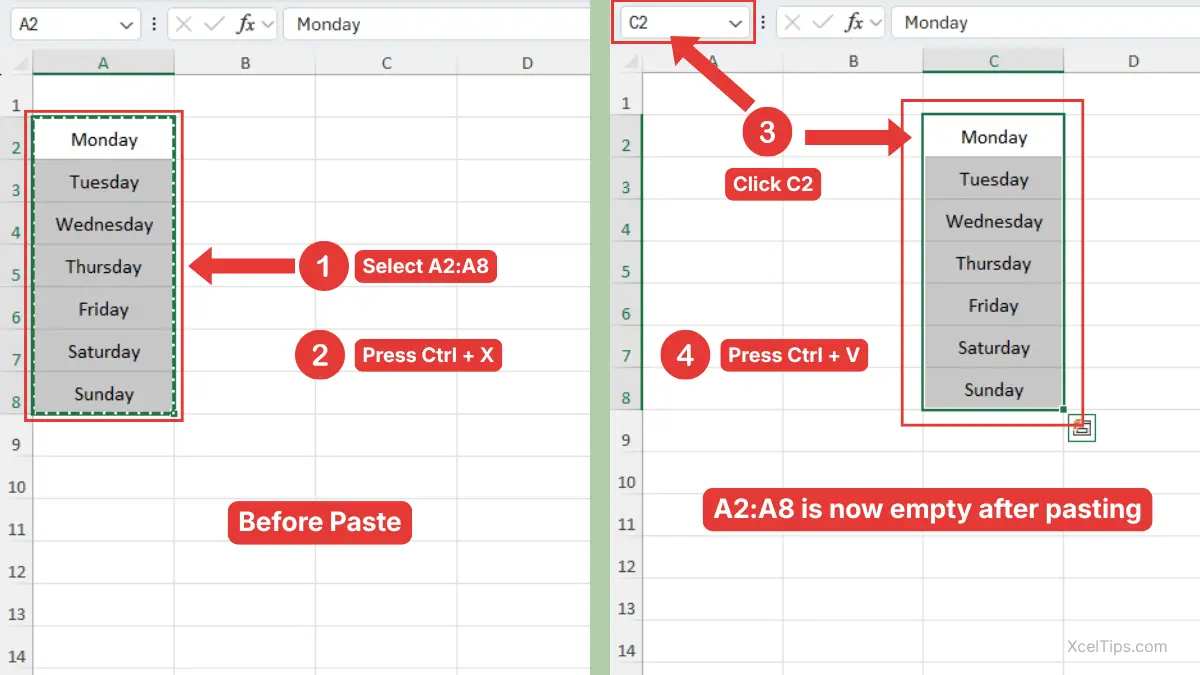
Start with a simple range so you can clearly see what changes. In this example, imagine you want to move data from cells A2:A8 to cells C2:C8.
For example, if cells A2:A8 contain Monday through Sunday, you can cut that range and paste it starting in C2. Excel moves Monday through Sunday from A2:A8 to C2:C8.
- Select the cell or range you want to move.
- Press Ctrl + X.
- Click the first destination cell where you want the data to appear.
- Press Ctrl + V.
Excel moves the selected data to the new location.
Beginner Warning:
Cut removes the data from the original location after you paste it. If you only wanted a duplicate, use Copy instead.
How to Cut and Paste from the Ribbon
If you want to know how to cut in Excel without using shortcuts, you can use the Ribbon. This is helpful while you are still learning where Excel commands are located.
You can use the same example with the Ribbon method. If cells A2:A8 contain Monday through Sunday, select A2:A8, use the Cut command on the Home tab, click C2, and then use Paste to move the list into C2:C8.
- Select the data you want to move.
- Go to the Home tab.
- In the Clipboard group, click Cut.
- Click the destination cell.
- Click Paste on the same Home tab, in the Clipboard group.
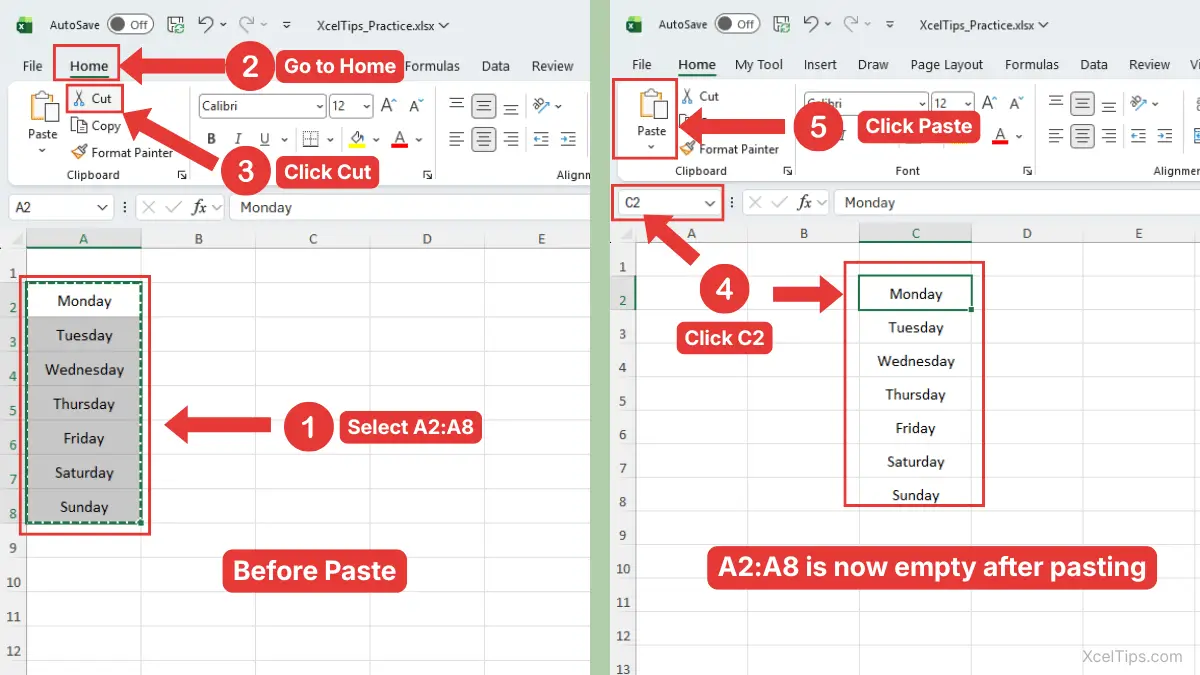
The Ribbon method does the same thing as the keyboard shortcut and right-click method.
How to Cut and Paste in Excel by Right-Clicking
You can also cut and paste by using the right-click menu. This method is useful for beginners because the commands appear close to the selected cells.
You can use the same weekday example with the right-click method. If cells A2:A8 contain Monday through Sunday, select A2:A8, right-click the selection and choose Cut, click C2, then right-click C2 and choose Paste to move the list into C2:C8.
- Select the cell or range you want to move.
- Right-click the selected cell or range.
- Choose Cut.
- Click the destination cell where you want the data to appear.
- Right-click the destination cell.
- Choose Paste.
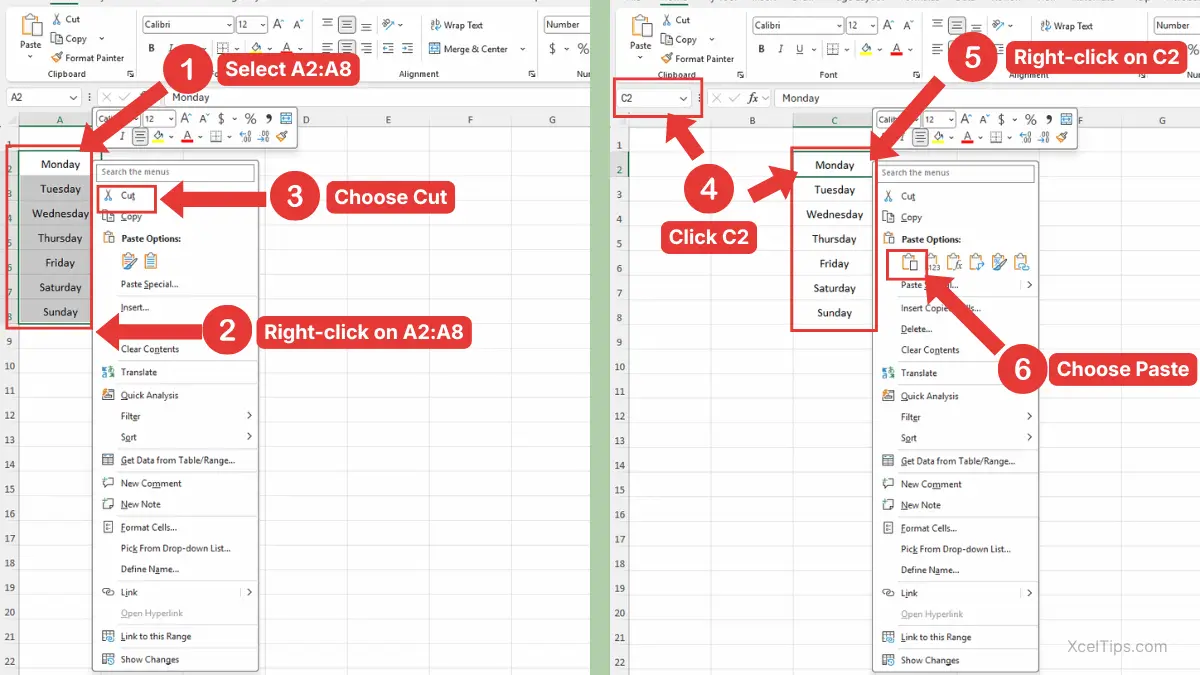
If you do not see the full Paste command, look for the clipboard icon in the right-click menu. Excel moves the selected data to the new location and removes it from the original location.
After learning how to move data with Cut, it is easier to understand Copy, which keeps the original data in place.
How to Copy and Paste in Excel
Copy and paste is used when you want the same data in another location. This is different from cutting because the original cells stay unchanged.
This is one of the most common beginner tasks in Excel. If you are learning how to copy and paste in excel, focus on selecting the correct source cells first, then choosing the correct destination cell before pasting.
How to Copy and Paste in Excel Using the Keyboard
Use this method when you want to duplicate labels, numbers, lists, or simple cell ranges. You can use the same weekday example to practice copying. You can use the same weekday example to practice copying. If cells A2:A8 contain Monday through Sunday, select A2:A8, press Ctrl + C, click C2, and press Ctrl + V to copy the list into C2:C8 while keeping the original list in A2:A8.
- Select the cell or range you want to copy.
- Press Ctrl + C.
- Click the destination cell.
- Press Ctrl + V.
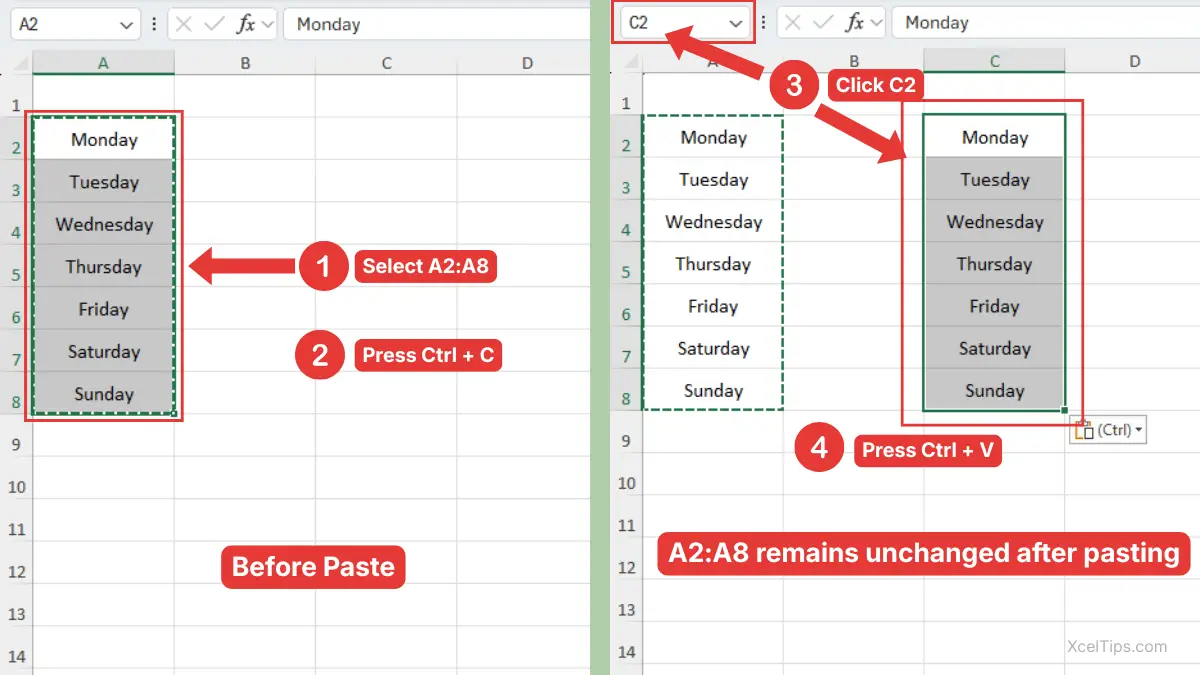
Excel places a copy of the selected data in the new location while keeping the original data in place.
Beginner Tip:
After you copy data, Excel usually shows a moving border around the copied range. This helps you see what is currently on the clipboard.
How to Copy in Excel from the Ribbon
You can also copy data by using the Home tab. This method is slower than the shortcut, but it is useful when you are learning the interface.
You can use the same weekday example with the Ribbon method. If cells A2:A8 contain Monday through Sunday, select A2:A8, use the Copy command on the Home tab, click C2, and then use Paste to copy the list into C2:C8 while keeping the original list in A2:A8.
- Select the cells you want to copy.
- Go to the Home tab.
- In the Clipboard group, click Copy.
- Click the destination cell.
- Click Paste on the same Home tab, in the Clipboard group.
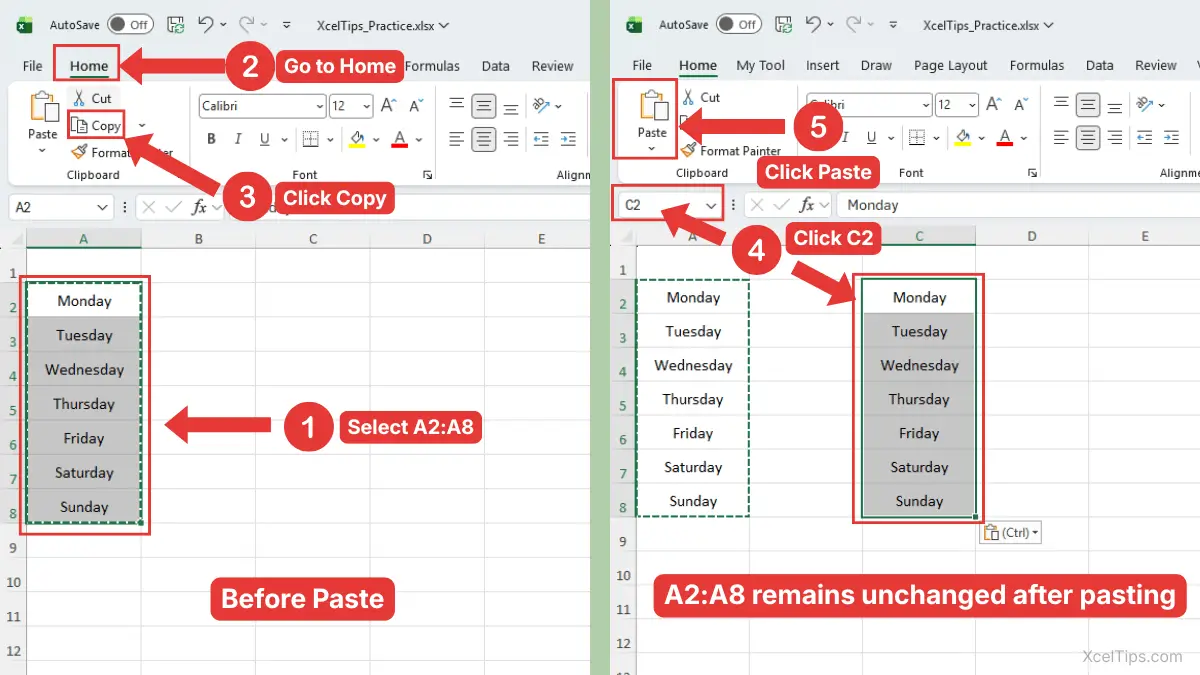
This is the basic Ribbon method for how to copy in Excel without using keyboard shortcuts.
How to Copy and Paste in Excel by Right-Clicking
The right-click menu also lets you copy and paste data without using the Ribbon or keyboard shortcuts. This is a simple method when you are working directly inside the worksheet.
You can use the same weekday example with the right-click method. If cells A2:A8 contain Monday through Sunday, select A2:A8, right-click the selection and choose Copy, click C2, then right-click C2 and choose Paste to copy the list into C2:C8 while keeping the original list in A2:A8.
- Select the cell or range you want to copy.
- Right-click the selected cell or range.
- Choose Copy.
- Click the destination cell where you want the copy to begin.
- Right-click the destination cell.
- Choose Paste.
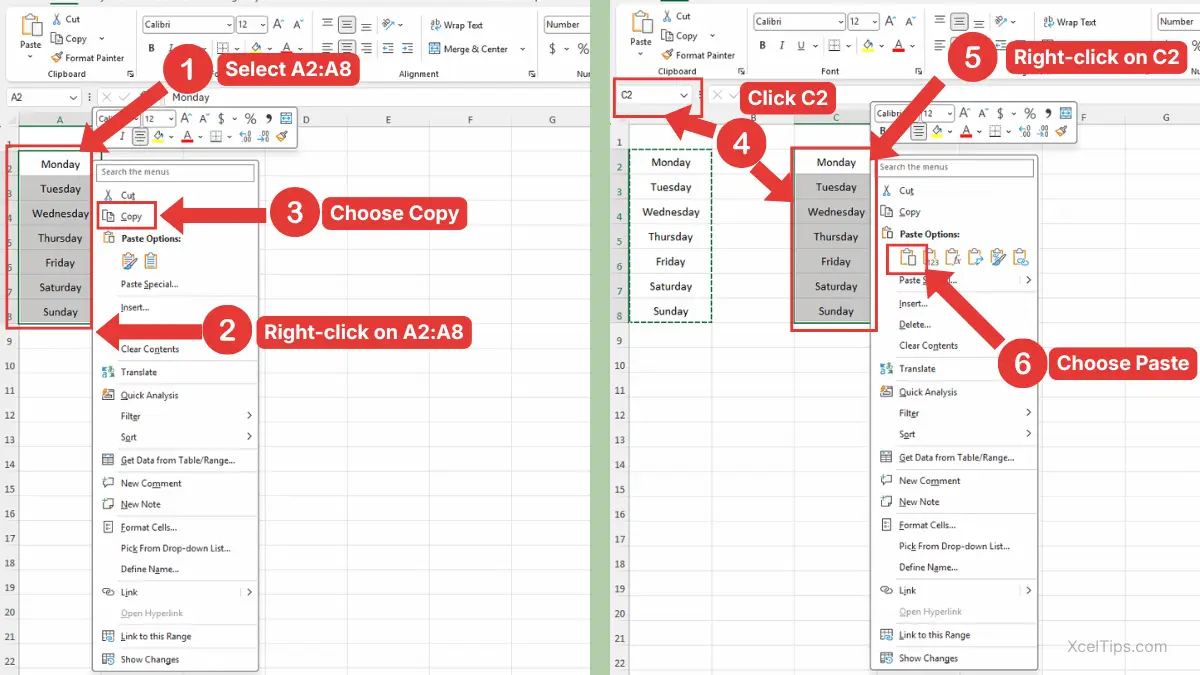
Excel places a duplicate of the selected data in the new location while keeping the original data unchanged.
Copying is usually safer than cutting when you are not sure what you want to do, because the original data remains in place.
How to Paste in Excel Without Overwriting the Wrong Data
Pasting is the final step after cutting or copying. It sounds simple, but this is where many beginners accidentally replace existing information.
When learning how to paste in excel, the most important habit is to click the correct destination cell first. Excel uses that cell as the top-left starting point for the pasted data. This matters most when you are pasting more than one cell.
Choose the Destination Cell Carefully
Before pressing Ctrl + V, look at the area where the pasted data will go. If your copied range has several rows or columns, Excel will fill outward from the cell you select.
For example, if you copy cells A2:B5 and click cell D2 before pasting, Excel pastes the copied range into D2:E5.
- Copy or cut the source data.
- Click the top-left cell of the destination area.
- Check that nearby cells are empty or safe to replace.
- Press Ctrl + V.
Beginner Warning:
If the destination cells already contain data, Excel may replace that data when you paste.
Use the Paste Button on the Home Tab
If you do not want to use shortcuts, you can paste from the Ribbon. This method is helpful when you are still learning where Excel commands are located.
Microsoft explains that Excel includes several Paste options, but beginners can start with the normal Paste command first.
- Cut or copy your data.
- Click the destination cell.
- Go to the Home tab.
- In the Clipboard group, click Paste.
For this beginner lesson, the normal Paste command is enough. More specific options, such as pasting values only or formatting only, belong in a later lesson on Paste Special.
Once you are comfortable with basic pasting, you can use the same skill to move or copy data between worksheet tabs.
How to Cut, Copy, and Paste Between Worksheets
Cut, Copy, and Paste are not limited to one worksheet. You can use the same commands to move or copy data from one worksheet tab to another in the same workbook.
This is helpful when you want to organize information across sheets. For example, you might copy a list from a “Data” sheet to a “Summary” sheet, or move completed items from one worksheet to another.
Copy Data to Another Worksheet
Use Copy when you want the original data to stay on the first worksheet. This is a safe method when you are building a summary, backup, or duplicate list.
- Go to the worksheet that contains the data.
- Select the cell or range you want to copy.
- Press Ctrl + C.
- Click the destination worksheet tab.
- Click the cell where the copied data should begin.
- Press Ctrl + V.
The data now appears on the second worksheet, and the original stays on the first worksheet.
Cut Data to Another Worksheet
Use Cut when you want to move data away from the original worksheet. This is useful when data was entered on the wrong sheet.
- Go to the worksheet that contains the data.
- Select the cell or range you want to move.
- Press Ctrl + X.
- Click the destination worksheet tab.
- Click the cell where the moved data should begin.
- Press Ctrl + V.
Excel moves the selected data to the new worksheet.
Beginner Warning:
Do not use Cut if you want to keep a copy on the original worksheet. Use Copy instead.
Copy and Paste Rows, Columns, or Cell Ranges
Most beginners start by copying one cell, but Excel also lets you copy larger areas. You can copy a range of cells, a full row, or a full column depending on what you selected first.
The key is to select the right type of data before using Copy or Cut. Excel will paste the same shape of data into the new location.
Copy a Range of Cells
A range is a group of cells. For example, A2:C6 is a rectangular range that includes multiple rows and columns.
- Select the range you want to copy.
- Press Ctrl + C.
- Click the top-left destination cell.
- Press Ctrl + V.
Excel pastes the full range starting from the destination cell.
Copy a Full Row or Column
You can also copy a full row or full column, but be careful because this affects much larger areas of the worksheet.
This article only touches on selecting rows and columns briefly. For more detail, use the supporting lessons on how to select rows in Excel and how to select columns in Excel before following these steps:
- Select the row number or column letter you want to copy.
- Press Ctrl + C.
- Click the destination row number or column letter.
- Press Ctrl + V.
This is useful when you want to duplicate a complete row layout or column of entries.
Beginner Tip:
If you only need a small part of a row or column, select just that range instead of the entire row or column.
Once you understand what can be copied, it is also important to know which method to choose in different situations.
Copy vs Cut in Excel: Which One Should You Use?
Copy and Cut may look similar because both are followed by Paste. However, they are used for different goals.
Choosing the wrong one can create extra duplicates or remove data from the original location. The table below can help you decide which command is right for the task.
| Situation | Best Command | Why |
|---|---|---|
| You want the same data in another place | Copy | The original remains unchanged |
| You entered data in the wrong location | Cut | The data moves to the correct location |
| You want a backup before editing | Copy | You keep the original version |
| You want to remove data from one place and put it somewhere else | Cut | The data moves instead of being duplicated |
| You are unsure what you need | Copy | It is safer for beginners |
As a simple rule, use Copy when you want to keep the original. Use Cut when you are sure the data should move.
Beginner Warning:
Cut is not the same as Delete. Cut prepares data to be moved somewhere else. Delete removes data without preparing it for pasting.
Keyboard Shortcuts for Cut, Copy, and Paste
The earlier steps showed the shortcuts in action. This section gives you a quick shortcut reference you can come back to later. Start with Cut, Copy, and Paste because they are useful in nearly every workbook.
| Action | Shortcut |
|---|---|
| Cut | Ctrl + X |
| Copy | Ctrl + C |
| Paste | Ctrl + V |
| Cancel cut or copy selection | Esc |
Beginner Tip:
If you change your mind after cutting or copying, press Esc before pasting.
Shortcuts are helpful, but beginners also need to understand the common mistakes that happen when pasting data.
Common Beginner Mistakes When Cutting, Copying, and Pasting
Most paste mistakes happen because the wrong source or destination was selected. Excel follows your selection exactly, so a small selection error can create confusing results.
Learning these mistakes now will help you work more safely and avoid accidentally replacing important data.
Mistake 1: Pasting Over Existing Data
This happens when you paste into cells that already contain values. Excel may replace those values with the pasted data.
To avoid this, check the destination area before pressing Ctrl + V.
Mistake 2: Selecting the Wrong Destination Cell
When you paste a range, Excel starts from the cell you click. If you click the wrong starting cell, the entire pasted range will shift to the wrong place.
To avoid this, click the top-left cell where the pasted range should begin.
Mistake 3: Cutting When You Meant to Copy
Cut moves data. Copy duplicates it.
To avoid losing the original location, use Ctrl + C when you are unsure.
Mistake 4: Copying Formulas Without Understanding References
If you copy formulas, Excel may adjust cell references depending on the formula. This is useful later, but it can confuse beginners.
For now, simply know that formulas may behave differently from plain text or numbers. Formula references are explained in Excel Formula Guide, so you do not need to learn them in detail here.
Mistake 5: Forgetting What Is on the Clipboard
After copying or cutting, Excel keeps that data ready to paste. If you click somewhere else and press Ctrl + V, Excel pastes the same content again.
To cancel the copied or cut selection, press Esc.
Once you know the common mistakes, a short practice task is the best way to build confidence.
Quick Practice
Practice this in a blank worksheet or XcelTips_Practice.xlsx so you do not risk changing important data. The goal is to understand the difference between Copy and Cut.
- Type
Productin cellA1. - Type
Penin cellA2. - Type
Notebookin cellA3. - Select cells
A1:A3. - Press Ctrl + C.
- Click cell
C1. - Press Ctrl + V.
You should now see the same list in both column A and column C.
Now practice cutting:
- Select cells
C1:C3. - Press Ctrl + X.
- Click cell
E1. - Press Ctrl + V.
The copied list should move from column C to column E.
This simple practice shows the main difference: Copy keeps the original, while Cut moves the data.
After practicing the steps, review the main points so you know which command to use in real worksheets.
Key Takeaways
Cut, Copy, and Paste are basic Excel skills, but they are also some of the most useful commands you will use. The main difference is whether you want to move data or duplicate it.
- Use Cut to move data.
- Use Copy to duplicate data.
- Use Paste to place the data in a new location.
- Use Ctrl + X, Ctrl + C, and Ctrl + V for faster work.
- Always select the correct destination cell before pasting.
- Be careful when pasting over cells that already contain data.
- Use Copy instead of Cut when you are unsure.
Here are a few common beginner questions that often come up when using Cut, Copy, and Paste in Excel.
Frequently Asked Questions (FAQs)
How do I cut and paste in Excel?
To cut and paste in Excel, select the cells you want to move, press Ctrl + X, click the destination cell, and press Ctrl + V. The data moves from the original location to the new location.
What is the difference between cut and copy in Excel?
Cut moves the selected data to another location. Copy duplicates the selected data and keeps the original in place.
How do I copy and paste in Excel?
Select the cell or range you want to duplicate, press Ctrl + C, click the destination cell, and press Ctrl + V. Excel places a copy in the new location.
How do I paste in Excel without replacing data?
Before you paste, check that the destination area is empty or safe to overwrite. Click the top-left cell where the pasted data should begin, then press Ctrl + V.
Can I cut and paste data to another worksheet?
Yes. Select the data, press Ctrl + X, click the destination worksheet tab, select the starting cell, and press Ctrl + V.
Can I copy and paste a whole row or column?
Yes. Click the row number or column letter, press Ctrl + C, select the destination row or column, and press Ctrl + V. Be careful because full rows and columns include many cells.
With those common questions answered, the main idea is simple: choose Cut to move data and Copy to duplicate it.
Conclusion
Learning how to cut and paste in excel gives you a simple way to move data without retyping it. Once you also understand Copy and Paste, you can duplicate lists, move information to the right place, and organize worksheet data much faster.
The most important beginner habit is to select the correct source cells and check the destination area before pasting. Practice with a small sample list first, then use the same steps in real workbooks.
This lesson is part of the Beginner Learning Path, a structured series designed to help you learn Microsoft Excel step by step from the basics.
← Previous Lesson
How to Unhide Columns in Excel: Bring Back Hidden Columns in Seconds