
Written By Sophanith Dith
Last Updated May 19, 2026
Applies to Microsoft Excel 365 (Windows only)
Part of the Beginner Learning Path
Module 2 Working with Data
Lesson 18 of 22
Messy data is one of the first problems beginners run into in Excel. You may have full names in one column, phone numbers typed in different styles, or email addresses where you only need the username. Learning how to use Flash Fill in excel helps you clean this kind of data quickly without writing formulas.
Flash Fill looks at an example you type and then fills the rest of the column by following the same pattern. It is useful when you want to split text, combine text, extract part of a value, or change the way data looks.
This tutorial will show you what Flash Fill is, how it works, and how to use it safely in beginner-friendly examples.
Quick Answer:
To use Flash Fill in Excel, type the result you want in the first cell beside your data, select the next cell in the same column, then press Ctrl + E. You can also go to Data tab → Data Tools group → Flash Fill. Excel fills the remaining cells by following the pattern from your example.
Before you follow the full steps, use this quick reference to understand the main idea.
Quick Reference
Use this quick reference when you want to remember the main Flash Fill steps without reading the full tutorial again. It summarizes what Flash Fill does, where to find it, and what to check before using it.
- Flash Fill fills values based on a pattern you show Excel.
- The keyboard shortcut for Flash Fill is Ctrl + E.
- You can also use Data tab → Data Tools group → Flash Fill.
- Flash Fill works well for splitting, combining, extracting, and reformatting text.
- Flash Fill does not create formulas, so results do not update automatically.
- If Flash Fill guesses wrong, undo it and give Excel a clearer example.
Start by understanding what Flash Fill is, because that makes the steps much easier to follow.
What Is Flash Fill in Excel?
Flash Fill is a tool that watches the example you type and tries to continue the same pattern down a column. For beginners, it feels like Excel is “guessing” what you want, but it is really looking for a repeated pattern in your data.
If you have ever wondered what is flash fill in excel, think of it as a quick pattern-based data cleanup tool. It helps you transform data without writing formulas such as LEFT, RIGHT, MID, or CONCAT.
For example, suppose column A contains full names like this:
| Full Name | First Name |
|---|---|
| Sarah Johnson | Sarah |
| Mark Evans | |
| Linda Carter |
If you type Sarah beside the first full name, Flash Fill can recognize that you want the first name only. When you use Flash Fill, Excel fills the rest of the column with Mark and Linda.
Flash Fill is especially useful in everyday workbooks where data is mostly consistent. It can save time when you need quick cleanup, but it is not the same as a formula. Once Flash Fill creates the results, those results are static values.
Beginner Tip:
Use Flash Fill when you need a quick result from a visible pattern. Use formulas when you need results that update automatically when the original data changes.
Microsoft also explains that Flash Fill automatically fills your data when it detects a pattern, and you can start it from the Data tab or by pressing Ctrl + E.
Flash Fill is easier to learn when you see the exact steps in a worksheet.
How to Use Flash Fill in Excel Step by Step
This section shows the basic method using a simple name-splitting example. Once you understand this process, you can use the same idea for many other cleanup tasks.
Before you begin, make sure your source data is arranged in a column and the blank column beside it is ready for the result. If you are not comfortable selecting cells yet, review how to select cells and ranges in Excel before practicing this lesson.
Use Flash Fill from the Ribbon
The Ribbon method is helpful if you prefer clicking commands instead of using keyboard shortcuts. It also helps beginners remember where the feature is located.
For example, suppose column A contains full names like this:
| Full Name | First Name |
|---|---|
| Sarah Johnson | Sarah |
| Mark Evans | |
| Linda Carter |
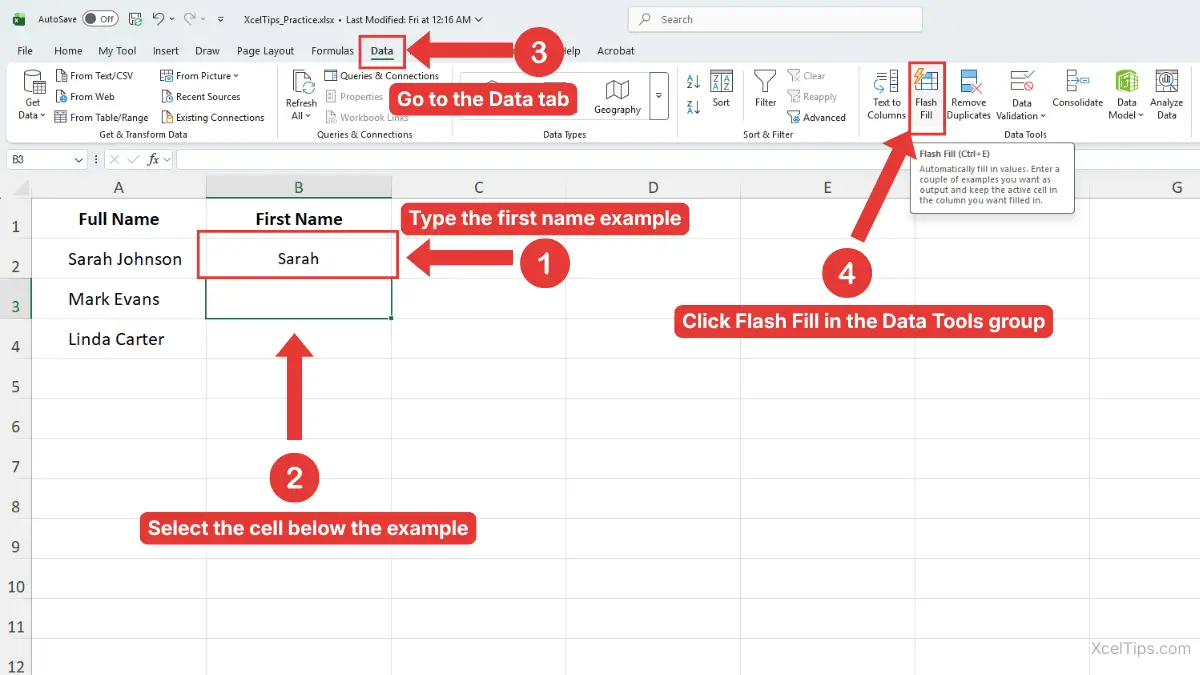
The Ribbon path is: Data tab → Data Tools group → Flash Fill. Use this method if you prefer clicking the command instead of remembering the keyboard shortcut.
- Type the first result beside your original data. In this example, type
Sarahin cellB2. - Click the next blank cell below your example. In this example, click cell
B3. - Go to the Data tab.
- In the Data Tools group, click Flash Fill.
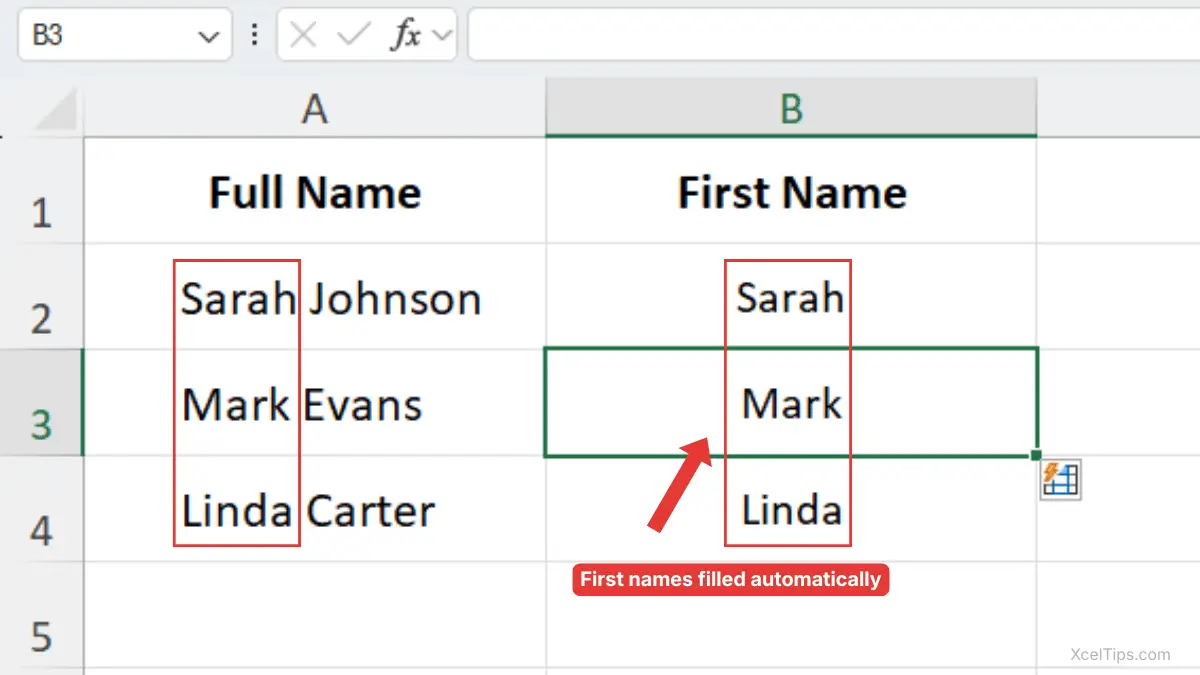
After you click Flash Fill, Excel fills the remaining first names based on the example you typed.
Beginner Tip:
Before clicking Flash Fill, make sure the active cell is directly below your example result. In this example, B3 should be selected.
Use the Flash Fill Keyboard Shortcut
The fastest way to use Flash Fill is with the keyboard shortcut. This method is helpful when you already understand the pattern and want Excel to fill the results quickly.
Based on the same example, follow these steps:
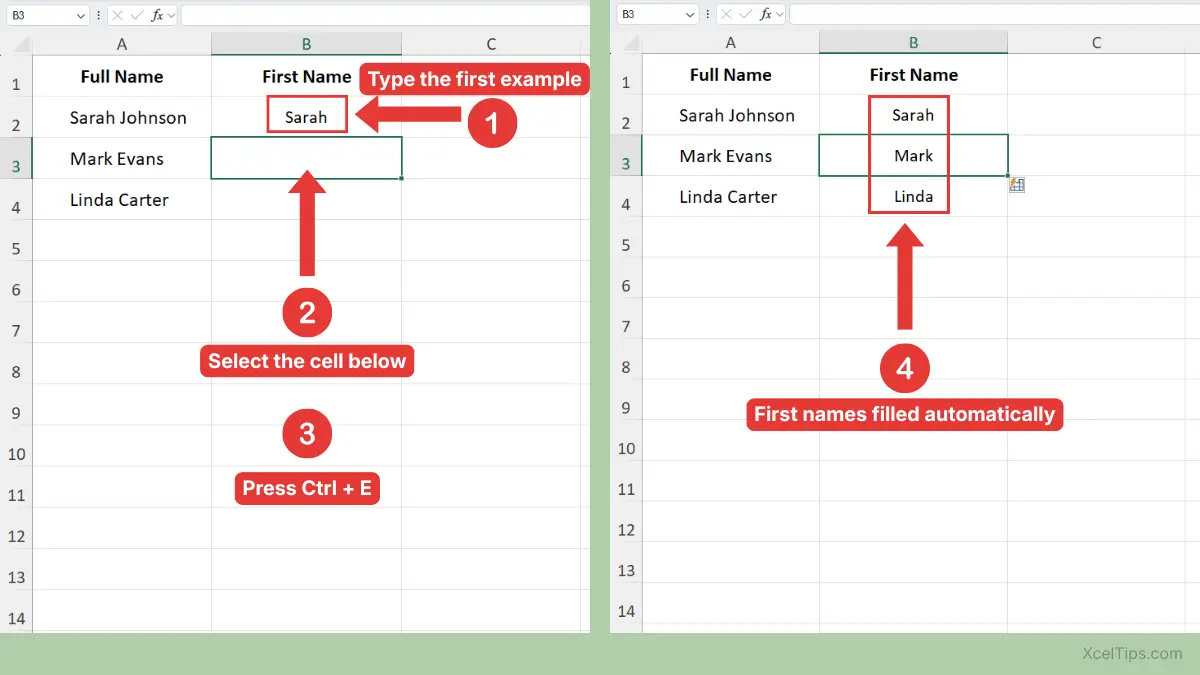
- Type the first result you want in
B2, such asSarah, then press Enter. - Click cell
B3, directly below your example. This tells Excel where the filled results should continue. - Press Ctrl + E.
- Excel fills the rest of the column using the same pattern.
The Flash Fill keyboard shortcut follows the same pattern as the Ribbon method, but it starts the fill with Ctrl + E. Excel looks at your example in B2 and compares it with the source value in A2. Then it applies the same pattern to the rows below.
Beginner Warning:
Do not leave blank rows inside the data range if you want Flash Fill to continue smoothly. Blank rows can make it harder for Excel to detect the full pattern.
After you know the basic command, the next step is learning where Flash Fill is actually useful.
Common Ways to Use Excel Flash Fill
Flash Fill is most helpful when your data has a repeated pattern. It can handle many beginner cleanup tasks that would otherwise require formulas or manual typing.
The examples below show practical ways to use excel Flash Fill in normal worksheets. You do not need to memorize every example; focus on the pattern that Excel is learning from your first result.
Split First Names from Full Names
One of the most common uses of Flash Fill is separating first names from full names. This is useful when you want to personalize a list or organize contact information.
Suppose column A contains full names.
| Full Name | First Name |
|---|---|
| Sarah Johnson | Sarah |
| Mark Evans | |
| Linda Carter |
To use Flash Fill:
- Type
Sarahin the first result cell. - Click the cell below it.
- Press Ctrl + E.
Excel fills the rest of the first names.
This is a simple example because the first name appears before the space in each full name. Flash Fill can usually detect that pattern clearly.
Extract Last Names from Full Names
Flash Fill can also extract last names. The process is almost the same, but your example tells Excel to keep the text after the space.
For example:
| Full Name | Last Name |
|---|---|
| Sarah Johnson | Johnson |
| Mark Evans | |
| Linda Carter |
To extract last names:
- Type
Johnsonbeside the first full name. - Click the next blank cell below it.
- Press Ctrl + E.
Excel fills Evans and Carter in the rows below.
Beginner Warning:
Flash Fill may struggle if some names have middle names, extra spaces, or different formats. For example, “Sarah Anne Johnson” has a different structure from “Mark Evans.”
Combine First and Last Names
Flash Fill can also combine values from two columns. This is useful when first names and last names are separated, but you want a full name column.
Suppose column A has first names and column B has last names.
| First Name | Last Name | Full Name |
|---|---|---|
| Sarah | Johnson | Sarah Johnson |
| Mark | Evans | |
| Linda | Carter |
To combine the names:
- Type
Sarah Johnsonin the first result cell. - Click the next blank cell below.
- Press Ctrl + E.
Excel fills the rest of the full names by following the same structure.
This is useful for quick one-time cleanup. If the original first or last names may change later, a formula would be better because Flash Fill results do not update automatically.
Extract Usernames from Email Addresses
Flash Fill is useful when you need part of an email address. For example, you may want only the username before the @ symbol.
| Email Address | Username |
|---|---|
| sarah.johnson [at] example.com | sarah.johnson |
| mark.evans [at] example.com | |
| linda.carter [at] example.com |
To extract usernames:
- Type
sarah.johnsonbeside the first email address. - Click the cell below it.
- Press Ctrl + E.
Excel recognizes that you want the text before the @ symbol.
This is a good example of how Flash Fill can clean data without teaching formulas in the middle of a beginner worksheet task.
Reformat Phone Numbers
Flash Fill can also help make phone numbers look consistent. This is useful when numbers were typed in different ways and you want a cleaner display.
For example:
| Phone Number | Formatted Phone |
|---|---|
| 5551234567 | 555-123-4567 |
| 5559876543 | |
| 5552221111 |
To reformat the numbers:
- Type
555-123-4567beside the first phone number. - Click the next blank cell.
- Press Ctrl + E.
Excel fills the remaining phone numbers using the same format.
Beginner Warning:
Flash Fill creates the formatted result as a value. It does not change the number format setting of the original cells.
Some Flash Fill examples look similar to AutoFill, so it is important to understand the difference.
Flash Fill vs Fill Handle
Flash Fill and the fill handle can both fill data down a column, but they do not do the same job. Knowing the difference helps beginners choose the right tool and avoid confusing results.
The fill handle usually copies values, extends series, or copies formulas. Flash Fill creates new values by recognizing a pattern from your example.
The table below shows which tool to choose depending on what you want Excel to do.
| Feature | Best Used For | Example |
|---|---|---|
| Flash Fill | Creating values from a pattern | Extract first names from full names |
| Fill Handle | Copying, filling series, or copying formulas | Fill months, numbers, or formulas |
| AutoFill Options | Adjusting how copied or filled data behaves | Copy cells or fill series |
| Formulas | Creating results that update automatically | Combine first and last names with a formula |
For example, if you type January and drag the fill handle, Excel may continue with February, March, and April. But if you type Sarah beside Sarah Johnson, Flash Fill can extract first names from the full names.
For a full explanation of that separate tool, read how to use the fill handle in Excel.
Beginner Tip:
Use Flash Fill when you are showing Excel a text pattern. Use the fill handle when you are copying, extending a list, or repeating a formula.
Once the difference is clear, it becomes easier to decide when Flash Fill is the right tool.
When Should You Use Flash Fill?
Flash Fill is best for quick data cleanup tasks where the pattern is clear. It is especially helpful when you need to fix a list once and do not need the result to update later.
For beginners, the main question is not just how to do Flash Fill in Excel, but when it makes sense to use it. Flash Fill is powerful, but it is not always the best option.
Use Flash Fill when:
- You need to split names, codes, or email addresses.
- You want to combine text from nearby columns.
- You need to reformat data quickly.
- Your data follows a consistent pattern.
- You want a one-time cleanup result.
- You do not want to write a formula.
Avoid Flash Fill when:
- Your source data will change later.
- You need automatic updates.
- The pattern is inconsistent.
- You need a repeatable cleanup process for many files.
- The task belongs better to formulas.
For example, if you are cleaning a small contact list one time, Flash Fill is a great choice. If you are building a workbook that updates every week, formulas may be safer because they recalculate automatically.
Flash Fill also connects well with the previous cleanup lesson. If your data needs to be split by commas, tabs, or other clear separators, Text to Columns may be better. If the pattern is more flexible, Flash Fill may be faster.
If you need to change the same word, number, or text value across many cells, use how to Find and Replace in Excel instead of Flash Fill.
Even when Flash Fill is the right tool, beginners sometimes run into errors or unexpected results.
Why Flash Fill May Not Work
Flash Fill is useful, but it depends on pattern recognition. If Excel cannot understand your example, it may fill the wrong values or do nothing at all.
This section explains the most common reasons Flash Fill fails. Checking these issues can save you time before you assume the feature is broken.
The Pattern Is Not Clear Enough
Flash Fill needs a clear example. If your first example does not show enough of the pattern, Excel may not know what to do.
For example, if some full names have two words and others have three words, Excel may not correctly identify the first name, middle name, or last name.
To fix this:
- Undo the incorrect Flash Fill result.
- Type one or two more examples manually.
- Select the next blank cell.
- Press Ctrl + E again.
More examples can help Excel understand the pattern better.
The Data Has Blank Rows
Blank rows can interrupt Flash Fill. Excel may stop early because it thinks your list has ended.
To fix this, remove unnecessary blank rows or keep your data in one continuous list before using Flash Fill.
Beginner Tip:
Before using Flash Fill, scan the source column quickly. A clean, continuous list gives Excel a better chance of filling correctly.
Flash Fill Is Turned Off
In most Excel 365 installations, Flash Fill is available by default. However, if it does not work automatically or the command seems unavailable, the setting may be turned off.
To check the setting:
- Go to the File tab.
- Click Options.
- Click Advanced.
- Find the Editing options section.
- Make sure Automatically Flash Fill is checked.
- Click OK.
This setting controls automatic Flash Fill suggestions. You can still use the manual command from the Data tab when needed.
The Result Needs a Formula Instead
Flash Fill results are not formulas. This means they will not update if the original data changes.
For example, if Flash Fill extracts Sarah from Sarah Johnson, and later you change the full name to Emma Johnson, the Flash Fill result will still say Sarah unless you run Flash Fill again.
Beginner Warning:
Do not rely on Flash Fill for workbooks where the source data changes often. Use formulas when the result must stay connected to the original cells.
After learning the common problems, it helps to practice with a small dataset.
Quick Practice
Practice helps you understand Flash Fill faster than reading alone. Use a small sample worksheet so you can test the feature without worrying about important data.
Create a simple worksheet like this:
| Full Name | Email Address | First Name | Username |
|---|---|---|---|
| Sarah Johnson | sarah.johnson [at] example.com | ||
| Mark Evans | mark.evans [at] example.com | ||
| Linda Carter | linda.carter [at] example.com |
Open a blank workbook such as XcelTips_Practice.xlsx and create this small practice table.
- In the
First Namecolumn, typeSarahin the first row. - Click the cell below it and press Ctrl + E.
- In the
Usernamecolumn, typesarah.johnsonin the first row. - Click the cell below it and press Ctrl + E.
- Review the filled results carefully.
This practice shows two common Flash Fill patterns: extracting text before a space and extracting text before the @ symbol.
Beginner Tip:
Always review Flash Fill results before using them in a real report. Excel can make a smart guess, but you are still responsible for checking the final data.
Once you have practiced, the main ideas are easy to remember.
Key Takeaways
Flash Fill is a beginner-friendly way to clean data by example. It works best when your data has a clear pattern and you need a quick one-time result.
Here are the main points to remember:
- Flash Fill uses examples to detect patterns.
- The fastest shortcut is Ctrl + E.
- The Ribbon command is under Data tab → Data Tools group → Flash Fill.
- Flash Fill can split, combine, extract, and reformat data.
- Flash Fill results are static values, not formulas.
- If Excel guesses wrong, undo the result and provide a clearer example.
- Flash Fill is best for quick cleanup, not automatic updating.
These points cover the core skill, but beginners often have a few practical questions before using Flash Fill confidently.
Frequently Asked Questions (FAQs)
How do I use Flash Fill in Excel?
Type the result you want in the first cell beside your data, click the next blank cell below it, then press Ctrl + E. You can also use Data tab → Data Tools group → Flash Fill.
What is Flash Fill in Excel used for?
Flash Fill is used to create new values from a pattern. Beginners often use it to split names, combine names, extract usernames from email addresses, or reformat phone numbers.
How do I flash fill in Excel without using the shortcut?
Type your first example, click the next blank cell, then go to Data tab → Data Tools group → Flash Fill. This does the same thing as pressing Ctrl + E.
Why is Flash Fill not working?
Flash Fill may not work if the pattern is unclear, the data has blank rows, or Excel needs more examples. Try typing a second example, then run Flash Fill again.
Does Flash Fill update automatically?
No. Flash Fill creates normal values, not formulas. If your original data changes later, the Flash Fill results will not update automatically.
Is Flash Fill the same as AutoFill?
No. AutoFill and the fill handle are usually used to copy values, extend lists, or copy formulas. Flash Fill creates new values by recognizing a pattern from your example.
These common questions cover the main points beginners usually need to know before using Flash Fill. To wrap up, let’s review why this tool is useful and how to keep practicing it in Excel.
Conclusion
Learning how to use flash fill in excel gives you a fast way to clean and reshape data without formulas. You can split names, combine text, extract parts of email addresses, and reformat values by typing one clear example and using Ctrl + E.
For best results, use Flash Fill on clean, consistent data and always review the filled results. It is a simple but powerful tool for beginner data cleanup.
This lesson is part of the Beginner Learning Path, a structured series designed to help you learn Microsoft Excel step by step from the basics.
← Previous Lesson
How to Remove Duplicate Values in Excel: Step-by-Step Tutorial